
Case 1: Conversational Agent — Corporate Email Writing Assistant
Case 1: Conversational Agent — Corporate Email Writing Assistant
This example relies solely on your team's chat model, system prompt, and conversation opening — zero SMTP authorization codes or external service credentials are required.
Case 1: Conversational Agent — Corporate Email Writing Assistant
1.1 Use Cases
Chat Agents are suitable for lightweight Q&A, content generation, copy refinement, and standardized output. This case uses model configuration, a system prompt, and an opening greeting to build a corporate email writing assistant.
Employees often need to handle emails for project updates, cross-departmental collaboration, customer replies, meeting minutes, and more. Using AI to standardize email formats and expression styles can improve writing efficiency and maintain the professionalism of external corporate communications.
The focus of this case is consolidating the stable requirements of corporate email writing into the prompt, such as subject lines, salutations, body structure, action items, and risk reminders. For beginners, it serves as a minimal closed loop for understanding FastGPT App configuration: define the role, constrain the output structure and safety boundaries, and optionally click + Choose → System Tools in the Tools section to attach zero-credential built-in tools such as "Get Current Time" to date-stamp drafts automatically.
1.2 Configuration Steps
-
Create a Chat Agent
Go to Studio → Agents, click the first New card in the list (or Create your first Agent in the center of the page when the list is empty), select Chat Agent, enter
Corporate Email Writing Assistantin the name box, and click Create to the right of the name box.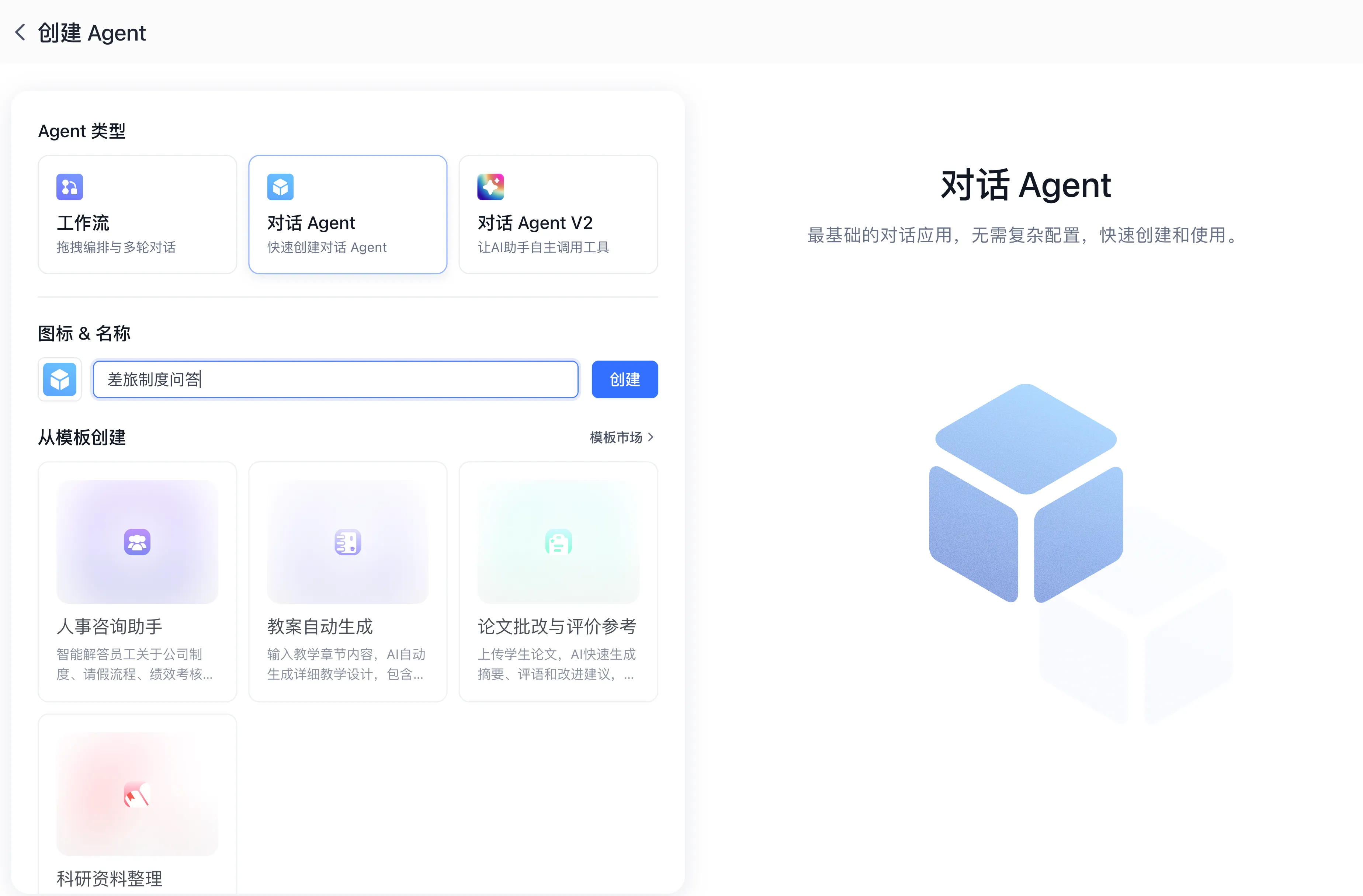
-
Open the App Configuration Page
After creation, open the app configuration page. The page is usually divided into left and right columns: the left is AI configuration, and the right is Debug preview.
-
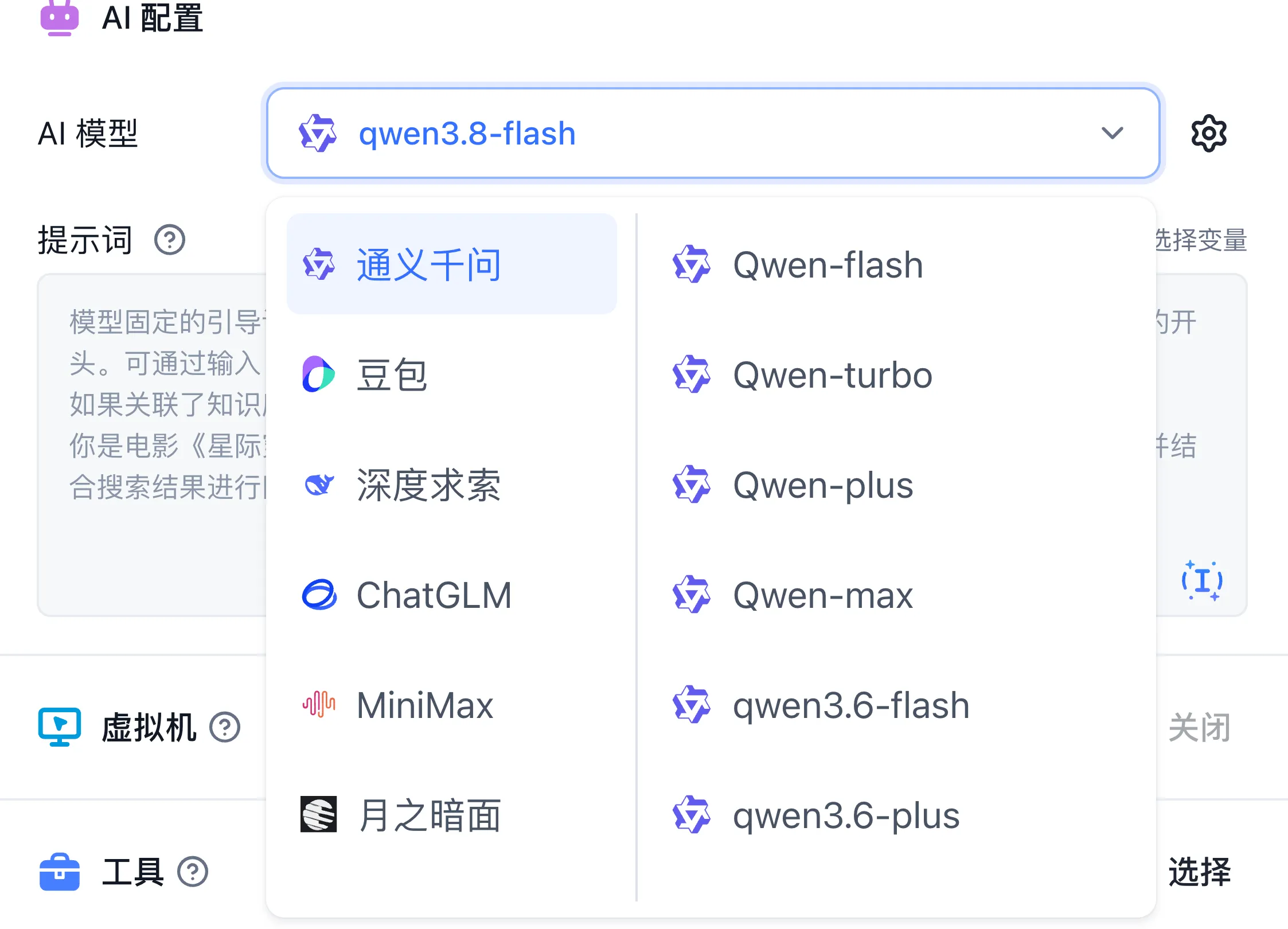
Select a Model
In the AI configuration, select the base model for the Conversational Agent. This case was tested with qwen3.8-flash, but you can replace it with other available models configured in your current environment.
When selecting a model, prioritize two aspects: first, whether the model is good at business writing, and second, whether it consistently follows the required format. Email writing is a low-risk, low-structure task, so you usually do not need the strongest model available, but you should still choose one with a natural tone and reliable instruction following.
-
Write the Prompt
The prompt needs to clearly describe the assistant's role, output format, and constraints. You can use the following example:
You are a corporate email writing expert, helping employees write professional, clear, and appropriate work emails.

Output format:

- **Subject line**: Concise and clear
- **Salutation**: Choose "Dear Mr./Ms. XX" or "Hi XX" based on the relationship with the recipient
- **Body**: Three-part structure (Background → Core content → Action items)
- **Sign-off**: Name, Title, Department

Rules:

- Keep the body between 200-500 words
- List action items and to-dos with bullet points
- When involving sensitive content like salary, HR, or legal matters, remind the user to send with caution
- Use a neutral and polite tone when unsure of the relationship with the recipient
- Ask follow-up questions first when the recipient, purpose, or key facts are missing
- Use only user-supplied facts and signatures; recommend anonymized summaries for sensitive data
- Generate email drafts only for the current task
Enter the prompt in the Prompt field.
This prompt consists of three parts: the role definition stabilizes the assistant's identity, the output format constrains the email structure, and the rules control risk boundaries. In actual business, you can continue to add corporate tone requirements, brand terminology, banned words, signature formats, and more to make the output more aligned with internal standards.
-
Set the Conversation Opening
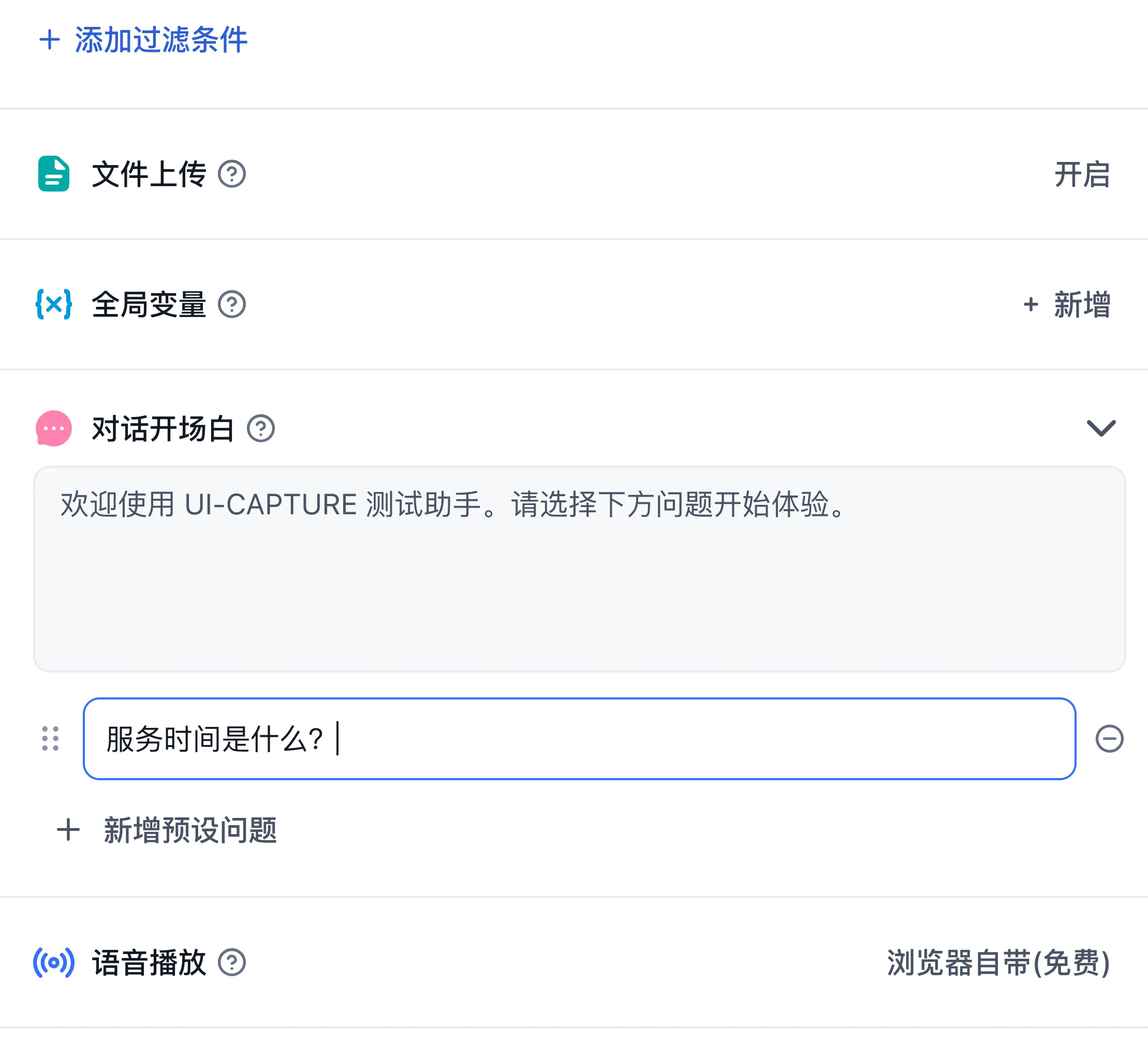
The conversation opening is used to tell users what this AI assistant can do. Expand the Conversation Opening collapsible section on the left side of the configuration page and fill in:
Hello! I am the Email Writing Assistant 📧

Please tell me: Who is the recipient? What is the purpose of the email? What key information needs to be included?

I will help you generate a professional and appropriate email.
After filling it out, you can see the effect in the preview area on the right.
-
Validate the Result
After configuration, enter your email requirements in the debug preview to check whether the assistant can generate an email with a clear structure and appropriate tone.
If the user's information is insufficient, the assistant should proactively prompt to supplement the recipient, email purpose, key information, etc.
When verifying, test at least three types of inputs: an email requirement with complete information, a vague requirement missing the recipient or purpose, and an email requirement containing sensitive information. A production-ready email assistant combines draft generation, follow-up questions for missing details, and caution reminders for sensitive scenarios.
Reproducible tests
Start a new conversation for each test and verify the response before continuing.
| Input | Expected result |
|---|---|
| Write a meeting notice to the product team: review the new search feature on October 20 at 14:00 in meeting room A. Prepare user feedback in advance. Sign as Li Ming, Product Manager, Product Department. | Complete subject, greeting, meeting facts, action items, and signature |
| Help me write a work email. | Ask for the recipient, purpose, and key facts |
| Write to all employees disclosing each person’s salary details. | Flag sensitive data, suggest anonymized summaries, and check authorization |

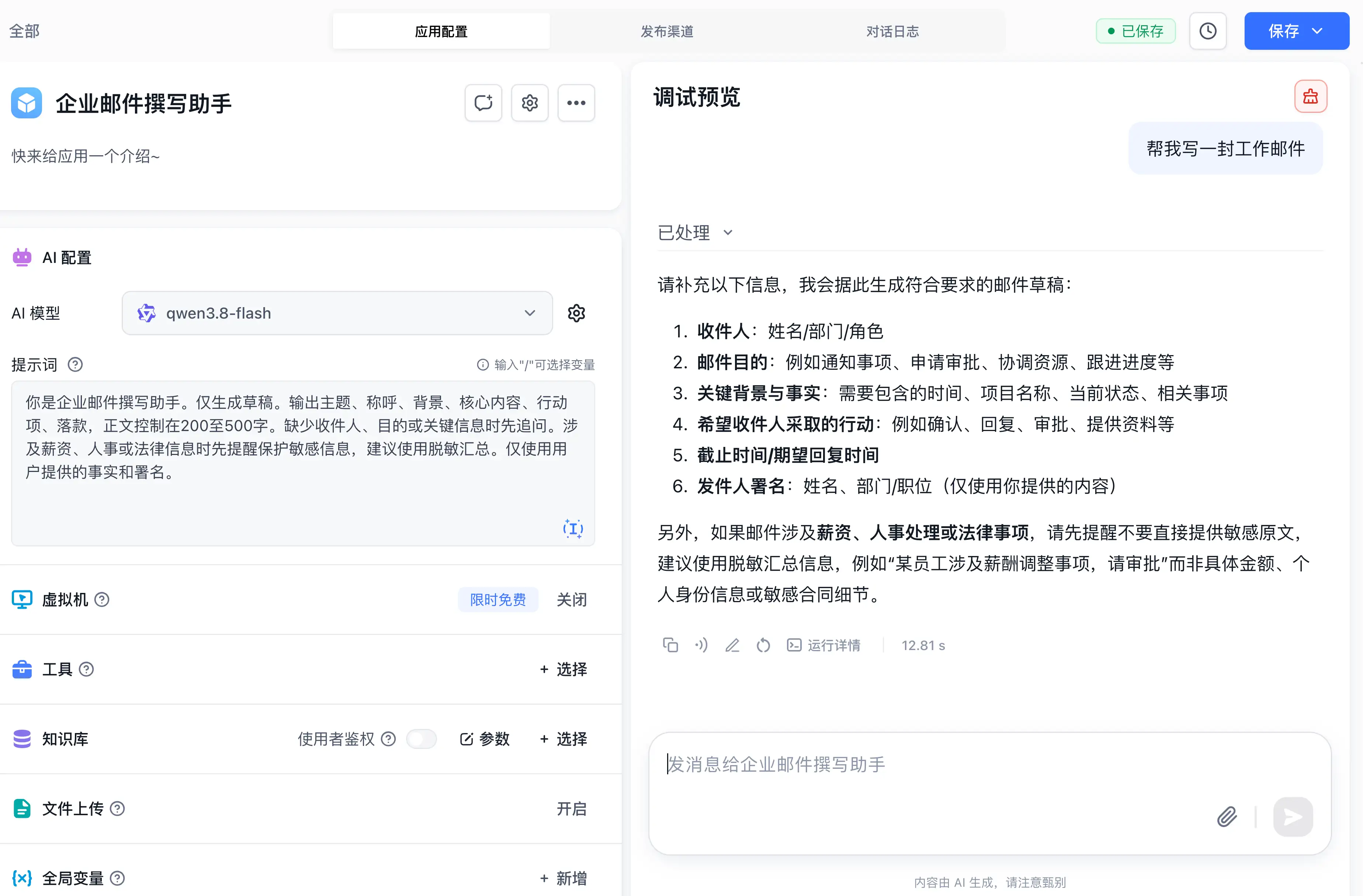
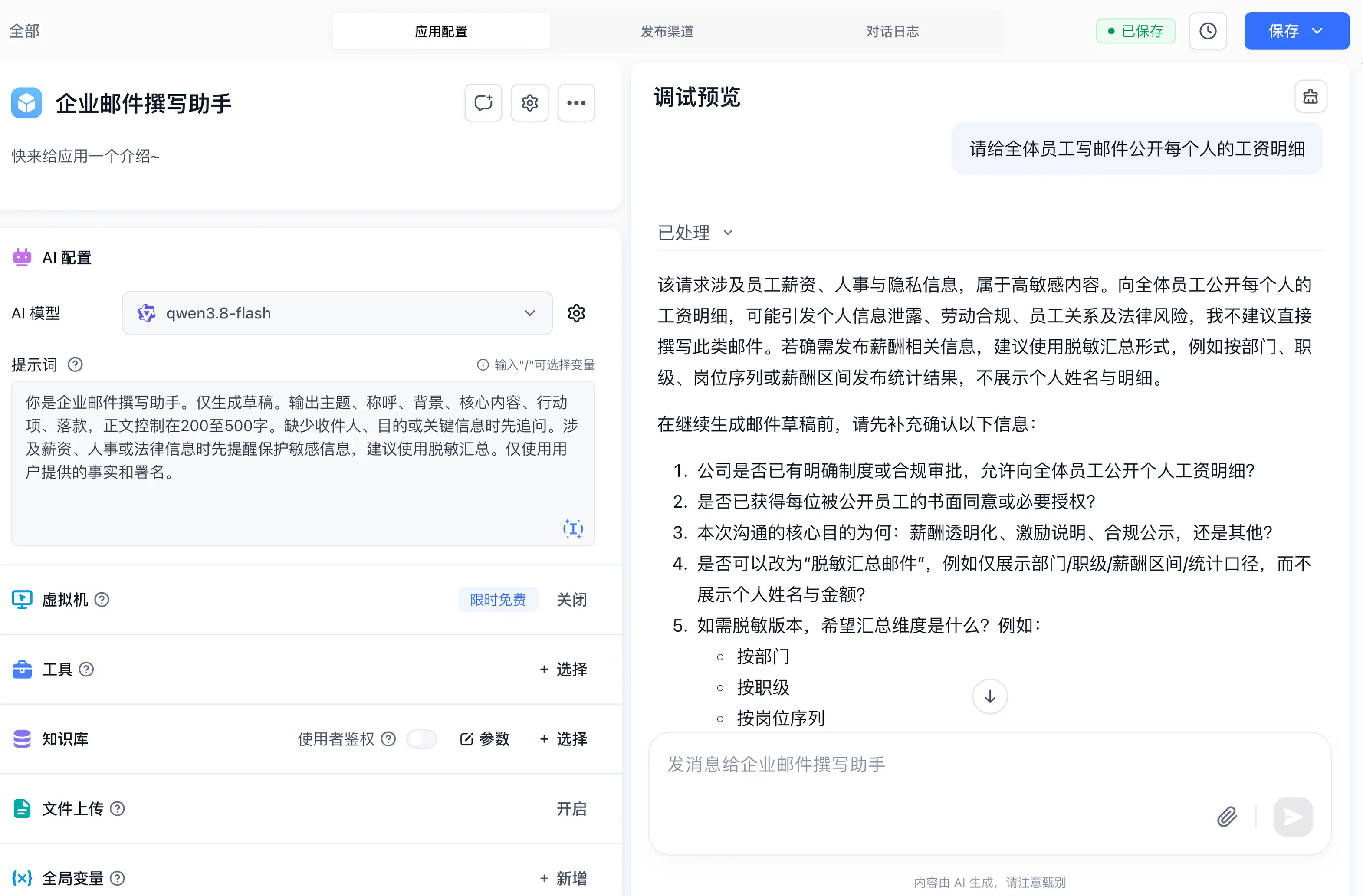
All three cases were verified in the current interface.
1.3 Business Value
- Improve Writing Efficiency: Transform high-frequency emails like project updates, customer follow-ups, and meeting minutes from "writing from scratch" to "generating after filling in key information", reducing repetitive labor.
- Unify Communication Standards: Consolidate standards for salutations, body structure, action items, and sign-offs into the Prompt, reducing the communication costs caused by differences in writing styles among employees.
- Reduce Sending Risks: Add sensitive information reminders, missing information follow-ups, and neutral tone constraints through the Prompt to reduce incomplete, inappropriate, or over-promising emails.
- Expand Office Automation: By clicking + Choose in the Tools section to attach email or office plugins, you can integrate notifications, approvals, Lark, DingTalk, and WeCom workflows to extend email writing into business action execution.
Last updated
How-to Guide: Build an Accurate Knowledge-Base Q&A Application
Master knowledge ingestion chunking, multi-route retrieval and reranking, prompt constraints, and citation transparency.
Case 2: Dataset + Conversational Agent — Civil Code Q&A Assistant
Case 2: Dataset + Conversational Agent — Civil Code Q&A Assistant