
Tools and Skills
Create and Reuse Workflow Tools
Package a visual workflow with a typed input/output contract so Chat Agents, Agent V2 apps, and other workflows can invoke it as a tool.
A Workflow Tool packages a multi-step canvas flow—combining HTTP requests, knowledge retrieval, code execution, or model reasoning—behind a strict input and output schema so it can be shared and called across applications in your team.
Use Cases and Prerequisites
- Use cases: Encapsulate multi-step business operations (such as querying an API, transforming data in a sandbox, and formatting a summary) into a single callable tool for Chat Agent V2 or a workflow Tool Call node.
- Permissions: Tool creation and publishing permission in the active team, plus read/use access from the calling application.
Step 1: Create a Workflow Tool and Declare Inputs
- Go to Studio → My Tools, click the first Create card in the list, and select Workflow Tool (the upper-right toolbar provides Batch Manage, + Folder, and Import).
- The canvas initializes with two contract nodes: Plugin start (
pluginInput) and Custom Plugin output (pluginOutput), which contain the Custom Inputs and Custom Outputs sections. - Click New in the Custom Inputs section of the Plugin start node to declare each parameter:
| Setting | Description |
|---|---|
| Field key | Alphanumeric identifier (such as orderId or queryDate) used in the JSON call payload |
| Label | Human-readable label shown in the UI |
| Value type | String, Number, Boolean, Object, typed arrays, or Select Dataset (allowing the caller to pass target knowledge bases) |
| Description | Clear instructions and format examples; language models read this description to extract and populate arguments during Function Calling |
| Required | Enforces that callers or models must supply the parameter |
Step 2: Orchestrate Nodes and Bind Outputs
- Add processing nodes (such as HTTP Request, Dataset Search, Code Run, or AI Chat) to the canvas and connect the execution handle from Plugin start to your first processing step.
- Reference the declared input fields in your processing nodes using the variable picker.
- Connect the final processing step to Custom Plugin output (
pluginOutput). - Click New in the Custom Outputs section of Custom Plugin output, define return field names (such as
resultSummaryorstatusCode), and bind each field to the corresponding upstream node output. See Call Application and Workflow Tool I/O Nodes for node reference details.
Step 3: Debug Independently and Publish
- Click Run in the top-right corner, supply known test values in the input form, and run the flow.
- Expand run details to verify that Plugin start values were received, intermediate nodes succeeded, and Custom Plugin output returned the expected fields.
- Click Save and Publish in the top-right corner. Calling applications always execute the active Published version of the workflow tool.
Step 4: Attach and Invoke in Applications
- In Chat Agent / Chat Agent V2: In the App's Tools section, click + Choose and select the published workflow tool. If any input field is configured as a static caller setting (such as a fixed secret or Dataset scope), fill it in on the attached tool card.
- Static call in a Workflow: Add the workflow tool from Add Node → Tools as a standard step on the canvas and map upstream variables to its input ports.
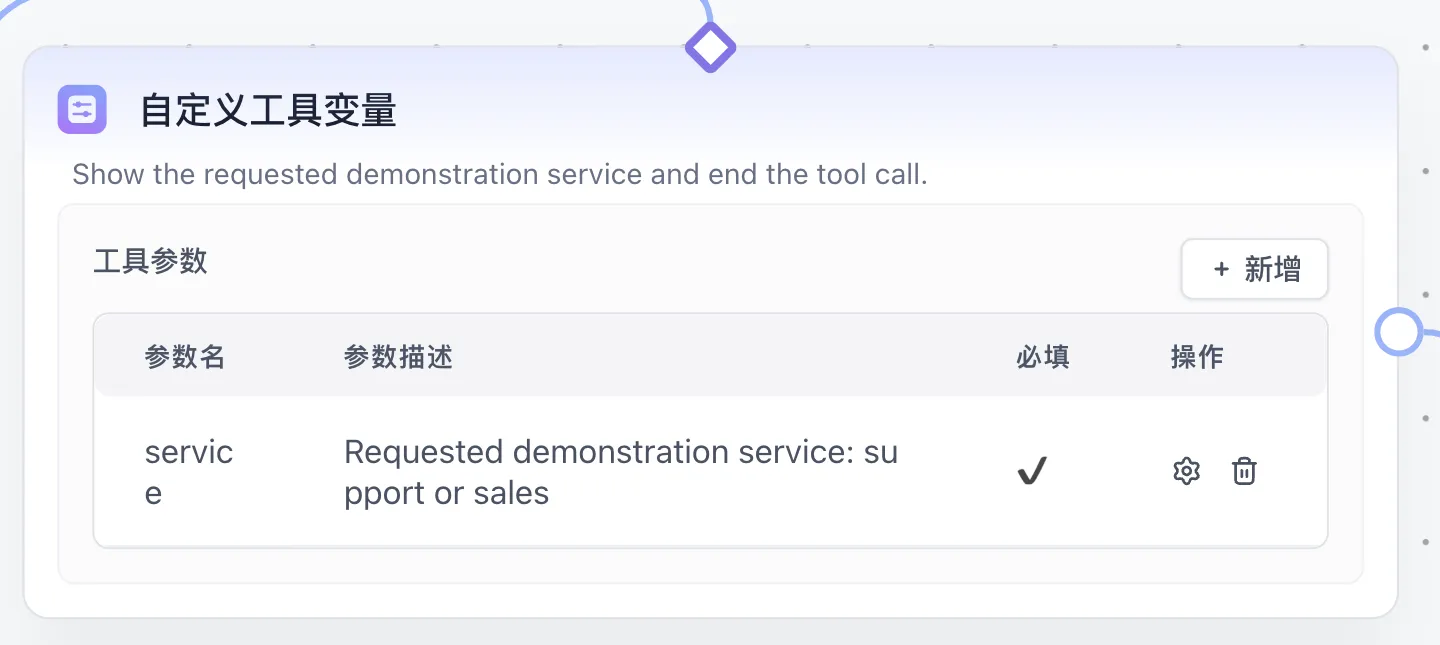
- Dynamic call via a Tool Call node: Connect the workflow tool below a Tool Call node using the blue diamond tool handle.
Troubleshooting
| Symptom | Check |
|---|---|
| Model omits arguments or passes invalid formats | Refine the tool description and parameter descriptions in Custom Inputs with explicit format examples (such as YYYY-MM-DD) |
| Tool runs but the Agent receives an empty return value | Verify that internal node outputs are wired into Custom Plugin output (pluginOutput) and republish |
| Internal tool edits do not take effect in callers | Click Save and Publish inside the workflow tool editor to update the published snapshot |
Next: Compare tool types in Choose Tools and Skills or configure HTTP Tool Sets.
Edit on GitHub
Last updated