
Configure scheduled triggers
Set execution time, timezone, and default input, then verify the published schedule.
Scheduled triggers start a Workflow automatically according to a recurring schedule, timezone, and default prompt—ideal for daily briefings, periodic inspections, and automated reporting.
Prerequisites and Activation Rules
- Permissions: Application editing and publishing permissions, plus access to the associated models, knowledge bases, and tools.
- Quota: Each scheduled execution consumes team AI points according to actual model token and tool usage.
- Publication boundary: Schedules are bound to the Published version. Changing the schedule in a draft takes effect only after you click Save and Publish, which recalculates and registers the next execution timestamp (
scheduledTriggerNextTime).
Configure and publish
- Scheduled runs are available only for Workflows. Open the target Workflow editor, click System Config → Scheduled run settings on the left, and enable scheduled execution.
- Configure the schedule parameters:
- Run time: Choose Run Daily / Run Weekly / Run Monthly (days 1–28 for monthly) with an on-the-hour time, or choose Run at Intervals (every 1, 2, 3, 4, 6, or 12 hours).
- Time Zone: Select the target business timezone (such as
Asia/ShanghaiorUTC). - Default Question: Enter the instruction text passed into
userChatInputwhen the schedule fires (for example,Summarize new support tickets from the past 24 hours).
- Run the same default prompt manually in the debug preview pane first to confirm model output and tool calls.
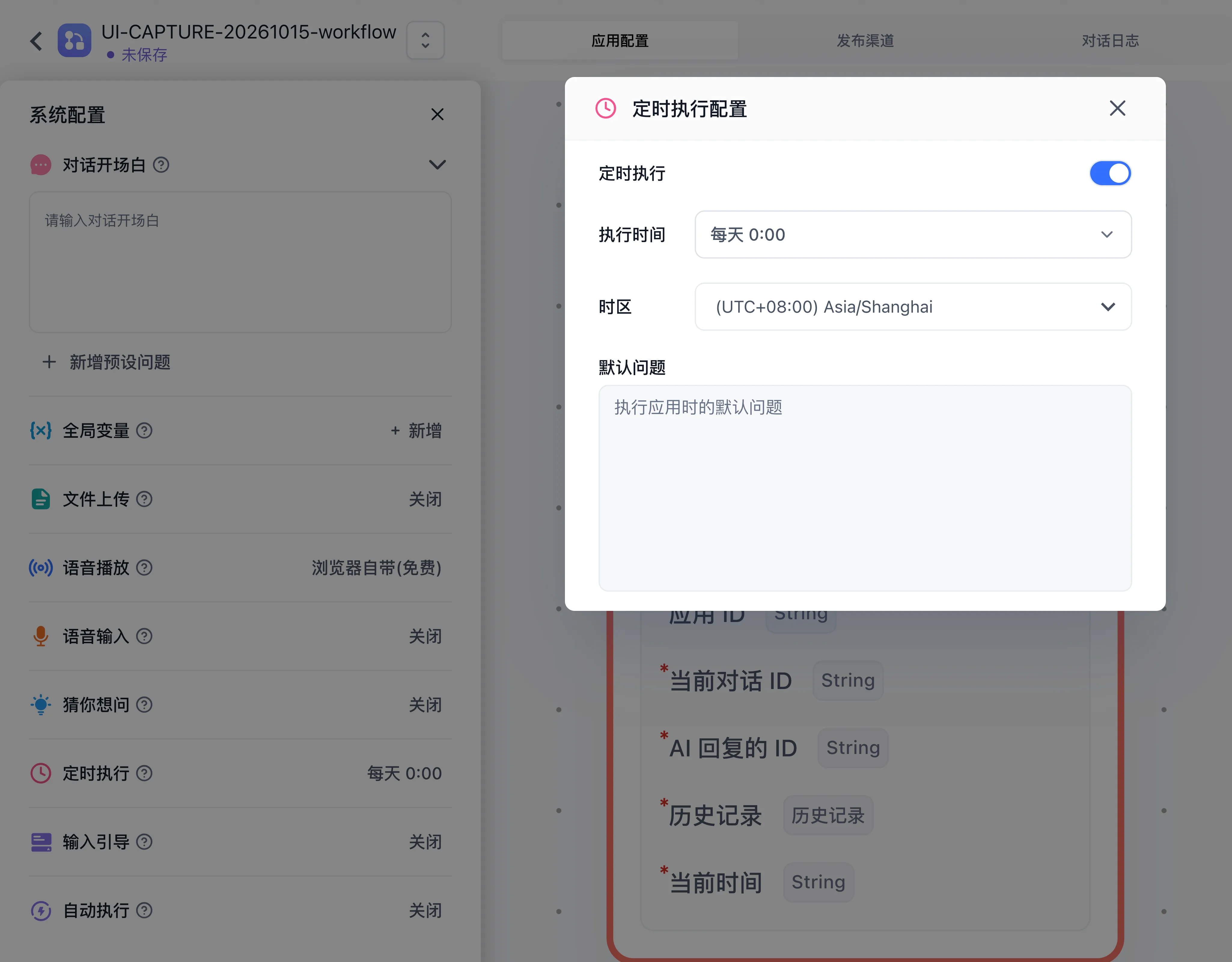
- Click Save and Publish in the top-right corner to activate the schedule.
- After the scheduled time, open Conversation Logs, filter by the Scheduled run source, and inspect the input, tool calls, and output.
To disable it, switch scheduled execution off and publish that configuration, then verify that the plan was removed. Scheduled tool calls can have real external effects; verify timing and output with a read-only task first.
Troubleshoot
| Symptom | Check and Resolution |
|---|---|
| Task did not fire at the expected time | Confirm the schedule change was published with Save and Publish, verify the selected timezone, and check team AI point balance |
| Scheduled run started but failed mid-flow | Ensure any required global variables have default values, as unattended runs have no pre-chat user form |
| Duplicate external writes or notifications | Check the run time setting, node retry settings, and idempotency handling on the external API |
Next: log troubleshooting and published versions.
Last updated
Input Guide
Configure input autocomplete suggestions and prompt lexicon guidance in FastGPT chat applications to help users ask effective questions.
Chat Agent V2 Dedicated Configuration
Master authoring system prompts, attaching toolsets, configuring virtual machine sandboxes, and mounting skills in Chat Agent V2.