
Use applications through the portal
Configure portal access and response visibility, then verify the experience as a user.
Click Portal in the main left navigation bar to open the unified conversation workspace for signed-in team members, with Home (commercial edition), All Apps, and the Recently Used app list in the left pane, plus conversation history. The published App version governs runtime logic (such as file uploads, which follow the File Upload setting configured in the App's AI or System settings), while Portal visibility settings control how much execution detail and Dataset citation depth members can inspect.
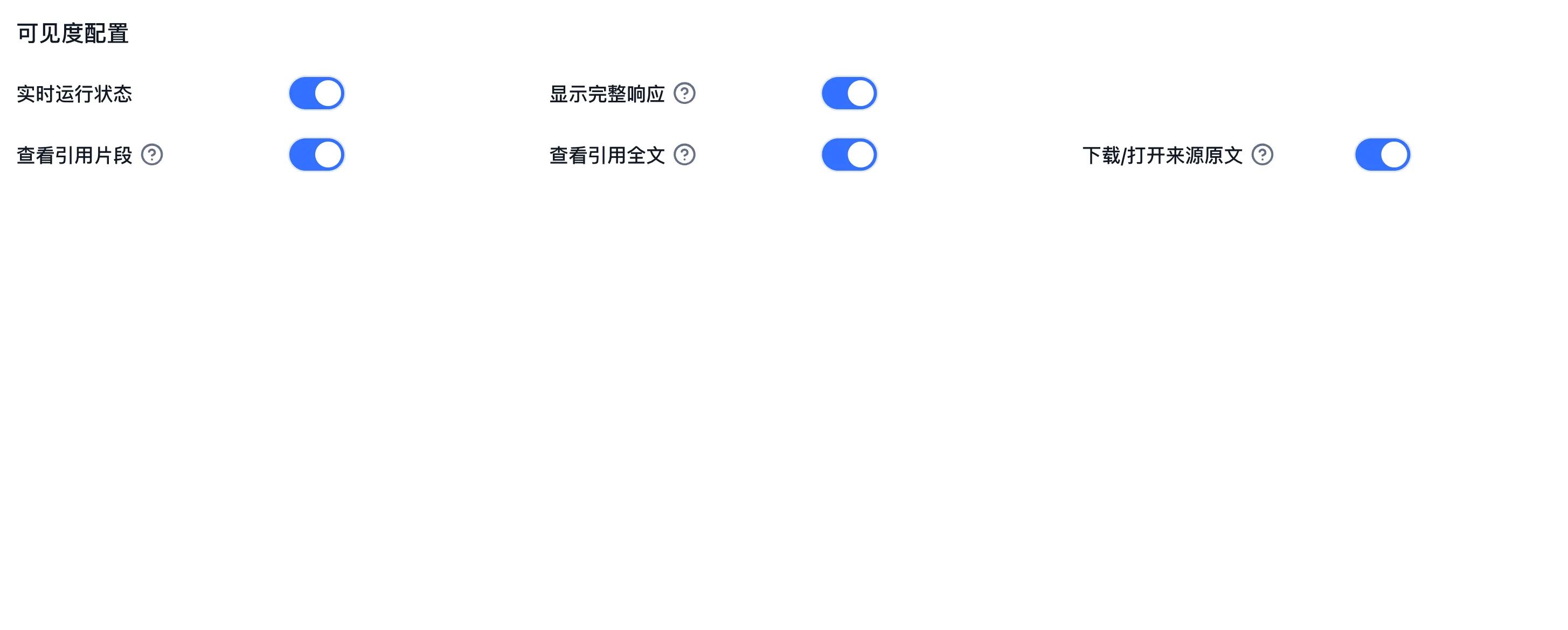
Portal Visibility Settings Reference
| Visibility Toggle | Visible to Signed-In Members When Enabled | When to Disable |
|---|---|---|
| Real-time running status | Live node progress, tool calls, and Agent plan cards during generation | Present only the final response text without exposing workflow steps |
| Show Full Response | Access to Run Details showing per-node response flows, inputs, outputs, and latency | Hide intermediate prompts and internal node payloads from ordinary users |
| View citation snippets | Citation badges and matched Dataset snippets below the answer | Deliver answers without displaying retrieved chunk cards |
| View full citation | Access to the reader showing the complete file text containing the citation | Allow snippet verification while keeping surrounding document sections restricted |
| Download/open source original text | Download link for the original Dataset file (such as PDF, DOCX, or XLSX) or link to the source website | Keep confidential source files view-only online |
Configure and verify
- Open Application → Publishing Channels → Portal and copy the displayed access link.
- Configure Real-time running status, Show Full Response, View citation snippets, View full citation, and Download/open source original text according to the intended audience.
- After publishing application configuration changes, open the link as a test member with application access and start a new conversation.
- Check the answer and the execution and citation information visible to that member against your settings.
Portal Navigation and Deep Links
- Workspace navigation: The left pane contains Home (commercial edition), All Apps, and the Recently Used list; All Apps has Favourite Apps and Team Apps tabs.
- Direct URL parameters: Open a specific application directly via
/chat?appId=<appId>, or pass thepanequery parameter to open a sidebar page:hfor Home (commercial edition),aafor All Apps,rafor Recently Used, andsfor Settings. - Permission checks: When a member encounters an access error, verify the active team, application collaborator permissions (Team Permissions), and collection-level permissions on referenced knowledge bases.
Next: published versions, team permissions, and conversation logs.
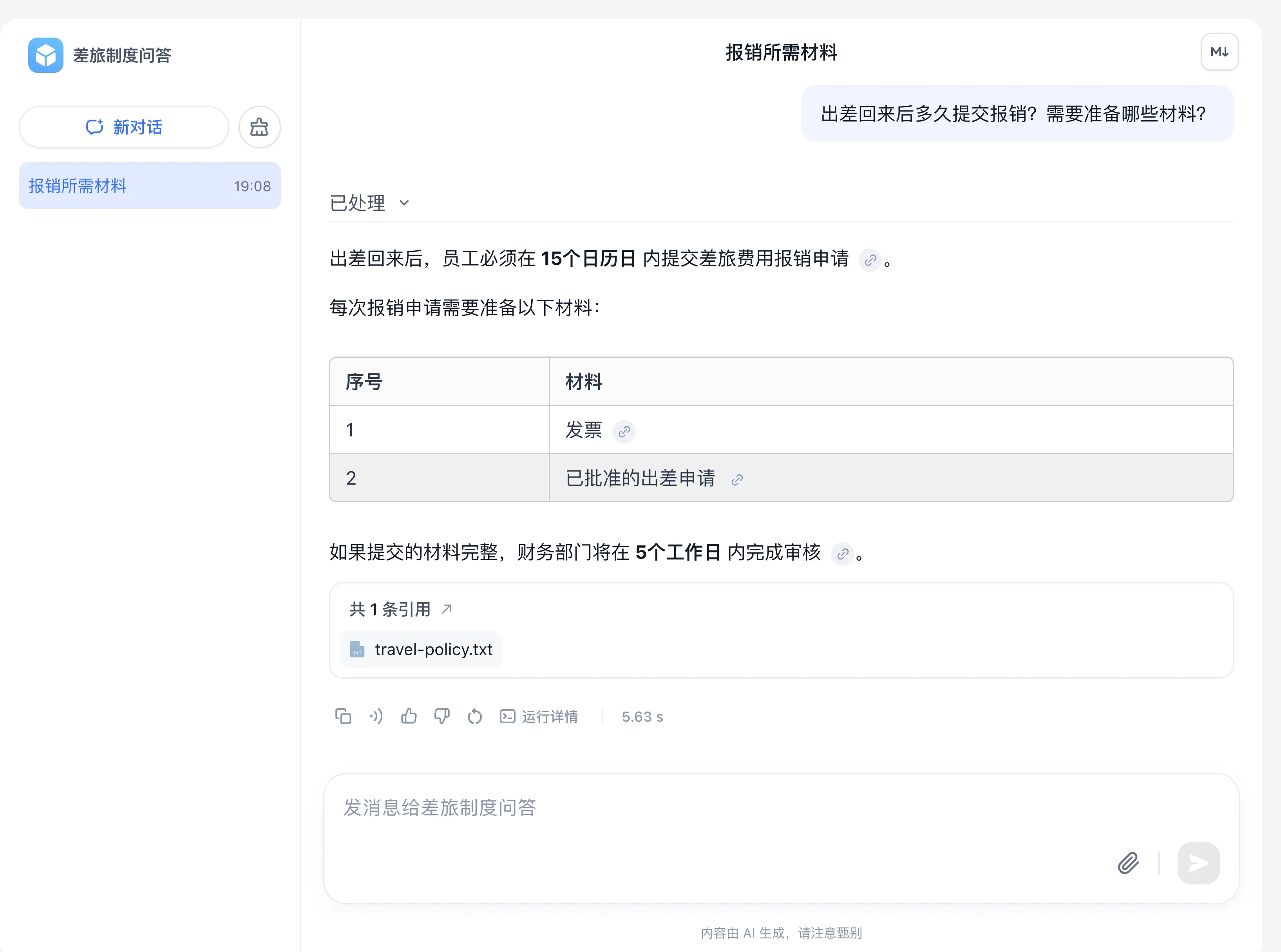
This example uses the signed-in creator. Verify visibility separately with the intended member permissions.
Last updated