
Document Ingestion and Chunking
Master local file uploads, chunking configuration, direct chunking versus QA extraction modes, and preview validation.
This guide walks you through importing enterprise local documents (such as policies, product manuals, and training materials) into a FastGPT knowledge base, optimizing chunking parameters to ensure high retrieval recall.
Supported Document Formats
FastGPT supports importing and parsing the following document types:
- Plain Text, Web, and eBooks:
.txt,.md,.html,.rtf,.epub - Office and Fixed-Layout Documents:
.pdf,.ofd,.docx,.doc,.wps,.docm,.odt,.pptx,.ppt,.pps,.pot,.pptm,.ppsx,.ppsm,.odp - Spreadsheets and Structured Exports:
.csv,.xlsx,.xls,.xlsm,.xlsb,.ods(extended formats such as.doc,.wps,.ppt,.xls,.odt,.rtf, and.epubare parsed when the document parsing service is configured)
Standard file upload size limits follow the system uploadFileMaxSize setting (default 1000 MB; keeping individual files under 50 MB is recommended for parsing speed), while Template import enforces a hard limit of 1 file up to 50 MB per upload. For large scanned files, run local OCR prior to upload.
Step 1: Upload Local Files
- Open the target dataset and click Create/Import in the upper right corner, then select Text Collection.
- In the source selection modal, select Local File and click Confirm.
- Drag and drop or browse local files. The platform supports batch uploading multiple files simultaneously.
- Wait until upload progress reaches 100%, then click Next.
Step 2: Choose Processing Mode
Under Processing Mode, select the option that fits your retrieval scenario:
1. Chunk Storage (Direct Chunking)
- Mechanism: Splits source text into individual chunks based on paragraphs and token limits, generating vector and full-text indexes directly.
- Use Cases: Policies, legal codes, academic papers, white papers, and long-form specifications.
- Recommended Parameters:
- Chunk Size: Start with the current default and inspect complete clauses and table rows in the preview before adjusting.
- Chunk Boundaries: Check cross-paragraph references and duplicated text; available controls depend on the selected split mode.
- Custom Delimiters: Use
\n\nor custom header markers to prioritize natural chapter breaks.
2. QA Extraction
- Mechanism: Calls a language model in the background to read text segments and generate structured "Question-Answer" pairs, generating embeddings on the extracted questions.
- Use Cases: Customer support FAQ lists, operational cheat sheets, and product feature lookup tables.
- Recommended Parameters: Choose a reliable chat model and craft concise extraction instructions to ensure generated pairs remain faithful to source material.
Step 3: Preview Data and Verify Chunk Quality
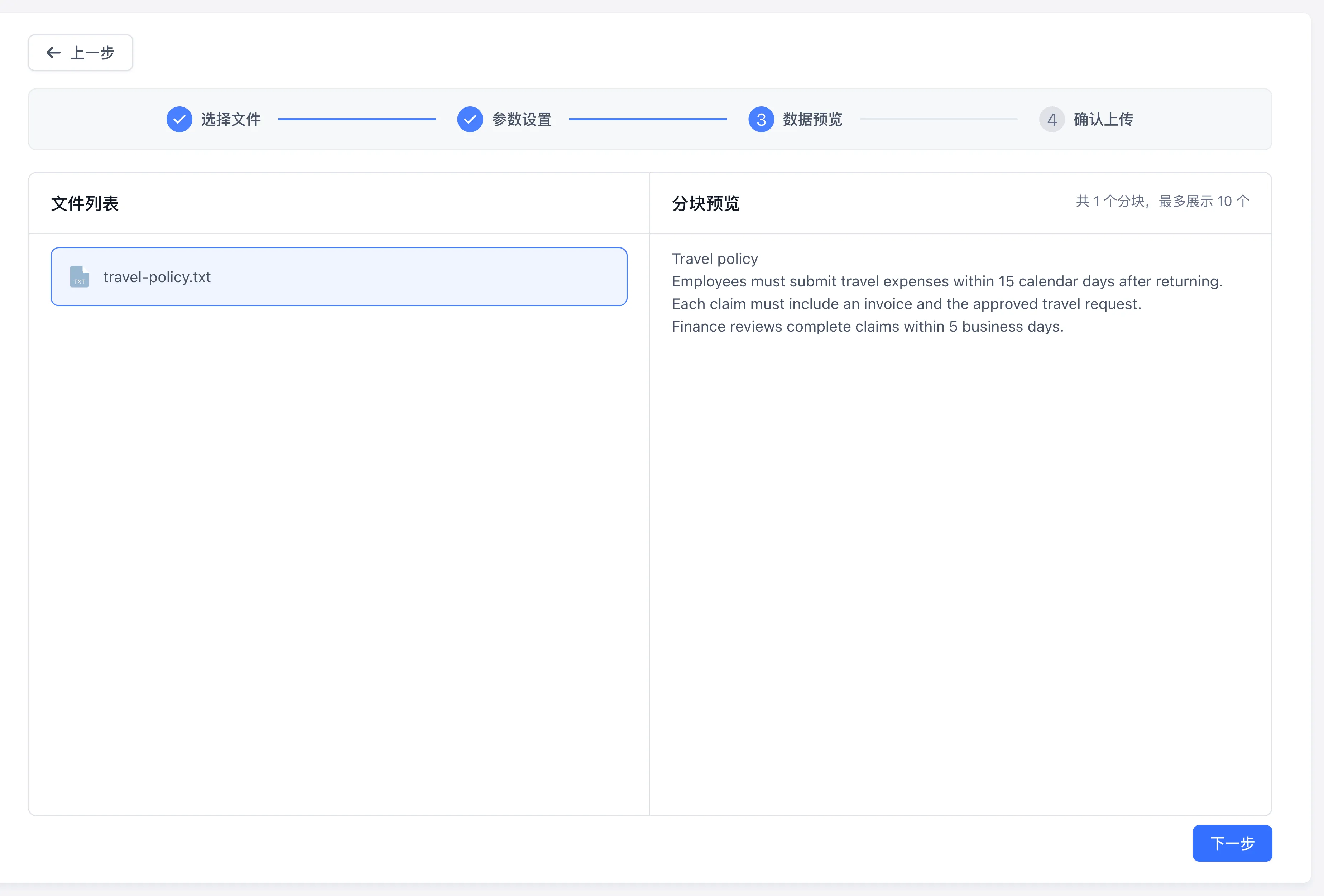
The import wizard consists of four steps: Select files → Parameter settings → Data preview → Upload data. Click Next on the parameter page to open Data preview (which displays up to the first 10 chunks) and inspect sample chunk quality:
- Paragraph Coherence: Click file items on the left and check whether sentences end naturally within chunks on the right.
- Tables and Lists: Confirm that Markdown tables, numbering sequences, and section headers remain aligned.
- Parameter Tuning: If chunks appear overly fragmented or excessively long, click Previous at the top-left of the import page to modify token limits and recompute the preview instantly.
Step 4: Submit Training and Track Progress
- Once the preview meets your quality standards, click Next to enter the Upload data step, then click Start Upload.
- The platform queues asynchronous background tasks. Monitor progress in the collection list:
- Stage badges such as Queue, Parsing, Image analysis, Index vectorization, Q&A extraction, Automatic index generation, or Image index generation indicate active processing.
- Status changing to Ready confirms that both vector and full-text indexes are persisted; failures display Indexing error.
- If training errors occur, click Error list in the top-right corner of the collection list to inspect failure details, then retry individual items or click Retry all inside the modal.
Next Steps
- Test retrieval accuracy: Read Search Testing and Retrieval Parameters.
- Attach to applications: Follow Connecting Knowledge Bases to Applications.
- Structured tabular data: Review Structured Dataset Template Specifications.
Last updated
Custom Feedback
Use the FastGPT Workflow Custom Feedback node to append automated evaluation labels and custom feedback records to conversation logs.
Structured Dataset Template Specifications
Master CSV and XLSX dataset import column definitions, tail expansion rules, metadata formatting, and formula escape mechanisms.