
Published versions and publishing channels
Understand the initial published version, drafts, debugging, and when changes reach users.
A published version selects runtime configuration for actual access. Publishing channels provide shared links, API access, MCP access, and other entry points. You need application editing and the relevant publishing-management permissions.
Drafts and the initial version
Creating an application creates its initial published version. The editor saves the current draft; debugging uses the configuration being edited. Publish subsequent changes to make them available through shared links, APIs, and other actual access paths.
The published snapshot contains workflow nodes, edges, and chat configuration. Current application metadata, such as its name and avatar, updates independently. Existing conversations also carry message history, variables, and execution state. Start a new conversation to assess the behavior of newly published configuration clearly.
| Configuration State | Accessed By | Included Scope | When Changes Take Effect |
|---|---|---|---|
| Editor Draft | Application editor canvas and the right-hand Debug Preview drawer | Current canvas nodes, edges, AI parameters, prompts, and tool bindings | Takes effect immediately in editor debugging after auto-save or clicking Save Only |
| Published Version | Portal, share links, API (/v1/chat/completions), MCP services, WeCom/Feishu/DingTalk/WeChat channels, and scheduled triggers | Workflow topology, system configuration, and resource snapshot captured at publish time | Takes effect across all external channels immediately after clicking Save → Save and Publish |
| Version History | Panel opened from the clock icon in the top-right corner of the editor (My Edit / Team Cloud tabs) | Version names, timestamps, and snapshots of previous releases | Clicking an entry switches the editor draft to that version; click Save and Publish again to make it the live version |
Publish a change
- Debug a known input in the editor and check output and citations.
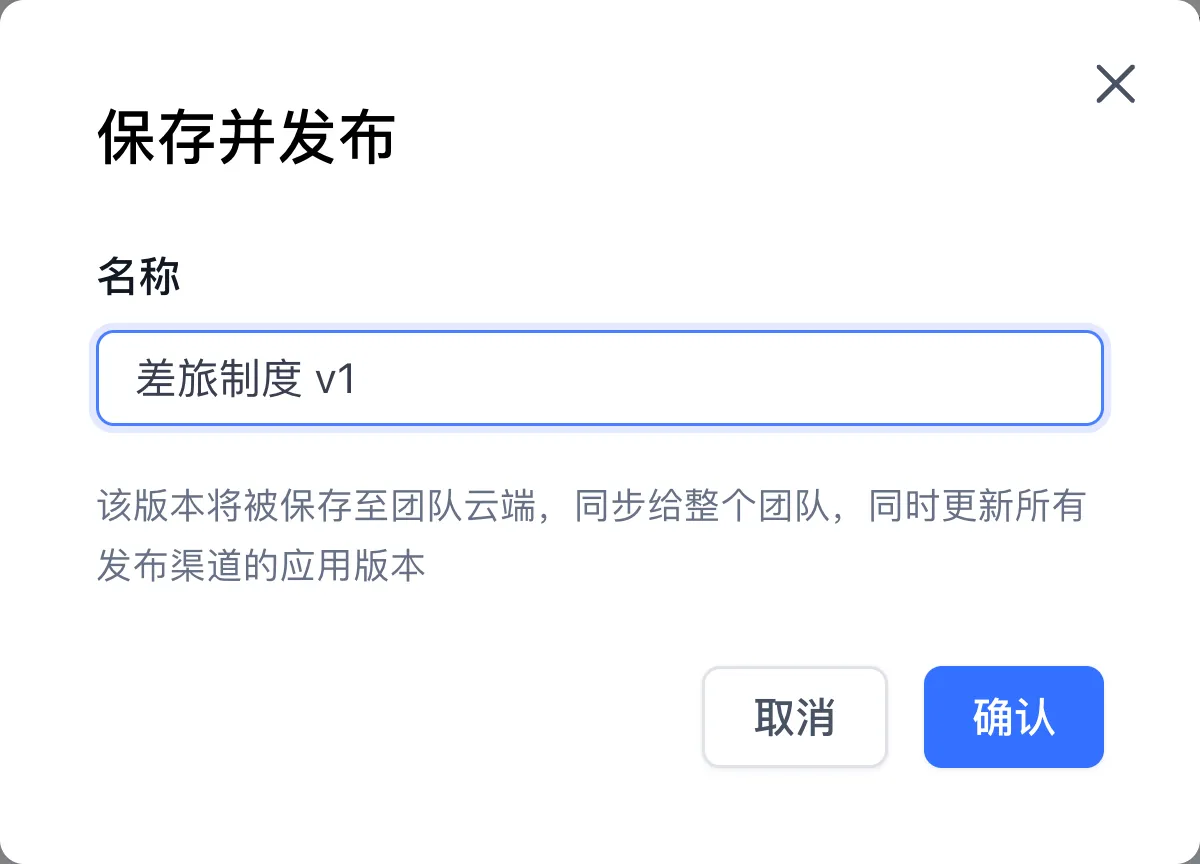
- Open Save → Save and Publish at the top right of the editor, enter a recognizable version name, and confirm. Continue after the success notification.
- Open Publishing Channels and choose a shared link, API, or MCP service.
- Start a new conversation through that channel, repeat the test, and inspect the logs. For the travel example, verify 15 calendar days, an invoice, and the approved travel request, supported by cited passages. Questions outside the material (such as how to reimburse overseas visa fees) receive a missing-information response.
Content updates and configuration publishing
After editing material, follow Update material to wait for indexing and check the new clauses in retrieval and a new channel conversation. Publish Application configuration when changing the Knowledge base, retrieval settings, or prompt. Check citation visibility and access limits separately in the channel settings.
Investigate version differences
When debug and actual access differ, check the last published version, the application selected by the channel, conversation history, model settings, and knowledge processing status. Model wording can vary; assess facts, format, and business rules. Correct the affected configuration, complete any required publishing, and verify the answer and citation in a new conversation through the same channel.
After clicking an entry in the clock icon panel to switch versions, save and publish again to update the live version, then verify actual access again. See Skill versions and publishing for the separate Skill lifecycle.
Next: conversation logs.
Last updated
Skill Package Format & Runtime Conventions
Specification of Skill package directory structure, SKILL.md metadata, multi-skill organization, packaging rules, and runtime conventions
Use applications through the portal
Configure portal access and response visibility, then verify the experience as a user.