
Dataset Collection Tags
Organize dataset collections with structured tags and filter retrieval scope via manual input or variable reference
Version Note: Multi-dimensional typed collection tag management and retrieval condition filtering are officially supported starting from FastGPT v4.17.1.
Dataset Collection Tags is a Commercial Edition feature in FastGPT. You can attach structured metadata tags (such as Applicable Department, Document Category, Security Level, and Effective Date) to collections (files/documents) in a dataset. Beyond quick filtering and batch management inside the dataset, you can precisely narrow the retrieval scope during Dataset Search in Chat Agents, Simple Apps, and Workflows using Manual Input or Variable Reference.
All dataset types except Website Sync (websiteDataset) support collection tags—including
General Datasets and third-party datasets (Feishu, Yuque, API File Library, etc.).
Why Use Collection Tags?
In real-world scenarios, a single dataset often holds hundreds of documents spanning multiple departments, versions, or confidentiality levels. Relying solely on vector or full-text search can lead to:
- Cross-department noise: An engineer asking about a "project review process" retrieves a marketing campaign review policy.
- Outdated document interference: Legacy policies and new 2026 policies coexist in the dataset, causing outdated rules to be recalled.
- Access & scope isolation: Multiple user groups or external customers share one Q&A assistant, requiring retrieval scope isolation based on user identity.
With Collection Tags, FastGPT first narrows down candidate collections through metadata filtering, and then runs semantic and full-text search strictly within those matched files—significantly improving accuracy and data governance.
Step 1: Plan and Manage Tags
Open your dataset detail page and click the Tag Management button in the top-right corner of the Collection list (requires dataset write permission).

1. Choosing Tag Attributes
Click + Add Tag in the bottom-left corner, enter a tag name (up to 20 characters), and choose a tag attribute. FastGPT supports 3 tag attributes:
| Tag Attribute | Best Used For | Value Format & Limits | Examples |
|---|---|---|---|
| Options | Fixed categories or one-to-many labels (most common) | Select multiple options per file (up to 64 options per file, max 256 chars per option) | Applicable Dept (All, R&D, Finance)Doc Category (HR Policy, InfoSec) |
| Number | Quantifiable metrics requiring numeric or range comparisons | Single numeric value per file (integer or decimal) | Security Level (1, 2, 3)Grade (5, 6) |
| Date | Time-sensitive documents requiring chronological comparisons | Single date & time per file (YYYY-MM-DD HH:mm) | Effective Date (2026-01-01 09:00) |
- Once a tag is created, its attribute cannot be changed, though its name can be renamed at any time. - Deleting a tag removes that tag and its values from all collections in the dataset.
2. Preset and Maintain Options
For Options tags, click the gear icon on the right side of the row to open Option Management:

- Add Preset Options: Pre-populate standard category values (e.g., department names) so team members can tag files consistently.
- Rename Options: Renaming an option automatically updates all collections currently using that option—no manual re-tagging required.
- Delete Options: Deleting an option automatically removes that option value from any collections that had it selected.
Step 2: Assign Tags to Collections
Once your tags are defined, you can assign tag values to collections in three ways:
1. Set Tags on a Single Collection
Open the Tag Settings modal on the target file in the collection list:
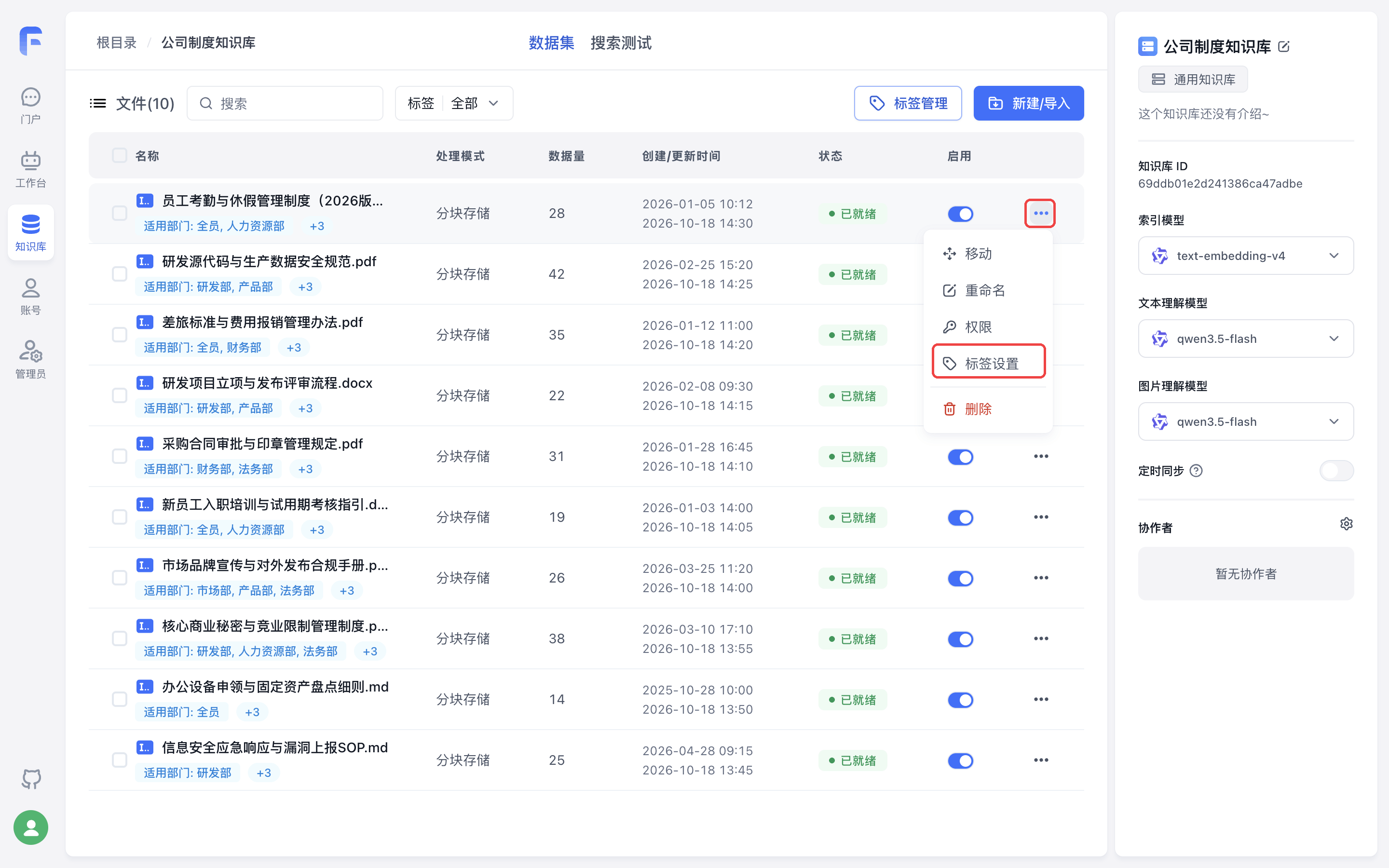 | 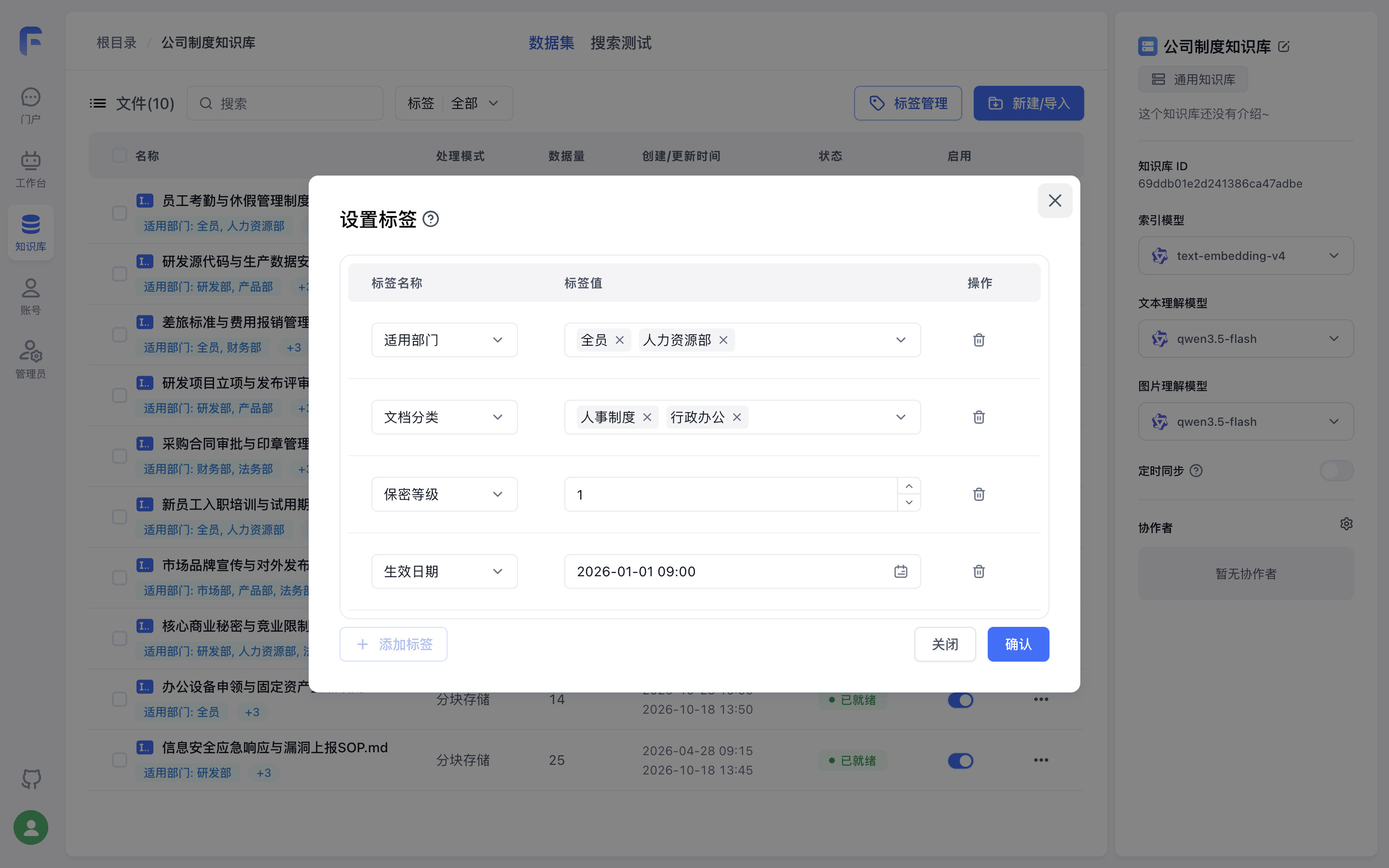 |
- Click + Add Tag to attach tags to the file and select options, enter a number, or pick a date.
- Quick Inline Option Creation: When assigning values to an Options tag, you can type a new option name directly into the input box and press Enter to create and bind the option on the fly.
- Need a brand-new tag? Click Tag Management at the bottom-left of the modal to jump straight to tag creation.
2. Batch Modify Tags
To tag or clean up multiple files at once, select the target files in the collection list and click Batch Modify Tags in the bottom floating bar:
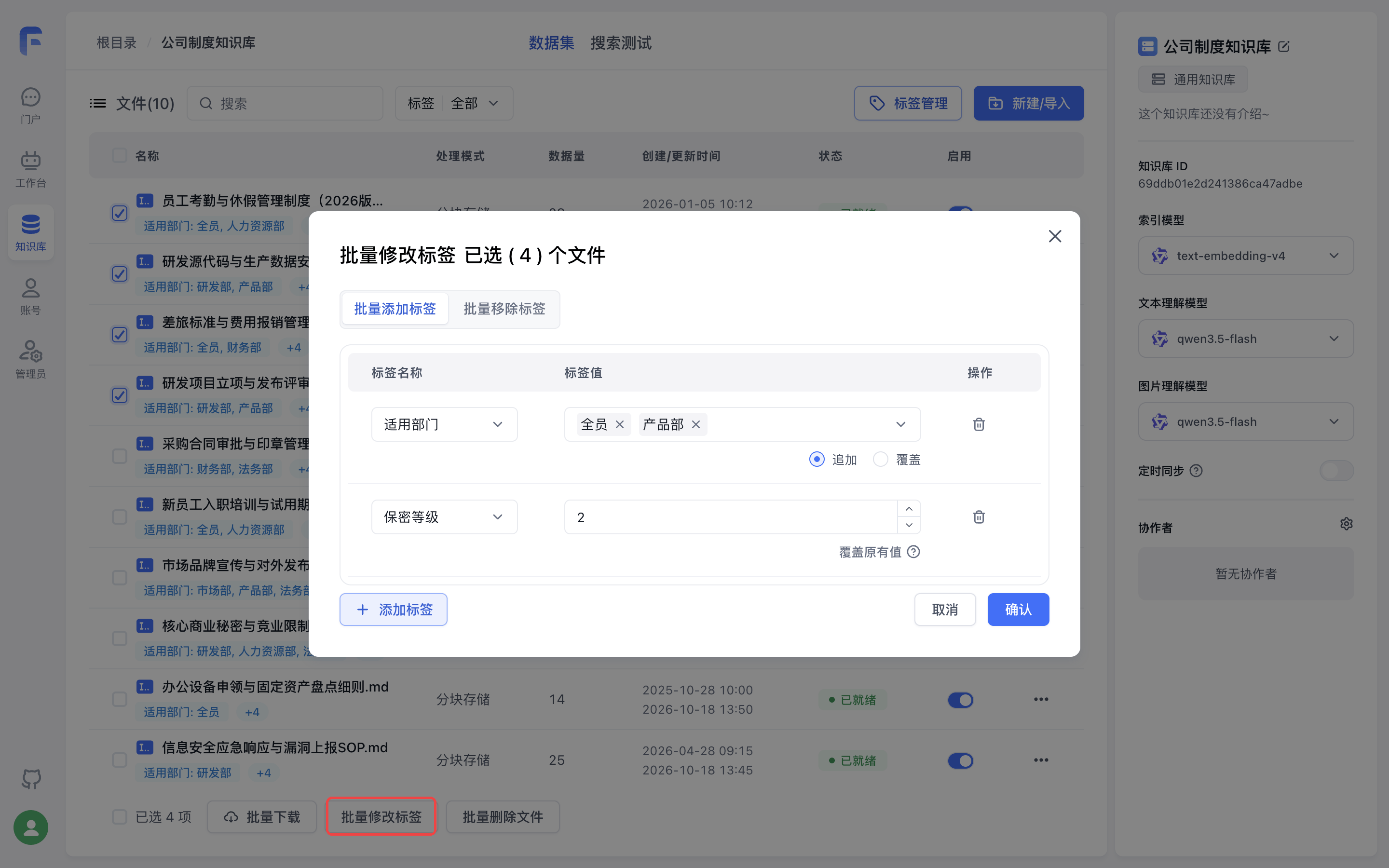
The batch modal provides two tabs:
- Batch Add Tags:
- Options attribute tags: Choose between Append (default)—which keeps each file's existing options and merges the new ones—or Overwrite—which replaces existing options on that tag with the newly selected ones.
- Number / Date attribute tags: Since each file holds a single value for these attributes, batch adding overwrites the existing value.
- Batch Remove Tags:
- Aggregates all tags currently bound to the selected files.
- For Options tags, you can either remove the entire tag or expand the row to remove only specific option values while keeping the rest.
3. Set Tags via OpenAPI When Importing or Updating Collections
When calling OpenAPI endpoints to create or update a collection, pass the tags field directly in the request body:
{
  "datasetId": "69ddb01e2d241386ca47adbe",
  "name": "Employee-Attendance-Policy-2026.pdf",
  "tags": [
    { "tag": "Applicable Dept", "value": ["All", "HR"] },
    { "tag": "Security Level", "value": 1 },
    { "tag": "Effective Date", "value": 1767229200000 }
  ]
}- If a tag name does not yet exist in the dataset, FastGPT automatically creates it based on the data format of
value(string array →Options, number →Number).
Step 3: Filter Collections by Tag in the File List
Click the Tag | All filter button above the collection table header to filter files by tag:

- Select a tag in the left column (the badge shows how many values are selected under that tag), and search/check specific values in the right column.
- Filtering Logic:
- Multiple values within the same tag: Combined with
OR(matches files containing any of the checked values). - Across different tags: Combined with
AND(matches files satisfying all selected tag filters simultaneously).
- Multiple values within the same tag: Combined with
Step 4: Filter by Tags During Dataset Search
When building an application or workflow, enabling Tag Filter restricts retrieval to collections that satisfy your filter rules.
1. Where to Configure
- Workflow: On the Dataset Search node, click Enable in the top-right corner of the Tag Filter section.

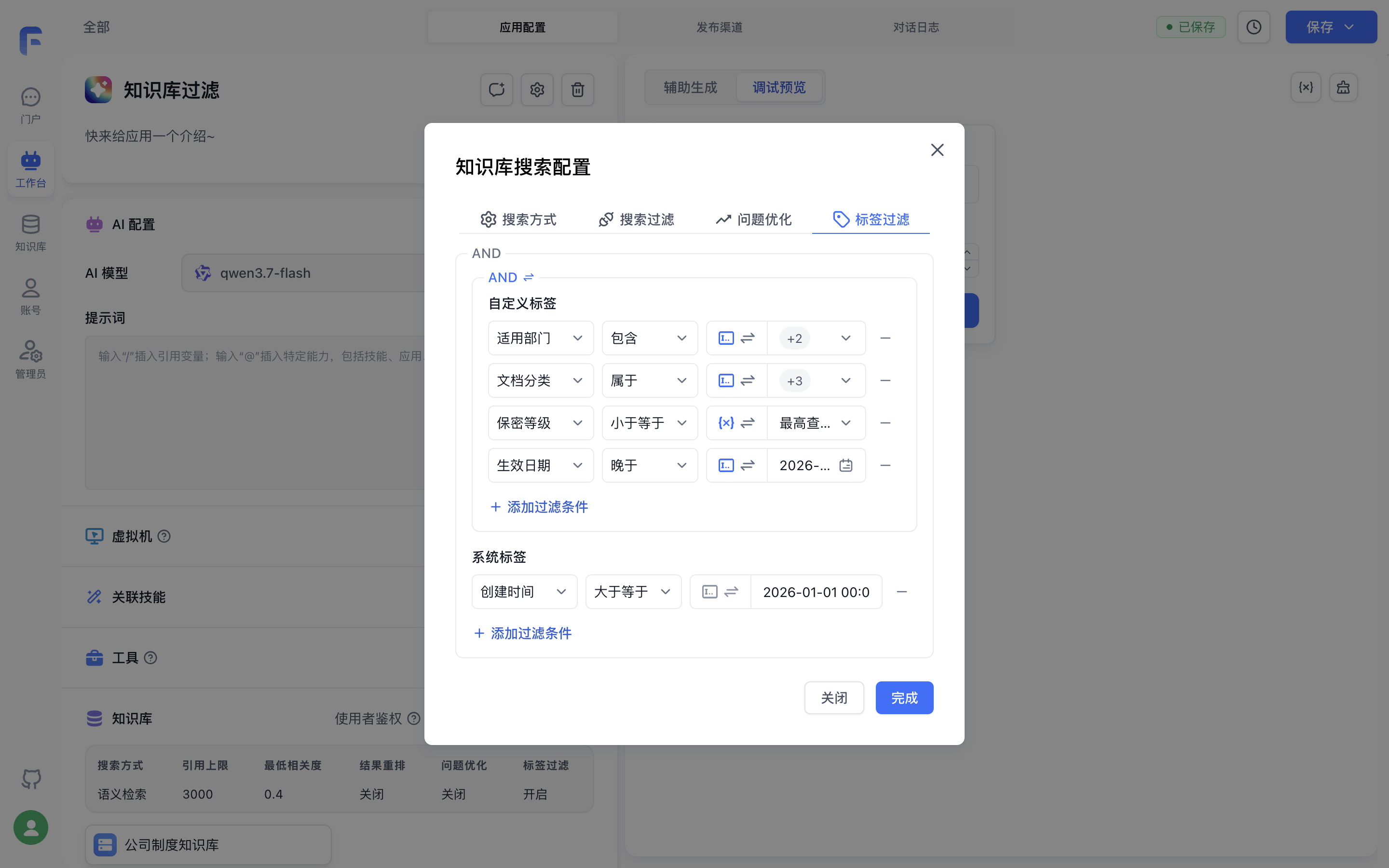
- Chat Agent / Simple App: In the Dataset section of the app configuration page, click Params to open the Dataset Search Configuration modal, and switch to the Tag Filter tab.
2. Condition Structure (Custom Tags + System Tags)
The filter builder is divided into two sections, combined with a fixed AND relationship between them:
- Custom Tags:
- Click + Add Filter Condition to select a custom tag, comparison operator, and target value (supports switching between Manual Input and Variable Reference).
- When multiple custom tag conditions exist, click the
AND / ORtoggle in the top-left corner of the section to switch whether collections must match all (AND) or any (OR) of the custom tag conditions.
- System Tags:
- Filter by built-in collection attributes (multiple system tag conditions are always combined with
AND):- Creation Time: Filter by the file's creation time in the dataset using
>=or<=. - Collection ID: Uses the
inoperator with a referenced variable containing allowed collection IDs (or folder IDs, which automatically expand to include all descendant collections).
- Creation Time: Filter by the file's creation time in the dataset using
- Filter by built-in collection attributes (multiple system tag conditions are always combined with
3. Supported Operators by Tag Attribute
| Tag Attribute | Supported Operators | Behavior & Matching Rules |
|---|---|---|
| Options | Equals, Not EqualsContains, Not ContainsIn, Not InIs Empty, Is Not Empty | - Equals / Not Equals: The file's option set is identical / not identical to the target set (order-insensitive). - Contains / Not Contains: The file's options include all target options / do not include all target options. - In / Not In: The file's options overlap with at least one target option / have zero overlap. |
| Number | Equals, Not Equals>, <, >=, <=Is Empty, Is Not Empty | Standard numeric comparison. Variable references accept numbers or numeric strings. |
| Date | Equals, Not EqualsAfter, BeforeIs Empty, Is Not Empty | Chronological comparison. Variable references accept millisecond timestamps or date strings (e.g., 2026-01-01 09:00). |
How are untagged collections handled?
If a collection in the dataset has not been assigned a given tag: - Positive operators
(Equals, Contains, In, >, <, >=, <=, After, Before, Is Not Empty) evaluate to
false—the untagged collection will not be recalled. - Negative / empty operators (Is Empty, Not Equals, Not Contains, Not In) evaluate to true—the untagged collection
will be included in retrieval.
Advanced: Passing a Complete JSON Filter Expression via Variable Reference
On the Workflow Dataset Search node, if you need to construct complex filter expressions programmatically (for example, via an upstream Code Sandbox node), switch the input mode next to the Tag Filter header from Manual Input to Variable Reference and pass a JSON object or JSON string:
{
  "tags": {
    "$and": [
      { "Applicable Dept": { "$in": ["All", "R&D"] } },
      { "Security Level": { "$lte": 2 } },
      { "Effective Date": { "$gt": "2026-01-01 00:00" } }
    ]
  },
  "createTime": {
    "$gte": "2026-01-01 00:00",
    "$lte": "2026-12-31 23:59"
  },
  "collectionIds": ["6593e137231a2be9c5603ba9"]
}
JSON Fields and Operators Reference
1. Top-Level Fields (always combined with AND)
| Field | Type | Description |
|---|---|---|
tags | Object | Custom tag filter conditions, containing either $and (match all) or $or (match any) array of condition objects |
createTime | Object | File creation time range ($gte, $lte), accepting millisecond timestamps or date strings |
collectionIds | string[] | Array of allowed collection IDs or folder IDs |
2. Custom Tag Operators
| Tag Attribute | Operator Keys | Meaning | Example |
|---|---|---|---|
| Options | $is / $isNot | Equals / Not Equals | {"Applicable Dept": {"$is": ["All", "R&D"]}} |
| Options | $contains / $notContains | Contains / Not Contains | {"Applicable Dept": {"$contains": ["R&D"]}} |
| Options | $in / $notIn | In / Not In | {"Applicable Dept": {"$in": ["All", "R&D"]}} |
| Options | $empty / $notEmpty | Is Empty / Is Not Empty | {"Applicable Dept": {"$empty": true}} |
| Number / Date | $eq / $ne | Equals / Not Equals | {"Security Level": {"$eq": 1}} |
| Number / Date | $gt / $lt | Greater (After) / Less (Before) | {"Effective Date": {"$gt": "2026-01-01 00:00"}} |
| Number | $gte / $lte | >= / <= | {"Security Level": {"$lte": 2}} |
| Number / Date | $empty / $notEmpty | Is Empty / Is Not Empty | {"Security Level": {"$notEmpty": true}} |
FAQ
1. Why is a tag missing from the Tag Filter dropdown?
When an app or workflow node has multiple datasets associated, the Custom Tags dropdown only displays tags that share the exact same tag name and tag attribute across all selected datasets (for Options attribute tags, selectable values are the union of options across the datasets). Check that all associated datasets have defined the tag with the same name and attribute.
2. What happens to legacy string tags after upgrading from an older version?
During upgrade, legacy string tags are automatically migrated into an Options attribute tag named default_tag, preserving all existing file-tag associations. You can rename default_tag in Tag Management at any time.
3. Does renaming a tag or option affect existing Tag Filter rules?
Tag Filter rules match by tag name and option text. If you rename a tag or an option in Tag Management, remember to update any apps or workflows that reference that tag name or option value in their Tag Filter rules.
Last updated
Dataset Search Methods and Parameters
This section covers FastGPT's Dataset architecture, including its QA storage format and multi-vector mapping, to help you build better datasets. It also explains each search parameter. This guide focuses on practical usage rather than in-depth theory.
Dataset Collection Tags
How to use collection tags in FastGPT Dataset