
Collection-level Permission
How to configure per-file (collection) permissions in FastGPT Datasets
Collection-level permission is a commercial-edition feature in FastGPT. By default every file and folder inside a Dataset shares the Dataset's own permissions. Once collection-level permission is enabled, you can assign collaborators to an individual file or folder for finer-grained control.
Terminology
| Concept | Term used in the UI / docs | Notes |
|---|---|---|
| dataset | Knowledge base / Dataset | Resource type dataset in the permission system |
| collection | File / Folder / Collection | A single file or folder; resource type collection |
| collection permission | Shown as "Collection permission configuration" | The per-file / per-folder permission described on this page |
Overview
- Disabled (default): a collection is readable exactly when its Dataset is. The system does not read any collection permission record, so every existing Dataset keeps its current behavior after upgrading.
- Enabled: each file/folder gets a complete permission snapshot; lists, details, and search recall are all authorized per collection.
- Dataset permission is always a gate: collection permission cannot bypass it. Granting a user access to a single file does not help unless that user can also read the Dataset.
Enabling and disabling
The switch is the only entry point for creating collection-level permissions. While it is disabled, every write path that would configure a single file's permission is rejected and asks you to enable it first.
Enable
- Where: Dataset detail page → file list →
···menu on the target row →Permission. If collection permission is not enabled yet, a confirmation dialog appears first; after confirming, FastGPT materializes permission snapshots for all files/folders and then opens the permission dialog. - Required permission: Dataset
Manage. - Effect: you can then assign permissions per file/folder. Permission-related operations become slower because snapshots must be maintained.
- Duration and safety: materialization runs synchronously within the request and can take a while for large Datasets. The switch is flipped only after materialization succeeds; on failure it stays disabled and you can simply run it again (the operation is idempotent).
Once enabled, the Dataset info panel shows the enabled notice and the disable entry:

The collaborators shown here are the Dataset-level ones; the disable entry is
Click to disableafter the notice.
Disable
- Where: Dataset detail page → file list → bottom of the right info panel →
Click to disableafter the enabled notice. - Required permission: Dataset
Manage. - Consequence: deletes all collaborator configurations of files/folders under this Dataset and resets every one of them to inherit the Dataset permission. This cannot be undone, and the UI asks for a second confirmation.
Enabling again after disabling is equivalent to enabling for the first time: all files/folders start from the inherit state again and derive their permissions from the Dataset.
Configuring a single file or folder
There are three equivalent entry points:
- File list →
···menu on the target row →Permission; - Right sidebar after opening a file →
Collaborator; - Right sidebar after entering a folder →
Collaborator.
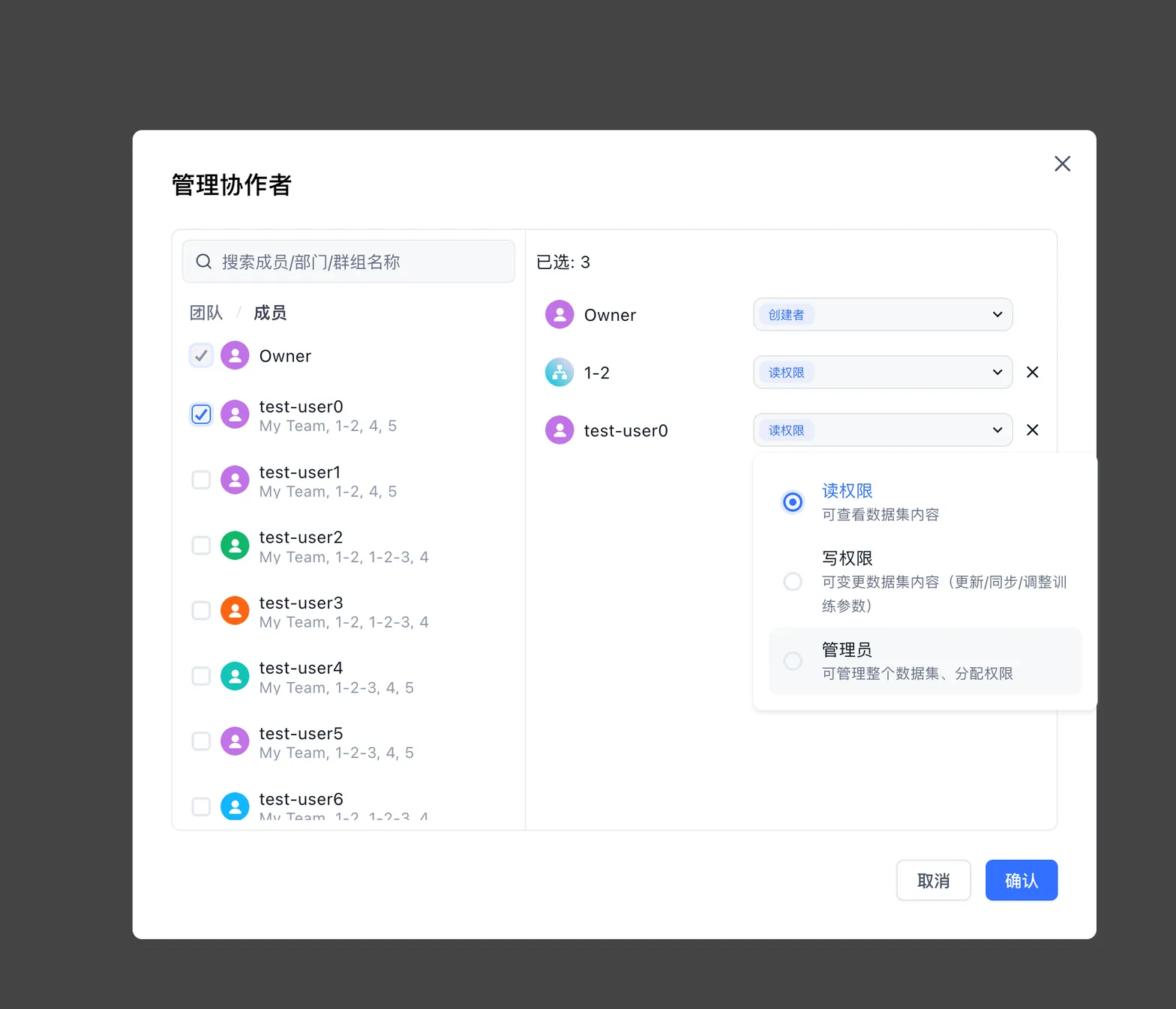
The dialog lets you pick members, member groups, or organizations and assign one of these roles (matching the UI wording):
| Role | Description |
|---|---|
| Read | Can view collection content |
| Write | Can modify collection content (update / sync / adjust training params) |
| Manage | Can manage the whole collection and assign permissions |
| Owner | Each file/folder has a unique Owner, created on creation or via ownership transfer |
Notes:
- Owner cannot be granted or changed through collaborator configuration. The submitted collaborator list must include the current Owner, otherwise the request is rejected — a full replacement could otherwise delete the Owner record.
- Collaborator configuration uses full replacement semantics: the submitted list becomes the final state.
- The role descriptions say "collection" because they are shared wording; they describe the single file/folder being configured.
Inherit and independent states
- Inherit (default): the file/folder permission is derived from its parent (the parent folder, or the Dataset when it sits at the root) and follows parent changes automatically.
- Independent: after an individual configuration, the node is no longer overwritten by parent changes, and its subtree stops propagating from it.
- Automatic switch to independent: when you modify or remove collaborators that come from the parent while in the inherit state, FastGPT warns about the conflict; after you confirm, the node becomes independent. Parent permissions are never rewritten silently.
- Resume inheritance: an independent node can resume inheritance from the permission dialog. Per-node permissions that differ from the parent are preserved and the subtree is synchronized.
Permission requirements per operation
| Operation | Requirement |
|---|---|
| View file list / detail | Dataset Read + that file Read; the list is filtered per current member (unreadable files are removed, pagination stays correct) |
| Update file info | That file Write |
| Move a file / folder | Manage on both the source and target locations; moving between the Dataset root and a folder also requires the team Dataset-create permission |
| Configure collaborators / resume inheritance | That file Manage, and collection permission enabled for the Dataset |
| Delete a file / folder | Owner only. Collaborators with Manage or Write cannot delete; batch delete filters out non-owned items and tells you so |
| Transfer ownership | Owner only; transfers to another team member and also transfers ownership of subfolders |
| Transfer Dataset ownership | Cascades to files/folders under that Dataset that are owned by the previous owner |
Search recall
With collection permission enabled, Dataset search filters by the files the current member can read, so unauthorized files are never recalled. This covers:
- Dataset search nodes in Workflows / Agents;
- Dataset search test.
It applies only when authorization uses the current member identity. When a Workflow preselects Datasets without member-identity authorization, no per-file filtering happens and recall follows Dataset permission.
Special identities
- System root: skips collection-level resolution and is treated as having full permission on every file.
- Team owner: owns every resource in the team and is treated as having full permission on every file.
- Team admin: does not bypass collection permission. Team-level manage only covers team-owned resources (member groups, organizations); Datasets and files are still authorized by their own collaborator configuration.
FAQ
There is no "Permission" entry in the file row menu
That entry is only shown to members with Manage permission on the file. If you are not the Owner, ask the Owner or a Dataset admin to grant you manage permission.
"Collection permission is not enabled for this knowledge base"
The Dataset is still in the disabled state. Enable collection permission first as described above, then configure collaborators for individual files.
My configuration disappeared after turning the switch off
Disabling is destructive: it clears every collaborator configuration of files/folders under the Dataset and cannot be undone. Always review the impact before confirming.
Last updated