
Search Testing and Retrieval Parameters
Master knowledge base search testing, hybrid search modes, similarity score analysis, and zero-recall troubleshooting.
Before attaching a knowledge base to conversational applications, use the standalone "Search Test" interface to isolate prompt and generation noise, verifying vector and full-text retrieval precision directly.
Step 1: Open the Search Test Interface
- Navigate to your target knowledge base and click the "Search Test" tab in the top navigation bar.
- The view displays a test input area, a Search settings button in the top-right corner, a Test button, test history, and candidate result cards. Click Search settings to open the Dataset search settings modal, choose the retrieval mode under Search Method, and configure Citation cap and Lowest correlation under Search Filter.
- Enter a representative operational inquiry, such as:
How many days do I have to submit travel expenses after returning?.
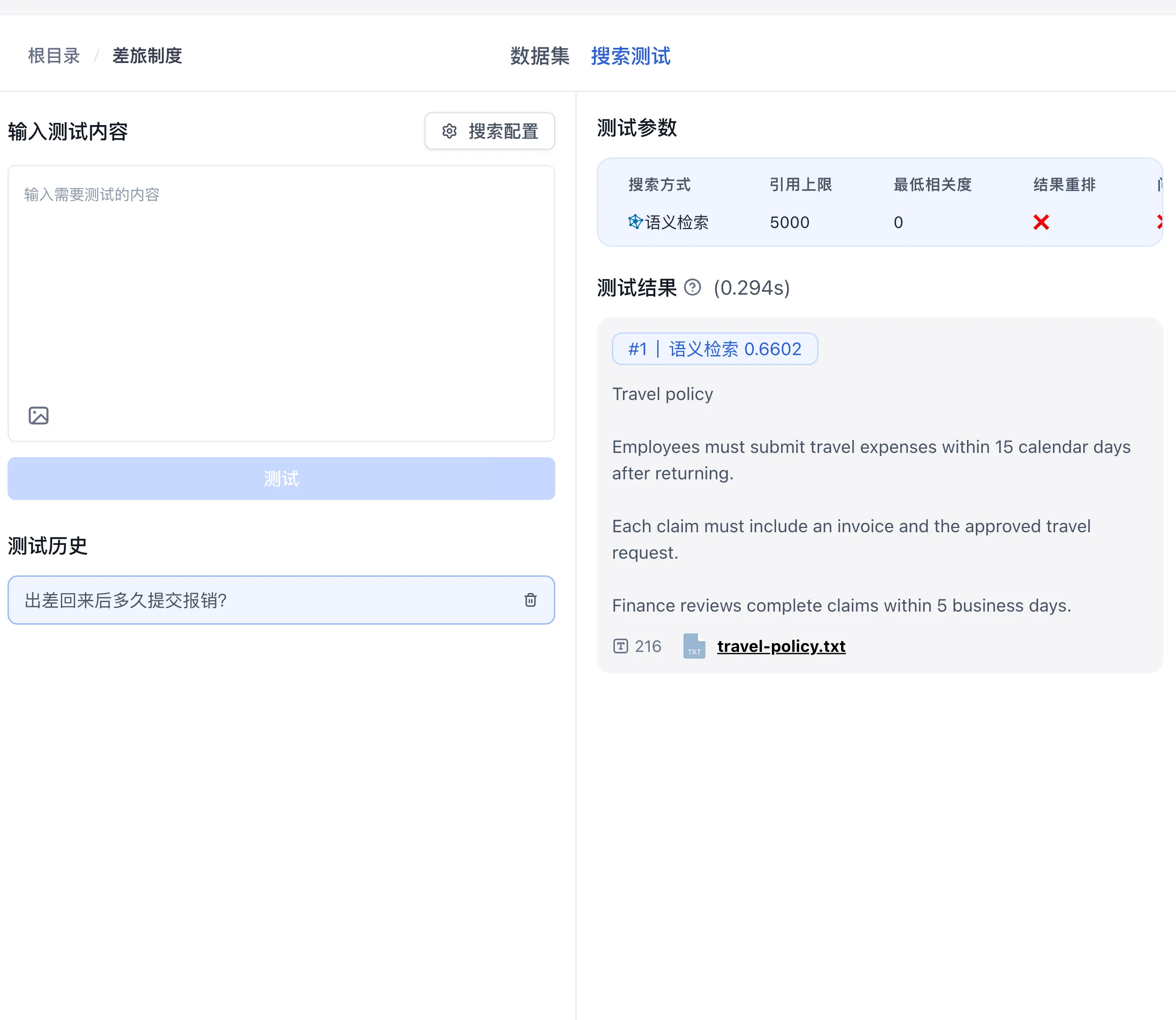
Step 2: Compare Search Methods
Switch between options under Search Method in the Dataset search settings modal to observe differences across candidate ranks:
- Semantic search:
Enter a query with synonymous phrasing (e.g.,
What is the deadline for filing trip expenses?). The engine uses geometric distance in dense vector space to recall chunks containing "15 calendar days". - Full-text search:
Enter a query featuring specialized codes or exact references (e.g.,
Policy Rule FIN-2026-03 Section 15). Check whether full-text search retrieves the document section containing the identifier. - Hybrid search (Recommended): Combines semantic generalization and exact term matching. The engine merges multi-route candidates and optionally reranks them when a rerank model is configured.

Step 3: Analyze Scores and Calibrate Lowest Correlation
Use scores to compare candidates within the same model and retrieval configuration. Build a labeled test set containing answerable questions, paraphrases, exact identifiers, and questions outside the knowledge base. Record the expected source chunk for each answerable question.
Calibration Guidelines
- Start with a low threshold and check whether expected chunks enter the candidate list.
- Adjust one setting at a time. Compare relevant hits, missed references, and irrelevant results before selecting a threshold.
- Repeat after changing the embedding model, rerank model, or chunking strategy. Inspect actual reranking and filtering status when the interface exposes it.
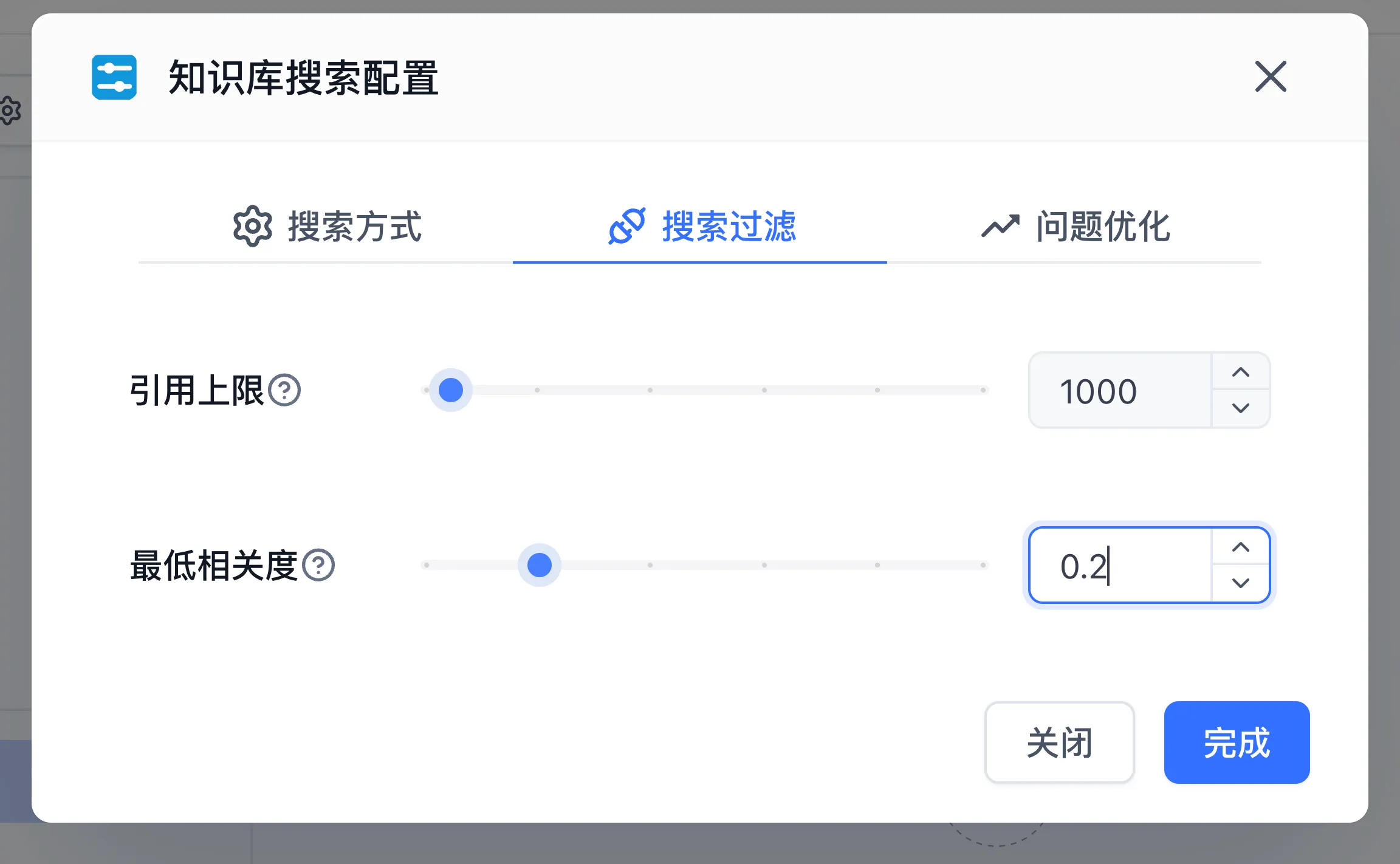
Step 4: Step-by-Step Zero-Recall Troubleshooting
When an expected query fails to return target chunks, follow this four-step diagnostic procedure:
| Step | Diagnostic Focus | Actionable Fix |
|---|---|---|
| 1. Chunk Completeness | Search for the clause in the collection's data chunk list | Confirm the fact is ingested and was not split awkwardly across boundaries |
| 2. Index Readiness | Inspect the collection's index status in the file list | Verify the collection status is Ready; if Indexing error, retry from the Error list modal |
| 3. Tokenization Coverage | Check if proper nouns were fragmented during full-text tokenization | Query using complete standardized terms, or switch to Hybrid search (on Milvus, adjust analyzer language detection via MILVUS_LANGUAGE_IDENTIFIER) |
| 4. Supplementary Indexes | Add query variations to the target chunk | Click the chunk card to open the edit dialog, click New under Data Index (N), and add 3 to 5 common user question patterns |
Next Steps
- Integrate into chat: Follow Connecting Knowledge Bases to Applications.
- Metadata-scoped search: Learn Collection Tag System.
- Data maintenance: Review Data Maintenance and Incremental Updates.
Last updated
DingTalk Dataset
Connect DingTalk knowledge base documents to FastGPT for automated synchronization and RAG retrieval.
Connecting Knowledge Bases to Applications
Master attaching knowledge bases to Chat Agents, Chat Agent V2, and Workflows, configuring retrieval parameters, and authoring grounding templates.