
Usage Records, Billing, and Invoices
Track team AI point consumption, manage subscription plans and add-on packs, request invoices, and configure personal account settings.
In the Account center, team members can monitor AI point consumption and maintain personal profile and preference settings; Team Owners and Team Admins can manage subscriptions and add-on resource packs, and access Account → Bills & Invoices (when payment features are enabled) to view orders and request VAT invoices.
1. Usage Details and Dashboard
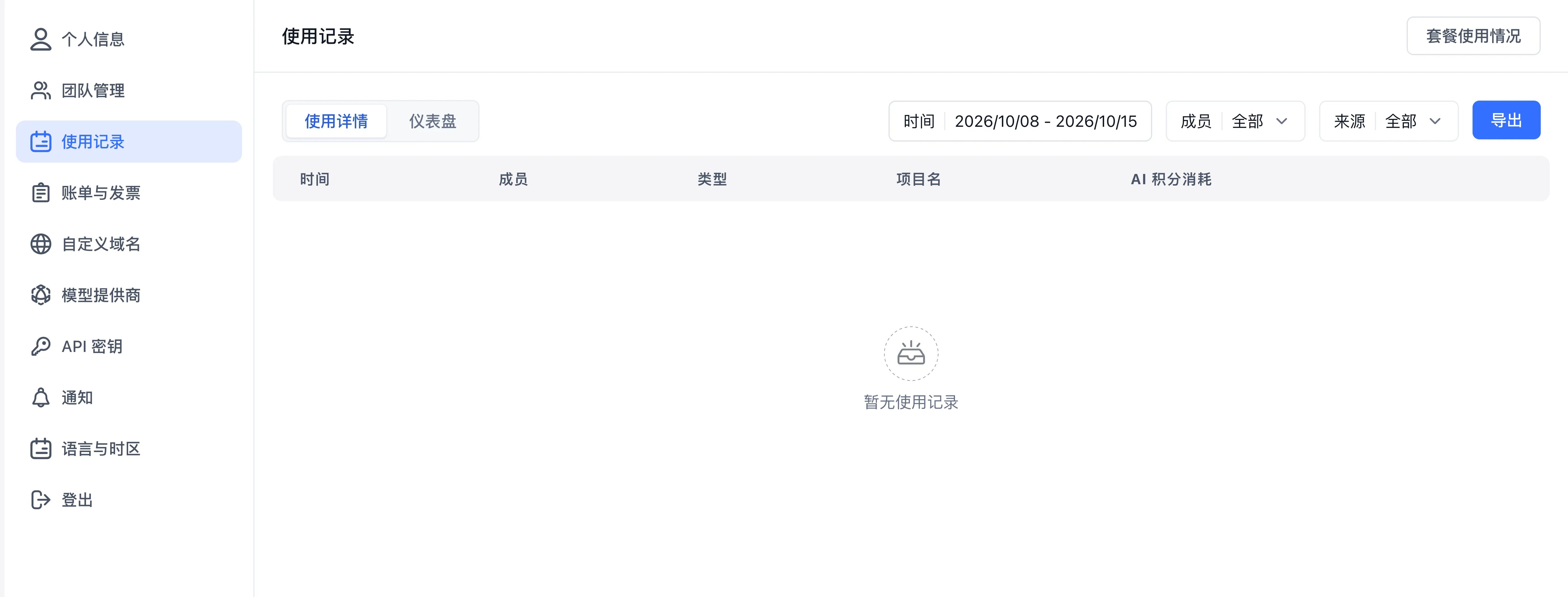
Open Account → Usage Records to switch between Usage Details and Dashboard, or click Plan Usage in the top-right corner to inspect active plan quotas:
1. Usage Details
- Multi-dimensional filters: Filter by team member, usage source (Online usage, API, Free-login link, Data training, Scheduled task, Feishu, Official Account, Share link, WeCom, Personal WeChat, DingTalk, PDF parsing, MCP call, App evaluation, etc.), project name, and date range.
- Line-item breakdown: Inspect timestamp, member, source, target application or knowledge base, and consumed AI points, and expand any row to view input/output token counts and unit rates.
- CSV export: Export filtered usage records to CSV for internal cost allocation and financial reconciliation.
2. Dashboard
- Filter by date range and team members to view total AI point consumption and a daily total AI point trend line chart.
2. Subscription Plans and Add-On Packs
From the plan card in Account → Profile or by clicking Plan Usage in the top-right corner of Account → Usage Records, you can inspect your team's active plan tier, resource quotas, and upgrade options:
| Resource Category | Included Capabilities | Scaling and Activation Rules |
|---|---|---|
| Standard Plans (Monthly / Yearly) | Team member cap, application limit, knowledge base dataset capacity, included AI points, and sandbox concurrency quotas | Plan upgrades take effect immediately; exact tier quotas follow your environment's pricing page |
| Extra AI Point Packs | Standalone top-up packs of AI compute points | AI points are deducted from the earliest-expiring resource pack first, with selectable quantity and validity period |
| Extra Knowledge Index Packs | Additional vector index capacity for knowledge bases | Stacks onto your team's total dataset index quota during the pack's validity window |
The AI Points table at the bottom of the subscription page supports filtering by model provider, model type, and model name, listing system model point rates by category: language, embedding, and rerank models are priced per million tokens (M Tokens), text-to-speech (TTS) models per million characters (1M characters), and speech-to-text (STT) models per 60 seconds.
3. Bills and Invoice Management
Team Owners and Team Admins can open Account → Bills & Invoices (when payment features are enabled) to manage billing records across three tabs:
- Bills: View subscription orders and add-on purchases, payment status, paid amount, and validity dates.
- Invoices: Inspect submitted invoice records and click Apply Invoice in the top-right corner to select paid bills and submit an invoice request.
- Default Header: Save standard or VAT special invoice headers (company name, tax ID, bank account, registered address, phone, and recipient email) for reuse.

4. Personal Profile, Security, and Preferences
| Section | Capabilities |
|---|---|
| Account → Profile | Update avatar, display name, phone/email, and password; inspect team plan usage; use a Redemption code; and complete Delete Account |
| Account → Team | Manage team members, departments, groups, and team permissions (available in Commercial Edition and Cloud) |
| Account → Usage Records | View AI point consumption details, dashboard trends, and export CSV files (available in Commercial Edition and Cloud) |
| Account → Custom Domain | Configure custom domain bindings for your team (available in Commercial Edition and Cloud when customDomain is enabled) |
| Account → Model Providers | Inspect available models, pricing rates, and team model channels (available in Commercial Edition and Cloud) |
| Account → API Keys | Create, edit, set point/expiration limits, and revoke team OpenAPI keys (visible only to members granted the Create API Keys team permission); see Access App via API |
| Account → Notifications | Configure notification bindings and receive quota alerts, billing reminders, and system announcements (available in Commercial Edition and Cloud) |
| Account → Language and time zone | Switch UI language (Simplified Chinese, Traditional Chinese, English, Korean) and default timezone |
Next: Configure team organization in Team Roles and Permissions or inspect Available Team Models.
Last updated