
Workflow Debugging, Error Handling, and Version History
Use live canvas debugging, node I/O inspection, error-capture branches, and version history to build reliable workflows.
Complex workflows combine multiple model calls, external HTTP requests, code sandboxes, and nested containers. Before publishing, use canvas debugging, error-capture branches, and version snapshots to verify behavior and add fallback paths.
1. Canvas Debugging and Node Run Details
- Start a debug run: Click Run in the top-right corner of the workflow editor to open the debug preview drawer. Fill in any pre-chat global variables and send a test message.
- Live execution status: Active nodes highlight on the canvas as they execute. When execution reaches a User Select or Form input node, the workflow enters interactive suspension until you submit the control in the preview pane.
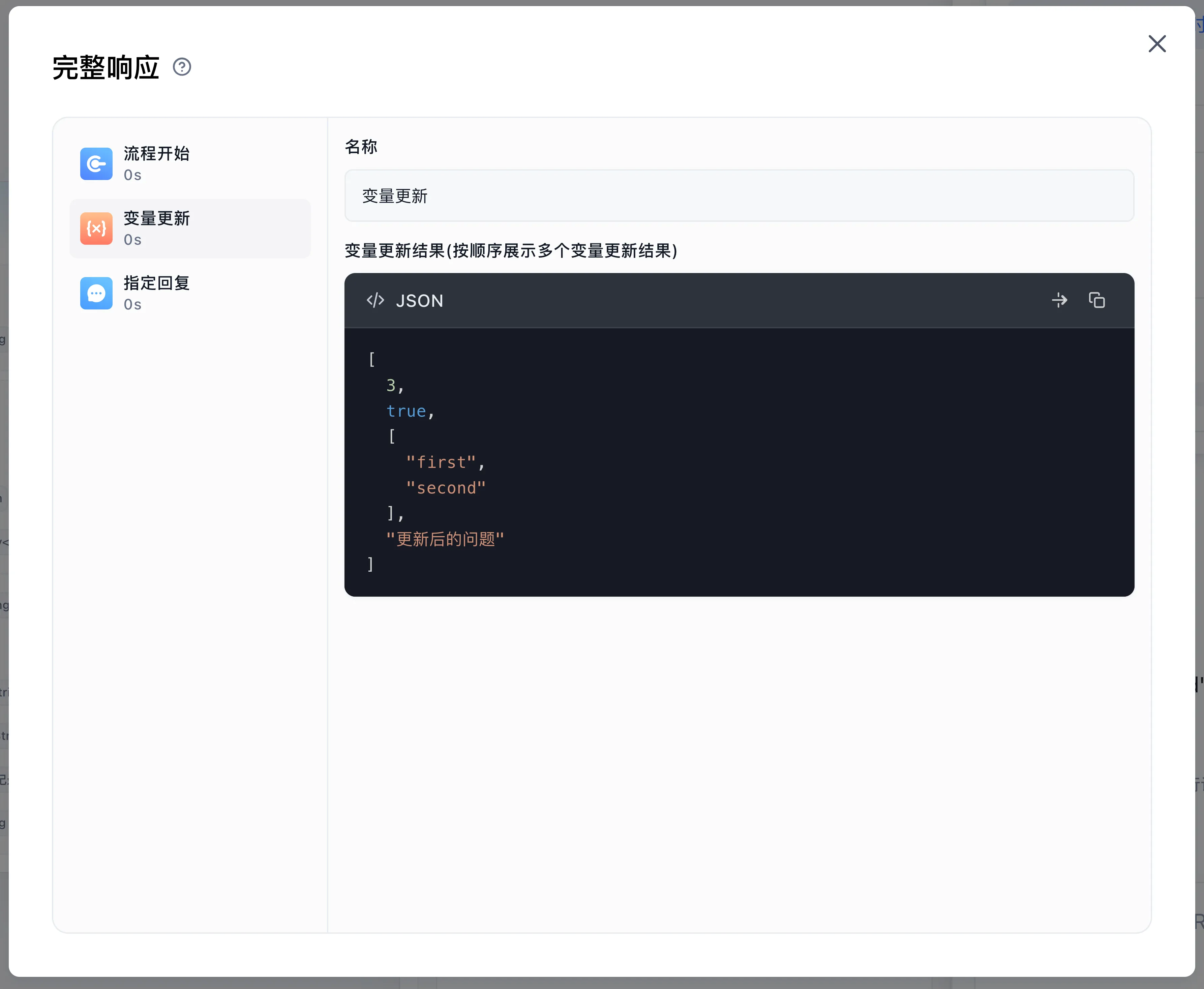
- Inspect node inputs and outputs: After the run completes, click Run Details below the message and inspect each executed node in order:
- Inputs: Resolved prompts, variable values, retrieval filters, and request payloads.
- Outputs: Model responses, retrieved chunk counts, extracted fields, script return values, or error strings.
- Latency and usage: Execution duration (seconds) and token/point consumption per node.
2. Error-Capture Branches (Error Handling)
Nodes that interact with external services or execute dynamic logic provide an Error catch switch to the right of the output section title. When enabled, an error output block appears below the outputs; connect the handle on the right of that block to route node failures to a fallback path:
Nodes with Error Capture
| Node Type | Error Output Field | Common Trigger Conditions |
|---|---|---|
HTTP (httpRequest468) | Error text (error), Full error (system_httpRawError) | Request timeout, connection failure, or error HTTP status |
Code run (code) | Error text (error) | JS/Python syntax error, runtime exception, or sandbox timeout |
AI Chat / Agent / Text Extract / Tool calling (chatNode / agent / contentExtract / tools) | Error text (system_error_text) | Model rate limit (429), context overflow, invalid provider credentials, or tool failure |
Dataset Search (datasetSearchNode) | Error text (system_error_text) | Embedding or rerank model error or retrieval timeout |
Loop Node (loopRun) | Error text (system_error_text) | Child node failure inside the loop body |
Parallel Run (parallelRun) has no Error catch switch. Its Completion Status (parallelStatus: success / partial_success / failed) and Full Results (parallelFullResults) are regular outputs; connect them to a Condition node to branch on the completion status.
Build a Fallback Path
- Connect the node's original right-side handle to your primary processing branch.
- Enable Error catch and connect the handle on the right of the error output block to a fallback branch (such as a backup model, an Assigned Reply node with a recovery message, or an alerting step).
- Reference the upstream
Error textoutput in the fallback branch to log diagnostic context or guide the user.
3. Auto-Saved Drafts and Version Rollback
- Draft vs. published isolation: Canvas edits, connections, and parameter changes are auto-saved to your working draft and used during editor debug runs, while live share links, portal sessions, and API calls continue using the active published version.
- Publish a snapshot: Click Save in the top-right corner and choose Save and Publish (or Save Only to update the draft), confirm the version Name (pre-filled with the current timestamp), and create an immutable published snapshot.
- Inspect and roll back versions: Click the clock icon button to the left of Run to open the version panel. It has two tabs: My Edit lists your canvas edit snapshots, and Team Cloud lists saved versions, with published ones tagged "Current Version" or "Previously Published". Clicking a version switches the canvas to it immediately and shows "Switch Successful". Then click Save → Save and Publish to roll back live traffic.
Troubleshooting Checklist
| Symptom | Where to Check |
|---|---|
| Downstream node is skipped after a branch | Check incoming-edge readiness and skip propagation in Workflow Core Mechanics |
| Connection handle refuses a wire | Check ordinary vs. tool connections and container boundaries in Workflow Connection Rules |
| Live users hit errors while editor debug succeeds | Inspect real user inputs, file link expiration, and version differences in Conversation Logs |
Last updated
Workflow validation rules
Learn about connection types, workflow boundaries, tool entry ownership, conditional feedback, and how connection points are displayed, deleted, and validated.
Assisted generation
Create or edit workflows in natural language, confirm the plan, and apply the generated workflow version to the canvas.