
Integrating Local Models with Ollama
Deploy your own models using Ollama
Ollama is an open-source AI model deployment tool focused on simplifying the deployment and usage of large language models. It supports one-click download and running of various LLMs.
Installing Ollama
Ollama supports multiple installation methods, but Docker is recommended. If you install Ollama directly on your host machine, you'll need to figure out how to let the FastGPT Docker container access Ollama on the host, which can be tricky.
Docker Installation (Recommended)
Use Ollama's official Docker image for one-click installation and startup (make sure Docker is installed on your machine):
docker pull ollama/ollama
docker run --rm -d --name ollama -p 11434:11434 ollama/ollama
If your FastGPT is deployed in Docker, make sure the Ollama container is on the same network as FastGPT. Otherwise, FastGPT may not be able to access it:
docker run --rm -d --name ollama --network (your FastGPT container network) -p 11434:11434 ollama/ollamaHost Installation
If you prefer not to use Docker, you can install directly on the host machine.
MacOS
If you're on macOS with Homebrew installed:
brew install ollama
ollama serve # Start the service after installation
Linux
On Linux, you can use a package manager. For Ubuntu:
curl https://ollama.com/install.sh | sh # Downloads and runs the official install script
ollama serve # Start the service after installation
Windows
On Windows, download the installer from the Ollama official website. Run the installer and follow the wizard. After installation, start the service in Command Prompt or PowerShell:
ollama serve # After installation, visit http://localhost:11434 in your browser to verify Ollama is runningAdditional Notes
If you installed Ollama as a host application (not via Docker), make sure Ollama listens on 0.0.0.0.
1. Linux
If Ollama runs as a systemd service, edit the service file with sudo systemctl edit ollama.service. Add Environment="OLLAMA_HOST=0.0.0.0" under the [Service] section. Save and exit, then run sudo systemctl daemon-reload and sudo systemctl restart ollama to apply.
2. MacOS
Open a terminal and run launchctl setenv ollama_host "0.0.0.0", then restart the Ollama application.
3. Windows
Open "Edit system environment variables" from the Start menu or search bar. In "System Properties", click "Environment Variables". Under "System variables", click "New" and create a variable named OLLAMA_HOST with value 0.0.0.0. Click "OK" to save, then restart Ollama from the Start menu.
Pull Model Images
After installing Ollama, no models are available locally -- you need to pull them:
# For Docker deployment, enter the container first: docker exec -it [Ollama container name] /bin/sh
ollama pull [model name]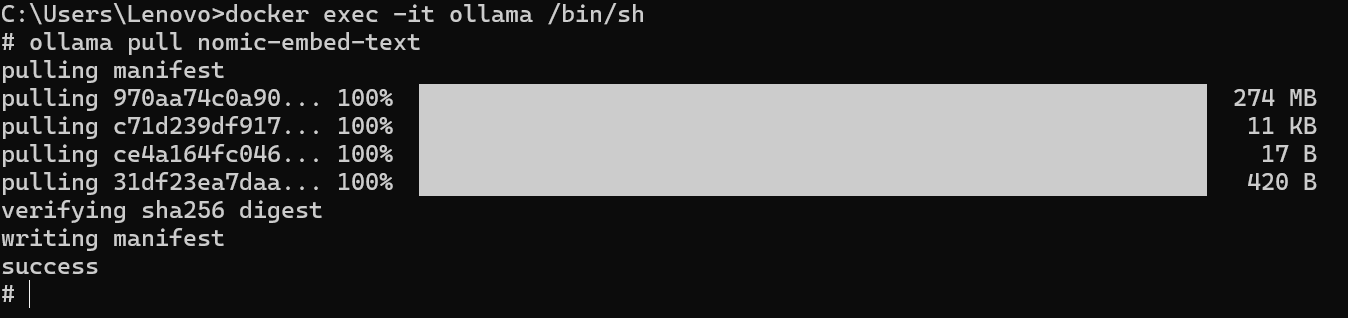
Test Communication
After installation, verify connectivity by entering the FastGPT container and trying to reach Ollama:
docker exec -it [FastGPT container name] /bin/sh
curl http://XXX.XXX.XXX.XXX:11434  # Container: "http://[container name]:[port]", Host: "http://[host IP]:[port]" (host IP cannot be localhost)
If you see that the Ollama service is running, communication is working.
Integrating Ollama with FastGPT
1. Check Available Models
First, check which models Ollama has:
# For Docker-deployed Ollama: docker exec -it [Ollama container name] /bin/sh
ollama ls
2. AI Proxy Integration
If you're using FastGPT's default configuration from here, AI Proxy is enabled by default.

Make sure your FastGPT can access the Ollama container. If not, refer to the installation section above -- check whether the host isn't listening on 0.0.0.0 or the containers aren't on the same network.

In FastGPT, go to Account -> Model Providers -> Model Configuration -> Add Model. Make sure the model ID matches the model name in OneAPI. See details here.
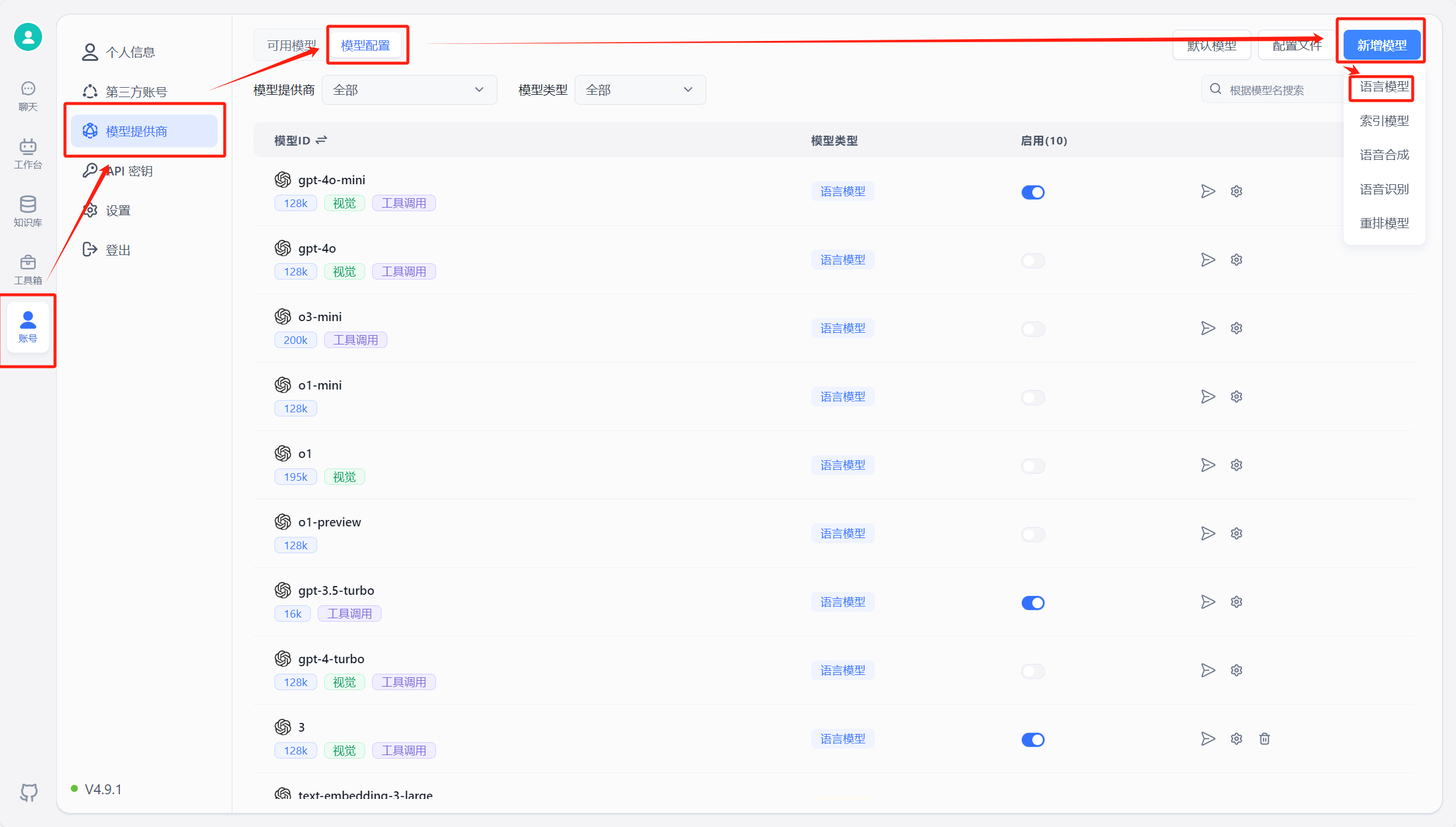
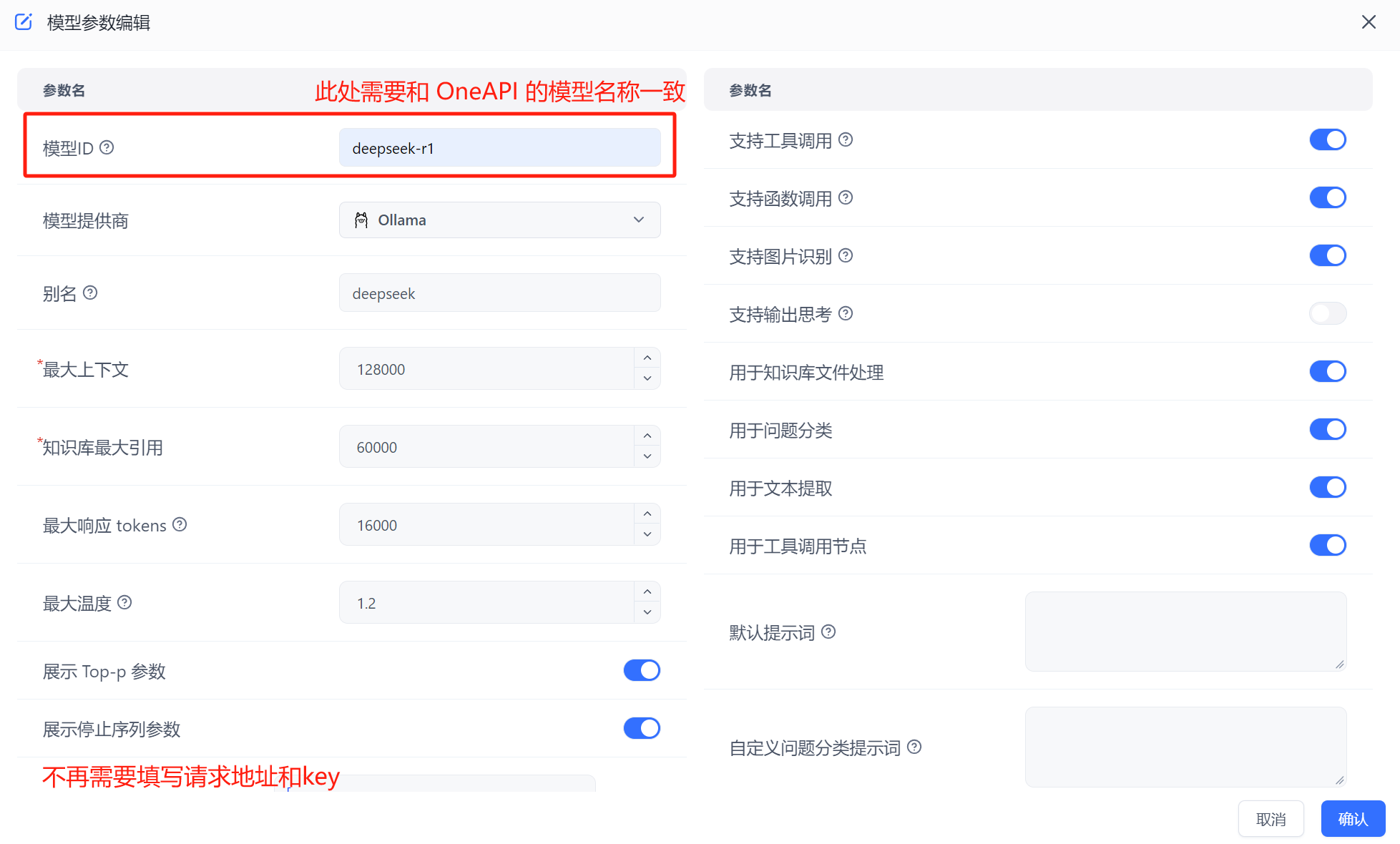
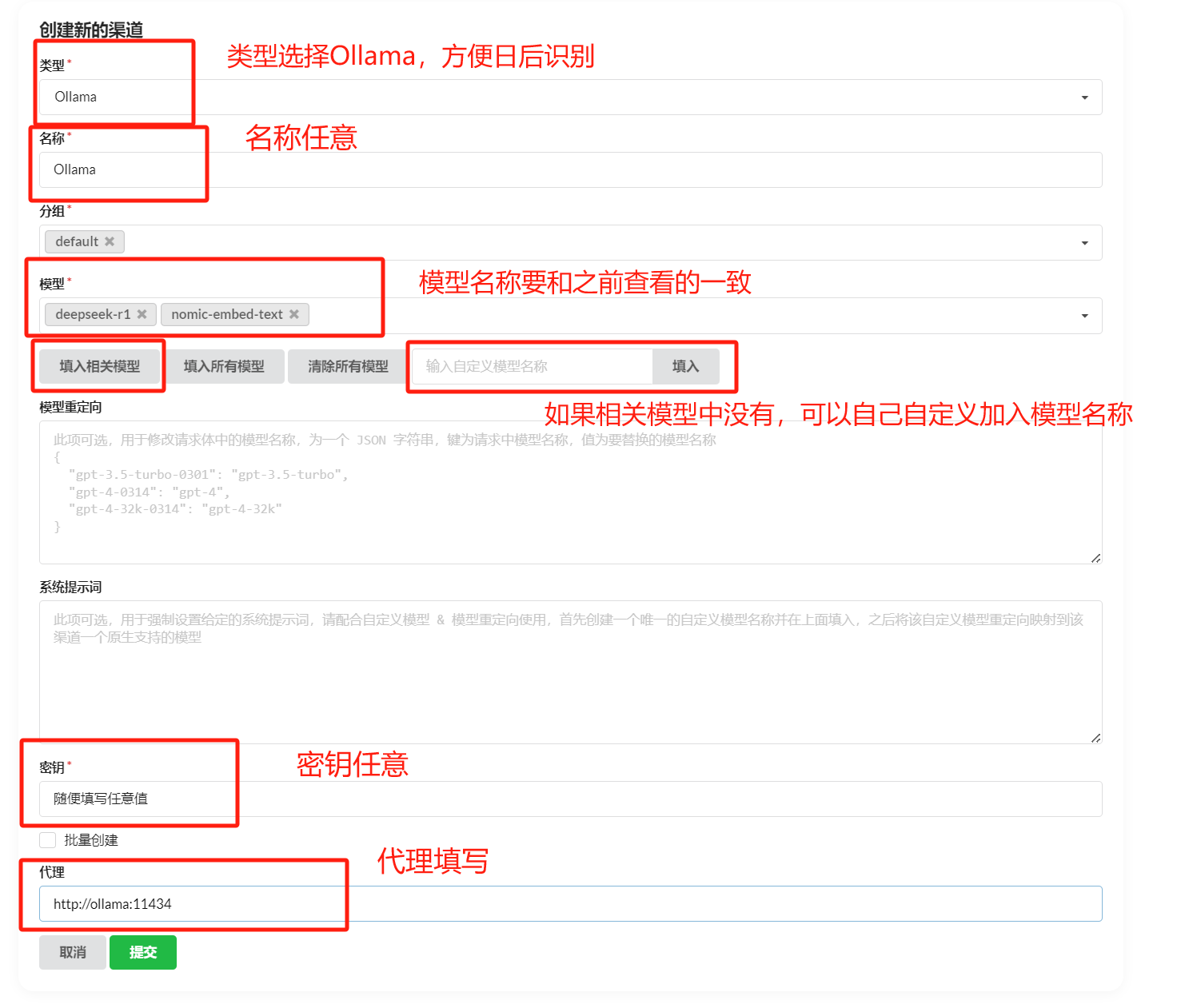
Run FastGPT, then go to Account -> Model Providers -> Model Channels -> Add Channel. Select Ollama as the channel type, add your pulled model, and fill in the proxy address. For container-deployed Ollama, the address is http://address:port. Note: container deployment uses "http://[container name]:[port]", host installation uses "http://[host IP]:[port]" (host IP cannot be localhost).
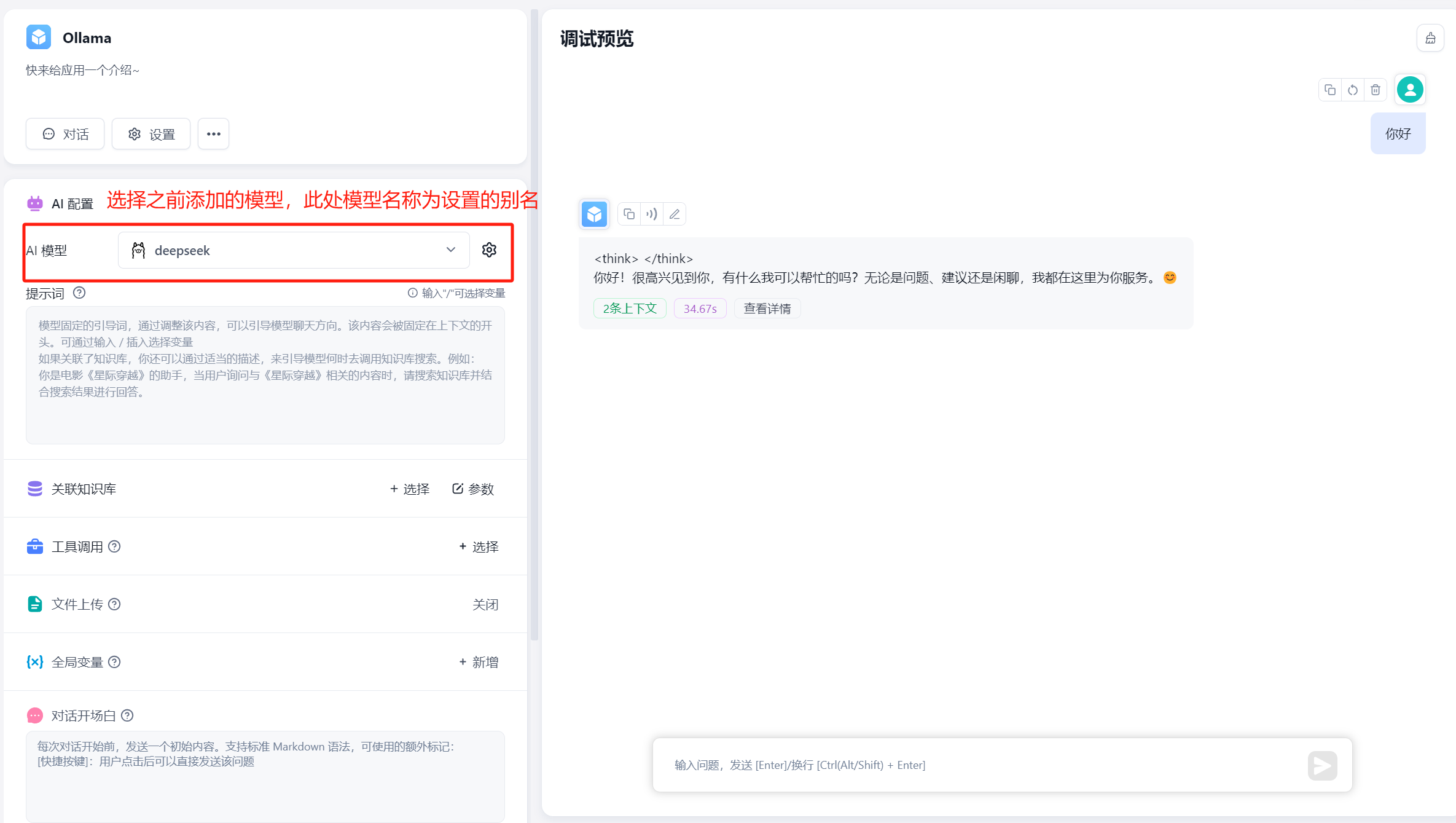
Create an app in the workspace and select the model you added. The model name shown is the alias you set. Note: the same model cannot be added multiple times -- the system uses the alias from the most recent addition.
3. OneAPI Integration
If you want to use OneAPI, pull the OneAPI image and run it on the same network as FastGPT:
# Pull the OneAPI image
docker pull intel/oneapi-hpckit

# Run the container on the FastGPT network
docker run -it --network [FastGPT network] --name container_name intel/oneapi-hpckit /bin/bash
In the OneAPI page, add a new channel with type Ollama. Enter your Ollama model name (must match exactly), then fill in the Ollama proxy address below -- default is http://address:port, without /v1. Test the channel after adding. This example uses Docker-deployed Ollama; for host-installed Ollama, use http://[host IP]:[port].
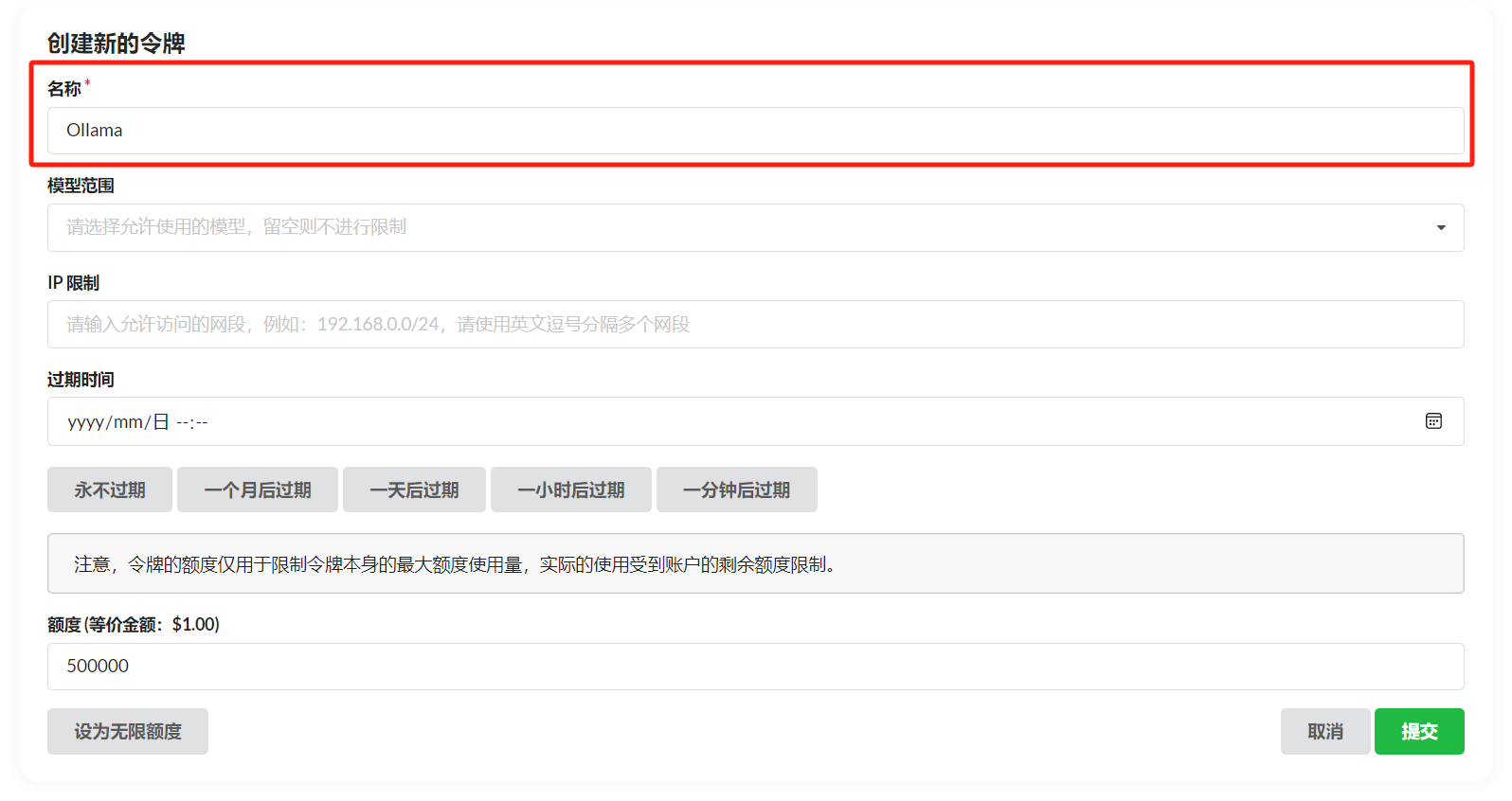
After adding the channel, click Token -> Add Token, fill in the name, and configure as needed.
Edit the FastGPT docker-compose.yml file: comment out AI Proxy, set OPENAI_BASE_URL to your OneAPI address (default http://address:port/v1 -- /v1 is required), and set KEY to your OneAPI token.

Then jump to section 5 to add and use models.
4. Direct Integration
If you don't want to use AI Proxy or OneAPI, you can connect directly. Edit the FastGPT docker-compose.yml: comment out AI Proxy code, set OPENAI_BASE_URL to your Ollama address (default http://address:port/v1 -- /v1 is required), and set KEY to any value (Ollama has no authentication by default; if you've enabled it, use the correct key). Everything else is the same as the OneAPI approach -- just add your model in FastGPT. This example uses Docker-deployed Ollama; for host-installed Ollama, use http://[host IP]:[port].

After completing the setup, click here to add and use models.
5. Model Addition and Usage
In FastGPT, go to Account -> Model Providers -> Model Configuration -> Add Model. Make sure the model ID matches the model name in OneAPI.
Create an app in the workspace and select the model you added. The model name shown is the alias you set. Note: the same model cannot be added multiple times -- the system uses the alias from the most recent addition.
6. Additional Notes
For the Ollama proxy addresses above: host-installed Ollama uses "http://[host IP]:[port]", container-deployed Ollama uses "http://[container name]:[port]".
File Updated