
Deploy with Docker-compose
Quickly deploy FastGPT using Docker Compose
Prerequisites
- Basic networking knowledge: ports, firewalls, etc.
- Docker and Docker Compose basics
Deployment Architecture
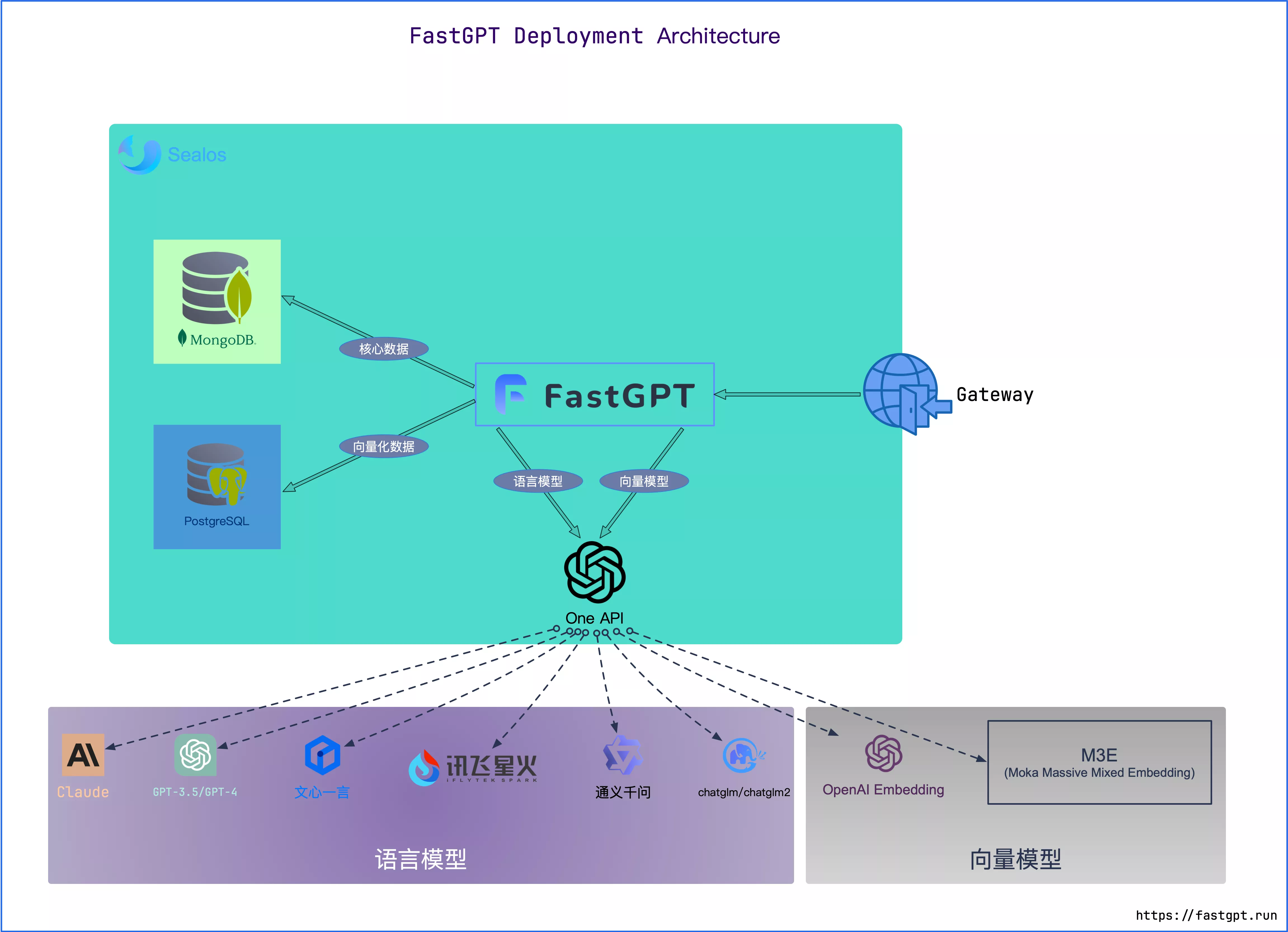
- MongoDB: Stores all data except vectors
- PostgreSQL/Milvus/Oceanbase/SeekDB: Stores vector data
- AIProxy: Aggregates various AI APIs with multi-model support (for any model issues, test with OneAPI first)
Recommended Specs
PgVector Version
Very lightweight, suitable for knowledge base indexes under 50 million.
| Environment | Minimum (Single Node) | Recommended |
|---|---|---|
| Testing (reduce compute processes) | 2c4g | 2c8g |
| 1M vector groups | 4c8g 50GB | 4c16g 50GB |
| 5M vector groups | 8c32g 200GB | 16c64g 200GB |
Milvus Version
Better performance for 100M+ vectors.
View Milvus official recommended specs
| Environment | Minimum (Single Node) | Recommended |
|---|---|---|
| Testing | 2c8g | 4c16g |
| 1M vector groups | Not tested | |
| 5M vector groups |
Zilliz Cloud Version
Zilliz Cloud is built by the Milvus team — a fully managed SaaS vector database with better performance than Milvus and SLA guarantees. Try Zilliz Cloud.
Since the vector database runs in the cloud, no local resources are needed.
SeekDB Version
SeekDB is a high-performance vector database based on MySQL protocol, fully compatible with OceanBase, supporting efficient vector retrieval.
| Environment | Minimum (Single Node) | Recommended |
|---|---|---|
| Testing (reduce compute processes) | 2c4g | 2c8g |
| 1M vector groups | 4c8g 50GB | 4c16g 50GB |
| 5M vector groups | 8c32g 200GB | 16c64g 200GB |
SeekDB uses MySQL protocol, fully compatible with OceanBase:
- Supports 1536-dimensional vector retrieval
- Built-in HNSW index algorithm
- Batch insert and query optimization
- Automatic retry and connection pool management
Preparation
Prepare Docker Environment
# Install Docker
curl -fsSL https://get.docker.com | bash -s docker --mirror Aliyun
systemctl enable --now docker
# Install docker-compose
curl -L https://github.com/docker/compose/releases/download/v2.20.3/docker-compose-`uname -s`-`uname -m` -o /usr/local/bin/docker-compose
chmod +x /usr/local/bin/docker-compose
# Verify installation
docker -v
docker compose -v
# If it fails, search online for solutions
We recommend Orbstack. Install via Homebrew:
brew install orbstackOr download the installer directly.
We recommend storing source code and data in the Linux filesystem when binding to Linux containers, not the Windows filesystem.
You can install Docker Desktop with WSL 2 backend on Windows.
Or install the command-line version of Docker directly in WSL 2.
Start Deployment
1. Get Configuration Files
Method 1: Interactive Script Deployment
Run in Linux/MacOS/Windows WSL. The script guides you through selecting deployment environment, vector database version, IP address, etc.
bash <(curl -fsSL https://doc.fastgpt.cn/deploy/install.sh)Method 2: Manual Download
If your environment is non-*nix or can't access external networks, manually download docker-compose.yml.
- Download the
docker-compose.ymlfile:
Click to view docker-compose config file download links for different databases
- Pgvector
- China mirror (Alibaba Cloud): docker-compose.pg.yml
- Global mirror (dockerhub, ghcr): docker-compose.pg.yml
- Oceanbase
- China mirror (Alibaba Cloud): docker-compose.ob.yml
- Global mirror (dockerhub, ghcr): docker-compose.ob.yml
- Milvus
- China mirror (Alibaba Cloud): docker-compose.milvus.yml
- Global mirror (dockerhub, ghcr): docker-compose.milvus.yml
- Zilliz
- China mirror (Alibaba Cloud): docker-compose.zilliz.yml
- Global mirror (dockerhub, ghcr): docker-compose.zilliz.yml
- SeekDB
- China mirror (Alibaba Cloud): docker-compose.seekdb.yml
- Global mirror (dockerhub, ghcr): docker-compose.seekdb.yml
- Download the
config.jsonfile:
Download config.json file:
2. Modify Environment Variables
For Zilliz version, you also need credentials — see Deploy Zilliz Version: Get Account and Credentials. Other versions can skip to the next step.
3. Open External Ports / Configure Domain
These ports must be accessible:
- Port 3000 (FastGPT main service)
- Port 9000 (S3 service)
- Port 3005 (FastGPT SSE MCP server service)
4. Start Containers
Run in the same directory as docker-compose.yml. Ensure docker-compose version is 2.17+, or automated commands may fail.
# Start containers
docker compose --profile prepull pull opensandbox-agent-sandbox-image opensandbox-execd-image opensandbox-egress-image && dockercompose up -d
5. Access FastGPT
Access FastGPT via the port/domain opened in step 3.
Login username is root, password is the DEFAULT_ROOT_PSW set in docker-compose.yml environment variables.
Each container restart automatically initializes the root user with password 1234 (matching DEFAULT_ROOT_PSW).
6. Configure Models
- After first login, the system prompts that
Language ModelandIndex Modelare not configured and automatically redirects to the model configuration page. At least these two model types are required. - If the redirect doesn't happen, go to
Account - Model Providersto configure models. View tutorial - Known issue: after first entering the system, the browser tab may become unresponsive. Close the tab and reopen it.
7. Install System Plugins as Needed
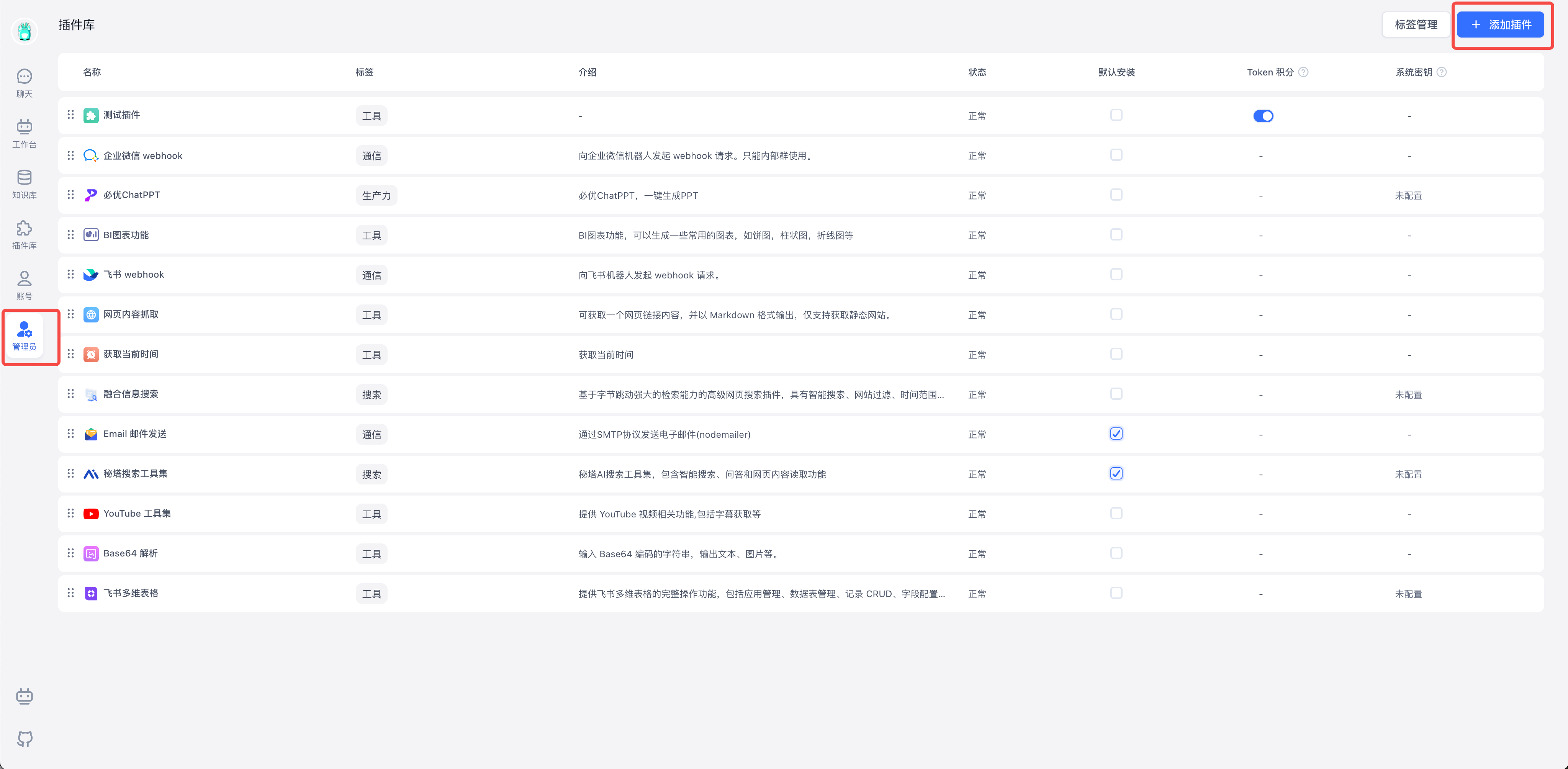
Starting from V4.14.0, the fastgpt-plugin image only provides the runtime environment without pre-installed system plugins. All FastGPT systems must manually install system plugins.
- Install via the plugin marketplace — by default it fetches from the public FastGPT Marketplace.
- If your FastGPT can't access the marketplace, visit FastGPT Plugin Marketplace, download .pkg files, and import them via file upload.
- You can also sort tools, set default installations, and manage tags.
FAQ
FastGPT and FastGPT-plugin Version Compatibility
| FastGPT-plugin Version | FastGPT Main Service |
|---|---|
| 0.6.x | >= 4.14.11 |
| 0.5.x | >= 4.14.6, < 4.14.11 |
| < 0.5.0 | < 4.14.6 |
S3 Connection Issues
Check the STORAGE_EXTERNAL_ENDPOINT variable — it must be accessible by both the client and FastGPT service.
Important:
Don't use
127.0.0.1orlocalhostor other loopback addresses. Use the host machine's local IP when deploying with Docker, but set it to a static IP; or use a fixed domain name. This prevents 403 errors caused by URL mismatches when signing object storage URLs.
Browser Unresponsive After Login
Can't click anything, refresh doesn't help. Close the tab and reopen it.
Mongo Replica Set Auto-Initialization Failed
The latest docker-compose examples have fully automated Mongo replica set initialization. Tested on Ubuntu 20/22, CentOS 7, WSL2, macOS, and Windows. If it still won't start, the CPU likely doesn't support AVX instructions — switch to Mongo 4.x.
To manually initialize the replica set:
- Create a mongo key in the terminal:
openssl rand -base64 756 > ./mongodb.key
chmod 600 ./mongodb.key
# Change key permissions — some systems use admin, others use root
chown 999:root ./mongodb.key- Modify docker-compose.yml to mount the key:
mongo:
  #  image: mongo:5.0.18
  # image: registry.cn-hangzhou.aliyuncs.com/fastgpt/mongo:5.0.18 # Alibaba Cloud
  container_name: mongo
  ports:
    - 27017:27017
  networks:
    - fastgpt
  command: mongod --keyFile /data/mongodb.key --replSet rs0
  environment:
    # Default username and password, only effective on first run
    - MONGO_INITDB_ROOT_USERNAME=myusername
    - MONGO_INITDB_ROOT_PASSWORD=mypassword
  volumes:
    - ./mongo/data:/data/db
- ./mongodb.key:/data/mongodb.key- Restart services:
docker compose down
docker compose up -d- Enter the container and initialize the replica set:
# Check if mongo container is running
docker ps
# Enter container
docker exec -it mongo bash

# Connect to database (use your Mongo username and password)
mongo -u myusername -p mypassword --authenticationDatabase admin

# Initialize replica set. For external access, add directConnection=true to the Mongo connection parameters
rs.initiate({
  _id: "rs0",
  members: [
    { _id: 0, host: "mongo:27017" }
  ]
})
# Check status — if it shows rs0 status, it's running successfully
rs.status()
How to Change API Address and Key
By default, OneAPI connection address and key are configured. Modify the environment variables in the fastgpt container in docker-compose.yml:
OPENAI_BASE_URL (API endpoint, must include /v1)
CHAT_API_KEY (API credentials)
After modifying, restart:
docker compose down
docker compose up -d
How to Update Versions?
-
Check the update documentation to confirm the target version — avoid skipping versions.
-
Change the image tag to the target version
-
Run these commands to pull and restart:
docker compose up -d -
Run initialization scripts (if any)
How to Customize Configuration Files?
Modify config.json, then run docker compose down followed by docker compose up -d to restart. For details, see Configuration Guide.
How to Check if Custom Config File is Mounted
docker logs fastgptshows logs. After starting the container, the first web request reads the config file — check for success or error messages.docker exec -it fastgpt shenters the container. Usels datato check ifconfig.jsonis mounted. Usecat data/config.jsonto view it.
Possible reasons it's not working:
- Incorrect mount directory
- Invalid config file — logs will show
invalid json. The file must be valid JSON. - Didn't run
docker compose downthendocker compose up -dafter changes. A simple restart doesn't remount files.
How to Check if Environment Variables Loaded
docker exec -it fastgpt shto enter the container.- Run
envto view all environment variables.
Why Can't I Connect to Local Model Images
docker-compose.yml uses bridge mode to create the fastgpt network. To access other images via 0.0.0.0 or image name, add those images to the same network.
How to Resolve Port Conflicts?
Docker-compose port format: mapped_port:running_port.
In bridge mode, container running ports don't conflict, but mapped ports can. Change the mapped port to a different value.
If container1 needs to connect to container2, use container2:running_port.
(Brush up on Docker basics as needed)
relation "modeldata" does not exist
PG database not connected or initialization failed — check logs. FastGPT initializes tables on each PG connection. Errors will appear in the logs.
- Check if the database container started normally
- For non-Docker deployments, manually install the pg vector extension
- Check fastgpt logs for related errors
Illegal instruction
Possible causes:
- ARM architecture — use the official Mongo image: mongo:5.0.18
- CPU doesn't support AVX — switch to mongo4.x. Change the mongo image to: mongo:4.4.29
Operation auth_codes.findOne() buffering timed out after 10000ms
Mongo connection failed — check mongo's running status and logs.
Possible causes:
- Mongo service didn't start (some CPUs don't support AVX — switch to mongo4.x, find the latest 4.x on Docker Hub, update the image version, and rerun)
- Database connection environment variables are wrong (username/password, check host and port — for non-container network connections, use public IP and add directConnection=true)
- Replica set startup failed, causing the container to keep restarting
Illegal instruction.... Waiting for MongoDB to start: CPU doesn't support AVX — switch to mongo4.x
First Deployment: Root User Shows Unregistered
Logs will show error messages. Most likely Mongo replica set mode wasn't started.
Can't Export Knowledge Base / Can't Use Voice Input or Playback
SSL certificate not configured — some features require it.
Login Shows Network Error
Caused by service initialization errors triggering a restart.
- 90% of cases: incorrect config file causing JSON parsing errors
- The rest: usually because the vector database can't connect
How to Change Password
Modify DEFAULT_ROOT_PSW in docker-compose.yml and restart — the password auto-updates.
Deploy Zilliz Version: Get Account and Credentials
Open Zilliz Cloud, create an instance, and get the credentials.
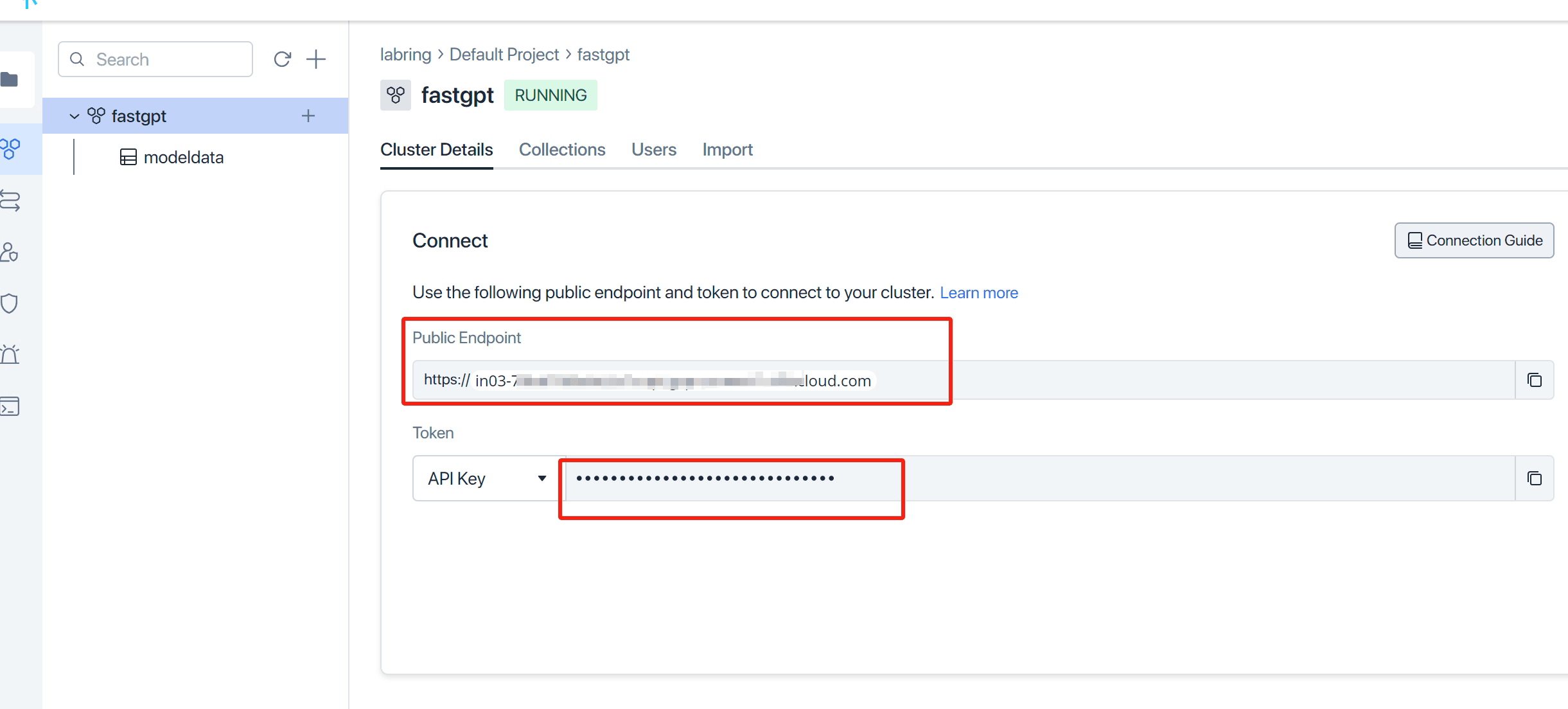
- Set
MILVUS_ADDRESSandMILVUS_TOKENto match Zilliz'sPublic EndpointandApi key. Remember to add your IP to the whitelist.
File Updated