
Welcome Text
FastGPT welcome text configuration
Welcome Text is the initial message sent automatically before each new conversation starts. Use it to introduce what the app can do, clarify the question scope, or provide common entry points.
Configuration Entry
In the app editor, find Welcome Text and click the settings button on the right to edit the content.
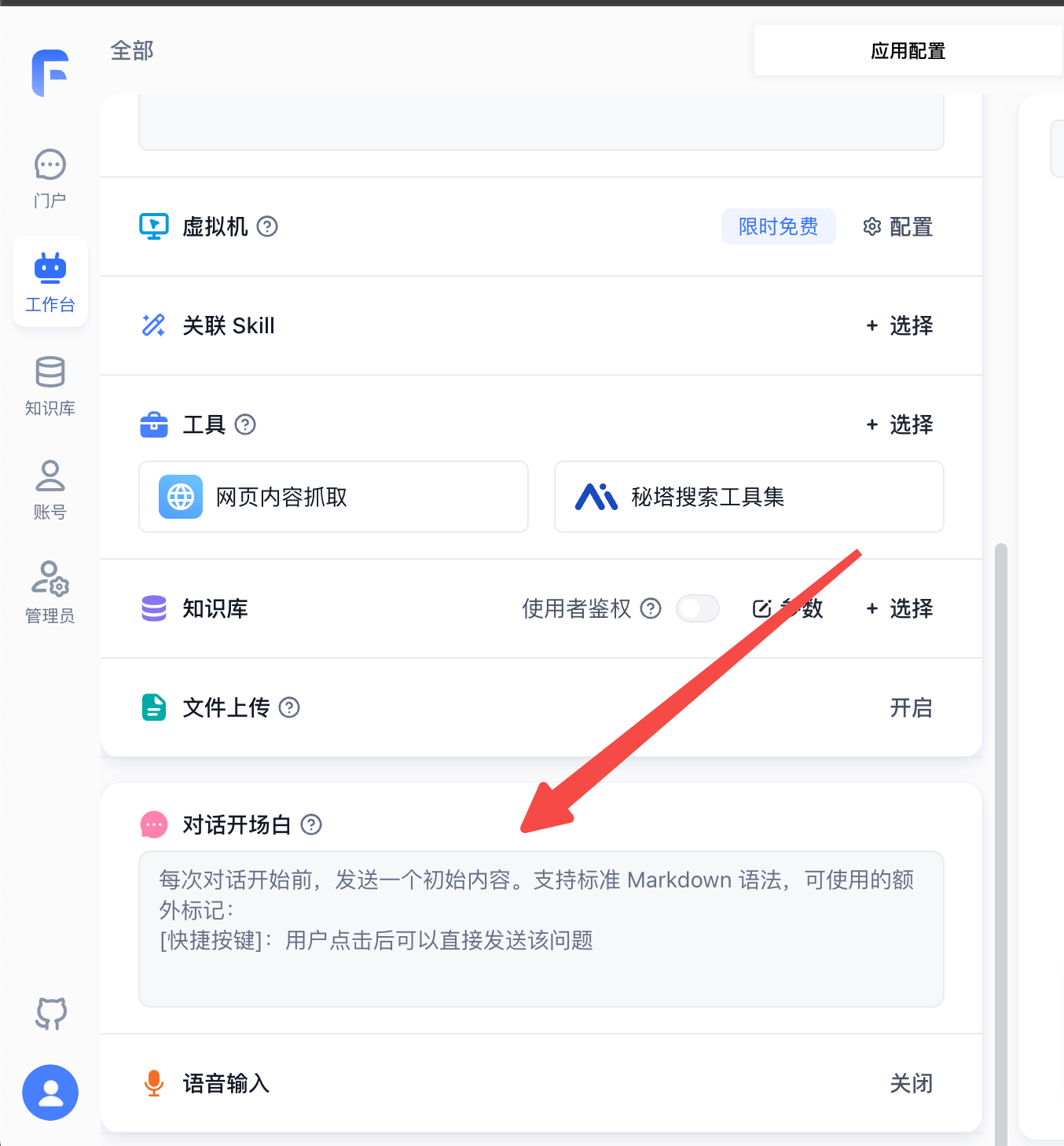
Markdown Support
Welcome Text supports standard Markdown syntax, including headings, lists, links, and bold text. This helps users quickly understand what the app can help with.
Quick Questions
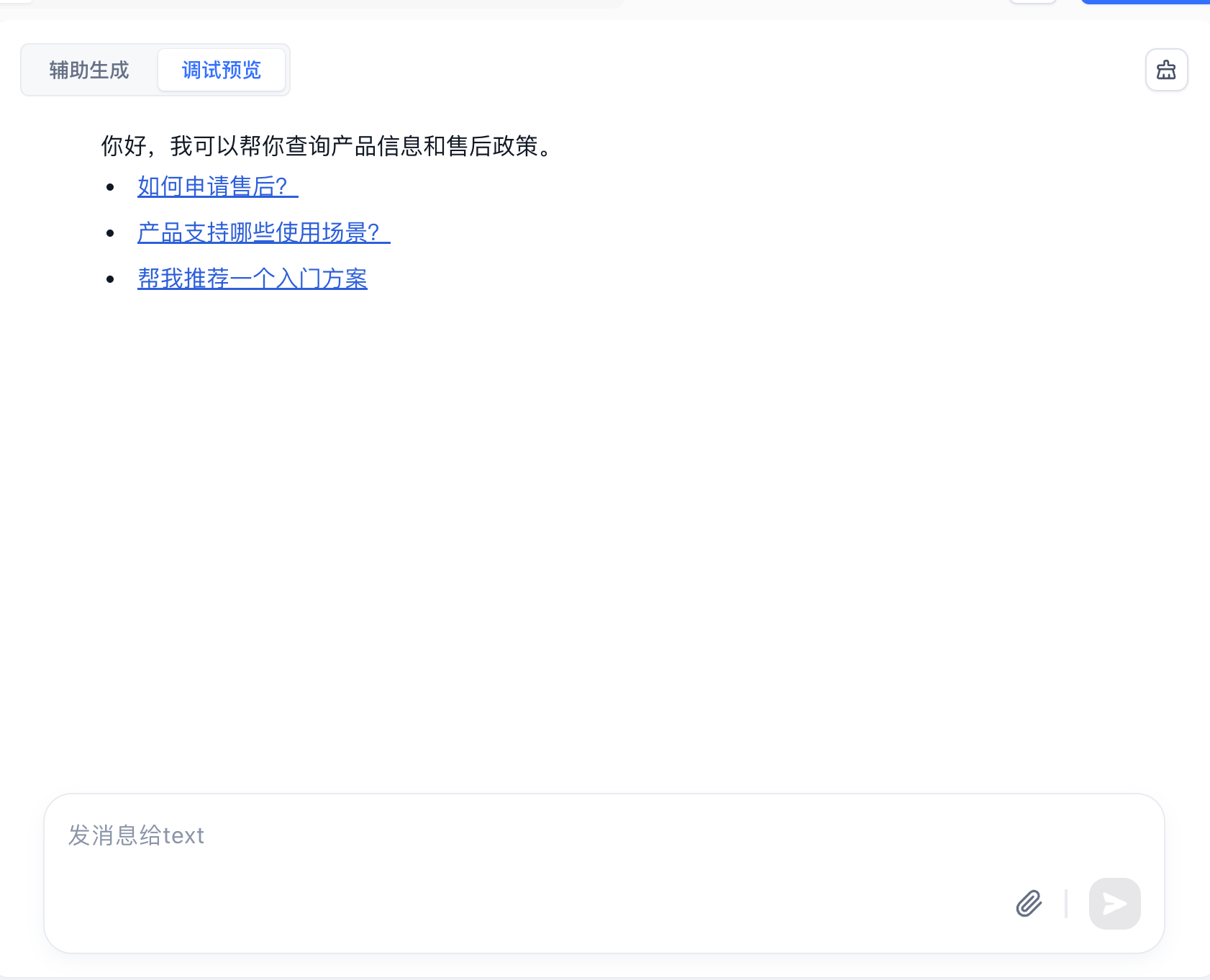
Welcome Text supports the special [Quick Question] format. FastGPT displays these items as clickable buttons, and users can send the preset question with one click.
Example:
Hello, I can help you look up product information and support policies.

[How do I request support?]
[What scenarios does this product support?]
[Recommend a starter plan]
When users start a new conversation, they will see the welcome message and quick question buttons. After a user clicks a quick question, FastGPT sends that question as the user's message.
Recommendations
- Keep the welcome text short and clear, focusing on what the app can solve.
- Use quick questions for common scenarios, and avoid adding too many options.
- If the app requires a specific input format, include an example in the welcome text.
File Updated