
AI Settings
FastGPT AI settings explained
AI settings control how AI Chat nodes behave in apps and Workflows, including model selection, response length, multimodal recognition, response format, and reasoning display. This guide explains what each option in the settings modal means and how to choose values for common scenarios.
Where to Find It
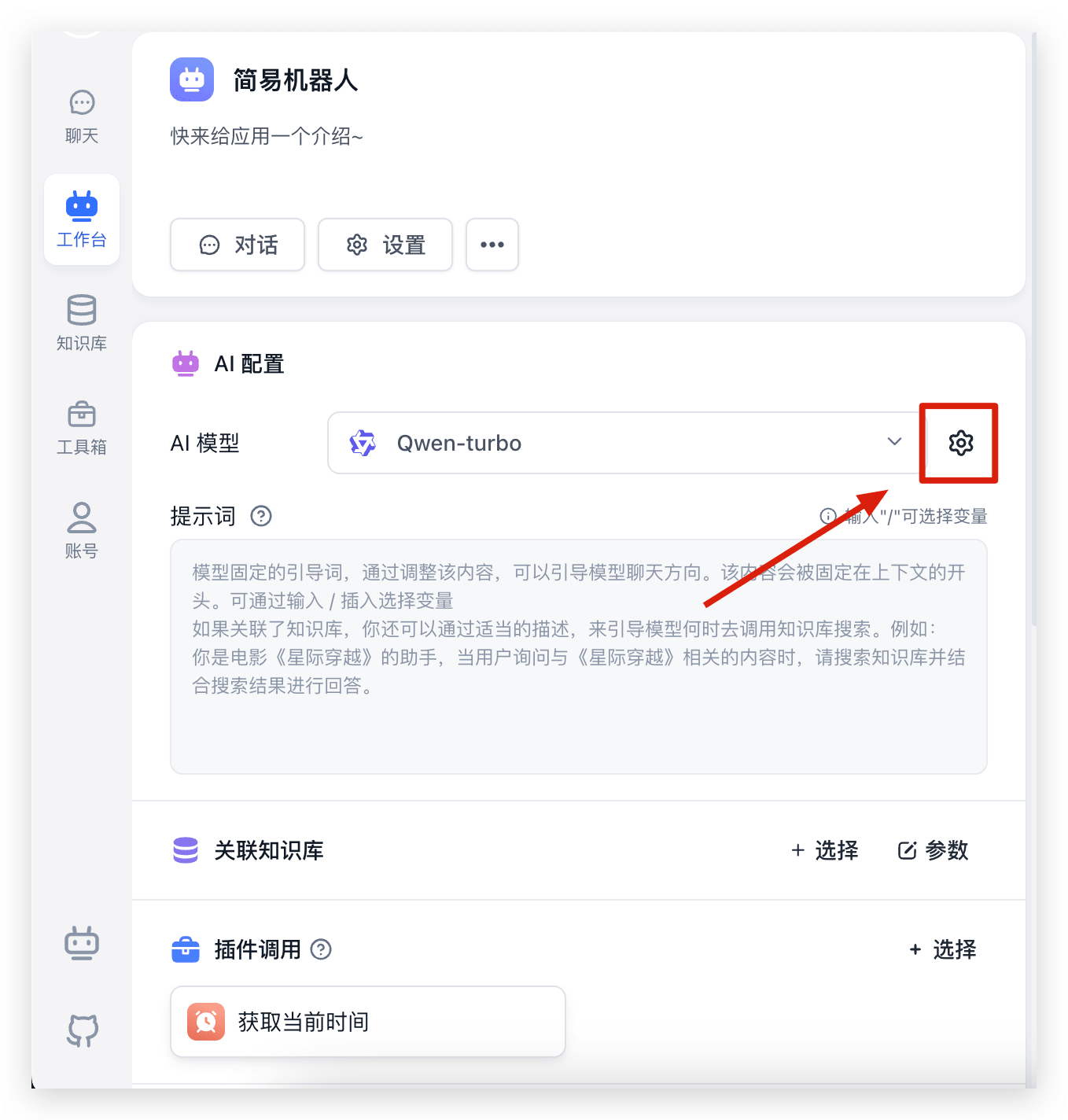
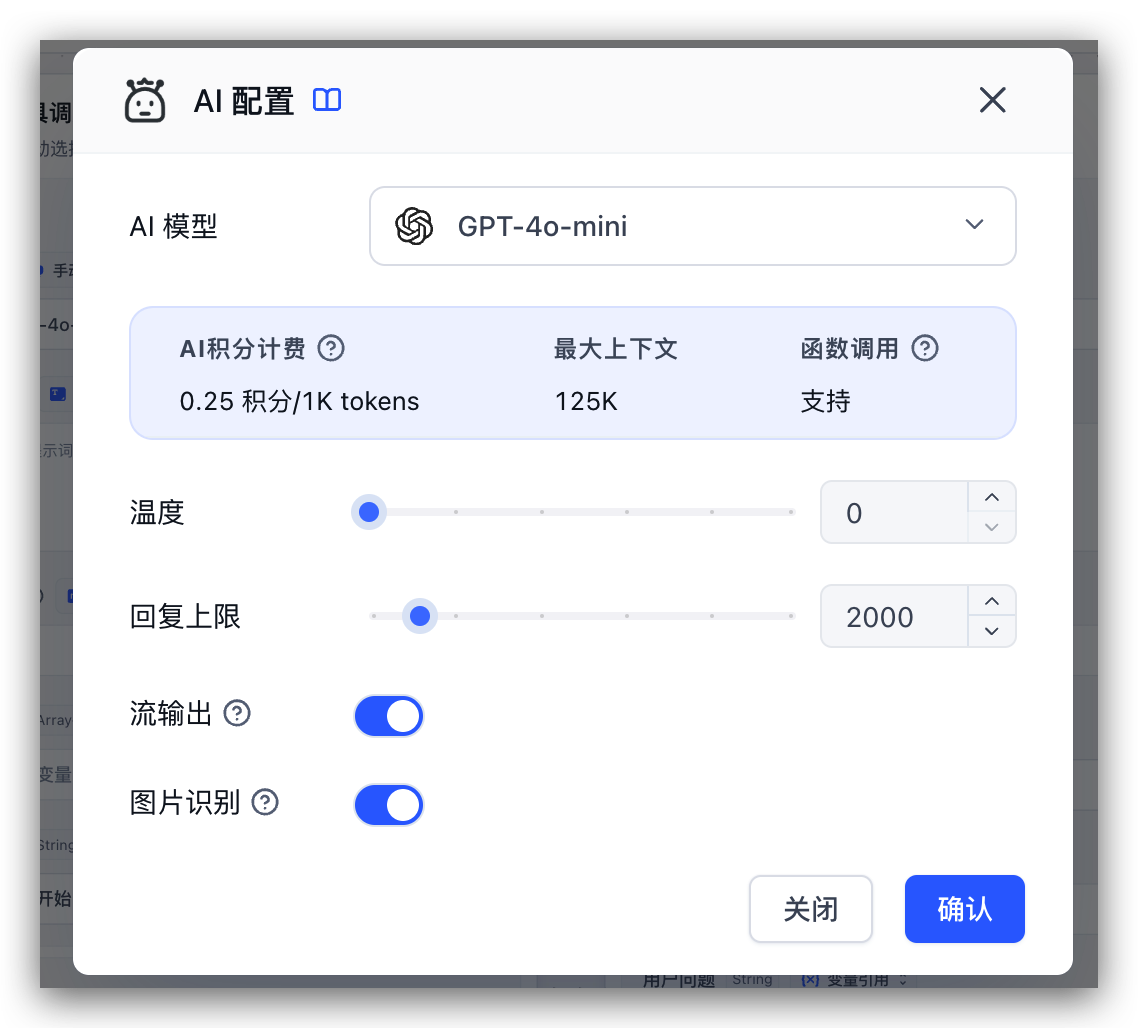
In the app editor, find the AI Settings section, select an AI model, and click the settings button on the right side of the model selector to open the AI settings modal.
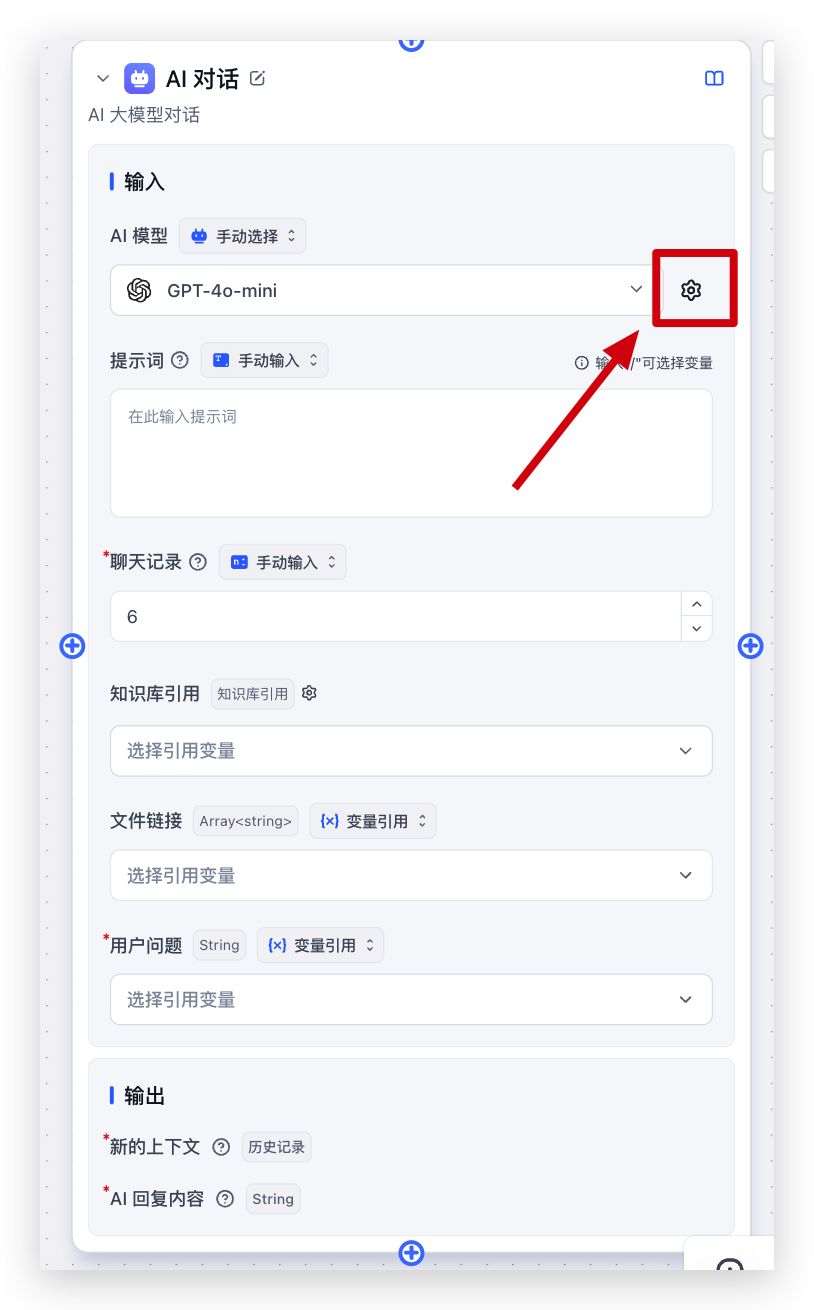
In a Workflow, click the AI model configuration for the AI Chat node. You can open the same settings modal from the settings button on the right.
If you do not have specific requirements, selecting a suitable AI model and keeping the other settings at their defaults is usually enough.
 |  |  |
Why Some Options May Be Hidden
Not every option is always shown. The modal only displays settings supported by the selected model. For example, if a model does not support multimodal recognition, multimodal options are hidden. If a model does not support reasoning settings, those options are hidden as well.
Basic Settings
AI Model
Select the AI model used by the current app or node. Different models vary in response quality, cost, context length, tool calling capability, and multimodal capability.
The model section displays several types of information:
- Point cost: A reference cost for model calls. Input content and model output are usually priced separately.
- Max context: The amount of content the model can reference in one request. A larger context window is better for long documents and long conversations.
- Tool calling: If supported, the model can use selected app tools to query data, run calculations, or call external capabilities.
- Multimodal capability: If the model supports image, audio, or video input, you can enable the corresponding multimodal recognition capability in AI Settings. Different models may support different media types. Use the capabilities shown in the settings modal as the source of truth.
Max Histories
Controls how many previous conversation rounds the AI can reference when answering.
Higher values make it easier for the AI to use earlier context, but they also add more content to the request, which may increase cost and slow down responses. Lower values may prevent the model from using useful prior context.
If you do not have a specific requirement, use the default value. Customer support and Dataset Q&A apps usually only need a small number of history rounds.
Max Tokens
Controls the maximum length of a single AI response.
When enabled, use the slider to limit response length. If the value is too low, the response may be cut off early. A higher value allows the model to generate more complete answers, but may also increase cost.
Use a lower value for concise answers. Use a higher value when generating plans, articles, or longer explanations.
Temperature
Controls how stable the response is.
Lower values produce more stable responses and are better for customer support, Dataset Q&A, and scenarios with clear rules. Higher values produce more varied responses and are better for writing, brainstorming, and creative content.
Common choices:
- Customer support and Dataset Q&A: use a lower value.
- Copywriting, stories, and creative suggestions: use a higher value.
- If unsure: keep the default.
Top_p
Top_p also controls response randomness, with some overlap with temperature.
In most cases, avoid adjusting temperature and Top_p at the same time. If temperature already gives the result you want, keep Top_p disabled or at its default.
Stop
Stops the AI response when specified content appears.
Most chat scenarios do not need this setting. Use it only when the model should stop after outputting a fixed marker. Separate multiple stop strings with |, for example: end|stop.
Response Format
Controls the format of the AI response.
For regular chat, customer support, and Dataset Q&A, keep the default. Change this only when a later step needs to read the response in a fixed format.
If you select json_schema, you also need to provide the corresponding schema. This option is suitable when the model must return content in a fixed structure.
Multimodal Recognition
If the selected model is configured with multimodal capability, this setting controls whether the AI can read images, audio, or video from user input.
The available types depend on the model itself. If a model only supports images, only image recognition can be enabled. If it supports images, audio, or video, you can select the needed types.
When enabled, the AI Chat node converts matching uploaded files, or matching media links in the user's question, into model-readable input before sending the request. For example:
- Image recognition: for screenshots, table images, product images, posters, and similar image content.
- Audio recognition: for models that can understand uploaded audio content.
- Video recognition: for models that can understand uploaded video content.
Keep these limits in mind:
- Even after a type is enabled, the request is filtered again by the actual model capability before it is sent. Unsupported media types are not sent to the model.
- Media links in the user's question are only parsed when "Extract multimodal files from links" is enabled. Currently, extraction is attempted only when the user's question is under 500 characters, with at most 4 media links processed at a time.
- Regular document files are not sent directly to the LLM as multimodal input. Documents still need to be parsed into text first.
- Multimodal recognition depends on the model's own capability. If the modal says the model does not support multimodal recognition, switch to a model that supports the needed media type.
Hide AI Output
When enabled, AI-generated content is not shown directly to the user, but it can still be passed to downstream nodes through the AI response output. For example, the AI can first organize an internal result, and the next node can rewrite it into the final response.
Reasoning Settings
Some models can generate reasoning content before the final answer. When you select one of these models, the modal shows reasoning settings.
Reasoning Effort
Controls how much reasoning the model performs.
- Default: Use the model's default behavior.
- None: Try to answer directly. This is suitable for simple questions.
- Minimal / Low / Medium / High / Extra high: Use stronger reasoning for more complex questions.
Reasoning effort follows OpenAI's reasoning_effort convention, with ai-proxy adapting it to the parameter format required by each model provider. For the full rules, see ai-proxy reasoning compatibility.
OpenAI-Compatible Enum and Default Budget Mapping
| FastGPT option | OpenAI-compatible value | Default budget |
|---|---|---|
| Default | Do not explicitly send reasoning_effort | Use the model default |
| None | none | 0 |
| Minimal | minimal | 1024 |
| Low | low | 2048 |
| Medium | medium | 8192 |
| High | high | 16384 |
| Extra high | xhigh | 32768 |
If an upstream provider only supports a token budget instead of discrete effort levels, ai-proxy uses the table above to convert effort to budget. When normalizing budget back to effort, <=0 maps to none, 1-1024 maps to minimal, 1025-4096 maps to low, 4097-12288 maps to medium, 12289-24576 maps to high, and anything higher maps to xhigh.
OpenAI / OpenAI Responses
| Target format | Output field | Mapping |
|---|---|---|
| OpenAI Chat / Completions | reasoning_effort | Writes none/minimal/low/medium/high/xhigh as-is |
| OpenAI Responses | reasoning.effort | Writes none/minimal/low/medium/high/xhigh as-is |
OpenAI Chat / Completions only parses reasoning_effort. When Gemini, Claude, or other request formats are converted to an OpenAI-compatible format, they are first normalized to this field.
Google Gemini
Gemini native requests are parsed from generationConfig.thinkingConfig, including thinkingLevel, thinkingBudget, and includeThoughts. When writing to Gemini upstreams, ai-proxy chooses either thinkingLevel or thinkingBudget based on the model family.
| OpenAI-compatible value | Gemini 3+ Pro | Gemini 3+ non-Pro | gemini-2.5-pro | gemini-2.5-flash | gemini-2.5-flash-lite |
|---|---|---|---|---|---|
none | thinkingLevel=low | thinkingLevel=minimal | thinkingBudget=128 | thinkingBudget=0 | thinkingBudget=0 |
minimal | thinkingLevel=low | thinkingLevel=minimal | thinkingBudget=1024 | thinkingBudget=1024 | thinkingBudget=1024 |
low | thinkingLevel=low | thinkingLevel=low | thinkingBudget=2048 | thinkingBudget=2048 | thinkingBudget=2048 |
medium | thinkingLevel=low | thinkingLevel=medium | thinkingBudget=8192 | thinkingBudget=8192 | thinkingBudget=8192 |
high | thinkingLevel=high | thinkingLevel=high | thinkingBudget=16384 | thinkingBudget=16384 | thinkingBudget=16384 |
xhigh | thinkingLevel=high | thinkingLevel=high | thinkingBudget=32768 | thinkingBudget=24576 | thinkingBudget=24576 |
Gemini 2.5 models clamp the budget to the model's supported range. Some Gemini models cannot fully disable thinking, so none falls back to the minimum supported level or budget.
Claude / Anthropic / Bedrock / Vertex AI
Claude native requests are parsed from thinking and output_config. When writing to Anthropic, AWS Bedrock Claude, or Vertex AI Claude, the payload still follows Claude's thinking format.
| OpenAI-compatible value | Legacy / budget mode | Adaptive mode |
|---|---|---|
none | thinking.type=disabled | thinking.type=disabled; may be removed for some adaptive-only models |
minimal | thinking.type=enabled, budget_tokens=1024 | thinking.type=adaptive, output_config.effort=low |
low | thinking.type=enabled, budget_tokens=2048 | thinking.type=adaptive, output_config.effort=low |
medium | thinking.type=enabled, budget_tokens=8192 | thinking.type=adaptive, output_config.effort=medium |
high | thinking.type=enabled, budget_tokens=16384 | thinking.type=adaptive, output_config.effort=high |
xhigh | thinking.type=enabled, budget_tokens=32768 | thinking.type=adaptive, output_config.effort=max |
Budget mode ensures budget_tokens < max_tokens and raises too-small budgets to the minimum accepted by the upstream provider.
Ali DashScope / Qwen / QwQ / GLM / Kimi-Compatible Models
| OpenAI-compatible value | Models with thinking_budget support | Models without budget support |
|---|---|---|
none | enable_thinking=false; remove thinking_budget | enable_thinking=false |
minimal | enable_thinking=true, thinking_budget=1024 | enable_thinking=true |
low | enable_thinking=true, thinking_budget=2048 | enable_thinking=true |
medium | enable_thinking=true, thinking_budget=8192 | enable_thinking=true |
high | enable_thinking=true, thinking_budget=16384 | enable_thinking=true |
xhigh | enable_thinking=true, thinking_budget=32768 | enable_thinking=true |
ai-proxy currently treats qwen3-*, qwq-*, and Ali-compatible models whose names contain glm or kimi as supporting thinking_budget. Non-streaming qwen3-* requests are forced to disable thinking, while qwq-* requests are forced to streaming mode.
Zhipu / DeepSeek / Doubao / Moonshot Kimi
These providers currently preserve only the on/off meaning. They do not preserve budget or fine-grained effort levels.
| Provider | OpenAI-compatible value | Upstream field |
|---|---|---|
| Zhipu / DeepSeek / Doubao | none | thinking.type=disabled |
| Zhipu / DeepSeek / Doubao | minimal/low/medium/high/xhigh | thinking.type=enabled |
| Moonshot / Kimi models with switch support | none | thinking.type=disabled; remove reasoning_effort |
| Moonshot / Kimi models with switch support | minimal/low/medium/high/xhigh | thinking.type=enabled; remove reasoning_effort |
| Moonshot / Kimi models without switch support | Any value | Remove reasoning_effort and omit thinking |
For Moonshot / Kimi, whether thinking.type can be written depends on the actual upstream model name after channel mapping.
Some models may not fully support every reasoning option. If an error occurs after switching the option, change it back to Default.
Hide AI Reasoning
When enabled, users only see the final answer and do not see the AI's reasoning process. During app debugging, you can temporarily disable this option to inspect the model's intermediate reasoning.
Last updated