
Third-Party Knowledge Base Development
How to integrate a third-party knowledge base with FastGPT
There are many document libraries available online, such as Lark, Yuque, and others. Different FastGPT users may use different document libraries. FastGPT has built-in support for Lark and Yuque, but if you need to integrate other document libraries, follow this guide.
Unified API Specification
To provide a unified interface for different document libraries, FastGPT defines a standard API specification with 4 endpoints. See the API File Library endpoints.
All built-in document libraries are extensions of the standard API File Library. Refer to the code in FastGPT/packages/service/core/dataset/apiDataset/yuqueDataset/api.ts to build extensions for other document libraries. You need to implement 4 endpoints:
- Get file list
- Get file content / file link
- Get original file preview URL
- Get file detail information
Building a Third-Party File Library
For this walkthrough, we'll use adding a Lark Knowledge Dataset (FeishuKnowledgeDataset) as an example.
1. Add Third-Party Document Library Parameters
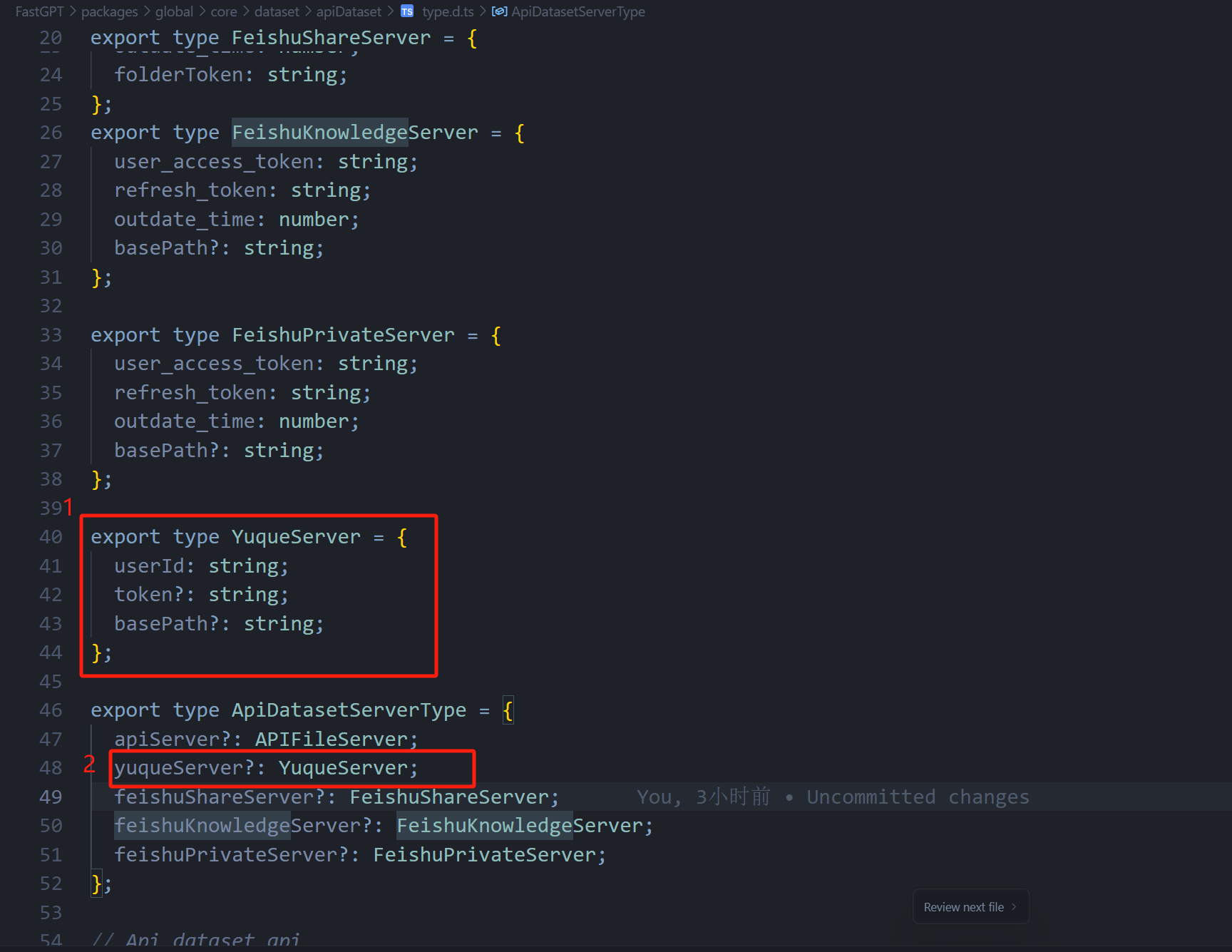
First, go to FastGPT\packages\global\core\dataset\apiDataset.d.ts in the FastGPT project and add the third-party document library server type. Design the fields based on your needs. For example, the Yuque knowledge base requires userId and token for authentication.
export type YuqueServer = {
  userId: string;
  token?: string;
  basePath?: string;
};If the document library supports a root directory selection feature, add a basePath field. See the root directory feature
2. Create the Hook File
Each third-party document library uses a Hook pattern to maintain a set of API endpoints. The Hook contains 5 functions to implement.
- Create a folder for your document library under
FastGPT\packages\service\core\dataset\apiDataset\, then create anapi.tsfile inside it - In
api.ts, define the following 5 functions:listFiles: Get the file listgetFileContent: Get file content / file linkgetFileDetail: Get file detail informationgetFilePreviewUrl: Get the original file preview URLgetFileId: Get the original file's real ID
3. Add the Knowledge Base Type
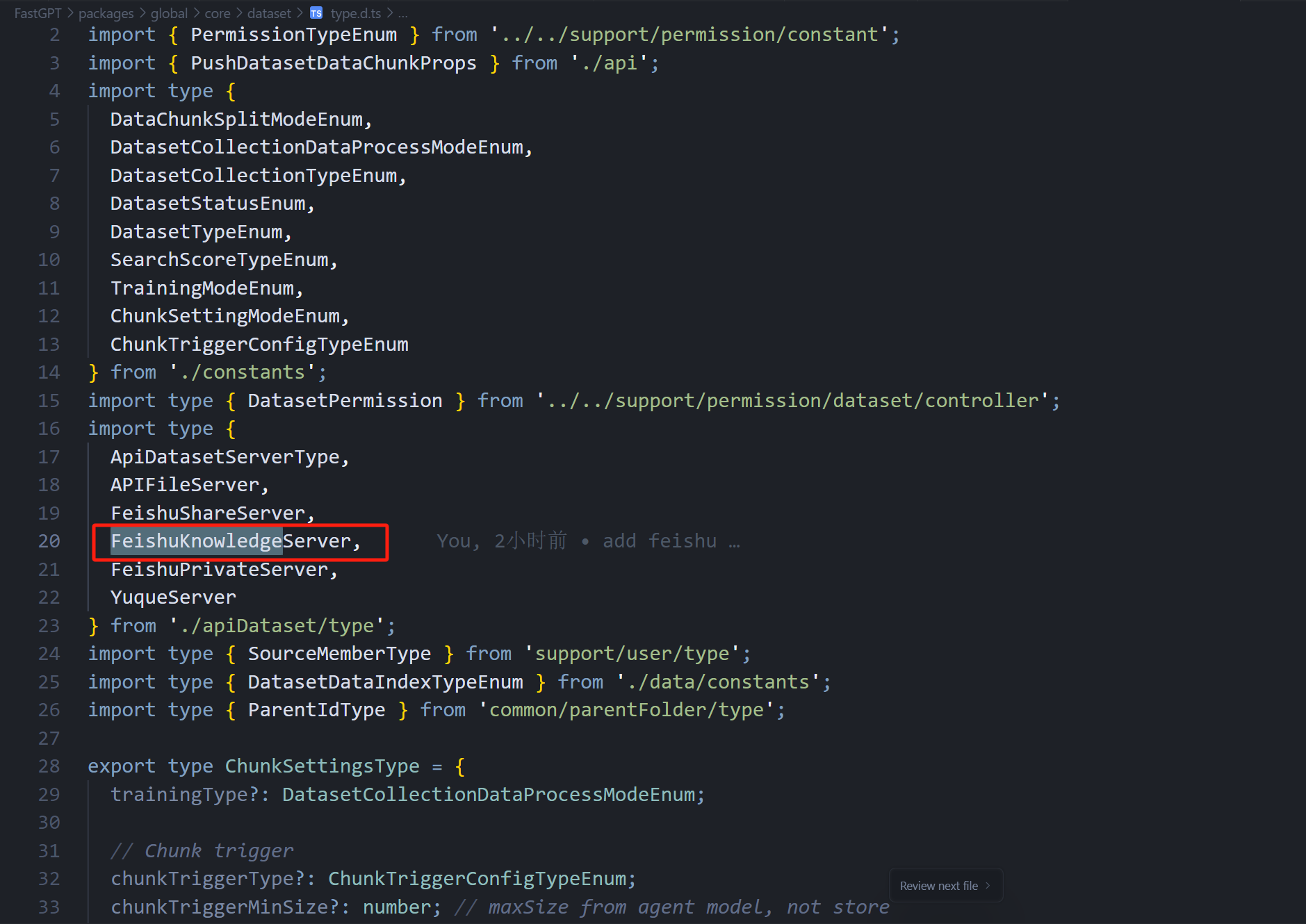
In FastGPT\packages\global\core\dataset\type.d.ts, import your new knowledge base type.
4. Add Knowledge Base Data Retrieval
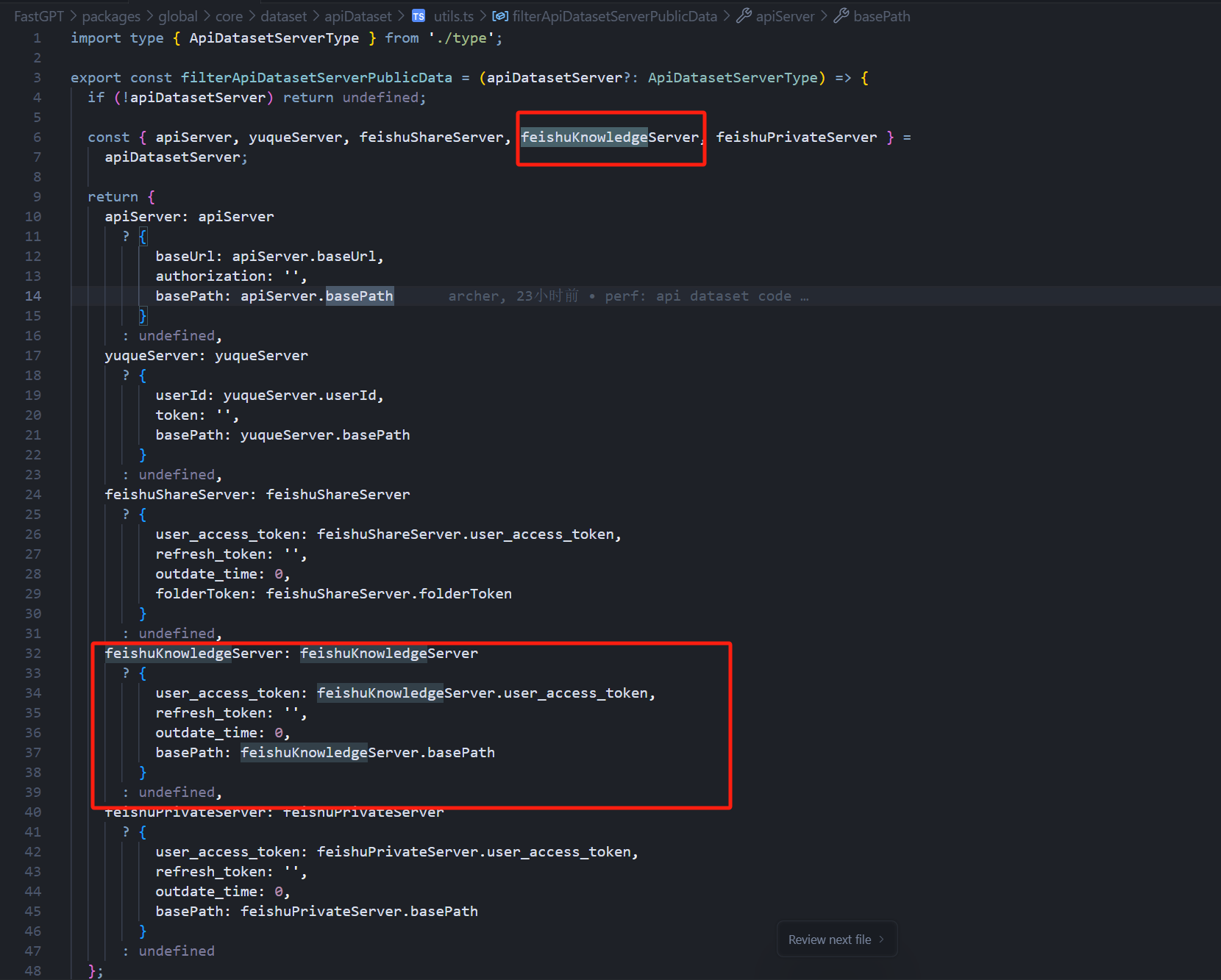
In FastGPT\packages\global\core\dataset\apiDataset\utils.ts, add the following content.
5. Add Knowledge Base Invocation Method
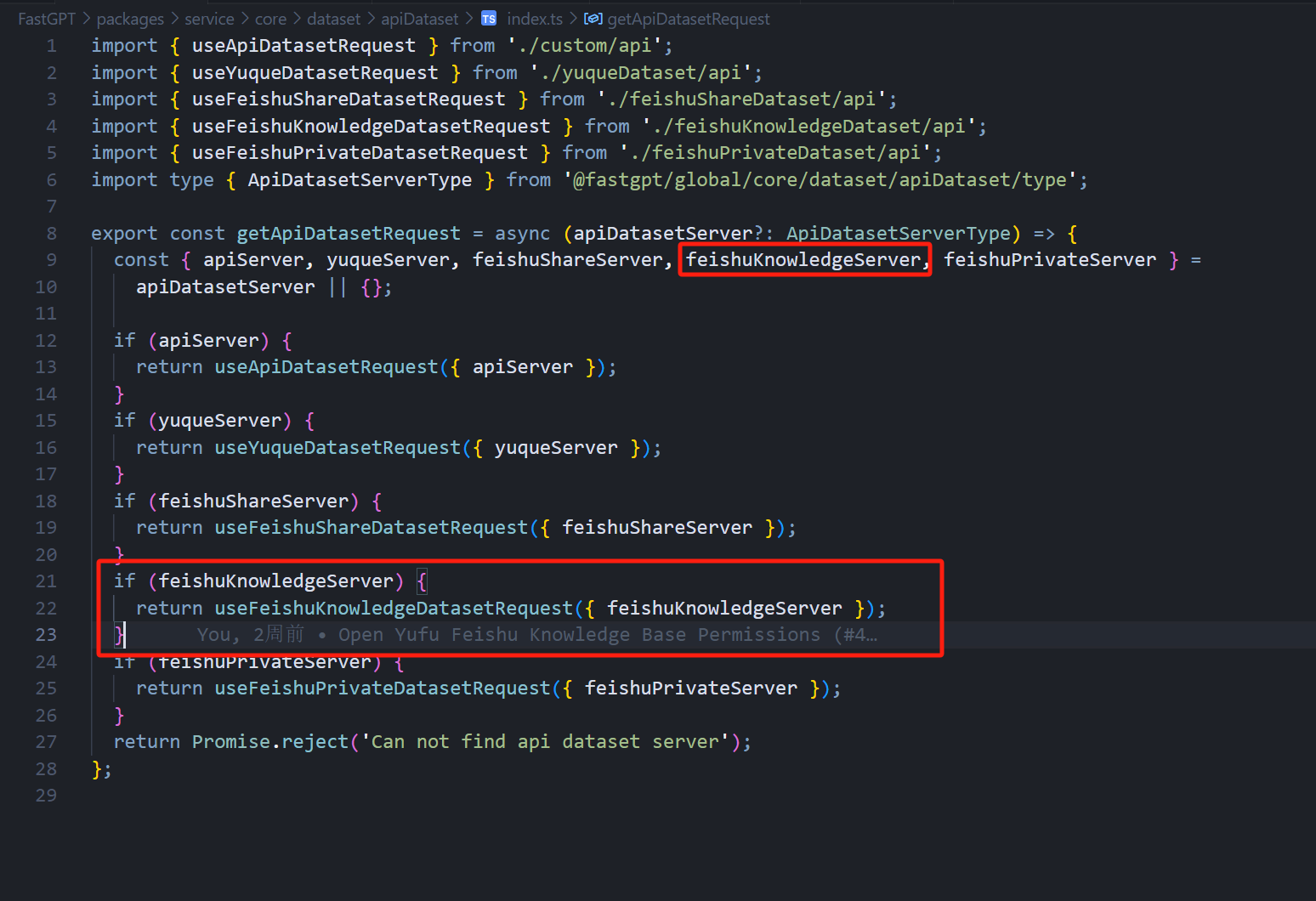
In FastGPT\packages\service\core\dataset\apiDataset\index.ts, add the following content.
Adding the Frontend
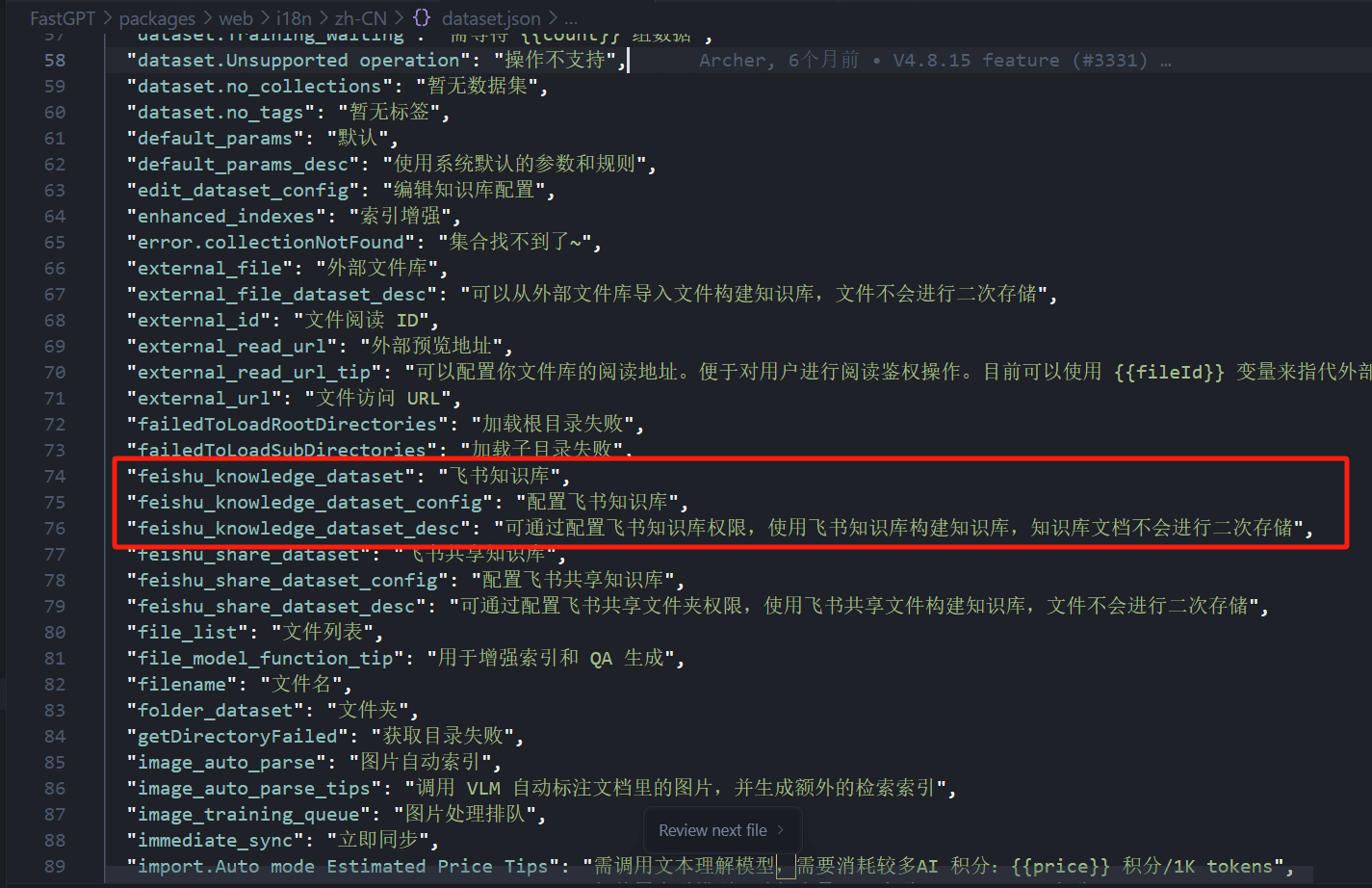
Add your i18n translations in FastGPT\packages\web\i18n\zh-CN\dataset.json, FastGPT\packages\web\i18n\en\dataset.json, and FastGPT\packages\web\i18n\zh-Hant\dataset.json. Using Chinese translations as an example, you'll generally need the following:
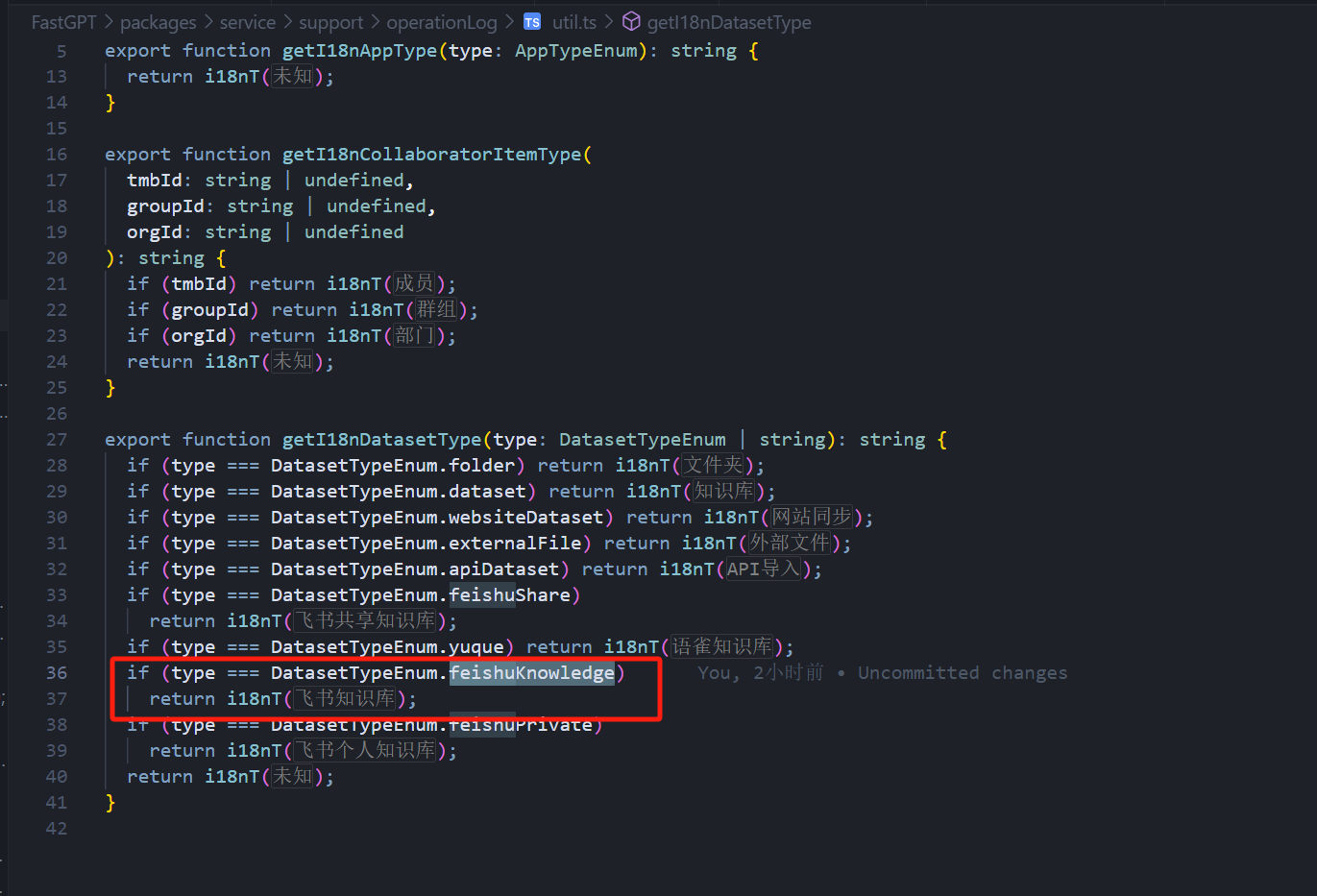
In FastGPT\packages\service\support\user/audit\util.ts, add the following to support i18n translation retrieval.
The i18n translation content is stored in FastGPT\packages\web\i18n\zh-Hant\account_team.json, FastGPT\packages\web\i18n\zh-CN\account_team.json, and FastGPT\packages\web\i18n\en\account_team.json. The field format is dataset.XXX_dataset. For example, for the Lark knowledge base, the field value is dataset.feishu_knowledge_dataset.
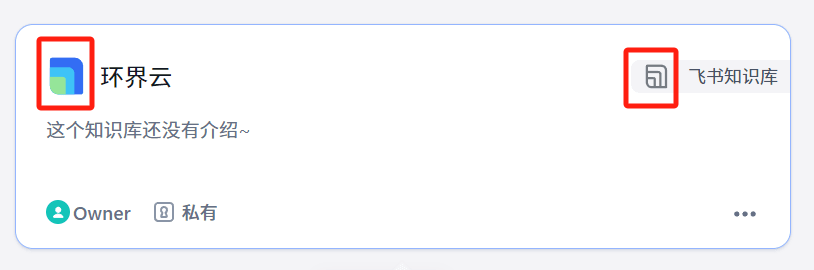
Add your knowledge base icons under FastGPT\packages\web\components\common\Icon\icons\core\dataset\. You need two icons: Outline (monochrome) and Color (colored), as shown below.
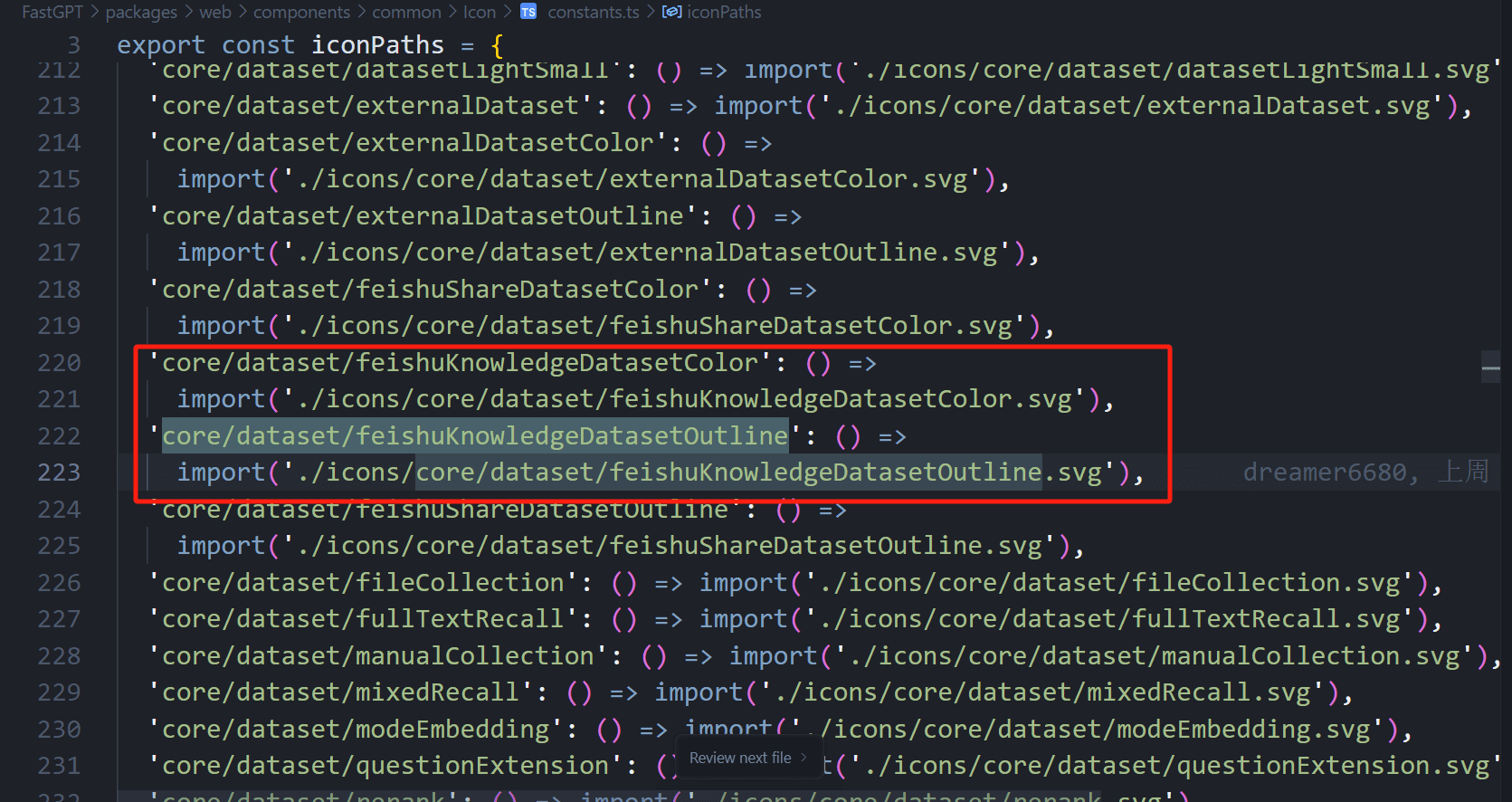
In FastGPT\packages\web\components\common\Icon\constants.ts, register your icons. The import path points to where the icons are stored.
In FastGPT\packages\global\core\dataset\constants.ts, add your knowledge base type to both DatasetTypeEnum and ApiDatasetTypeMap.
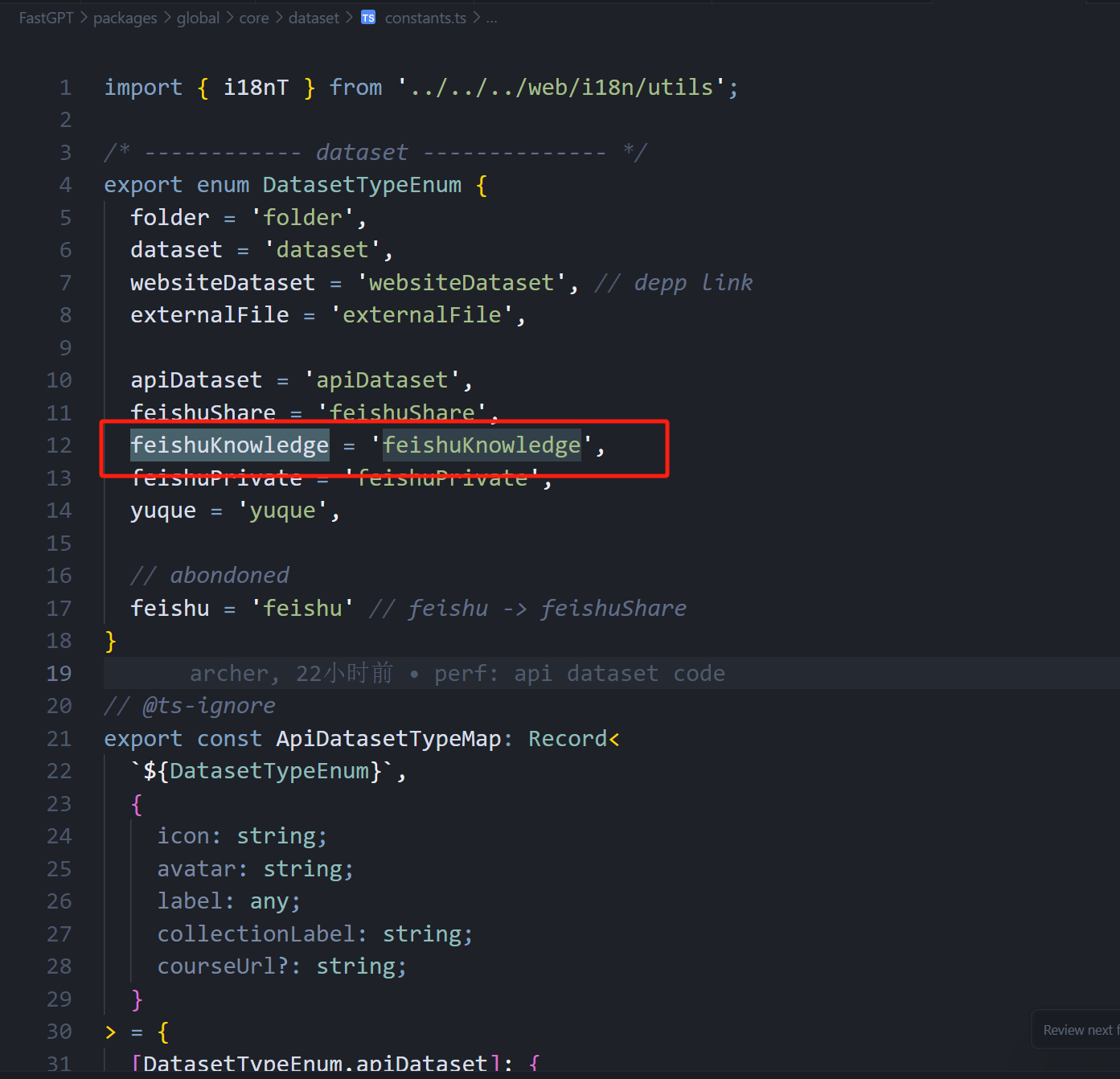 | 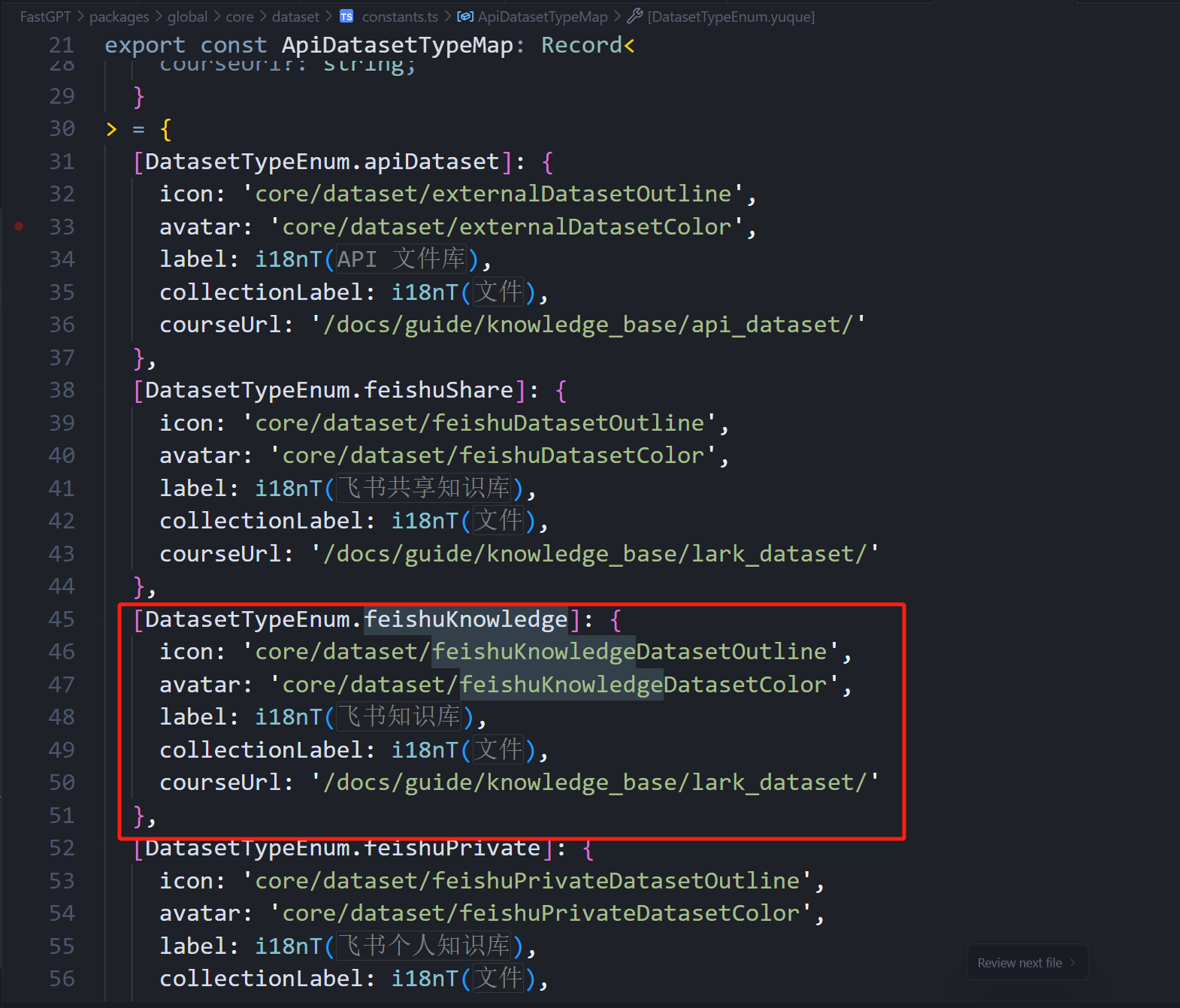 |
The courseUrl field links to the relevant documentation — add it if available.
Documentation goes in FastGPT/document/content/docs/introduction/guide/dashboard/workflow/knowledge_base_search_merge.mdx.
The label value is the knowledge base name you added via i18n translations.
icon and avatar are the two icons you added earlier.
In FastGPT\projects\app\src\pages\dataset\list\index.tsx, add the following. This file handles the menu that appears when clicking the "New" button on the knowledge base list page. Your knowledge base must be added here to be creatable.
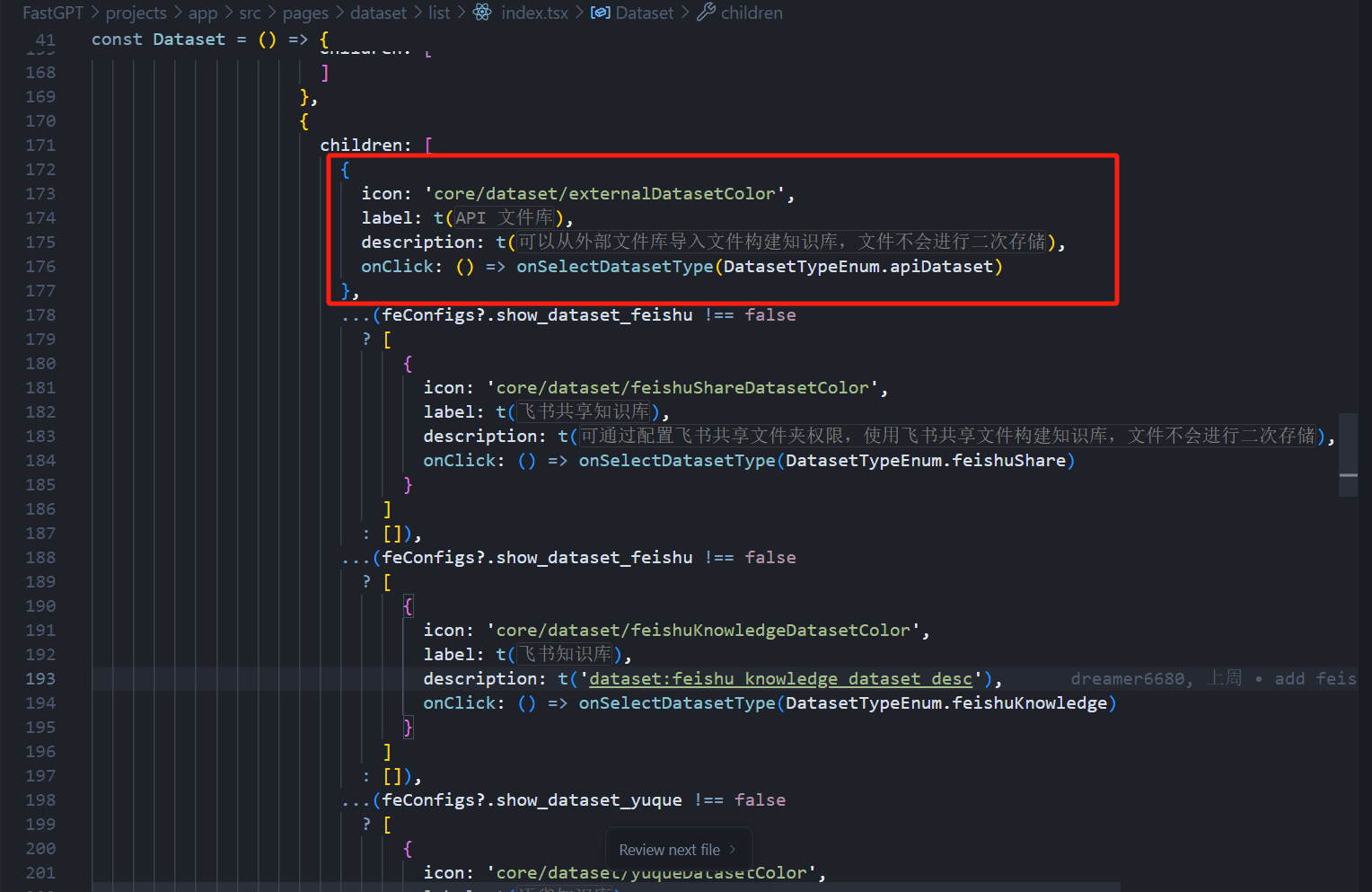
In FastGPT\projects\app\src\pageComponents\dataset\detail\Info\index.tsx, add the following. This configuration corresponds to the UI shown below.
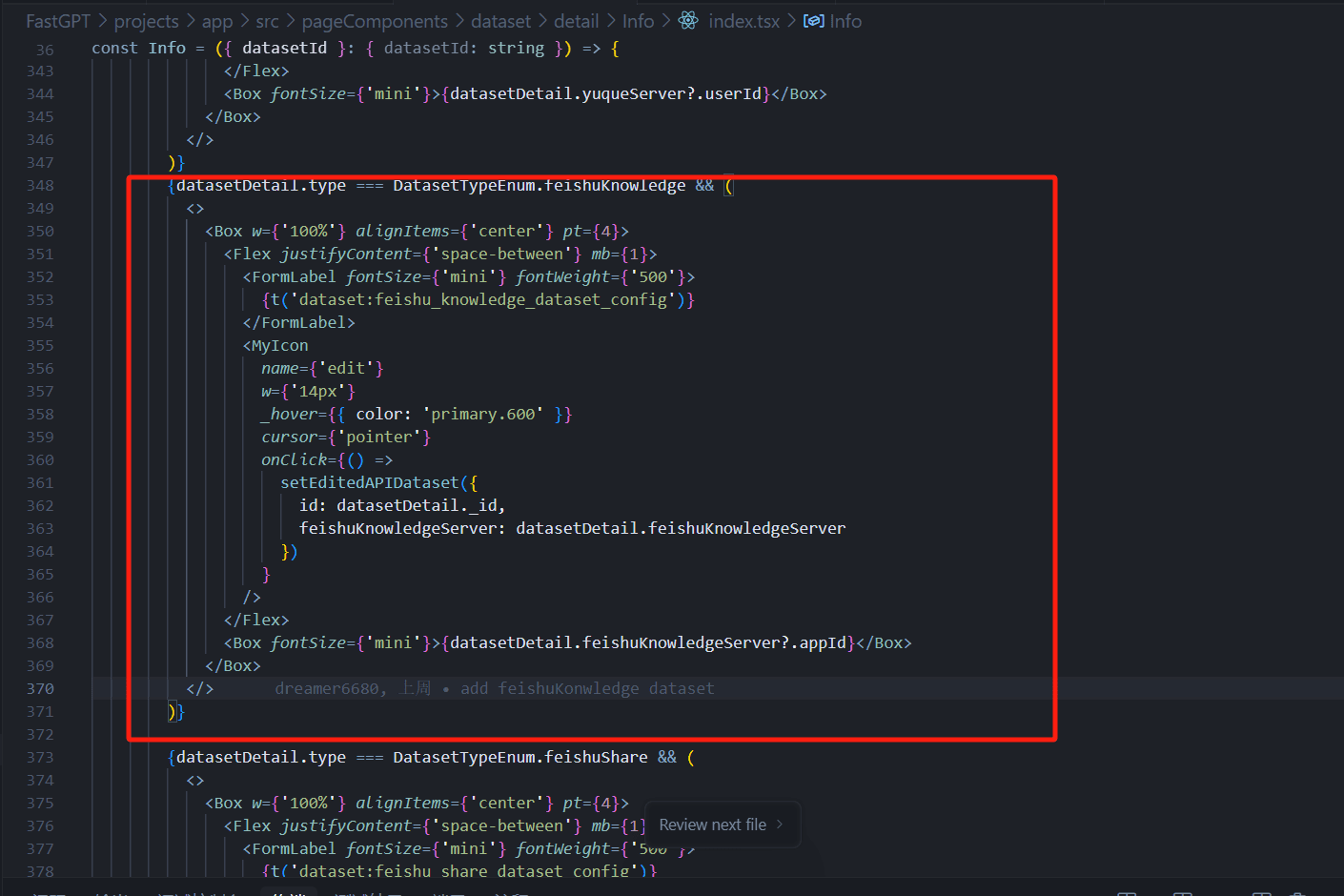 | 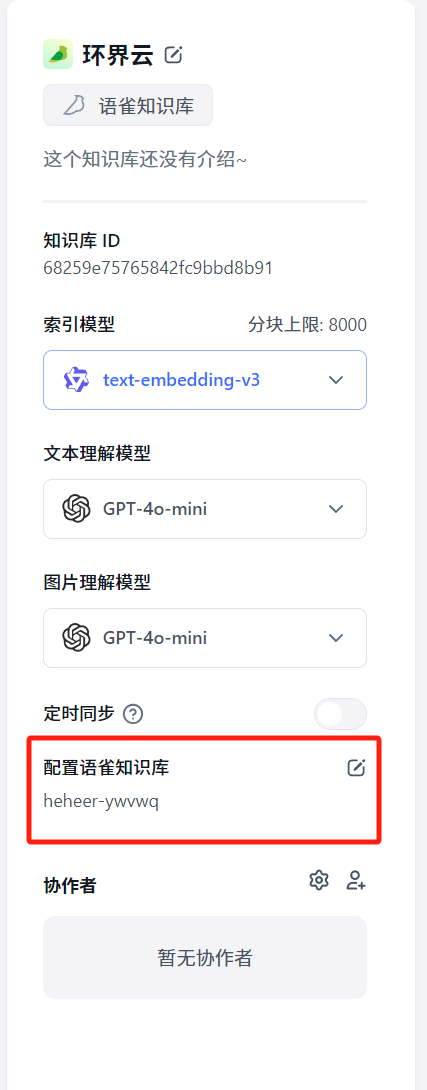 |
Adding the Configuration Form
In FastGPT\projects\app\src\pageComponents\dataset\ApiDatasetForm.tsx, add the following. This file handles the field input form when creating a knowledge base.
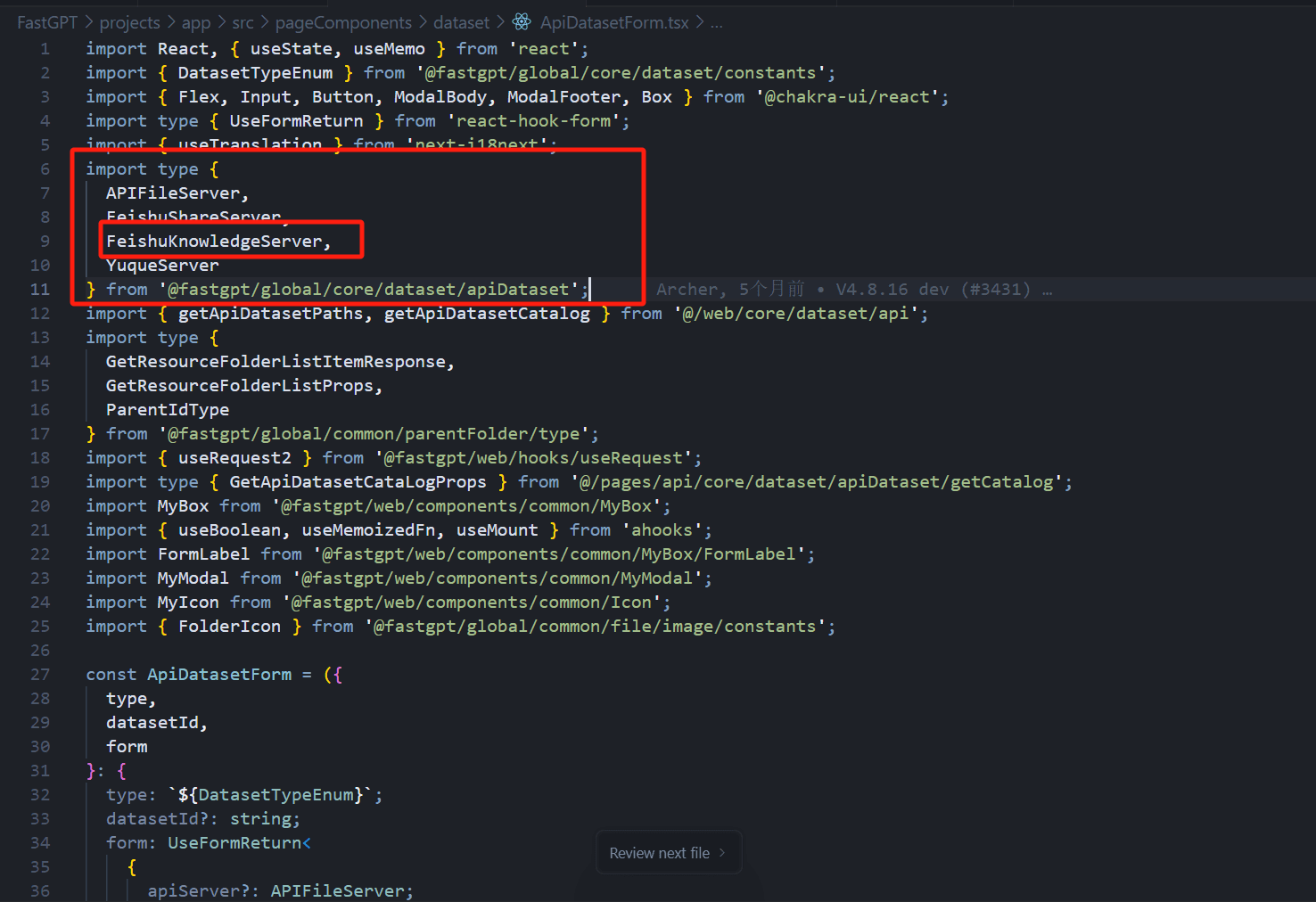 | 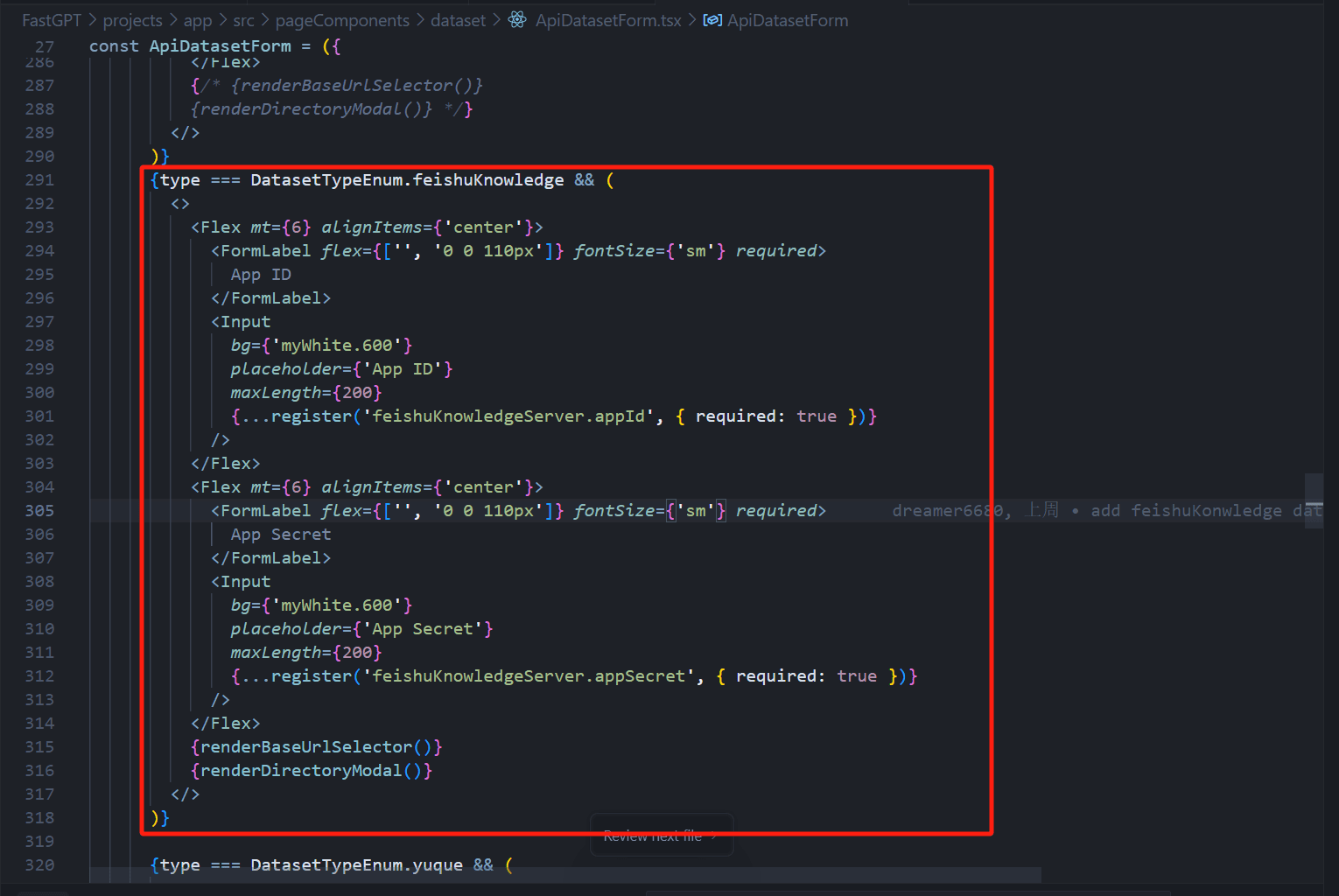 | 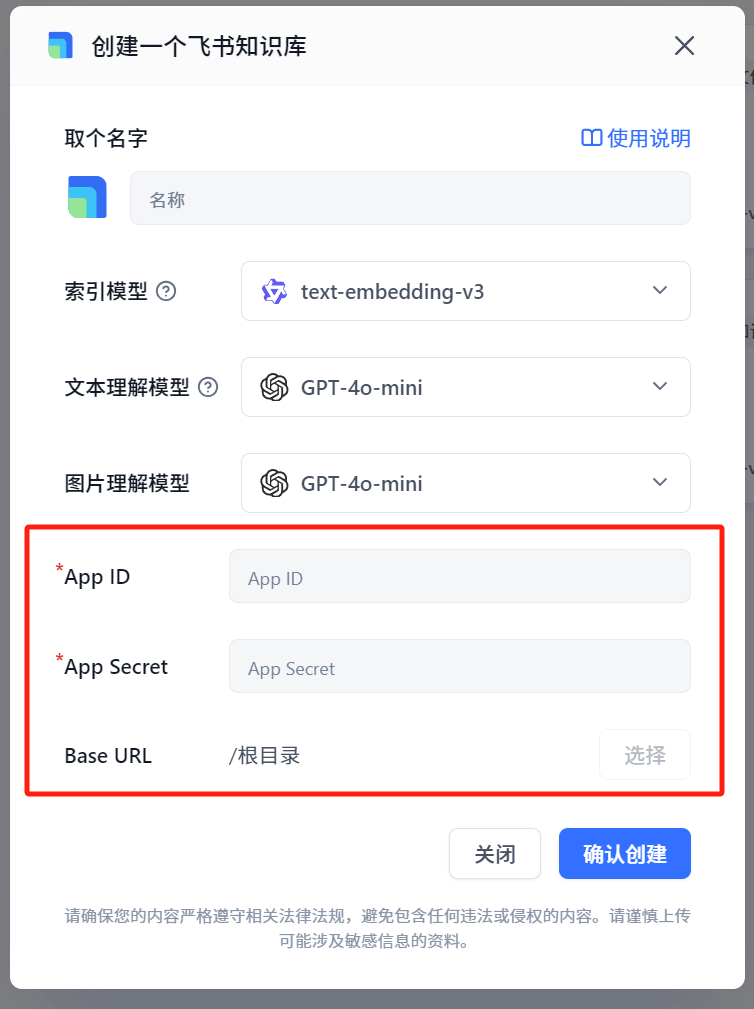 |
The two components added in the code render the root directory selector, corresponding to the getFileDetail API method. If your knowledge base doesn't support this, you can omit them.
{renderBaseUrlSelector()} // Renders the `Base URL` field
{renderDirectoryModal()} // The `Select Root Directory` modal that appears when clicking `Select` (see image)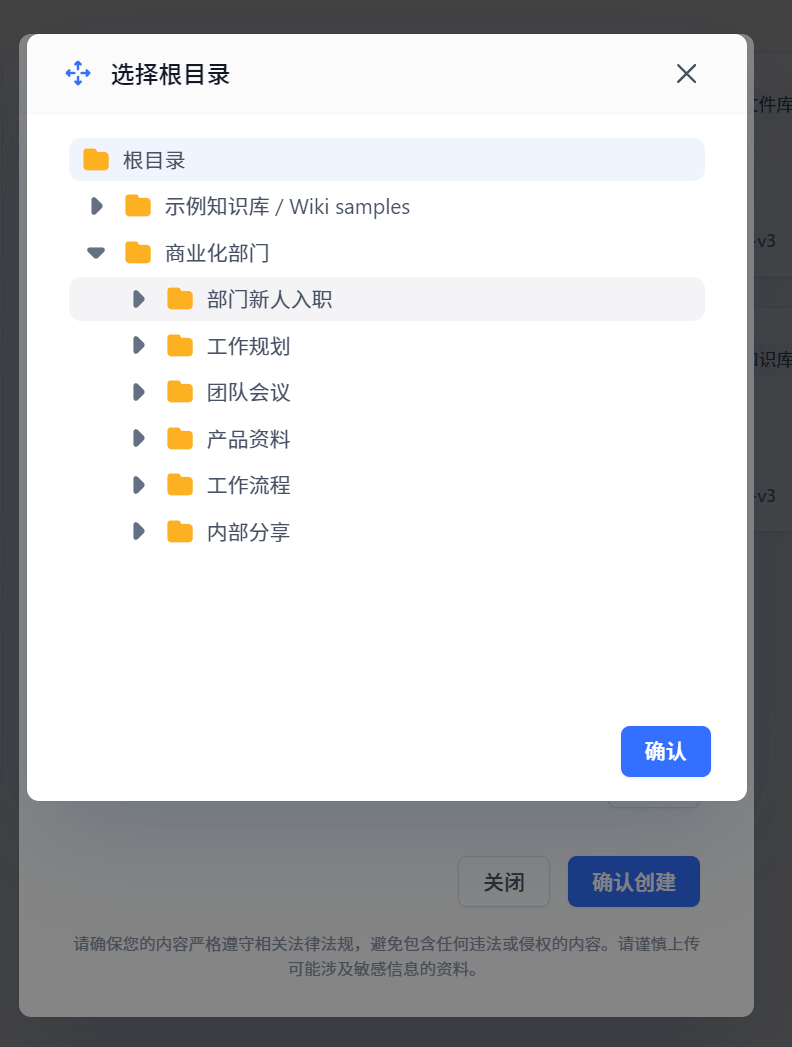 | 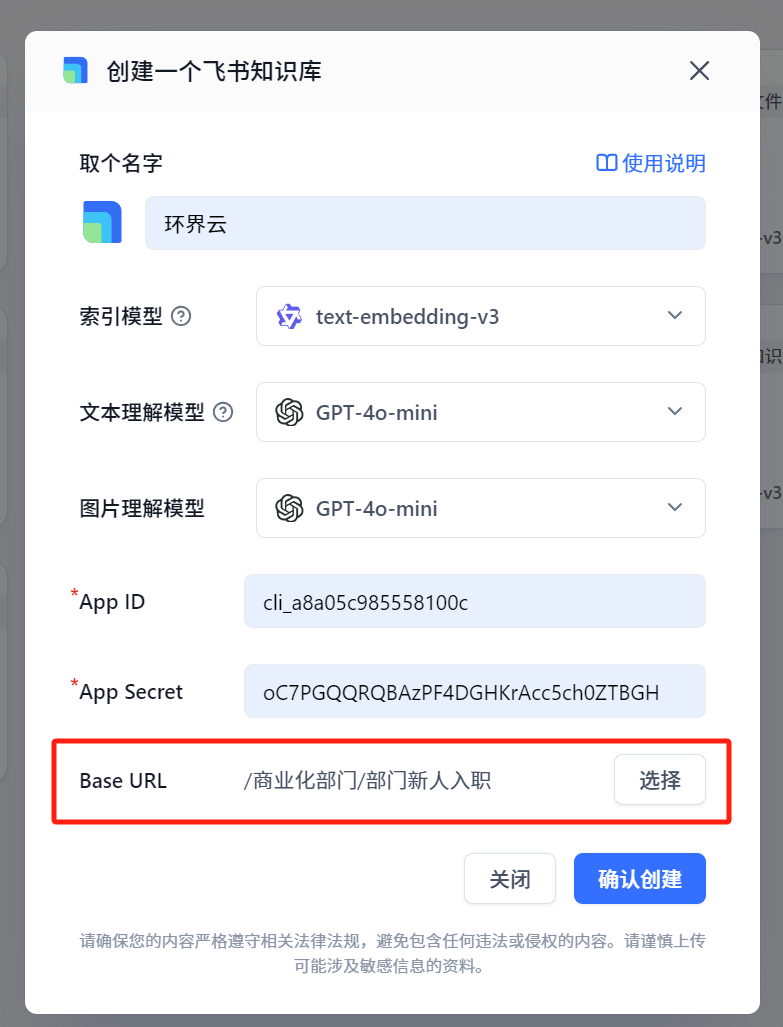 |
If the knowledge base needs root directory support, also add the following in the ApiDatasetForm file.
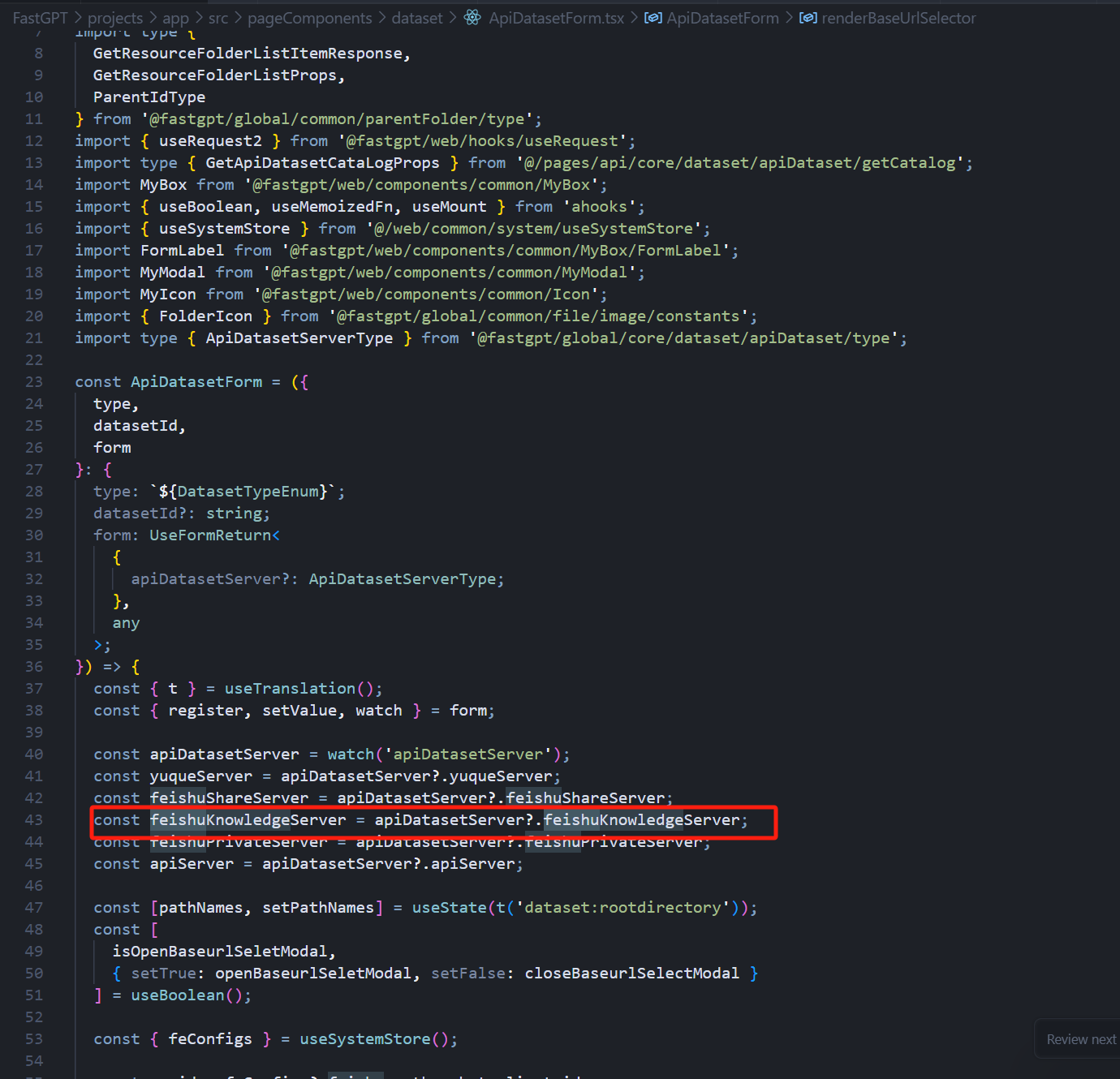
1. Parse the Knowledge Base Type
Parse your knowledge base type from apiDatasetServer, as shown:
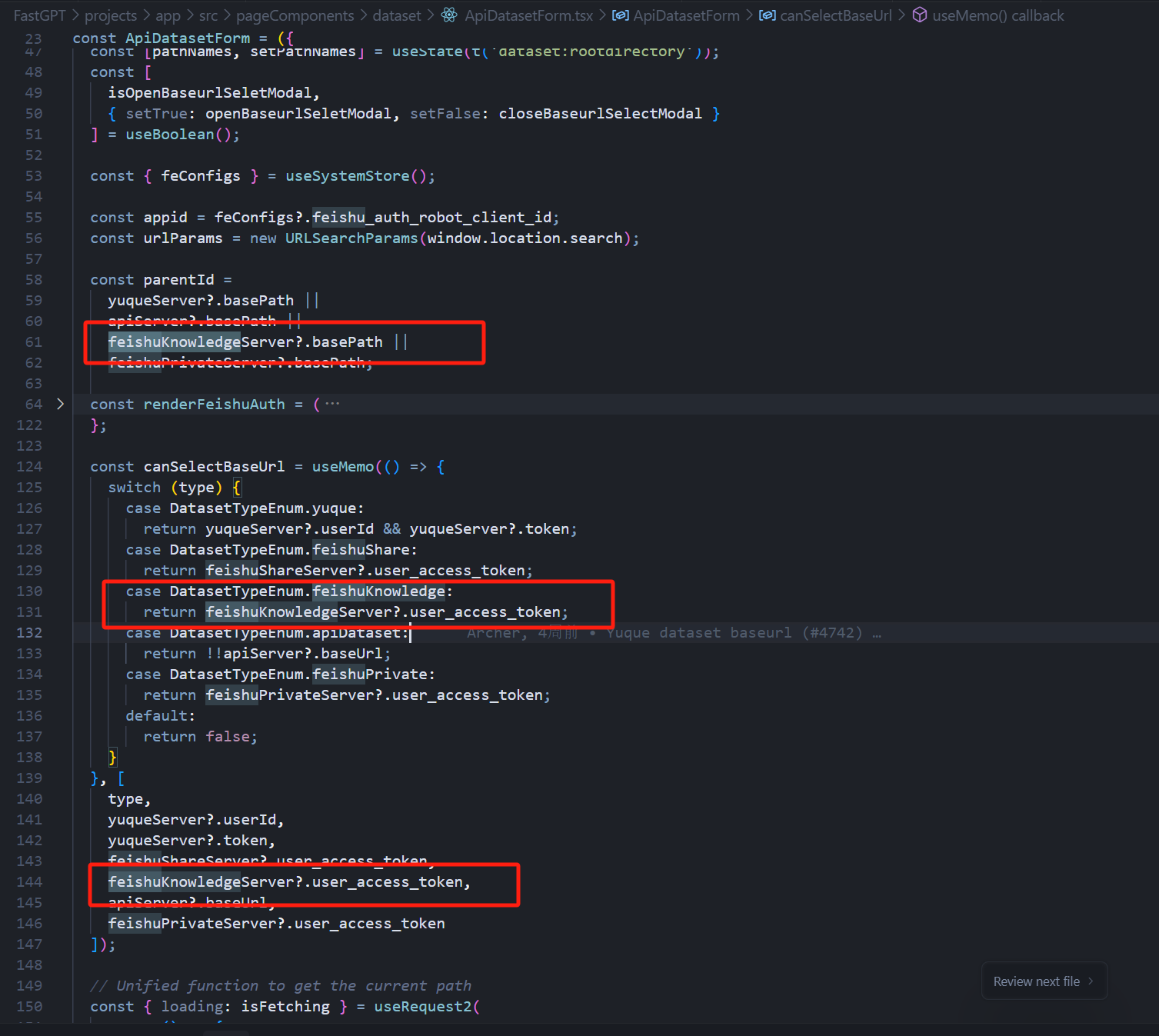
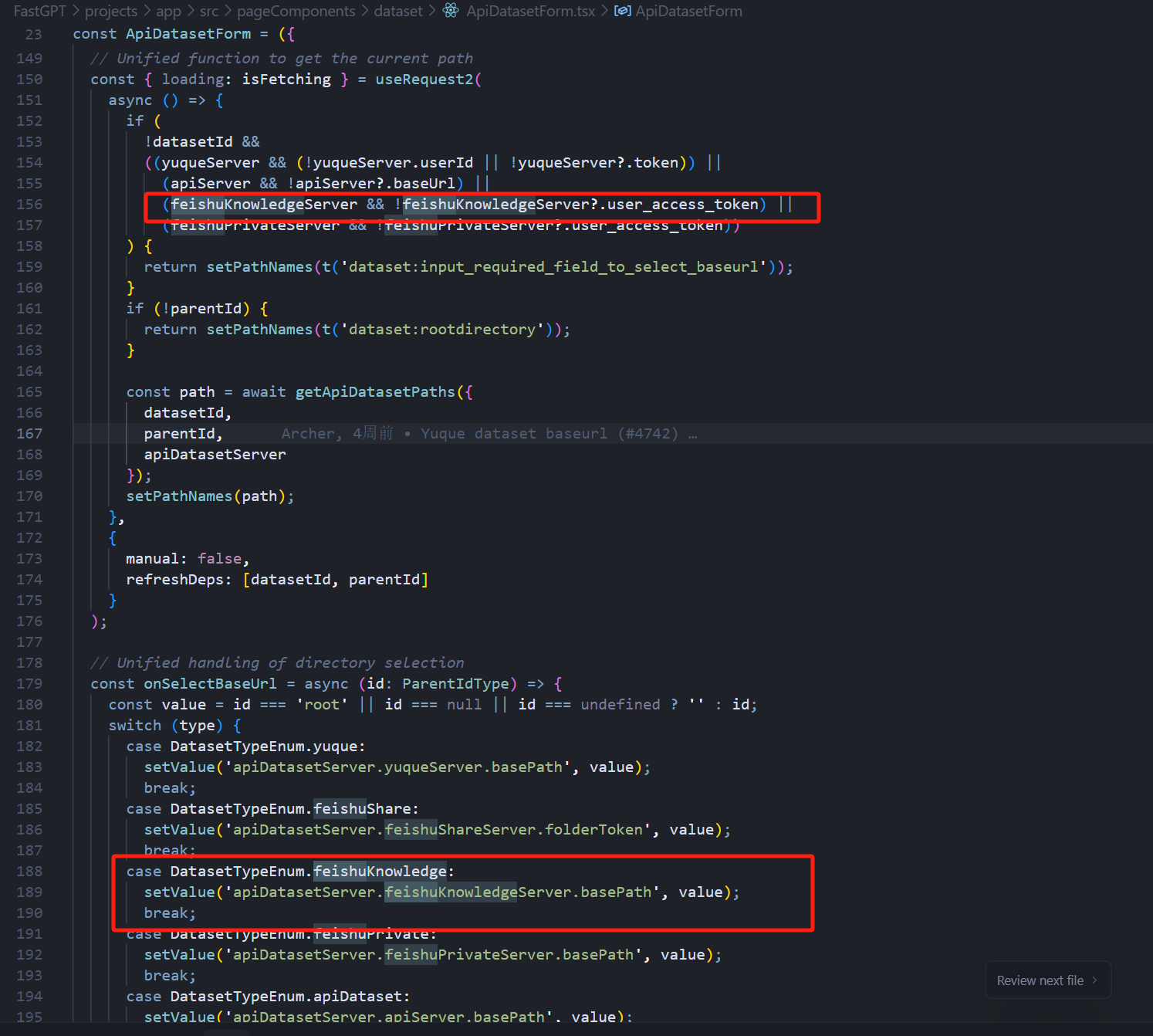
2. Add Root Directory Selection Logic and parentId Assignment
Add root directory selection logic to ensure the user has filled in all required fields for the API methods, such as the Token.
3. Add Field Validation and Assignment Logic
Verify that all required fields are present before calling the API, and assign the root directory value to the corresponding field after selection.
Tips
After creating the knowledge base, we recommend running a full test of all knowledge base features to check for issues. If you encounter problems that aren't covered in this documentation, it's likely that some configuration was missed. Do a global search for YuqueServer and yuqueServer to verify that your type has been added everywhere it's needed.
File Updated