
Web Site Sync
Introduction and usage of the FastGPT Web Site Sync feature
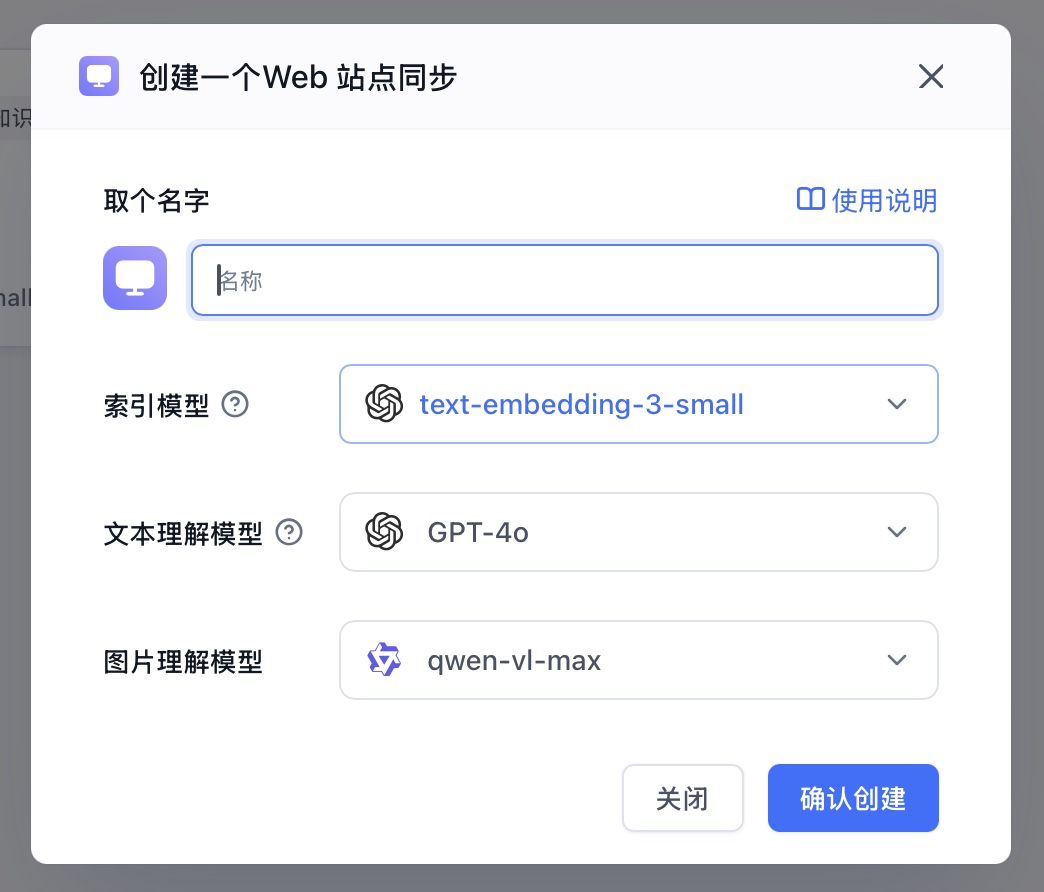
This feature is currently only available to commercial edition users.
What is Web Site Sync
Web Site Sync uses crawler technology to automatically discover all pages under the same domain from an entry URL, supporting up to 200 sub-pages. For compliance and security reasons, FastGPT only supports crawling static sites, primarily intended for quickly building knowledge bases from documentation sites.
Tip: Most China-based media sites are not supported, including WeChat Official Accounts, CSDN, Zhihu, etc. You can verify whether a site is static by sending a curl request from the terminal:
curl https://doc.fastgpt.io/docs/intro/How to Use
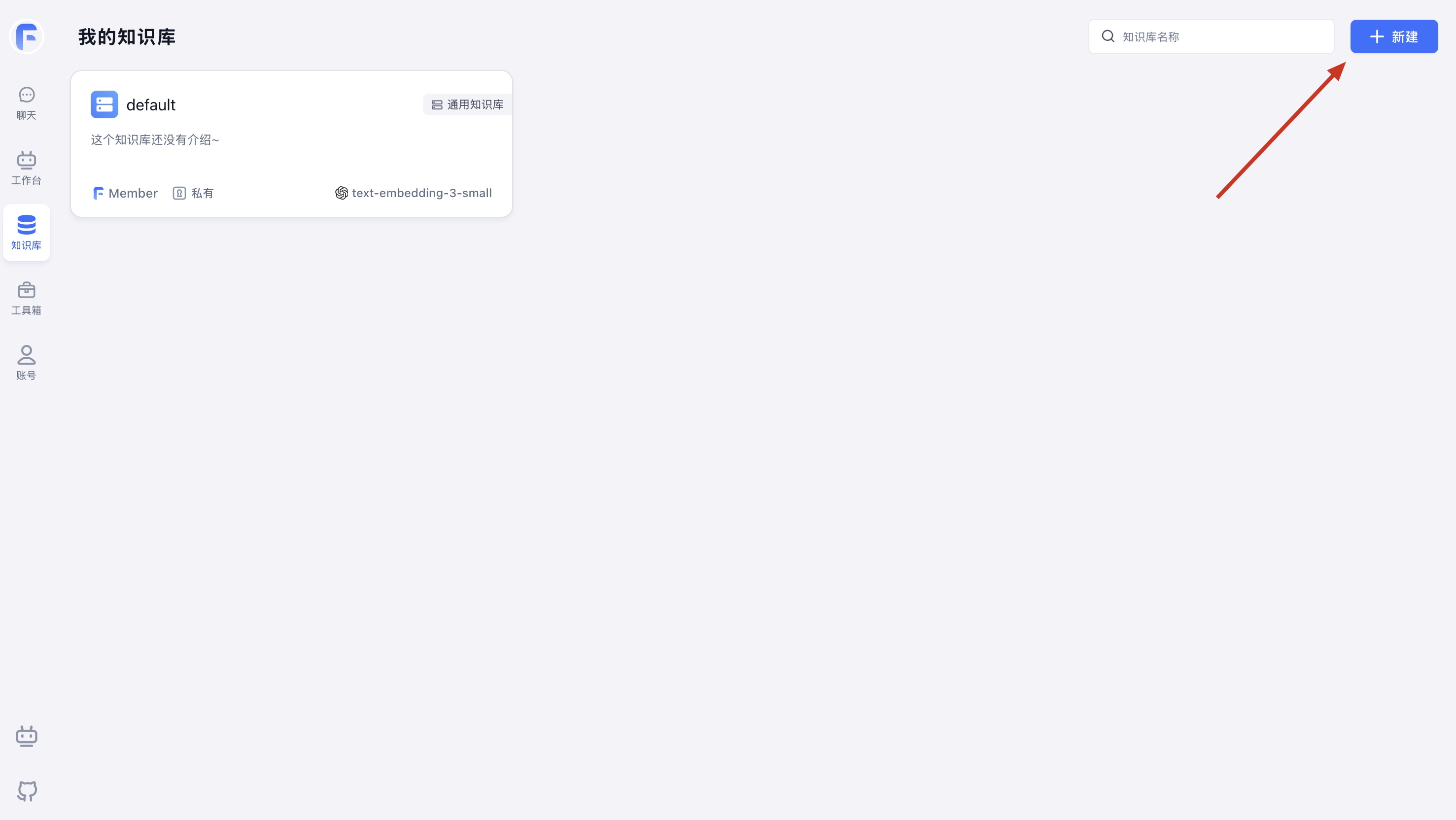
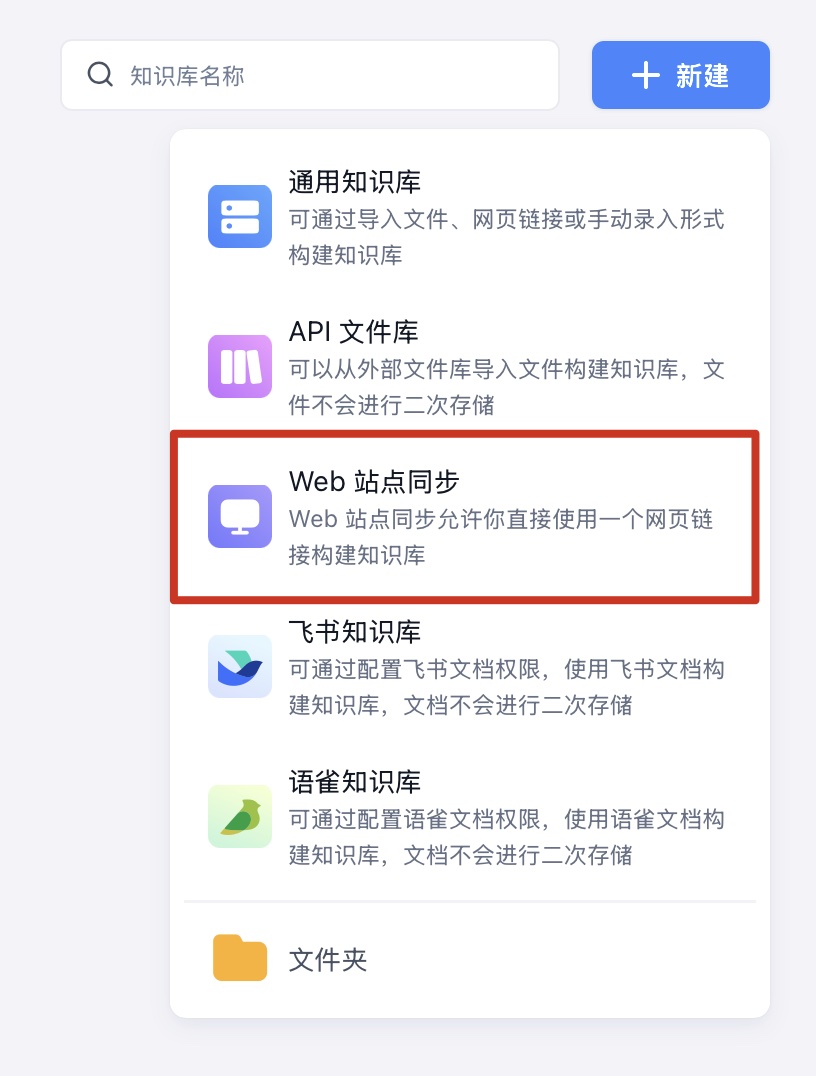
1. Create a New Knowledge Base and Select Web Site Sync
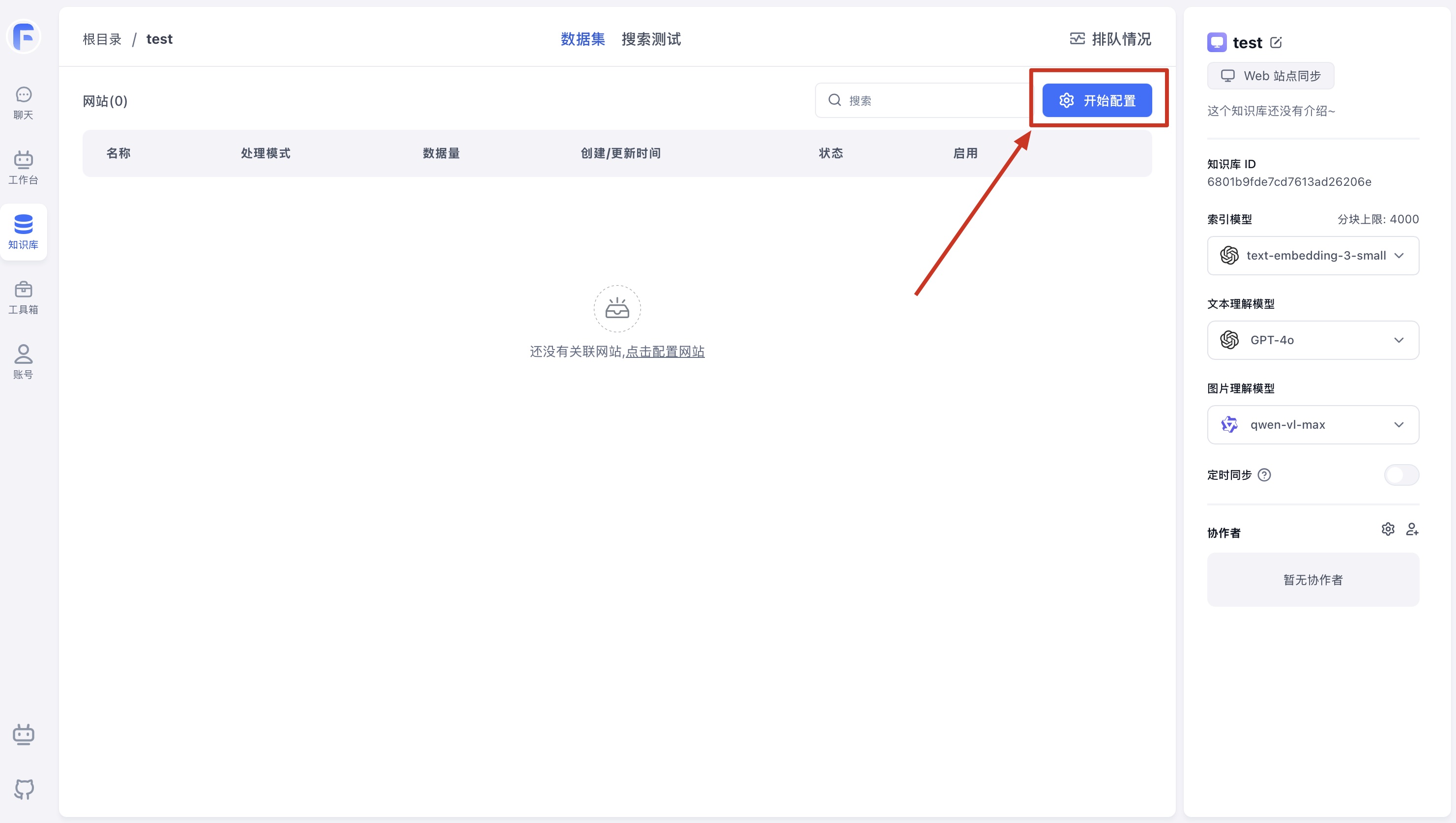
2. Click to Configure Site Information
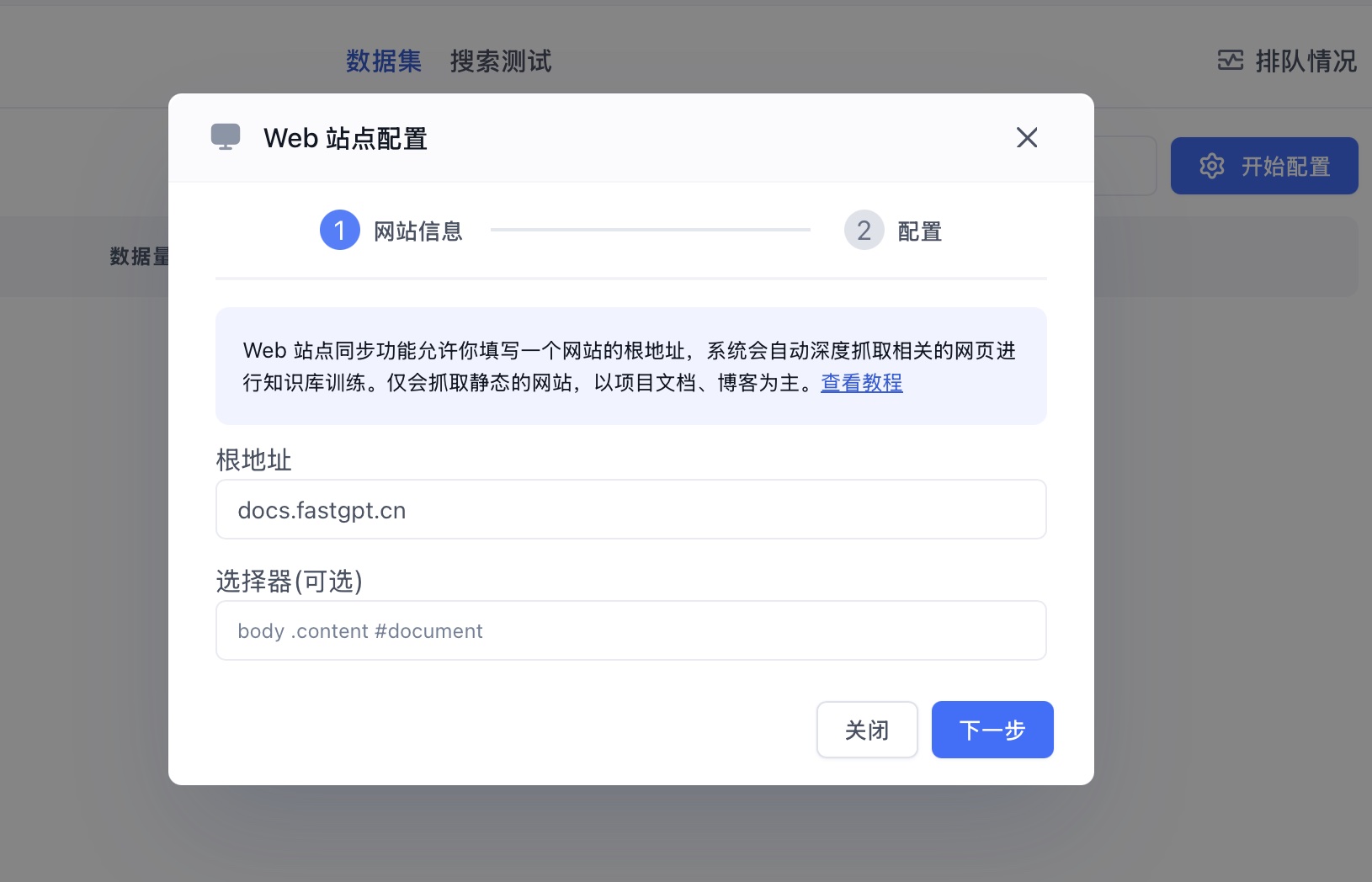
3. Enter the URL and Selector
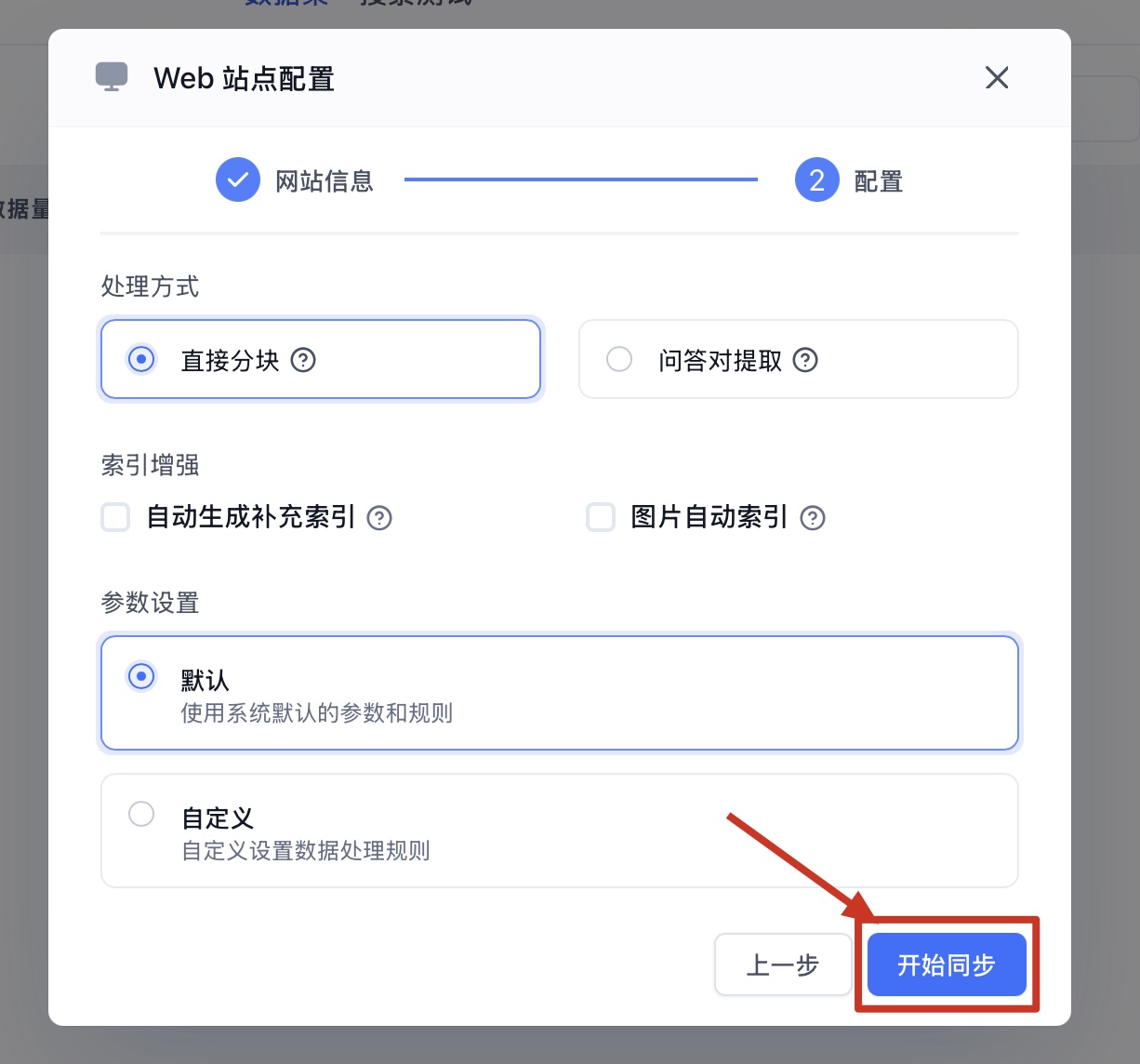
Click Start Sync and wait for the system to automatically crawl the site content.
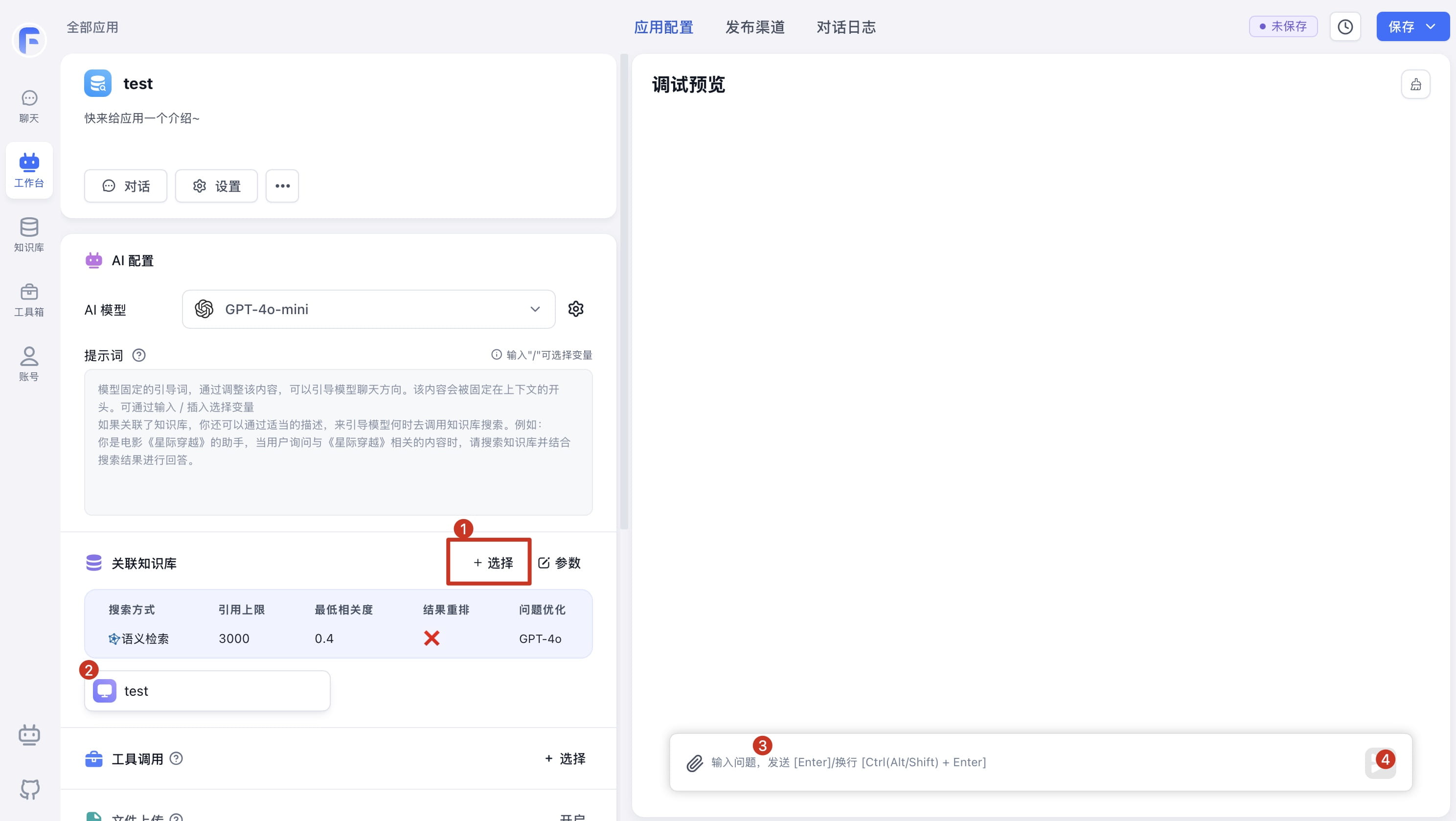
Create an App and Bind the Knowledge Base
How to Use Selectors
Selectors are based on HTML/CSS/JS. You can use selectors to target specific content to crawl rather than the entire site. Here's how:
Open the Browser DevTools (usually F12, or Right-click > Inspect)
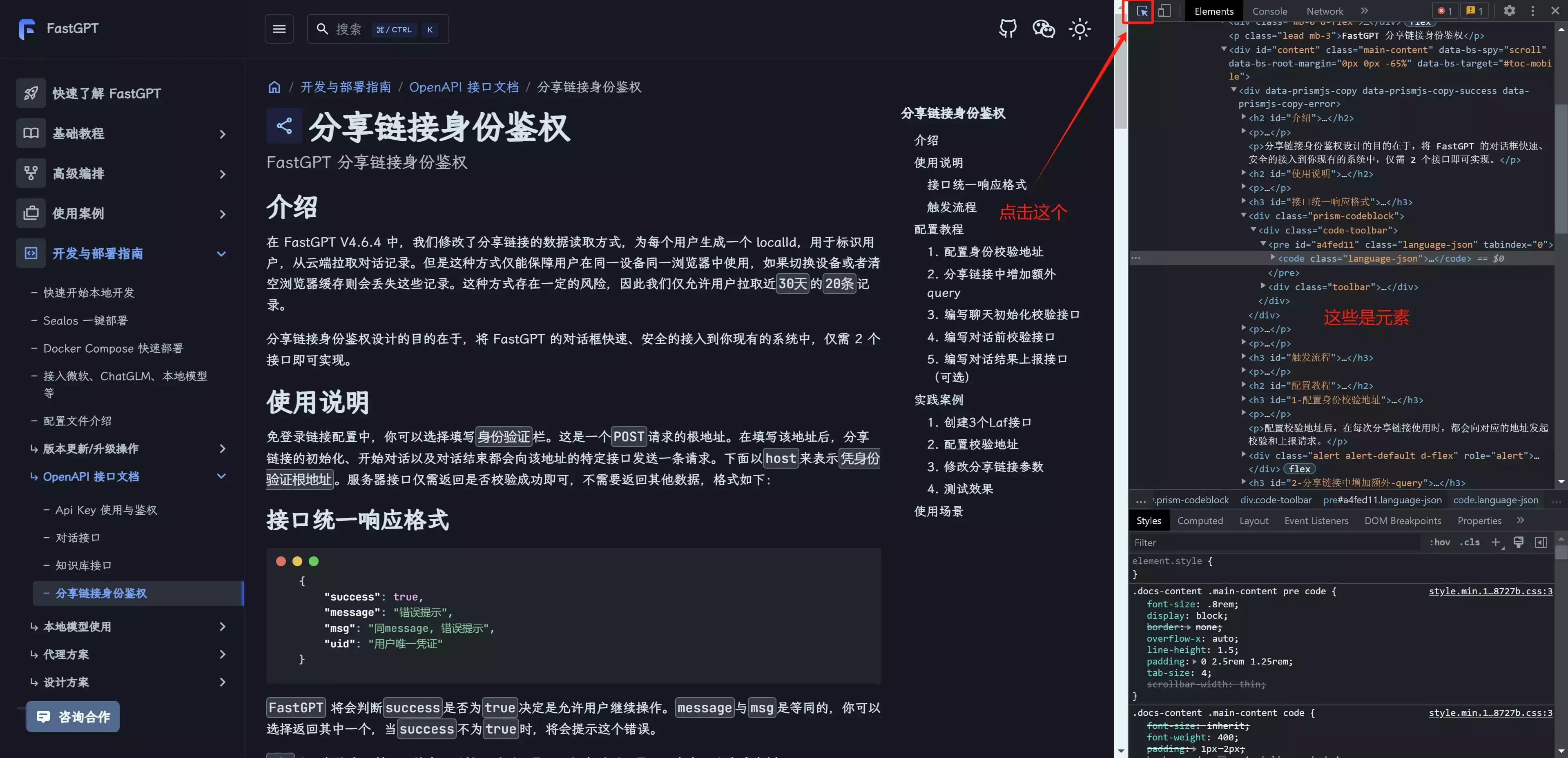
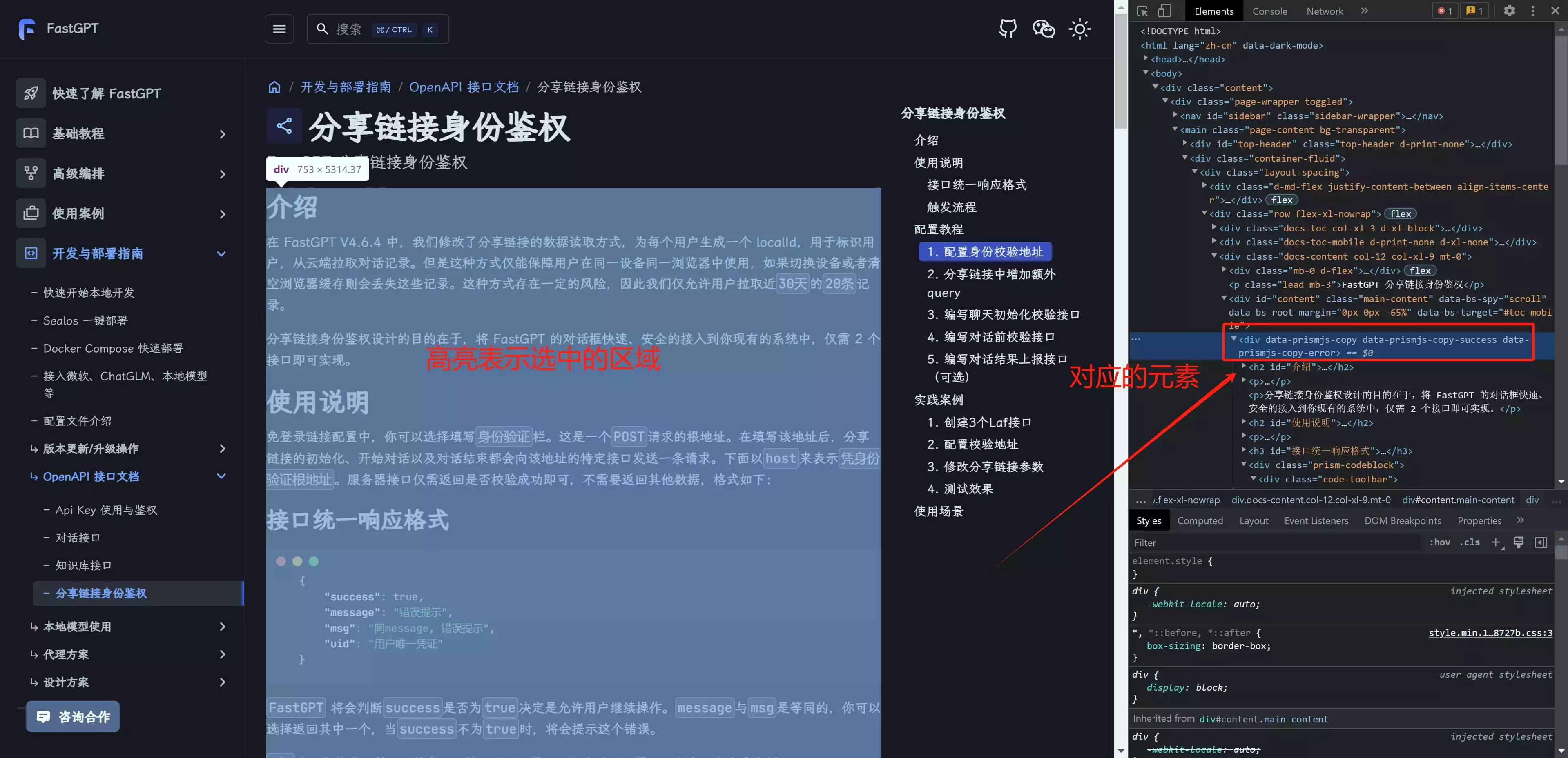
Enter the Element Selector
For a CSS selectors reference, see the MDN CSS Selectors guide.
In the image above, we selected an area corresponding to a div tag with three attributes: data-prismjs-copy, data-prismjs-copy-success, and data-prismjs-copy-error. We only need one, so the selector is:
div[data-prismjs-copy]
Besides attribute selectors, class and ID selectors are also common. For example:
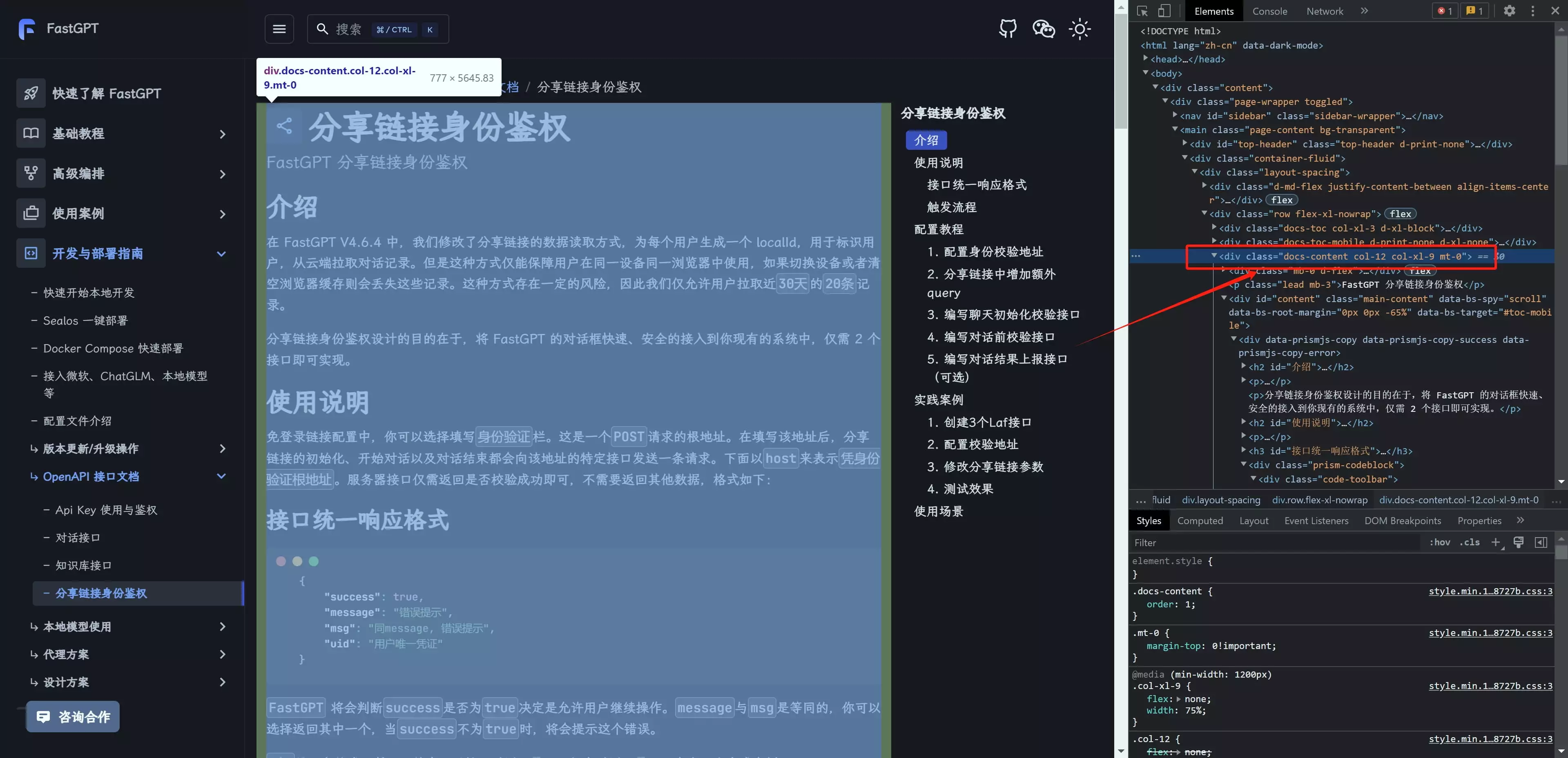
The class in the image contains class names (there may be multiple separated by spaces — just pick one). The selector would be: .docs-content
Using Multiple Selectors
In the earlier demo, we used multiple selectors for the FastGPT documentation site, separated by commas.
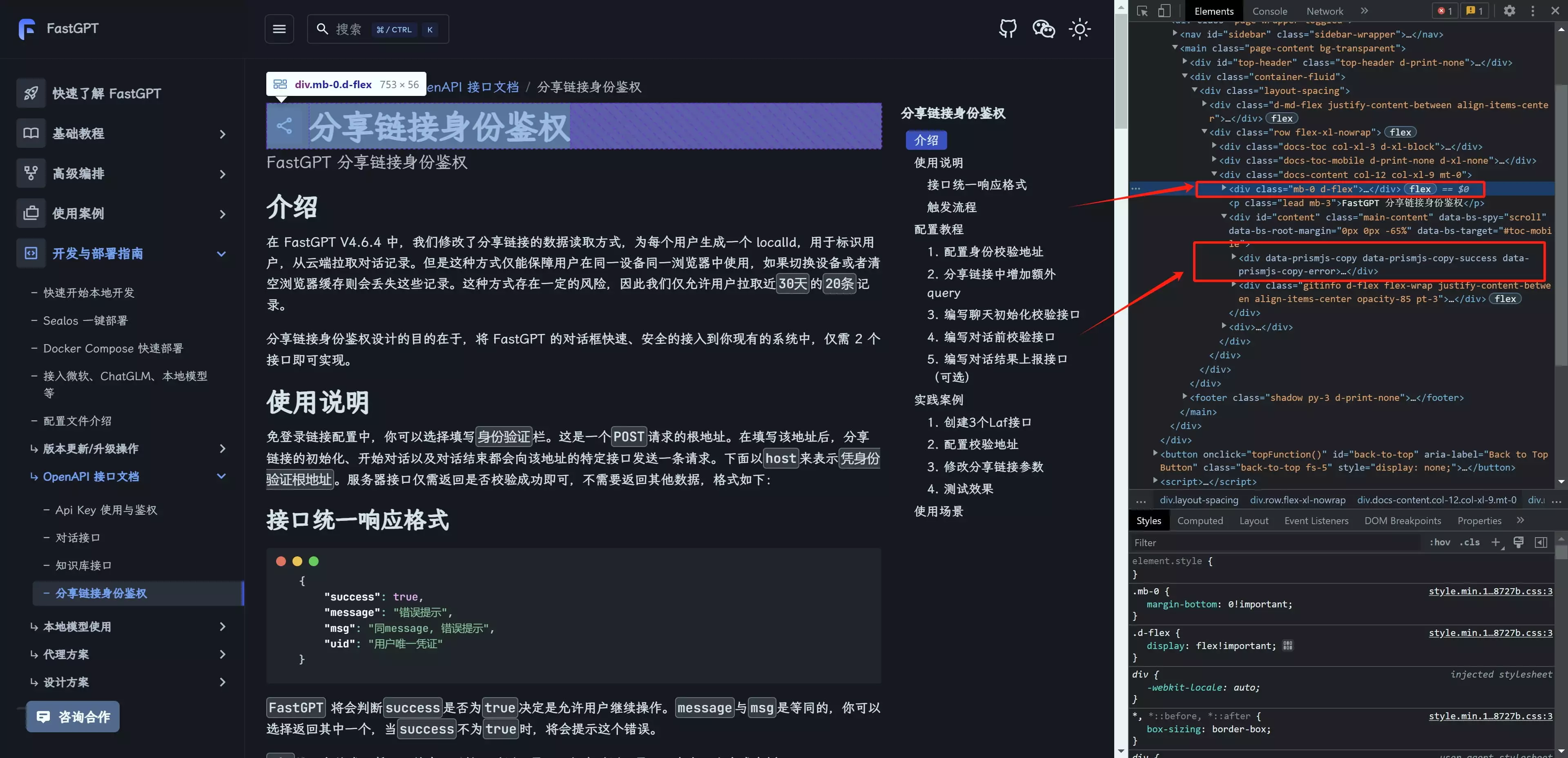
We want to select content from the two tags shown above, which requires two selectors. The first is: .docs-content .mb-0.d-flex, meaning child elements under the docs-content class that have both the mb-0 and d-flex classes.
The second is .docs-content div[data-prismjs-copy], meaning div elements under the docs-content class that have the data-prismjs-copy attribute.
Separate the two selectors with a comma: .docs-content .mb-0.d-flex, .docs-content div[data-prismjs-copy]
File Updated