
Tool Calling & Termination
FastGPT Tool Calling module overview
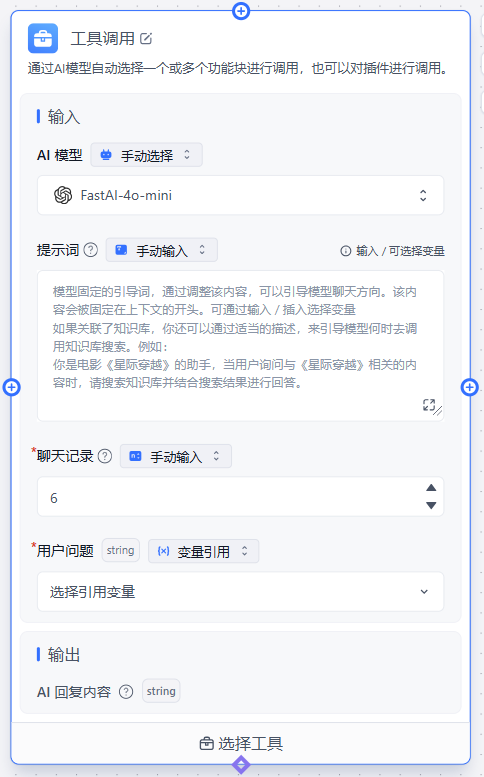
What is a Tool
A tool can be a built-in module (e.g., AI Chat, Knowledge Base Search, HTTP) or a plugin.
Tool calling lets the LLM dynamically decide the workflow path instead of following a fixed sequence. (The trade-off is higher token consumption.)
Tool Components
- Tool description. Typically the module or plugin description that tells the LLM what the tool does.
- Tool parameters. For built-in modules, parameters are fixed and require no extra configuration. For plugins, parameters are configurable.
How Tools Work
To understand how tools run, you need to know the execution prerequisites:
- A tool description is required. It tells the LLM what the tool does, and the LLM uses contextual semantics to decide whether to invoke it.
- Tool parameters. Some tools require special parameters when called. Each parameter has two key properties:
parameter descriptionandrequired.
Based on the tool description, parameter descriptions, and whether parameters are required, the LLM decides whether to call the tool. The scenarios are:
- Tools without parameters: The LLM decides based solely on the tool description. Example: get current time.
- Tools with parameters:
- No required parameters: The tool can still be called even without suitable context parameters, though the LLM may sometimes fabricate a value.
- Has required parameters: If no suitable parameters are available, the LLM may skip the tool. Use prompts to guide users into providing the needed parameters.
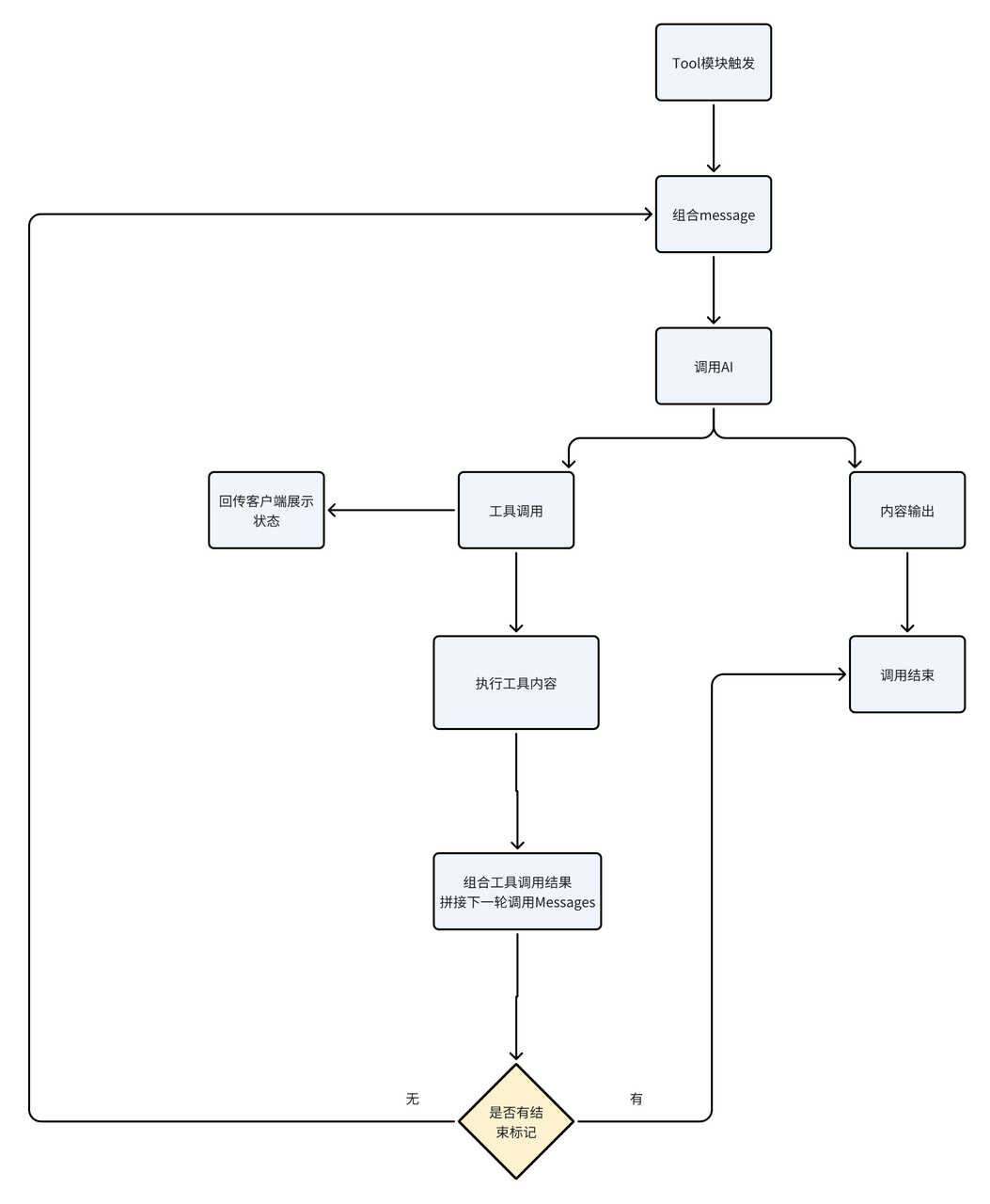
Tool Calling Logic
Models that support function calling can invoke multiple tools in a single turn. The calling logic:
How to Use
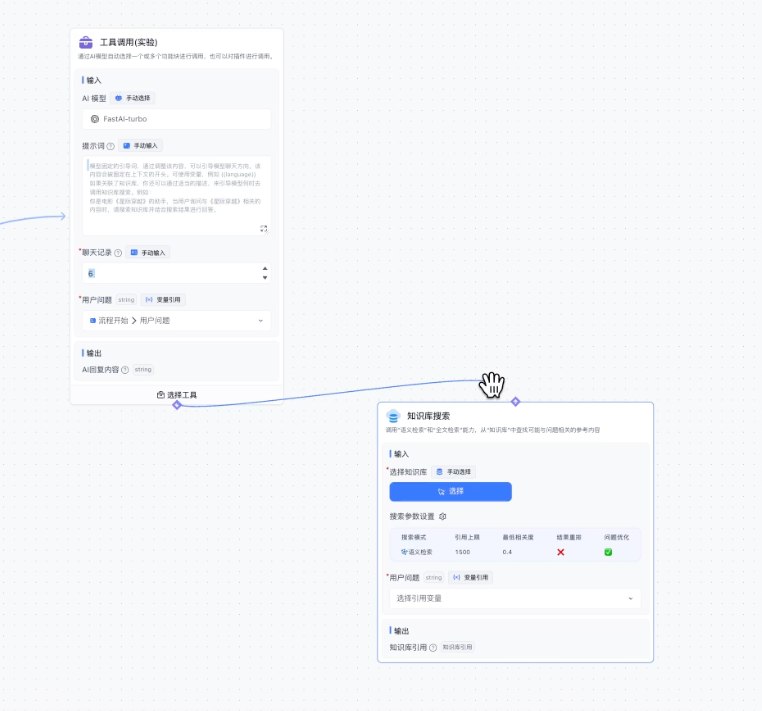 | 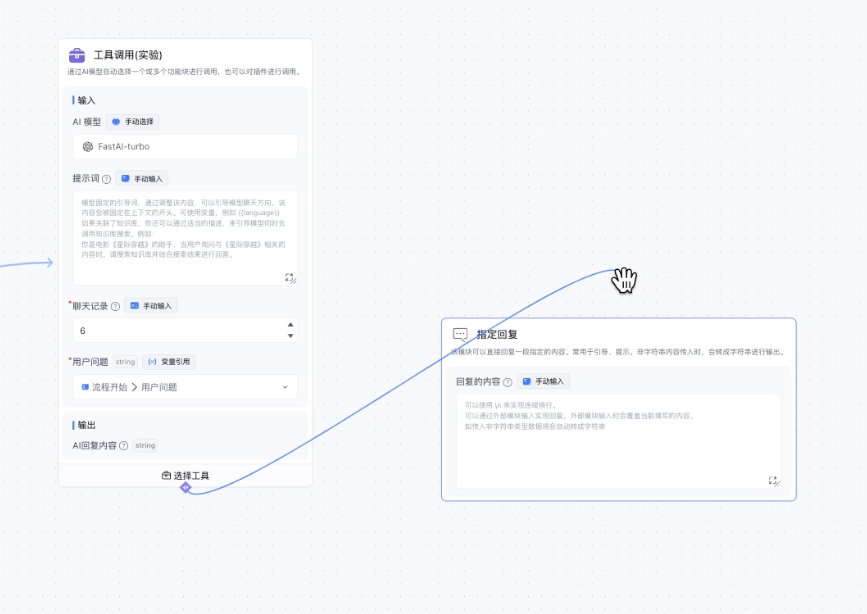 |
In the advanced workflow editor, drag from the tool calling connection point. Eligible tools display a diamond icon at the top, which you can connect to the diamond at the bottom of the tool calling module.
Connected tools automatically separate tool inputs from regular inputs. You can also edit the description to fine-tune when the tool gets called.
Debugging tool calling is still more art than science, so start with a small number of tools, optimize them, then gradually add more.
Use Cases
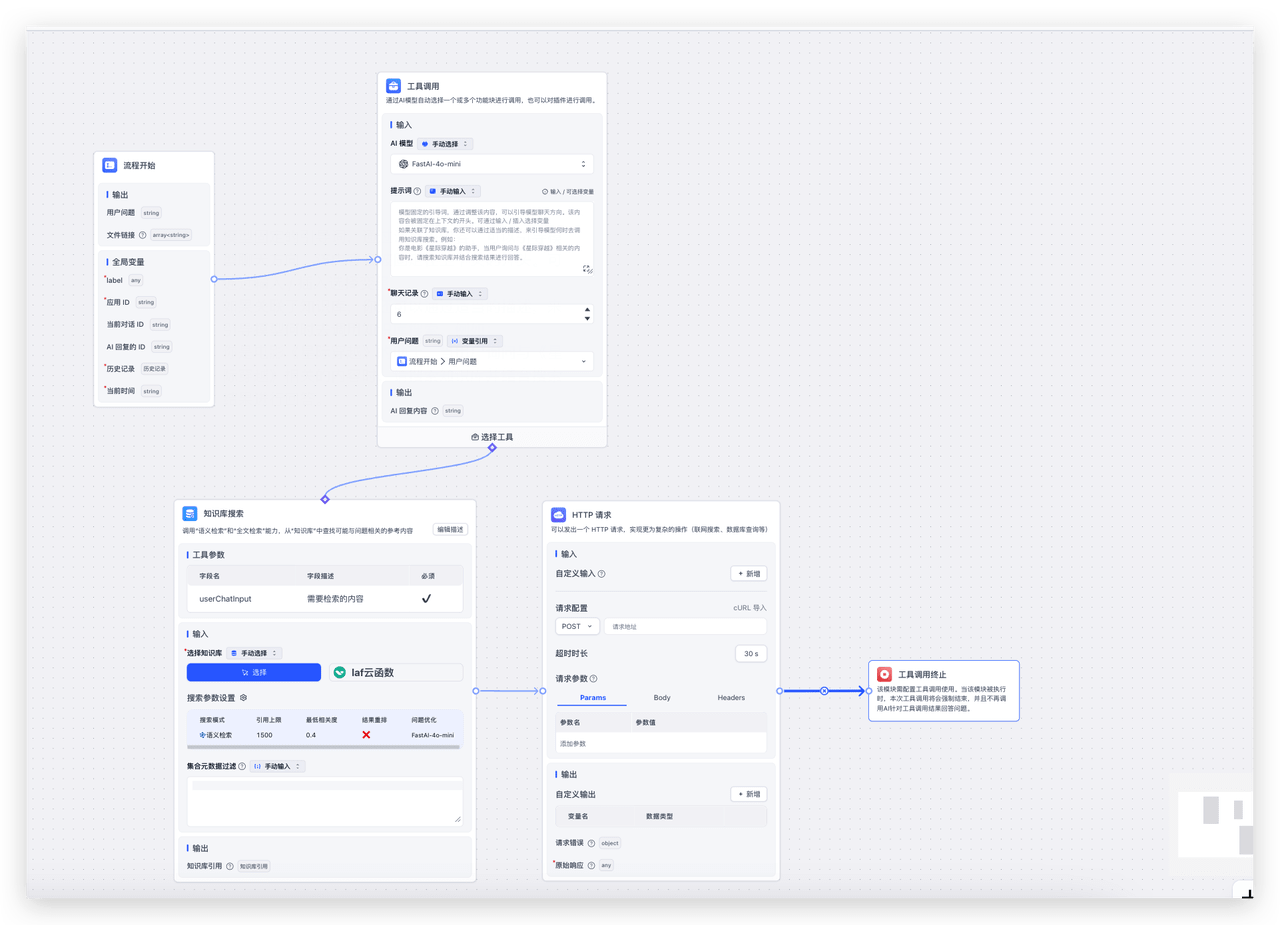
By default, after the tool calling node invokes a tool, it returns the tool's output to the AI for summarization. If you don't need the AI to summarize, place this node at the end of the tool's workflow branch.
In the example below, after the Knowledge Base Search runs, results are sent to an HTTP request. The search results are not returned to the tool calling node for AI summarization.
Additional Nodes
When you use the tool calling node, a Tool Calling Termination node and a Custom Variable node also become available, further enhancing the tool calling experience.
Tool Calling Termination
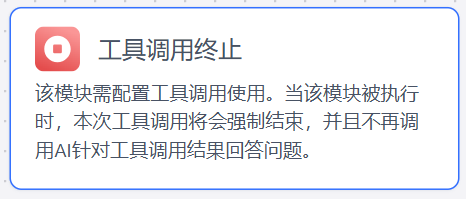
Tool Calling Termination ends the current call cycle. Place it after a tool node. When the workflow reaches this node, it forcibly ends the current tool call -- no further tools are invoked, and the AI won't generate a summary based on tool results.
Custom Tool Variables
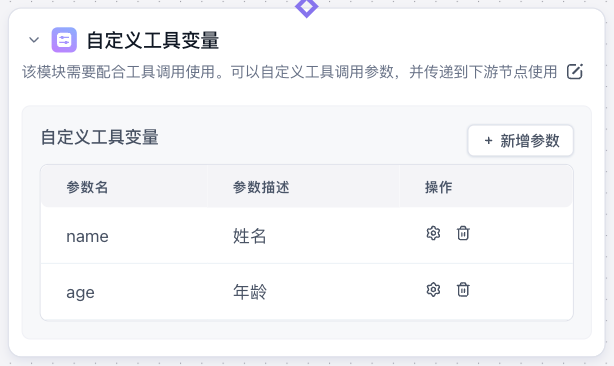
Custom variables extend tool input capabilities. For nodes that aren't recognized as tool parameters or can't be directly tool-called, you can define custom tool variables with appropriate parameter descriptions. The tool calling node will then invoke this node and its downstream workflow accordingly.
Related Examples
File Updated