
Yuque File Library
Introduction and usage of the FastGPT Yuque File Library
 |  |
Starting from FastGPT v4.8.16, commercial edition users can import from Yuque file libraries by configuring a Yuque token and uid. This feature is currently in beta — some interactions may still need refinement.
1. Get the Yuque Token and UID
Go to the Yuque homepage > click your avatar > Settings to find the relevant parameters.

Personal Edition:
- In Settings, open Token under Developer, then create a new token.
- Enter a purpose for the token and select Read your knowledge bases and Read your documents. Confirm creation and copy the token.
- For the UID, use the account identifier shown below your display name and avatar in Settings.
| Get Token | Add Permissions | Get User ID |
|---|---|---|
 |  |  |
Enterprise Edition:
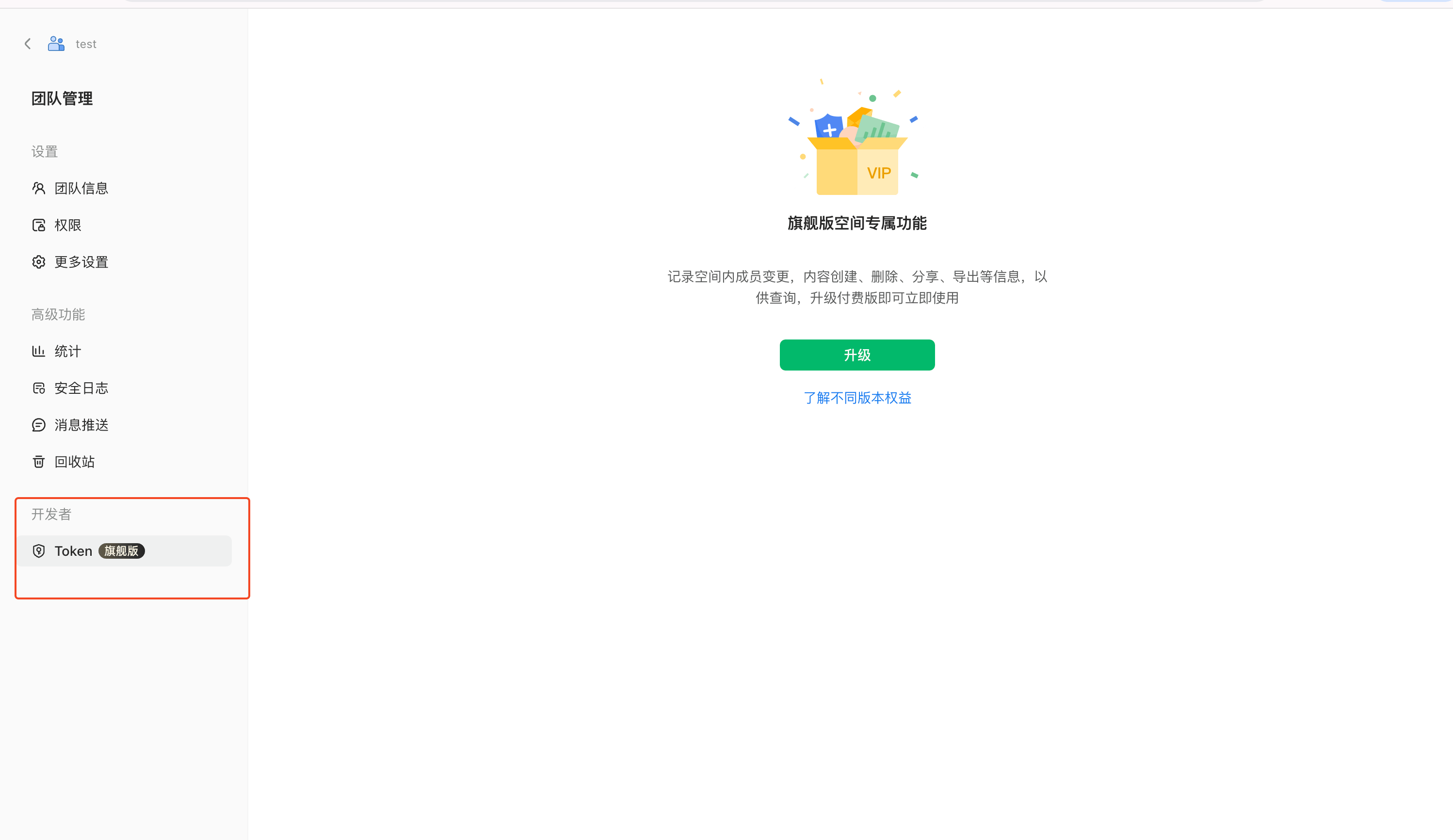
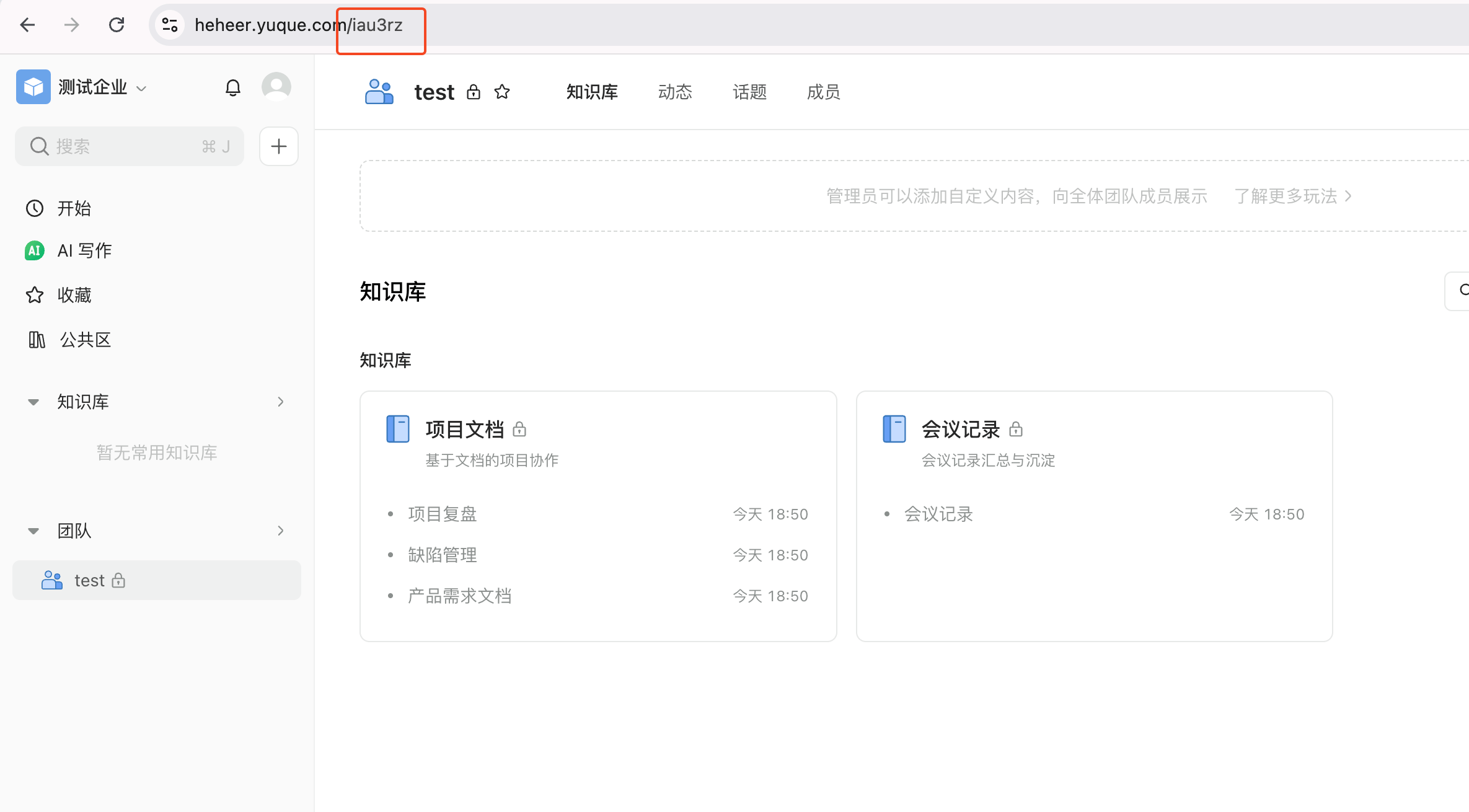
Open Team Management → Developer → Token to manage tokens. Token availability depends on your Yuque plan. For the team UID, open the team homepage and copy the first path segment after the domain: in https://tenant.yuque.com/<team-id>, use <team-id>.
| Get Token | Get User ID |
|---|---|
 |  |
2. Create the Dataset
Using the token and uid from the previous step, create a Dataset. Select the Yuque file library type, fill in the parameters, and click Create.

3. Import Documents
After creating the Dataset, click Add File to import from your Yuque document library and follow the on-screen guidance.
The Yuque Dataset supports scheduled sync — it scans once daily at varying times. If documents have been updated, they will be synced automatically. You can also trigger a manual sync.

Last updated