
Virtual Machine
Understand the core concepts, runtime design, and debugging workflow for the Agent V2 Virtual Machine (Computer Sandbox).
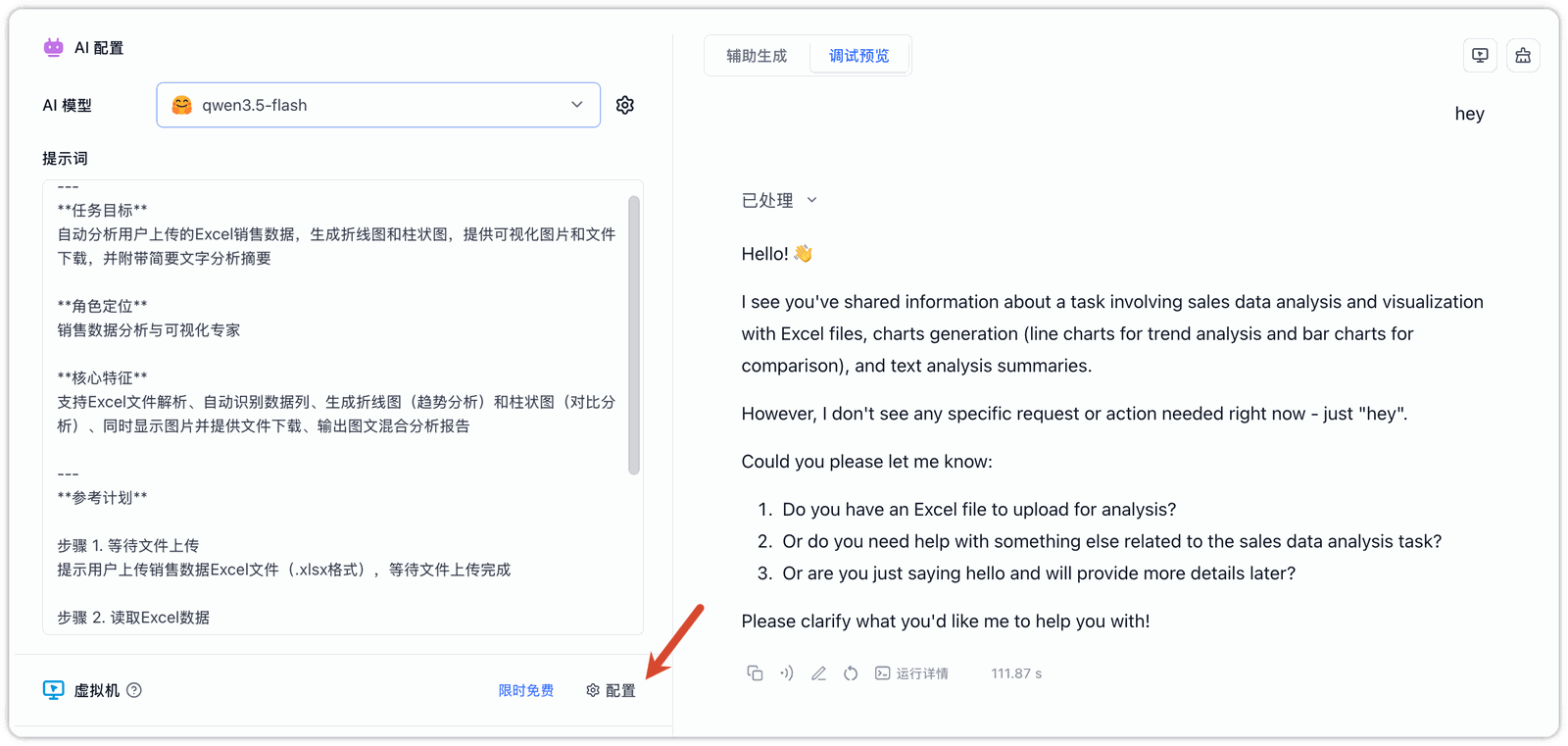
In FastGPT Agent V2, the Virtual Machine is a dedicated, physically isolated, and secure lightweight Linux running sandbox environment provisioned for each chat session. It equips the Agent with real-world computation, code execution, and file read/write capabilities, allowing the AI to not only "think" but also execute code to solve complex tasks like a human programmer.
What is Virtual Machine
When you toggle the "Enable Computer" option, the system dynamically provisions and binds a dedicated sandbox container for each individual chat session in the background.
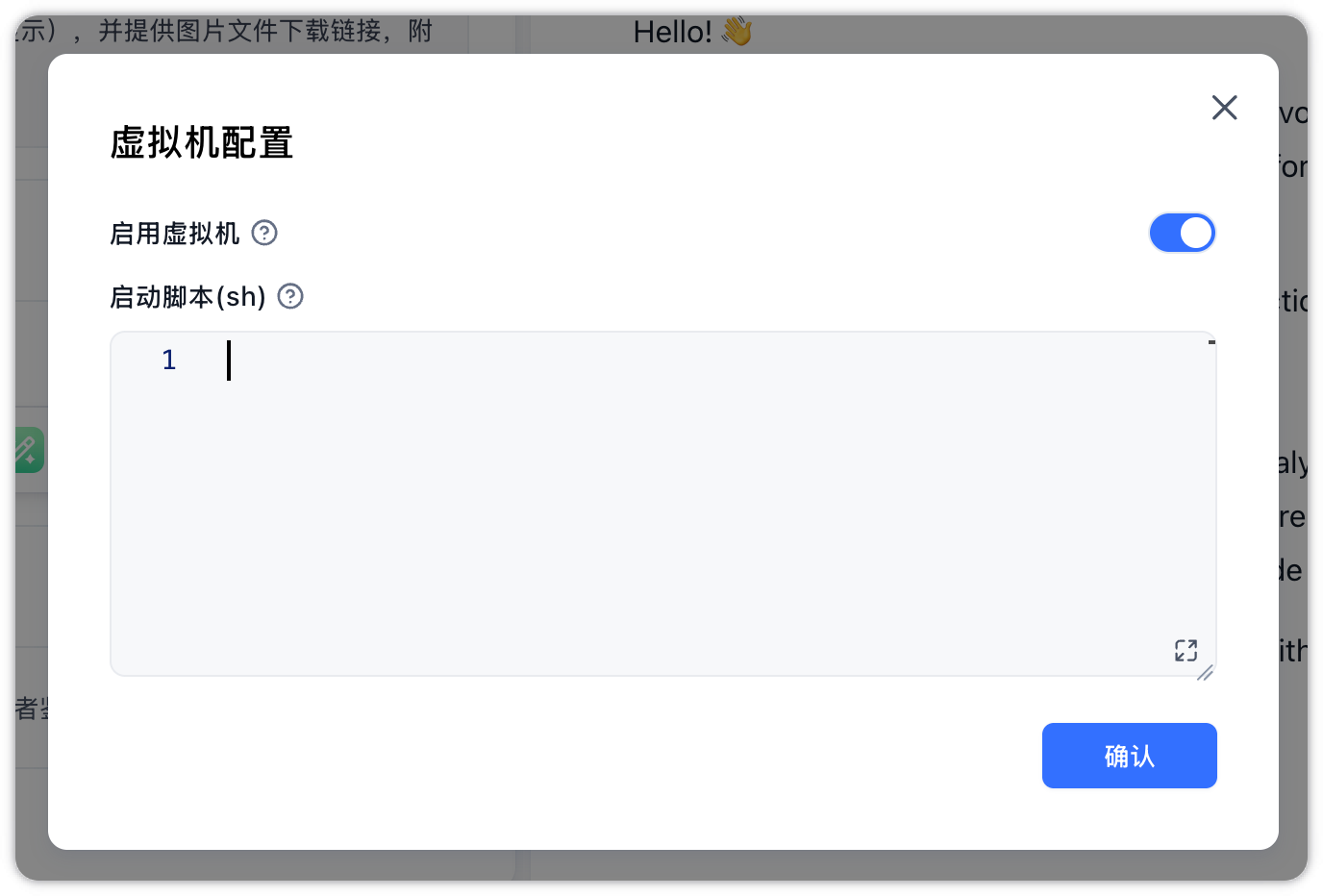
With the virtual machine, the Agent can:
- Execute Dynamic Code: Run Python, Node.js, or Shell scripts via the code executor to perform complex calculations and data manipulations.
- Read and Write Local Files: Create, modify, and read files in the isolated
/workspacedirectory, including generating charts or processing uploaded CSV/Excel sheets. - Customize the Environment & Startup Script: Dynamically customize the runtime environment by binding SKILL packages, or configuring custom Startup Scripts (which automatically execute specified Shell initialization commands, such as installing dependencies or setting environment variables, after the VM spins up but before the AI workflow starts).
Virtual Machine Design
To balance security, latency, and resource footprint across high-concurrency and multi-tenant environments, the system features the following core designs:
1. Session-Level Isolation and Lifecycle Management
- The virtual machine is tightly coupled with the user's chat session. Different users and sessions run in entirely isolated environments.
- The system utilizes a keepalive mechanism to sustain active containers. When a session remains idle for too long (exceeding the configurable timeout, typically a few minutes), the container is automatically collected and destroyed to release host resources.
2. Session Persistence
The virtual machine remains active throughout the duration of a chat session. Dependencies downloaded, temporary files written, or environment variables set in the previous turns remain accessible in subsequent turns.
3. Security Constraints & Escape Prevention
- Strict resource quotas (CPU, Memory, Disk IO) and network firewall policies are applied to the sandbox to prevent malicious resource exhaustion or internal network access.
- All executed commands are encoded in Base64 and decoded securely inside the container to prevent Command Injection risks from string concatenations.
4. Instant Sandbox Reconstruction
Clicking "Restart" during testing will thoroughly destroy the current virtual machine. The next request will provision and initialize a clean, brand-new container to prevent historical files from contaminating the session.
Virtual Machine Debugging
When you enable the Computer option in the left configuration panel, the Chat Preview window will automatically unlock the following sandbox-exclusive debugging features:
Virtual Machine File Manager
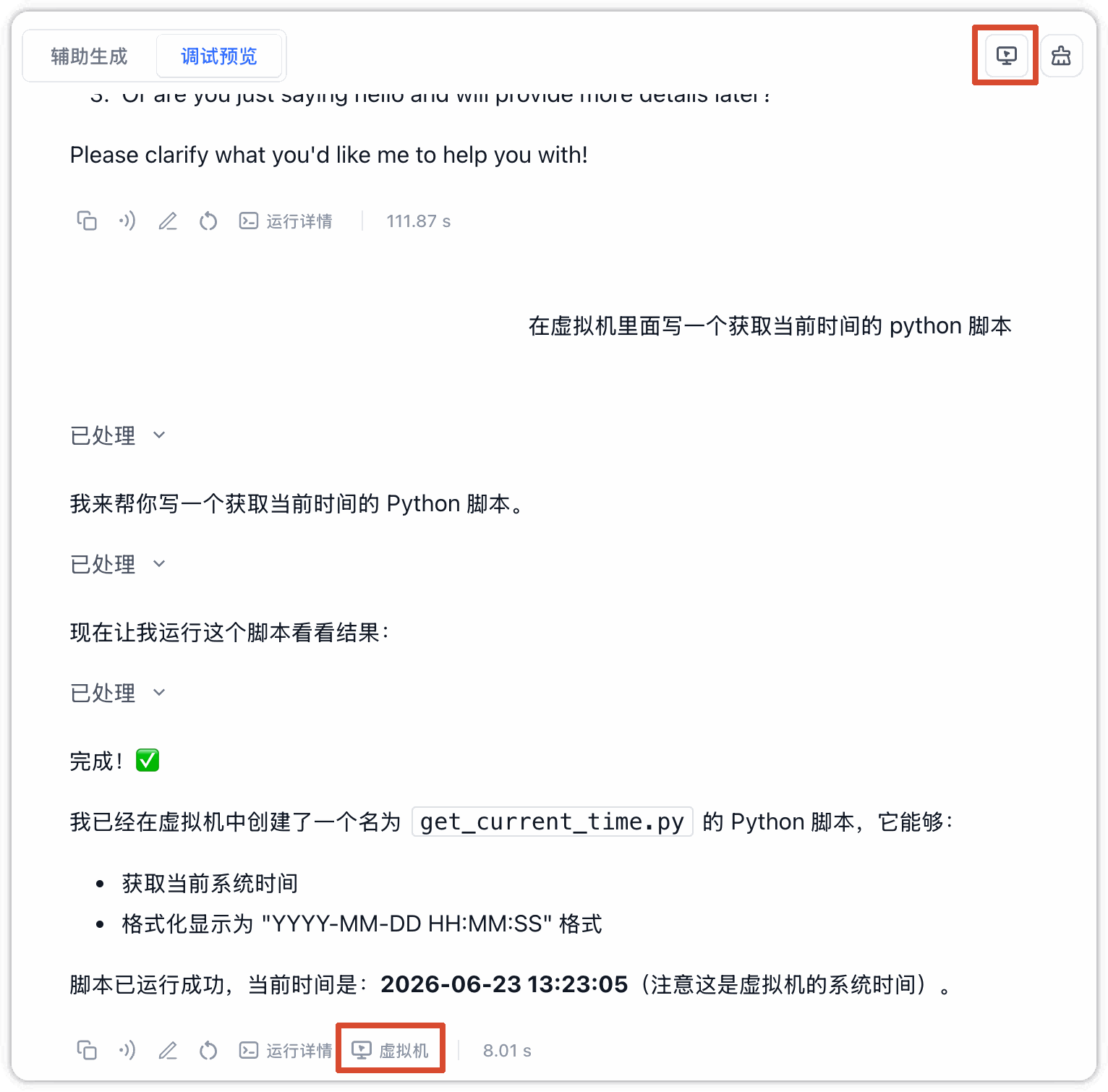
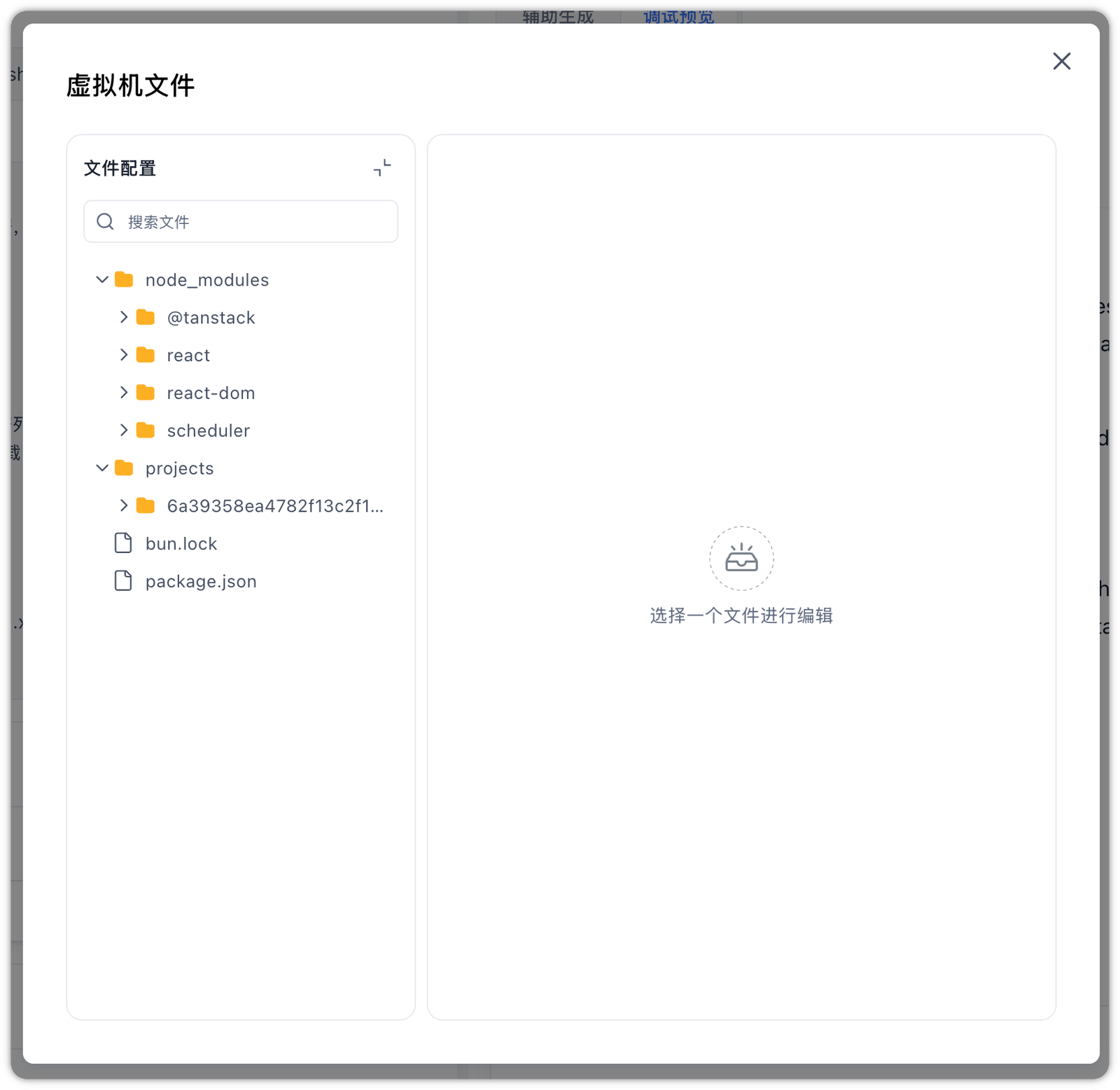
Shortcut entries to the VM file manager are provided at the top of the chat window and below chat bubbles that involve VM operations. Clicking them pops up a modal to browse, edit, upload, or download files (such as charts, code, and HTML previews) inside the container, achieving a closed debugging loop.
 |  |
Automatic Dialog File Injection
Any files you upload via the chat input box (such as CSV or Excel sheets) are automatically downloaded and written into the VM's user_files/ directory before execution, allowing the AI to read and process them as local files via code.
Code Execution and Self-Correction
The virtual machine provides a real execution environment. If code fails due to missing dependencies or syntax errors, the error logs are real-time fed back to the LLM, enabling the AI to self-correct and re-run within multi-turn planning.
Pre-emptive Initialization and State Persistence
With the Computer option enabled, the system automatically spins up and prepares the sandbox environment before each chat session starts. All files, dependencies, and execution states are persisted across chat steps to support continuous multi-turn debugging.
Real-time Startup Status Tracking
During testing, the chat bubble header streams real-time VM provisioning updates, allowing you to audit the startup progress and duration.
Complete Sandbox Reconstruction upon Reset
Clicking the "Restart" button resets the test session, and the next interaction will provision and initialize a clean, brand-new VM container to prevent historical file contamination.
Virtual Machine Lifecycle
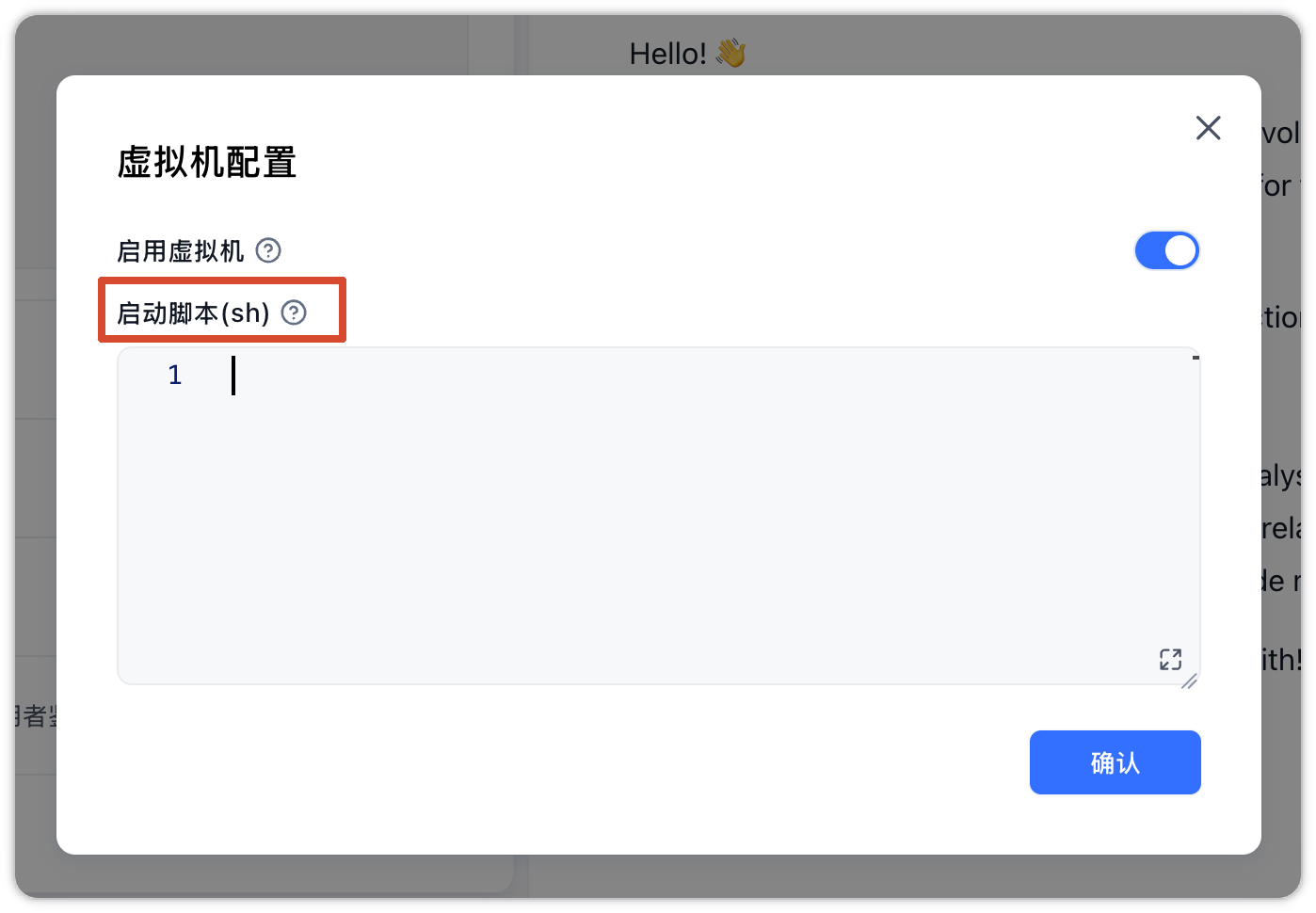
When the Computer option is enabled, you can configure a Startup Script to automatically execute shell commands right after the sandbox environment spins up and before the AI workflow officially starts. This is commonly used for configuring environment variables, modifying software package sources, or installing Python packages (pip) and system-level utilities.
Script Configuration & Lifecycle
Under the "Computer Configuration" section of the Agent Configuration Panel, you can write standard Shell commands directly inside the Startup script (sh) code editor.
Script Execution Sequence and Scope
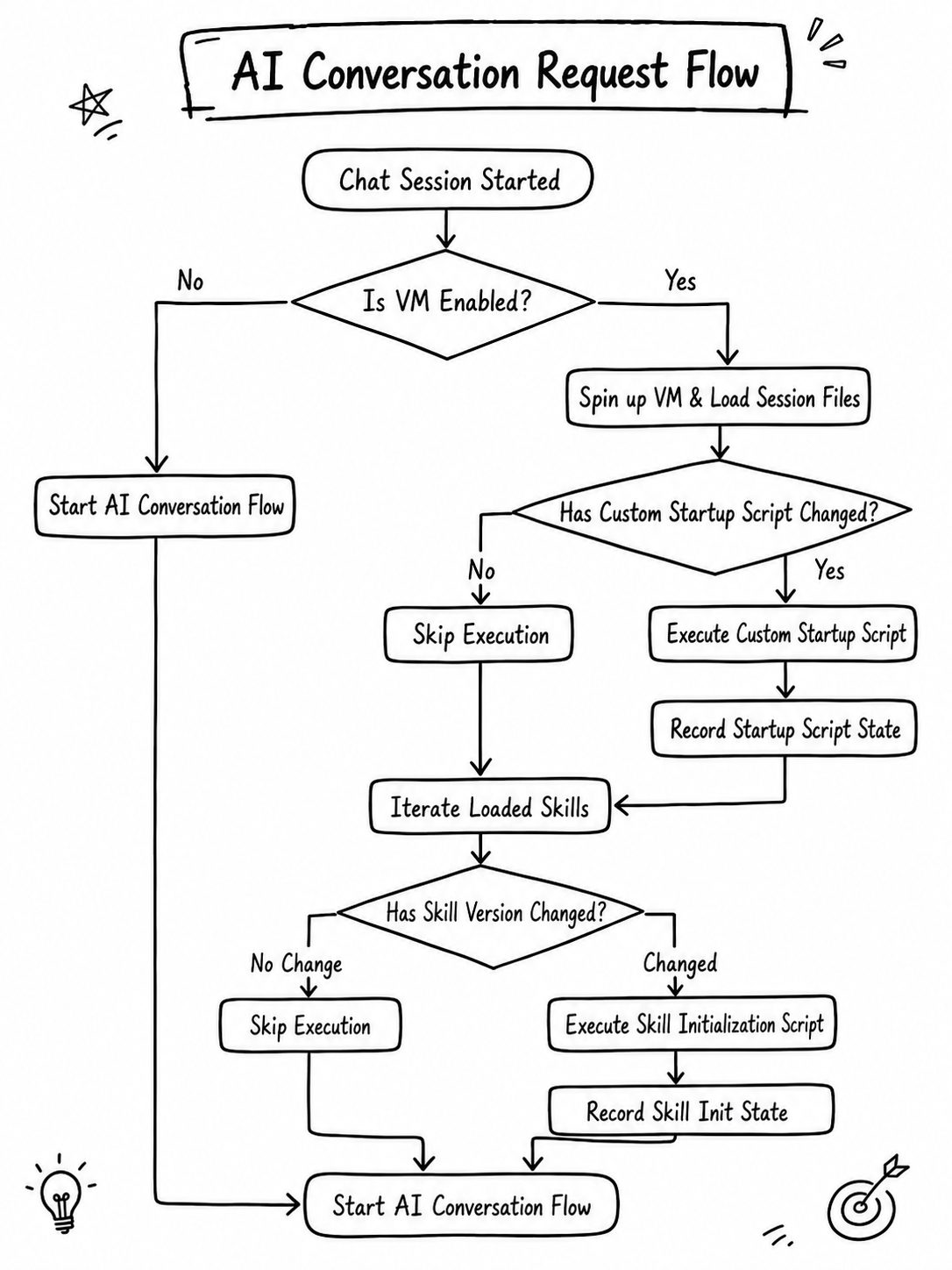
When a new session starts or the virtual machine is reconstructed, the system executes the scripts sequentially in the background:
- App Startup Script: The custom Shell script configured in your Agent panel. It executes inside the virtual machine's working directory (usually
/workspace) to prepare specific dependencies and runtime environments required by this app. - Skill Entrypoint: If your Agent is associated with skills, the initialization entrypoint script (e.g.,
entrypoint.sh) bundled inside the published skill package will be extracted and executed in the skill's deployment directory right after the app startup script completes.
.tmp-<versionId>-<random>). Upon successful decompression, the folder is atomically renamed to the formal version directory to prevent corrupted partial extractions.Lifecycle Flowchart
Status Deduplication
To prevent latency from running commands repeatedly during subsequent turns (such as reinstalling packages via pip), the system employs an efficient status deduplication mechanism:
- Execution State Record: The system maintains an execution state file inside the sandbox at
~/.fastgpt/agent-skill-entrypoints/state.json. - Hash-based Deduplication (App Startup Script): For your custom "Startup script (sh)", the system computes a SHA-256 hash value based on the script text and compares it with the executed hashes in
state.json. If the script remains unmodified, the system automatically skips execution on subsequent requests, ensuring fast starts. The script will only run again if you edit its content or click "Clear Chat" to completely rebuild the sandbox. - Version ID-based Deduplication (Skill Entrypoint): Associated skills are deduplicated using their immutable skill Version ID. Since published skill versions are read-only, the entrypoint script executes only once during the sandbox's cold start as long as the bound version remains unchanged.
- State Lifecycle: The deduplication state is managed along with the virtual machine instance. When the virtual machine is rebuilt (due to clicking "Clear Chat" or system reclamation), a fresh environment is allocated, and all scripts will run again during the next cold start.
Execution Constraints & Fault Tolerance
To ensure sandbox stability and responsiveness, the startup script is subject to the following system rules:
- Character Length Limit: Due to front-end validation and input constraints, the startup script supports a maximum of 16,384 characters (approx. 16KB). Any script exceeding this limit is truncated on save. For complex initialization logic, write it inside a separate skill entrypoint or fetch and execute remote scripts.
- Timeout Protection: Script execution is protected by a timeout limit controlled by the environment variable
AGENT_SANDBOX_ENTRYPOINT_TIMEOUT_SECONDS, with a default timeout of 30 seconds (clamped between 1 and 600 seconds). The process is forcefully terminated if execution exceeds this duration. - Non-blocking Workflow: If your startup script errors out (exits with a non-zero code), times out, or fails to read/write the state file, the system will not block the main chat workflow. The AI continues executing subsequent workflow nodes or tools, though it may hit runtime exceptions later if critical dependencies are missing. You can troubleshoot these errors in the preview logs or through the Computer File Manager.
- Log Truncation: Combined standard output (stdout) and standard error (stderr) logs for the startup script are capped at approximately 8KB. When logged to the system, output is truncated to 4,000 characters to prevent excessive resource utilization.
File Updated