
Install and Manage Team Plugins
Install, update, and uninstall team plugins from Marketplace or local packages
Team plugins require a FastGPT Commercial Edition license and must be enabled by a system administrator under Admin → System Config → Feature Flags → Allow teams to upload plugins (disabled by default and unavailable in the open-source Community Edition).
Team plugins are installed and managed by team administrators or owners and are available only within the current team. Team members can use installed plugins in workflows, Agents, and tool selectors.
Scope
Team plugins and system plugins are independent installations:
- System administrators install and configure system plugins for use across teams.
- Team administrators install team plugins for the current team.
- The same plugin can exist as both a system plugin and a team plugin. Both entries are displayed, and the system entry carries a System label.
- A team plugin does not inherit secrets, pricing, status, version, or other configuration from a system plugin with the same ID.
- Teams cannot hide or change the visibility of system plugins.
Team plugins can be updated or uninstalled and do not have a deprecation state.
Roles
- System administrator: A user signed in with the
rootaccount, with the Admin entry at the bottom-left of the sidebar, responsible for system-wide configuration and system plugins. - Team owner: The creator of the current team, holding full administrative permissions within the team by default.
- Team administrator: A team member granted the Admin permission under Account → Team → Permissions.
Prerequisites
Before installing a plugin, confirm that:
- Your account is a team administrator or team owner. Regular members can use installed plugins but cannot install, update, or uninstall them.
- The system administrator has enabled Allow teams to upload plugins under Admin → System Config → Feature Flags. This toggle gates all team plugin installation methods; Marketplace installation, local uploads, and installation confirmation are rejected when it is disabled.
- The deployment can access FastGPT Marketplace when installing from Marketplace.
- For a local installation, you have a valid
.pkgfile or a.ziparchive containing one or more.pkgfiles.
The New Tool button in the upper-right corner is visible only when your account is a team administrator or owner and Allow teams to upload plugins is enabled. When the deployment disables the Marketplace (disableMarketplace), the menu shows only Install from Local.
Authors preparing a custom package can follow debugging, packing, and publishing. System administrators can follow system tool management for system-wide installation.
Install from Marketplace
- Open Studio → System Tools.
- Click New Tool in the upper-right corner and select Install from Marketplace.
- Find a plugin by name, source, or category. You can enable the Only show uninstalled filter.
- Open the plugin details and review its description and version information.
- Select a version and click Install to continue.
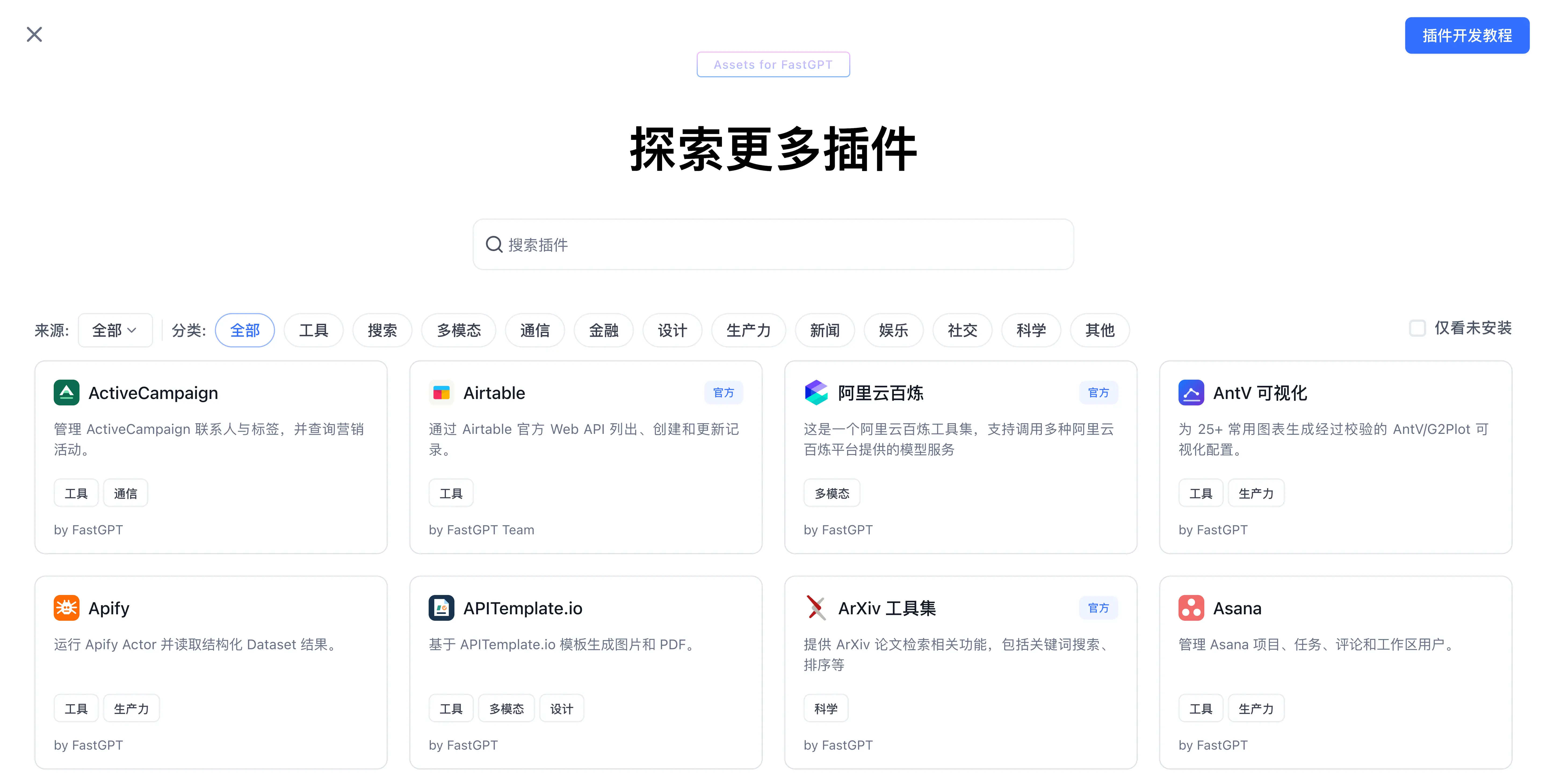
After installation, the plugin appears in the team tool list and can be selected in workflows and Agents. Configure any required secrets or runtime parameters before use.
Upload a Local Package
When team plugin uploads are enabled, you can install plugins you developed yourself or obtained through other channels:
- Open Studio → System Tools.
- Click New Tool and select Install from Local.
- In the Import/update Plugin dialog, select one or more
.pkgfiles, or a.ziparchive containing multiple.pkgfiles. - Wait for FastGPT to upload and inspect the packages.
- Review the Name, Tag, Intro, Status, and Action columns in the parsed list. Failed files display an individual error and can be removed or retried.
- Click Confirm import.
Uploading and parsing only prepare an installation preview. The plugin is installed for the team after confirmation.
Update a Plugin
When Marketplace provides a newer version, an update option appears on the plugin card or details page:
- Open the team Marketplace and locate the plugin.
- Review the release notes and permission changes.
- Select the target version and update the plugin.
- Test workflows and Agents that use the plugin.
For local packages, upload the target version again and confirm the installation. Team configuration remains independent from the system installation.
Plugin updates may change input and output schemas, secret requirements, or runtime behavior. Validate updates in a test application before updating production workflows.
Uninstall a Plugin
A team administrator can click Uninstall from the tool card menu or details drawer, then enter the plugin name in the Confirm uninstalling this team plugin? dialog.
Uninstalling:
- Deletes the installation under the current team source from the plugin service.
- Revokes future runtime access for the current team.
- Removes the team plugin from new tool selection flows.
Existing workflow and Agent nodes are not rewritten. They fail on their next run after the plugin is uninstalled. Reinstall the plugin from Marketplace or upload its package again to restore access.
Uninstalling a team plugin does not affect a system plugin with the same ID or installations owned by other teams.
System and Team Copies
When the same plugin is installed at both levels:
- The team entry appears before the system entry.
- The system entry displays a System label next to its title. Hover over the label to read its explanation.
- Workflows and Agents store the plugin source, so each copy can be selected and configured independently.
- Uninstalling the team copy leaves the system copy available.
Use clear internal conventions when both copies exist, especially when they have different versions or configuration.
Security Recommendations
- Install packages only from trusted sources and review plugin descriptions and secret requirements.
- Apply your team's data security policy when a plugin accesses external URLs, accounts, or secrets.
- Review release notes and test compatibility before upgrading.
- Check workflow and Agent references before uninstalling a plugin.
- For troubleshooting team plugin installation, permissions, and secret isolation, see App, Chat, and Plugin FAQ.
Last updated