
Configure System Tools
Upload, install, and update packaged custom system tool plugins in the FastGPT admin console for platform-wide team access.
Starting from FastGPT 4.14.0, system admins can upload and update system tools directly through the web interface for hot reloading.
Permission Requirements
⚠️ Important: Only root users can use the online system tool upload feature.
- Make sure you are logged in with the
rootaccount
Supported File Formats
- File type:
.pkgfiles, or.zipfiles containing multiple.pkgfiles - File size: Controlled by the
UPLOAD_FILE_MAX_SIZEenvironment variable, 1000 MB by default - File count: Controlled by the
UPLOAD_FILE_MAX_AMOUNTenvironment variable, up to 1000 files per upload by default
Upload Steps
1. Access the Configuration Page
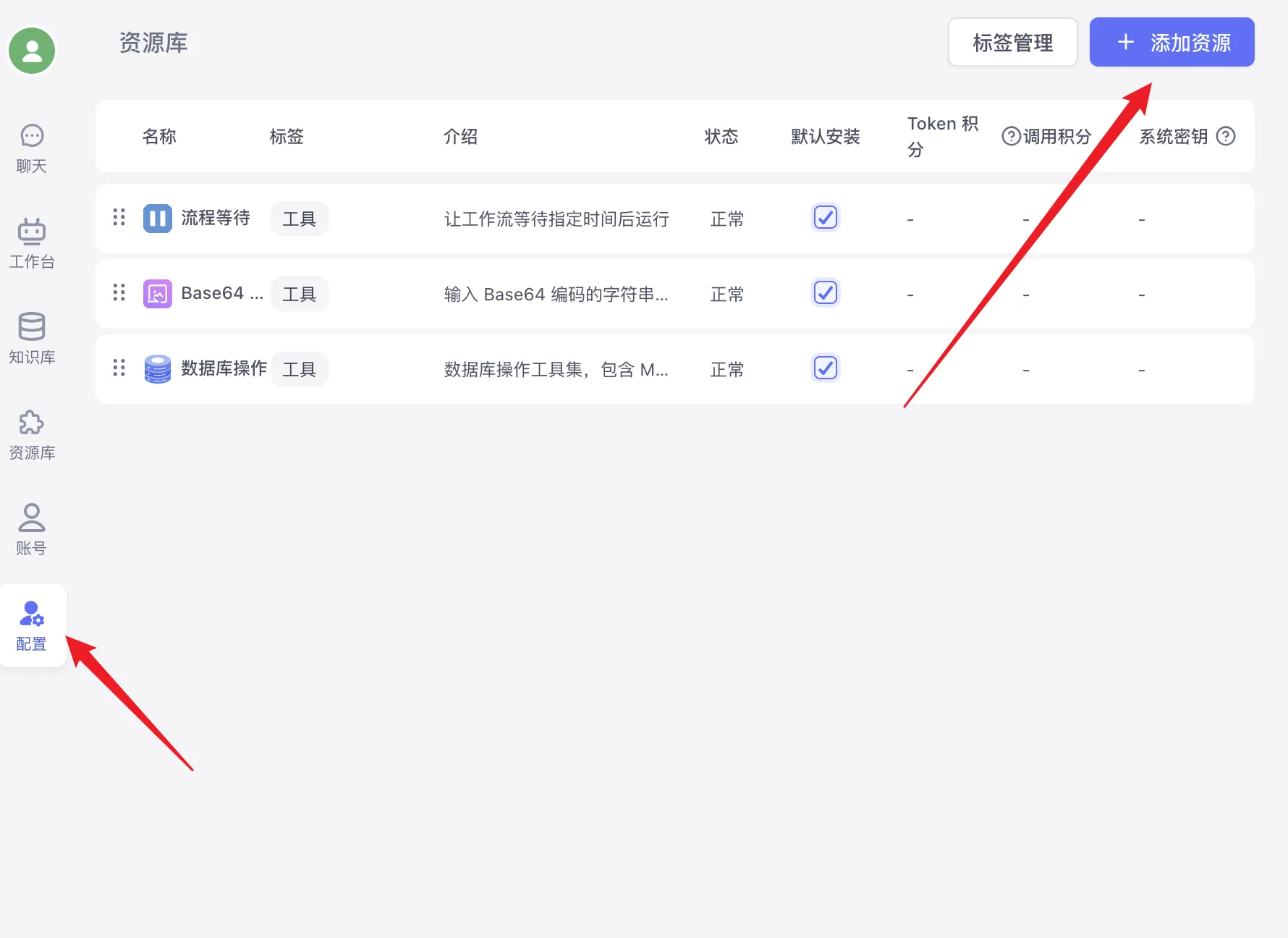
Log in as root, open Admin → System Resources → System Tools, click + New Tool in the upper-right corner, and select Install from local from the dropdown menu (which also provides Install from Plugin Marketplace).
2. Prepare Tool Files
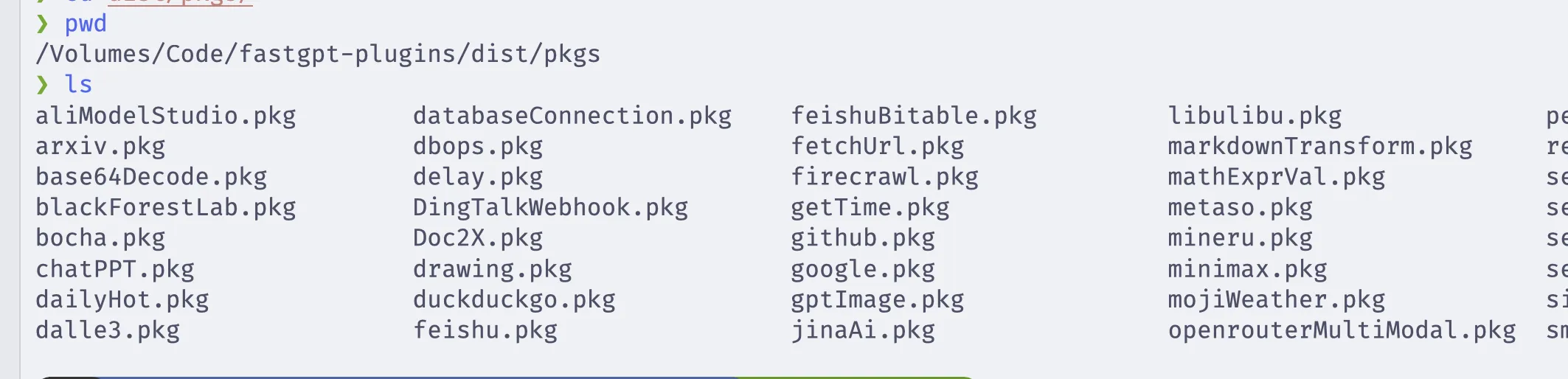
Prepare a .pkg file from a trusted author and confirm compatibility with the target environment. For custom tools, follow build, check, and pack. See the package and SDK reference for artifact details.
3. Upload
- Click + New Tool → Install from local in the upper-right corner
- In the Import/update Plugin drawer that opens, click the file selection area
- Select your prepared
.pkgor.ziptool files - After confirming the file details, click Confirm import at the bottom
4. Upload Process
- A success message will appear after the upload completes
- The page auto-refreshes and the new tools will appear in the tool list
Features
Tool Management
- View tools: Users see available system tools according to their status and permissions
- Upload tools: Only root users can upload new tools or update existing ones
- Delete tools: Only root users can delete uploaded tools
Configuration after installation
Root administrators can manage status, system secrets, and runtime parameters in the tool configuration page. Verify a call in a test App after installation or an update.
| Status | New tool selection | Existing calls |
|---|---|---|
| Normal | Available | Continue |
| Hidden | Hidden from selectors | Continue |
Pending offline (SoonOffline) | Hidden from selectors | Continue |
Uninstalled (Offline) | Unavailable | Rejected |
Root administrators configure system secrets centrally. The FastGPT server stores them and reads them when a call selects system secrets. Team installations keep their own configuration and secrets. For missing installation entries or parameter troubleshooting, see App, Chat, and Plugin FAQ.
Last updated