
Members, Departments, Groups, and Permissions
How to manage FastGPT teams, member groups, and permission settings
Team Management Tabs
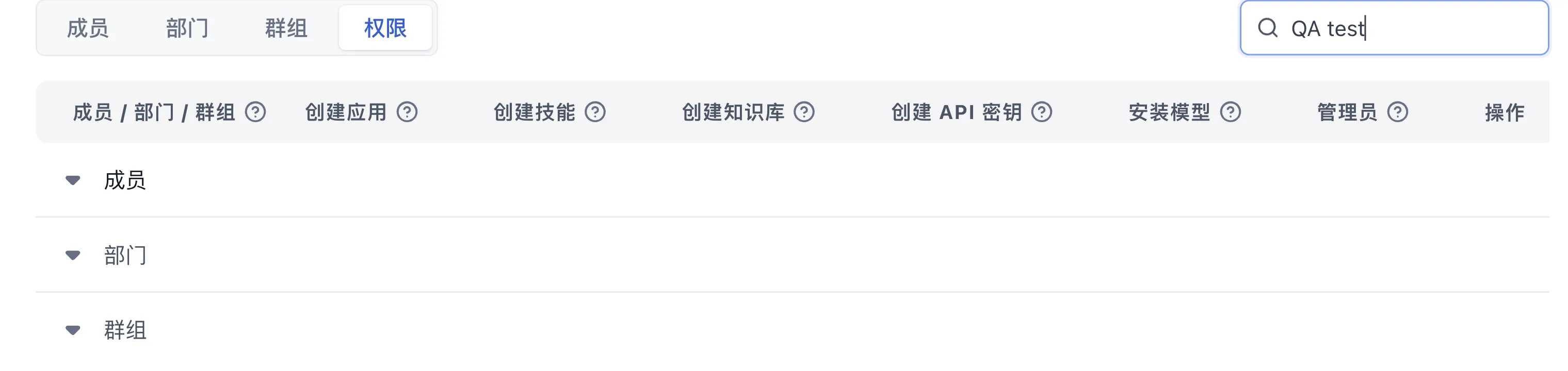
Open Account → Team management from the left navigation bar. The page is organized into four tabs—Members, Departments, Groups, and Permissions:
- Members: View all active team members (member name, contact, department, join time, and actions); click Invite Members in the upper-right corner to generate invitation links, remove members, or click Transfer team ownership (visible only to the Team Owner).
- Departments: Build a hierarchical organization tree and assign members to departments for inherited access control.
- Groups: Create cross-departmental member groups (including the built-in default group named after the team) for batch authorization.
- Permissions: Grant team-level creation and administration permissions across members, departments, and groups.
Permission System Overview
FastGPT's permission system combines attribute-based and role-based access control, providing fine-grained permission management for team collaboration. Through members, departments, and groups, you can flexibly configure access to teams, apps, and datasets.
Teams
Membership follows the deployment's team mode. In multi-team mode, users can join several teams and receive an initial team when created. In single-team mode, new users join the root user's team. Sync mode follows the external member system. In multi-team mode, users can join an existing team by opening a Member Invitation Link shared by a Team Admin.
Permission Management
FastGPT offers three permission management levels:
Member Permissions: Highest priority, directly assigned to individuals
Department & Group Permissions: Use union logic, lower priority than member permissions
Permission evaluation follows this logic:
- Use an individual permission record when present, including an explicit value of
0. - When the individual record is absent, combine matching permissions from member groups, the default all-members group, the member's departments, and ancestor departments using bitwise OR.
- When all sources lack matching records, use the resource default supplied by the caller.
Authorization logic:


This diagram covers collaborator permission resolution for one resource. Surrounding authorization handles resource owners, folder inheritance, and hidden applications.
Resource Permissions
FastGPT defines assignable permission scopes by resource category (Team, App, Dataset, and Collection file/folder), as detailed in the table below:
| Resource | Manageable Permissions | Description |
|---|---|---|
| Team | Create Apps | Create Agents, workflows, and tools in Studio |
| Create Datasets | Create general datasets, website datasets, and third-party datasets | |
| Create API Keys | Create and manage global OpenAPI keys and MCP services | |
| Create Skills | Create and import Agent Skills in Studio | |
| Install Models | Configure and manage team model channels when team models are enabled | |
| Admin | Invite or remove members, manage departments and groups, and assign team permissions | |
| App | Chat only | Allows conversation interaction |
| Write permission | Modify basic info, workflow orchestration, etc. | |
| Administrator | Add or remove collaborators | |
| View chat logs | Granted separately; view the app's chat logs | |
| Dataset | Read permission | Can call this Dataset in apps |
| Write permission | Modify Dataset content (import data, sync, adjust training parameters) | |
| Administrator | Modify Dataset basic info and model settings, add or remove collaborators | |
File / Folder (Collection) | Read permission | Can view this file/folder's content. Requires collection permissions enabled on the Dataset (see Collection Permissions) |
| Write permission | Modify content, update, sync, adjust training parameters | |
| Administrator | Modify file/folder metadata (rename, tags, disabled state), add or remove collaborators; deletion is Owner-only |
Collaborators
Before assigning permissions to members, departments, or groups, add them as collaborators on the target resource:
- Team-level permissions: Navigate to Account → Team management → Permissions in the left navigation bar, click Manage permissions (visible only to the Team Owner and Team Admins), select the target members, departments, or groups, and check the corresponding team permission boxes.
- App and Dataset permissions: Open the target App or Dataset, open the Collaborators dialog, and assign Read, Write, or Administrator permissions to the selected members, departments, or groups.
Special Permissions
The table below clarifies how the three privileged roles (Admin, Owner, and Root) are assigned and how to identify your current role in the interface:
| Role | Definition and Assignment | How to Verify in the UI |
|---|---|---|
| Root (System Super Admin) | Built-in system administrator account in self-hosted deployments with username root. In v4.17.3+, newly created instances start in inactive status with the fixed initial password 123456 and require setting a new password on first login, while upgraded accounts retain their existing password (v4.17.2 and earlier configured the password via DEFAULT_ROOT_PSW); see Modify and Reset Root Password. FastGPT Cloud is operated by the official platform team without a tenant root account. | Check whether the Admin (Platform Administration Console) entry appears at the bottom of the left navigation bar, or verify whether the username under Account → Profile is root. |
| Owner (Creator) | Team Owner: The account that created the team (root by default in single-team mode, or the registering user in cloud and multi-team modes).Resource Owner (Creator): The member who created the specific App, Dataset, or Collection. | Team Owner: Open Account → Team management → Members and check whether the Transfer team ownership button is visible in the upper-right corner, or inspect the Owner column of the default team group under the Groups tab. Resource Owner: Open the resource's Collaborators dialog and check for the Owner (Creator) role badge. |
| Admin (Administrator) | Team Admin: A member, department, or group granted the Admin permission by the Team Owner. Resource Admin: A collaborator granted Administrator access on a specific App, Dataset, or Collection in its Collaborators dialog by an effective Owner of that resource (the resource creator, the Team Owner, or self-hosted root; Apps created by built-in AGENT_USERS accounts require the creator). | Team Admin: Open Account → Team management → Permissions and check whether the Admin column is enabled for your account. Resource Admin: Open the resource's Collaborators dialog and check whether your permission level is Administrator. |
Admin Permissions
Team Admins manage member invitations, removals, departments, groups, and team permissions; Resource Admins manage collaborator access on individual Apps or Datasets. Admin permissions observe the following boundaries:
- Cannot modify or remove their own Admin permissions.
- Cannot modify or remove the permissions of other peer Admins.
- Cannot grant Admin permissions to other collaborators (Team Admins are appointed only by the Team Owner on the Permissions tab; Resource Admins are appointed only by accounts holding effective Owner authority on that resource — the resource creator, the Team Owner, or self-hosted
rootoutside built-inAGENT_USERSApps).
Owner Permissions
Every team and every resource (App, Dataset, or Collection) has a single unique Owner with full control and admin-appointment rights. An Owner can transfer ownership to another team member, relinquishing exclusive ownership upon transfer. In folder hierarchies, a parent folder's Owner inherits Can Manage (manage) permission on child resources while each child resource keeps its own single Owner; when a member is granted access only to a descendant resource, ancestor folders appear as read-only navigation entries.
Root Permissions
root is the sole system-level super administrator account in self-hosted deployments, responsible for global model channels, system plugins, tenant quotas, and platform configuration, with full access and management rights within its team.
Tips
1. Set Default Team Permissions
Use the default group (shown with the team name in the UI) to quickly set baseline permissions for the entire team. For example, grant everyone access to an app.
Note: Individual member permissions override default group permissions. For example, if App A grants edit permission to the default group, but User M is individually set to use-only, User M receives use-only access.
2. Batch Permission Management
Create groups or organizations to efficiently manage permissions for multiple users. Add users to a group, then grant permissions to the entire group.
Last updated