
Third-Party Dataset Development
Integrate external document repositories and custom file APIs into FastGPT knowledge bases.
Online API reference: See the online API documentation for current Collection creation and sync parameters:
- Mainland China cloud: System OpenAPI
- International cloud: System OpenAPI
- Self-hosted:
<instance>/apidoc/systemopenapi
There are many document libraries available online, such as Lark, Yuque, DingTalk, and others. FastGPT has built-in support for Lark, Yuque, and DingTalk datasets (as well as the generic API Dataset); if you need to integrate other document libraries, follow this guide.
Unified API Specification
To provide a unified interface for different document libraries, FastGPT defines a standard API specification with 4 endpoints. See the API File Library endpoints.
All built-in document libraries are extensions of the standard API File Library. Refer to the code in FastGPT/packages/service/core/dataset/apiDataset/yuqueDataset/api.ts to build extensions for other document libraries. You need to implement 4 endpoints:
- Get file list
- Get file content / file link
- Get original file preview URL
- Get file detail information
Building a Third-Party File Library
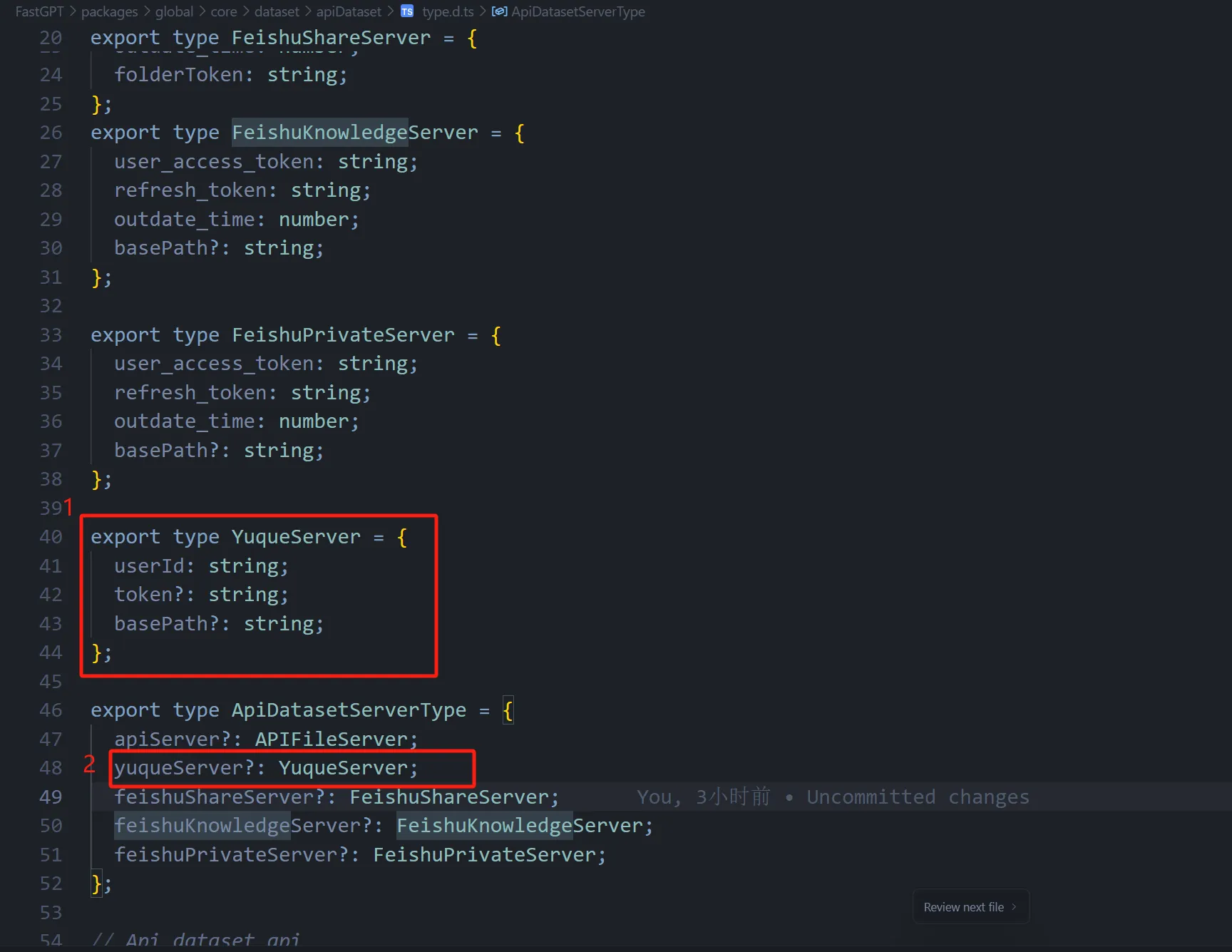
The code snippets below use the Yuque Dataset (YuqueServerSchema, yuqueDataset/api.ts) to show the current Zod schema and adapter contract, while the screenshots illustrate file locations from an earlier Lark Dataset implementation. Match the server schema, form fields, and request adapter to the current source tree.
1. Add Third-Party Document Library Parameters
First, go to FastGPT\packages\global\core\dataset\apiDataset\type.ts in the FastGPT project and add a Zod schema for the provider configuration and infer its TypeScript type. Include the schema in ApiDatasetServerSchema. Design the fields based on your needs. For example, the Yuque Dataset requires userId and token for authentication.
export const YuqueServerSchema = z.object({
  userId: z.string(),
  token: z.string().optional(),
  basePath: z.string().optional()
});
export type YuqueServerType = z.infer<typeof YuqueServerSchema>;If the document library supports a root directory selection feature, add a basePath field. See the root directory feature
Add the new server configuration as an optional property on ApiDatasetServerType, alongside entries such as yuqueServer?: YuqueServer. The Lark example uses feishuKnowledgeServer?: FeishuKnowledgeServer.
2. Create the Hook File
Each third-party document library adapter returns four core methods (plus an optional getFileRawId helper); follow the current yuqueDataset/api.ts contract.
- Create a folder for your document library under
FastGPT\packages\service\core\dataset\apiDataset\, then create anapi.tsfile inside it - In
api.ts, define the following four methods:listFiles: Get the file listgetFileContent: Get file content / file linkgetFileDetail: Get file detail informationgetFilePreviewUrl: Get the original file preview URL
3. Add the Dataset Type
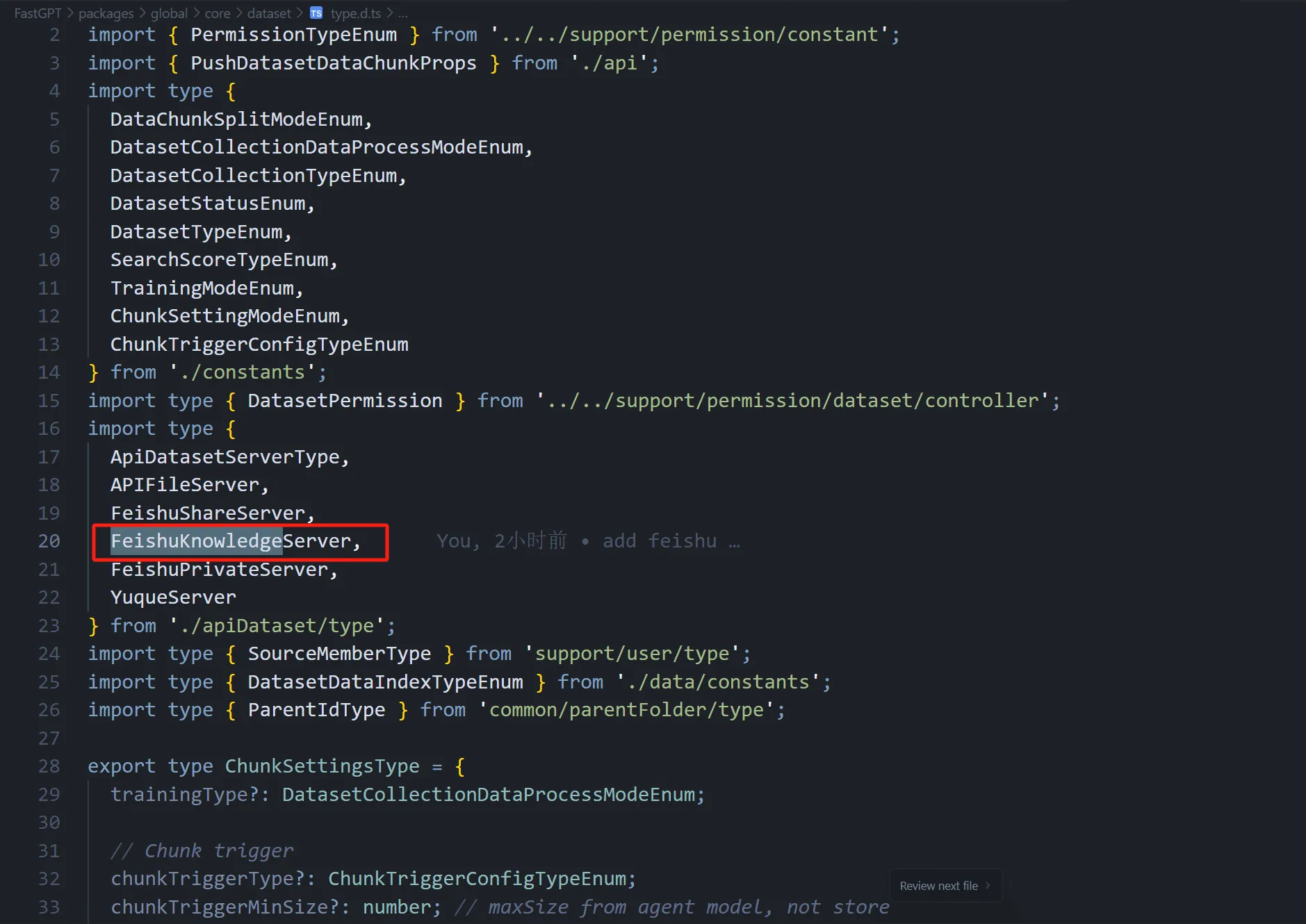
In FastGPT\packages\global\core\dataset\type.ts, import your new Dataset type.
4. Add Dataset Data Retrieval
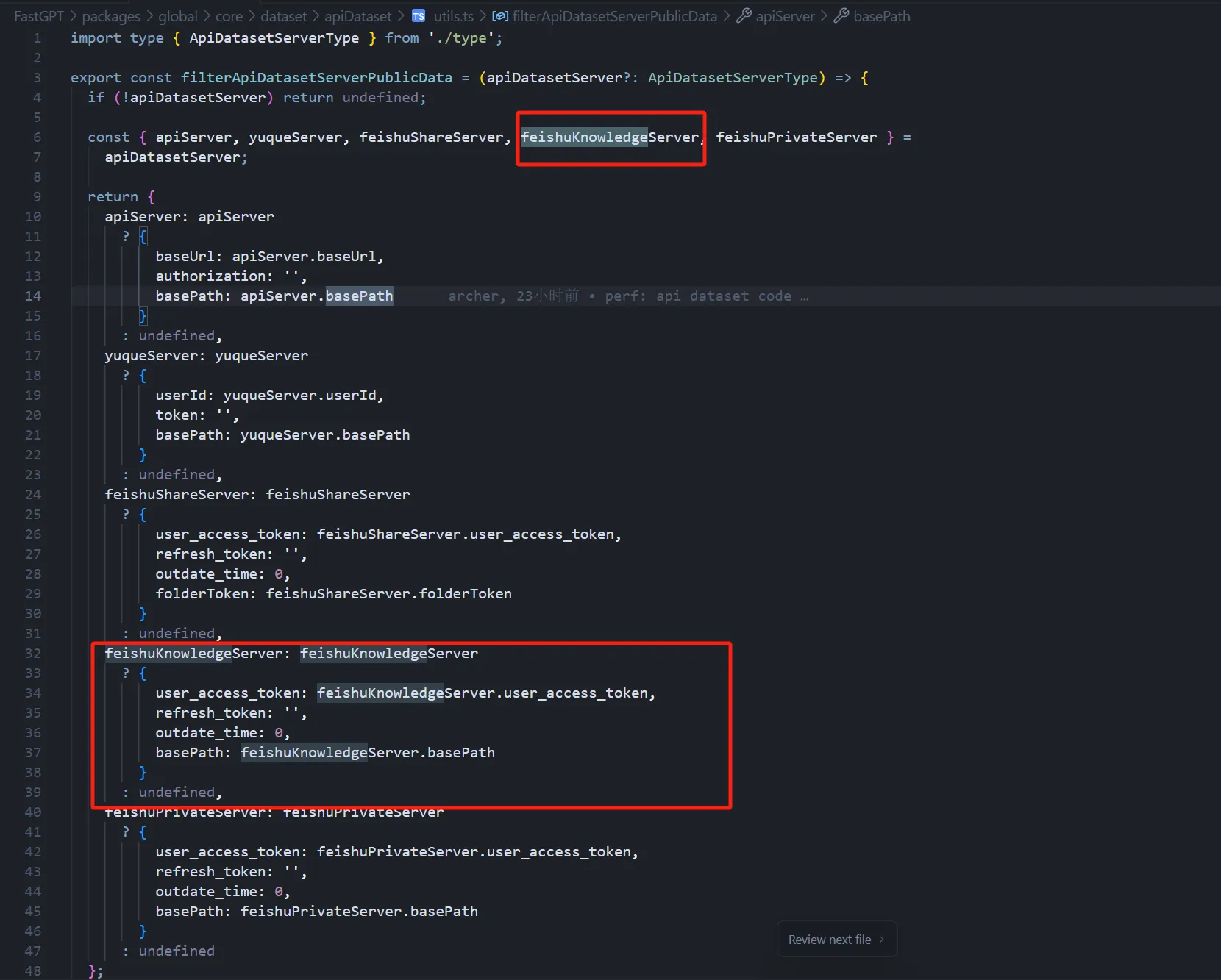
In packages/global/core/dataset/apiDataset/utils.ts, extend filterApiDatasetServerPublicData to expose safe configuration fields while removing credentials. Use the existing ApiDatasetResult success/error contract and error classification helpers; distinguish missing files from authorization, rate-limit, and network failures so sync can handle each correctly.
5. Add Dataset Invocation Method
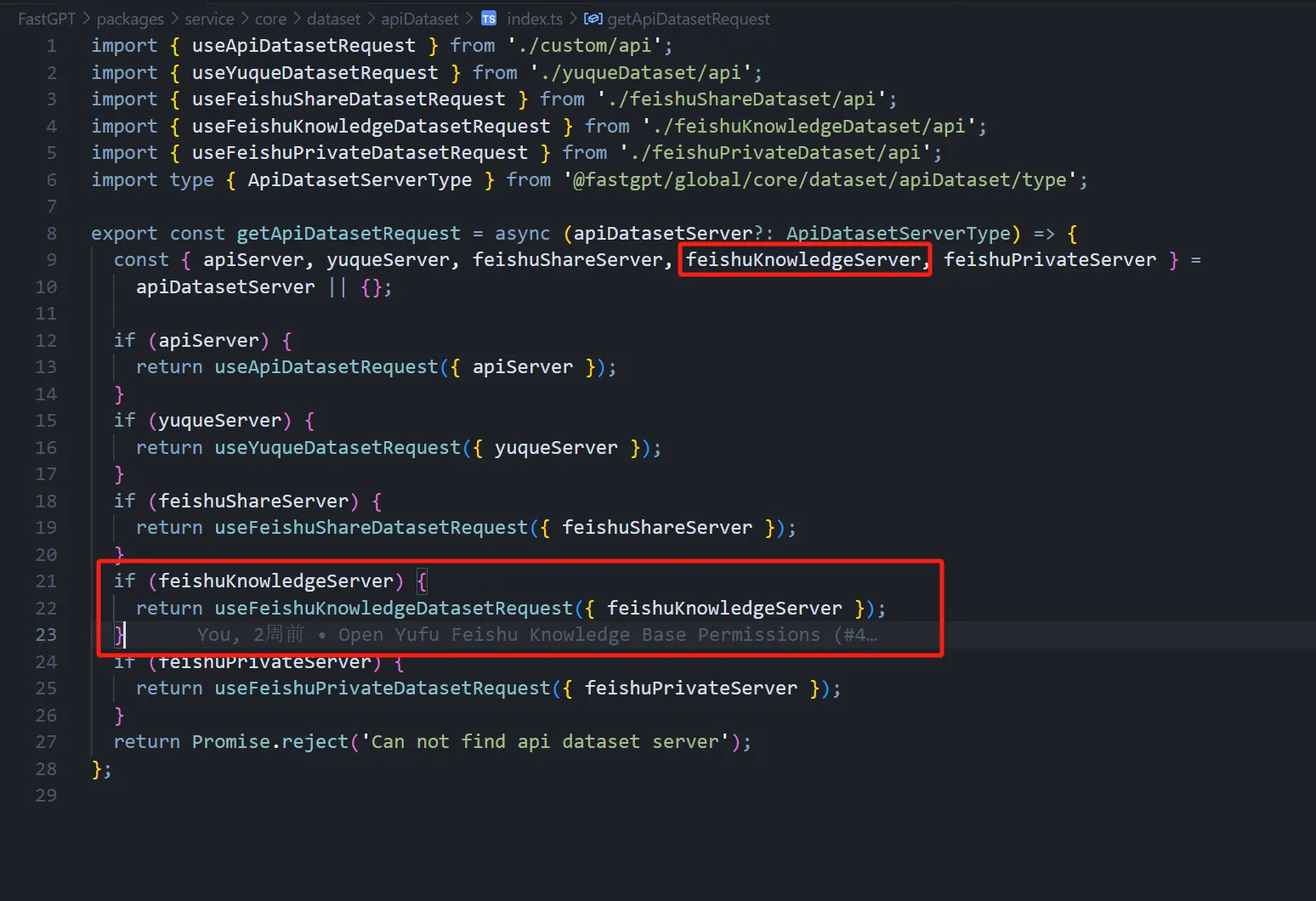
In packages/service/core/dataset/apiDataset/index.ts, add a branch in getApiDatasetRequest that selects the new adapter from its server configuration. Propagate optional browse-cache settings only where the adapter supports them.
Adding the Frontend
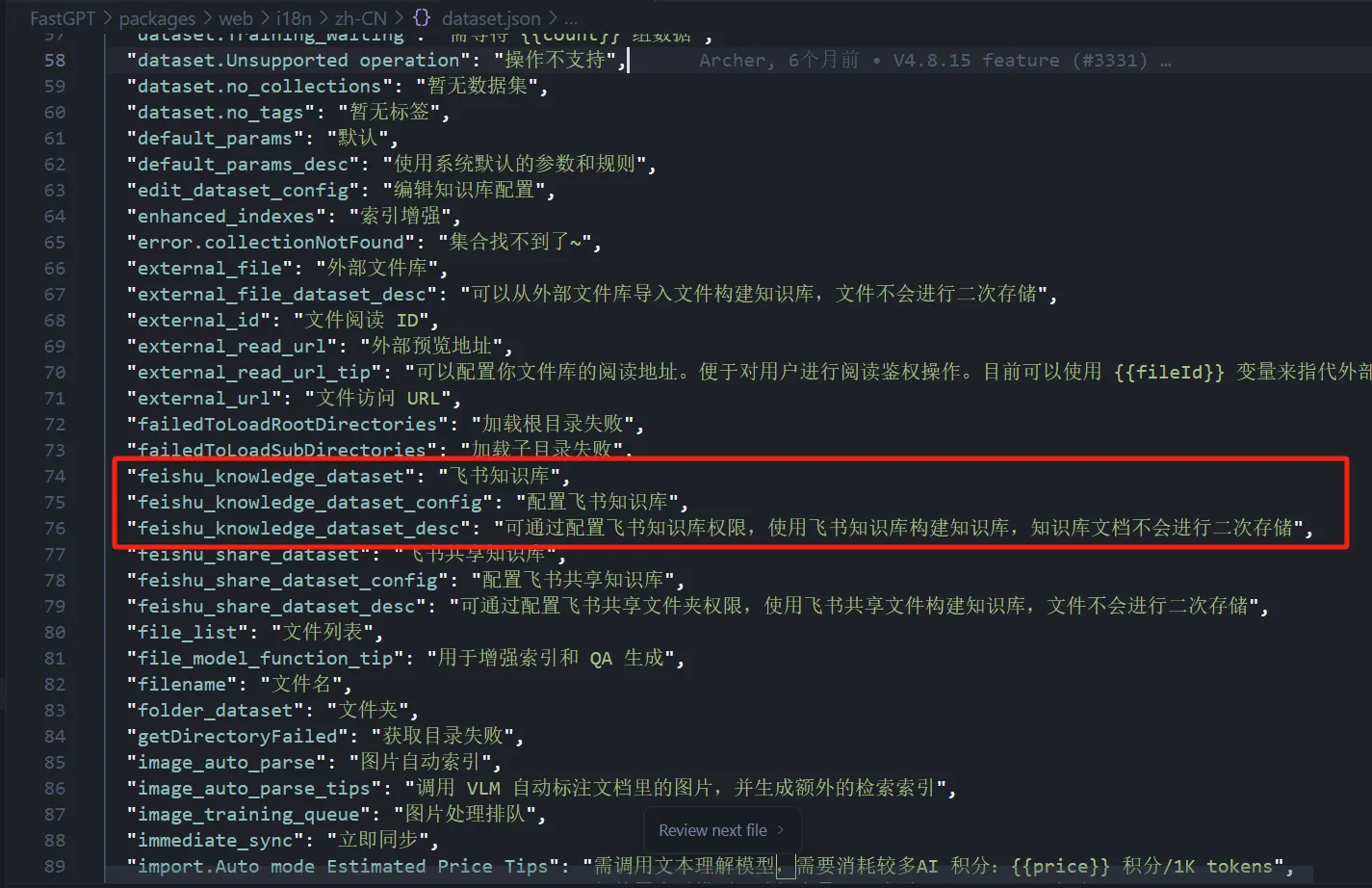
Add your i18n translations in dataset.json across packages/web/i18n/{zh-CN,en,zh-Hant,ko-KR}/. Add a Dataset name, a configuration-form title, and a description, providing values for each locale.
In FastGPT\packages\service\support\user/audit\util.ts, add a branch to getI18nDatasetType for the new DatasetTypeEnum value. Return its translated Dataset name so audit records display the correct label.
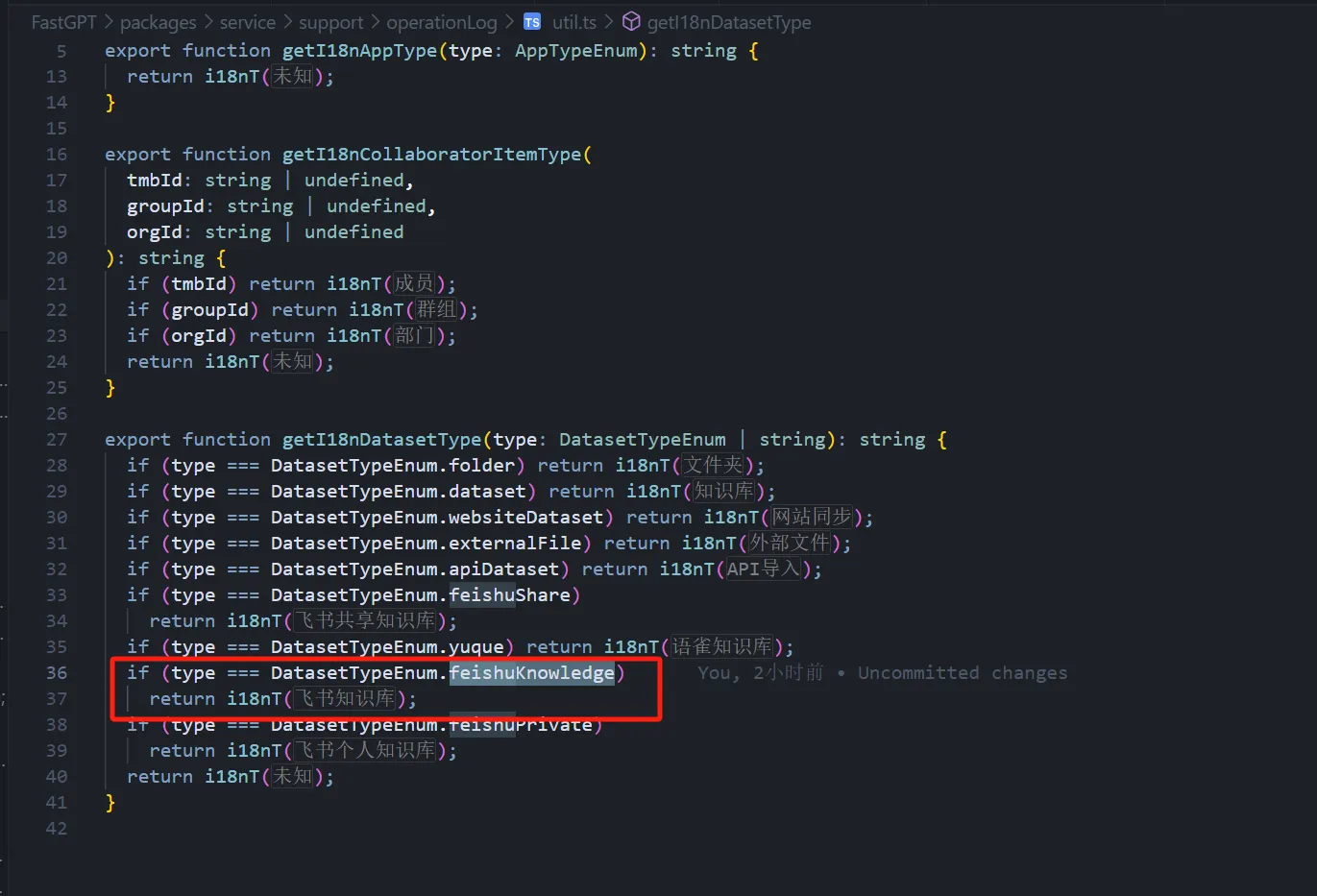
Audit-log dataset labels are stored in packages/web/i18n/{zh-CN,en,zh-Hant,ko-KR}/account_team.json under the key pattern dataset.XXX_dataset (for example, dataset.feishu_dataset for Lark Dataset and dataset.yuque_dataset for Yuque Dataset).
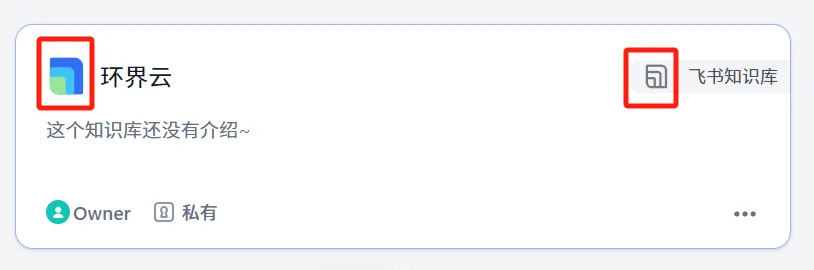
Add your Dataset icons under FastGPT\packages\web\components\common\Icon\icons\core\dataset\. You need two icons: Outline (monochrome) and Color (colored), as shown below.
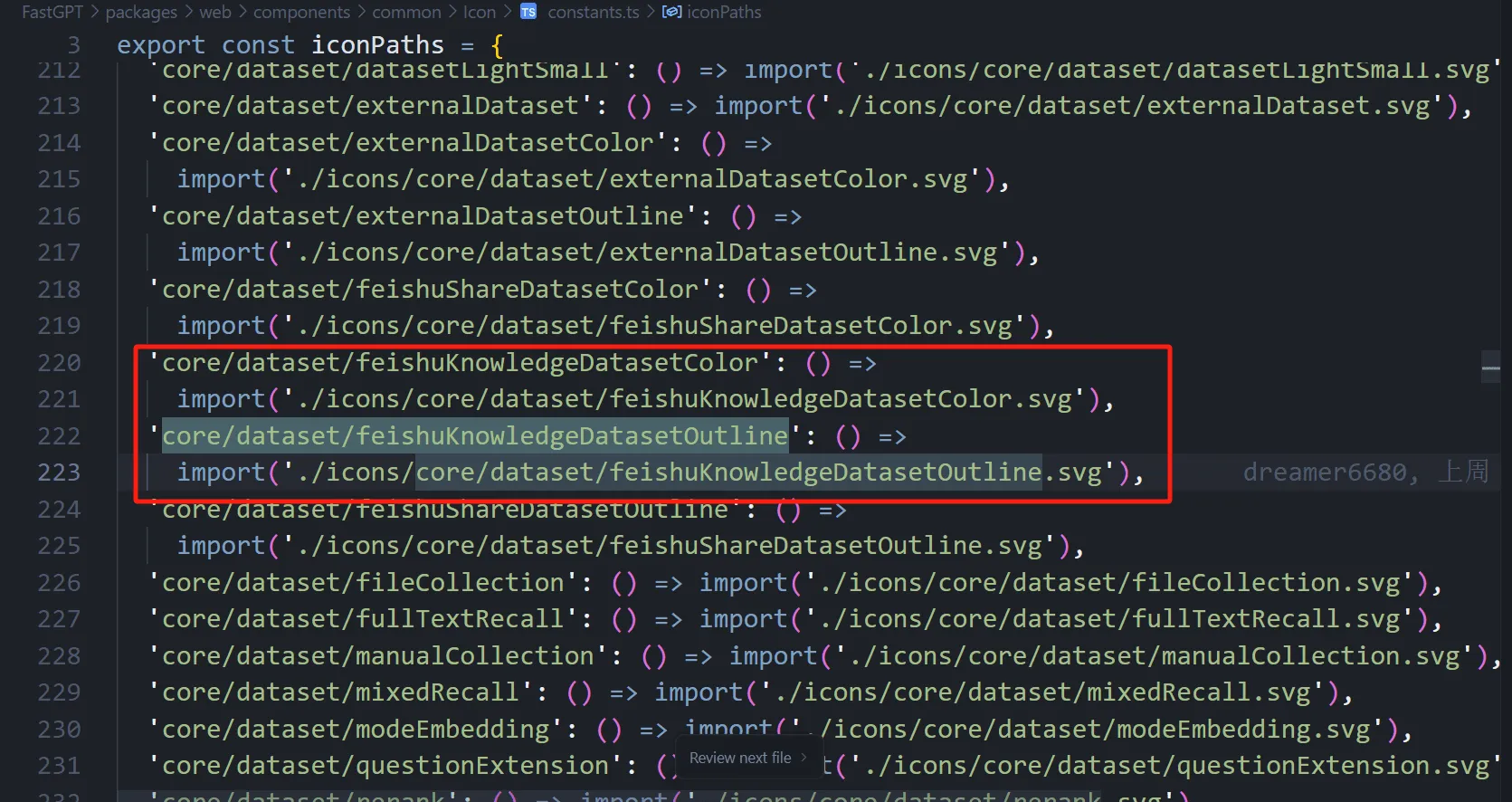
In FastGPT\packages\web\components\common\Icon\constants.ts, register your icons. The import path points to where the icons are stored.
In FastGPT\packages\global\core\dataset\constants.ts, add your Dataset type to both DatasetTypeEnum and ApiDatasetTypeMap.
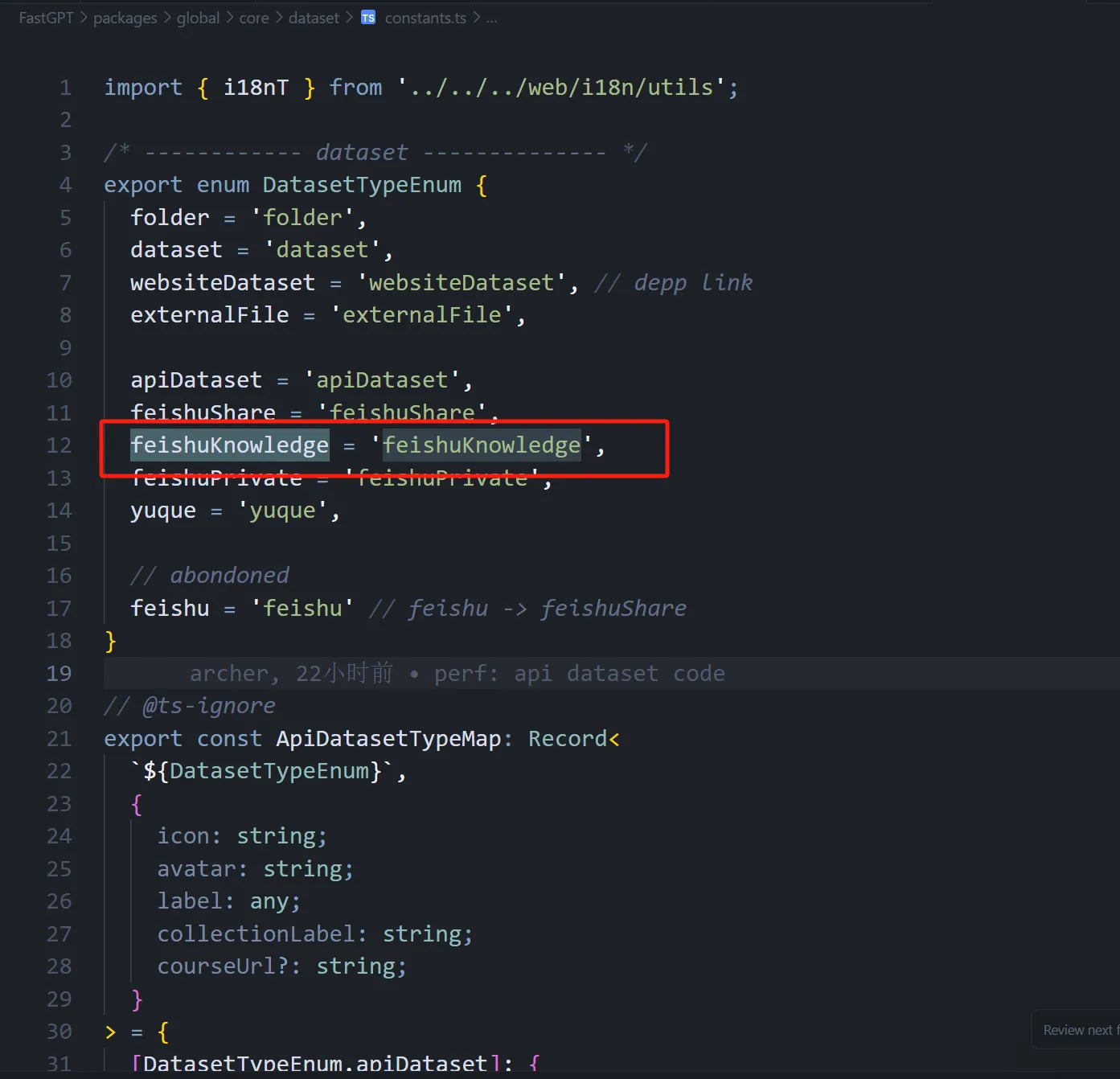 | 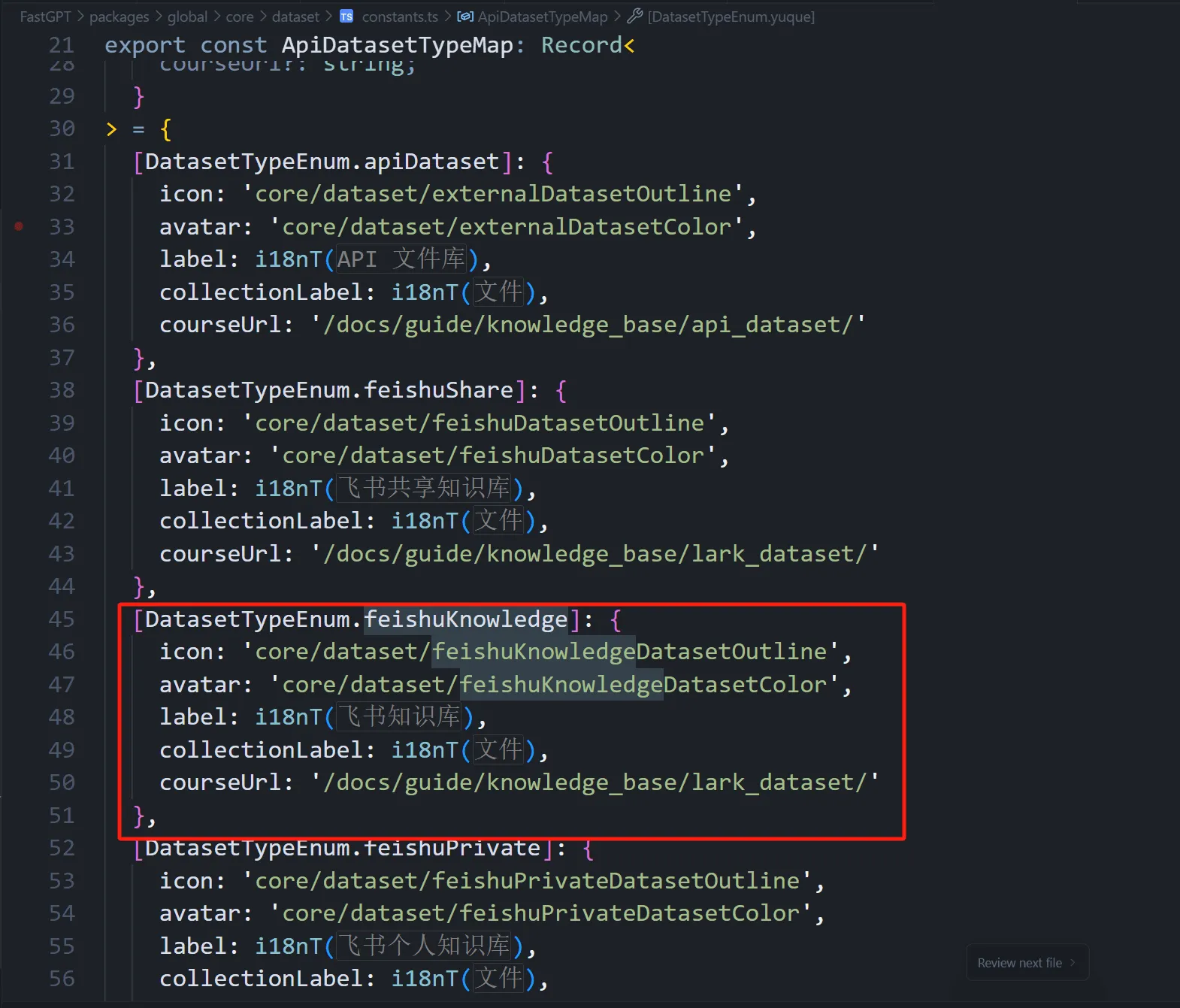 |
The courseUrl field links to the relevant documentation — add it if available.
Place your integration guide under FastGPT/document/content/guide/dataset/third-party/ and use its public documentation route for courseUrl.
The label value is the Dataset name you added via i18n translations.
icon and avatar are the two icons you added earlier.
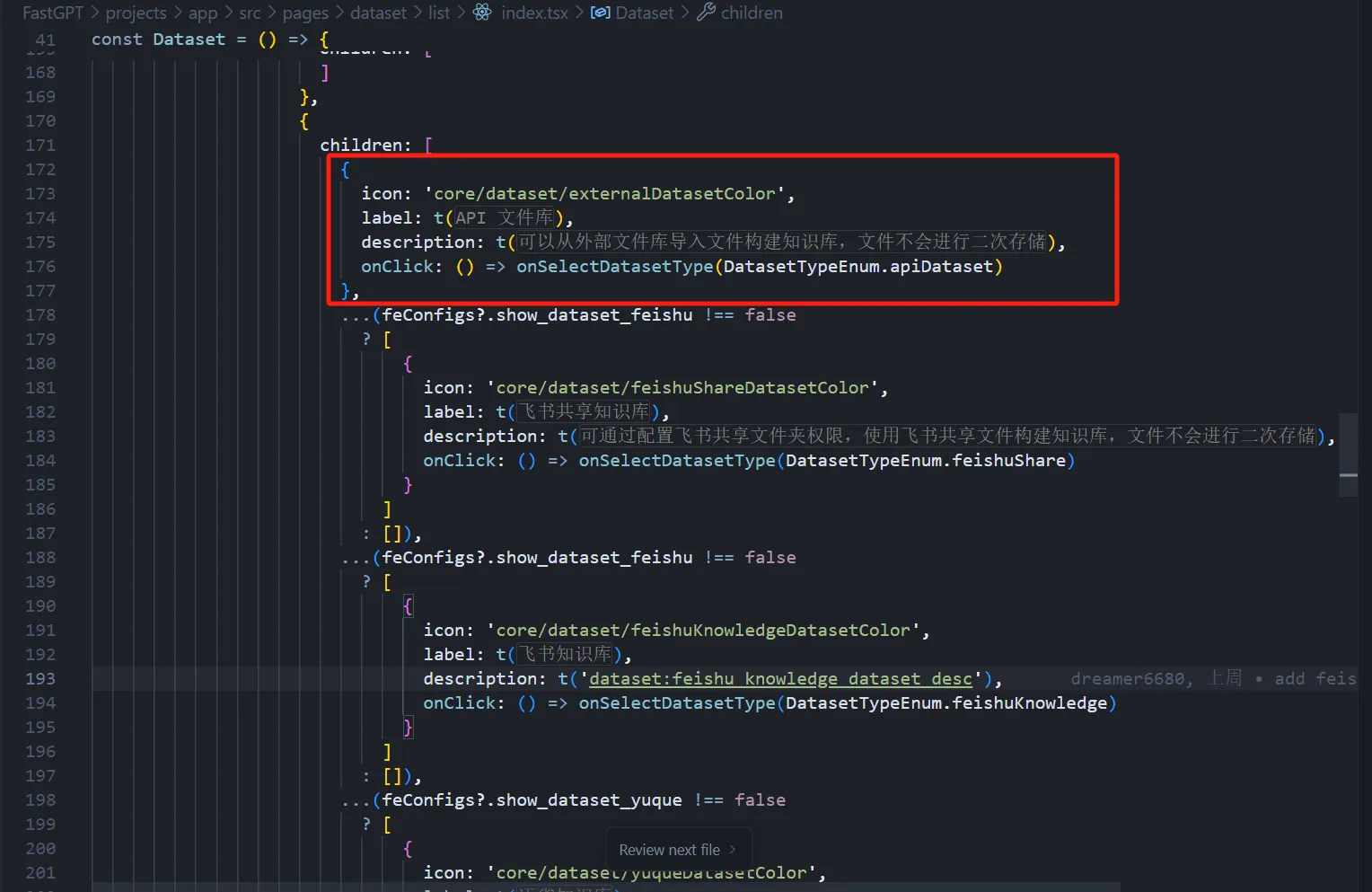
In FastGPT\projects\app\src\pages\dataset\list\index.tsx, add the following. This file handles the menu that appears when clicking the "New" button on the Dataset list page. Add a menu item with its icon, translated label and description, and an onClick handler that calls onSelectDatasetType with the new DatasetTypeEnum value.
In FastGPT\projects\app\src\pageComponents\dataset\detail\Info\index.tsx, render a configuration section for the new Dataset type. Show its translated configuration title and account or app identifier. Wire the edit icon to setEditedAPIDataset, passing the Dataset ID and its server configuration.
 | 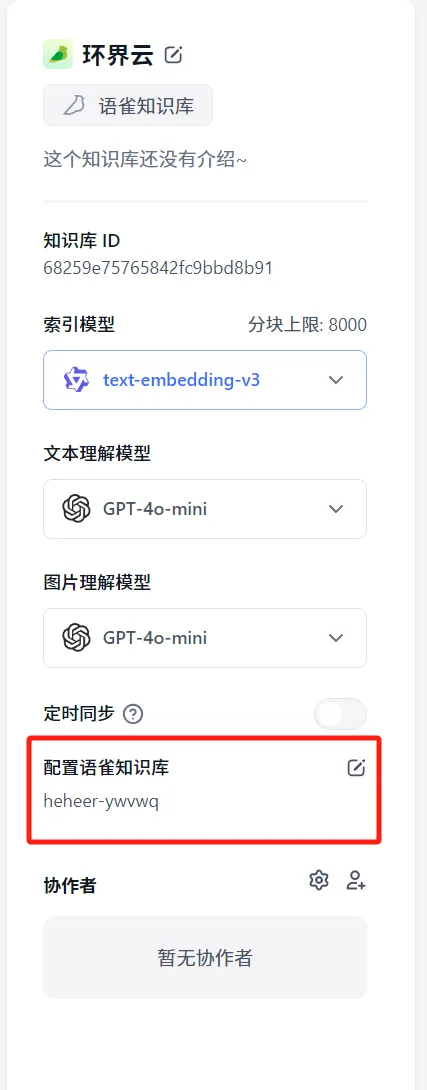 |
Adding the Configuration Form
In FastGPT\projects\app\src\pageComponents\dataset\ApiDatasetForm.tsx, add the following. This file handles the field input form when creating a Dataset. Import the new server type, add it to the form data type, and render its credential fields when the corresponding Dataset type is selected. Register each required field with validation. The pictured form uses App ID and App Secret; token-based adapters should expose the token fields defined by their server type.
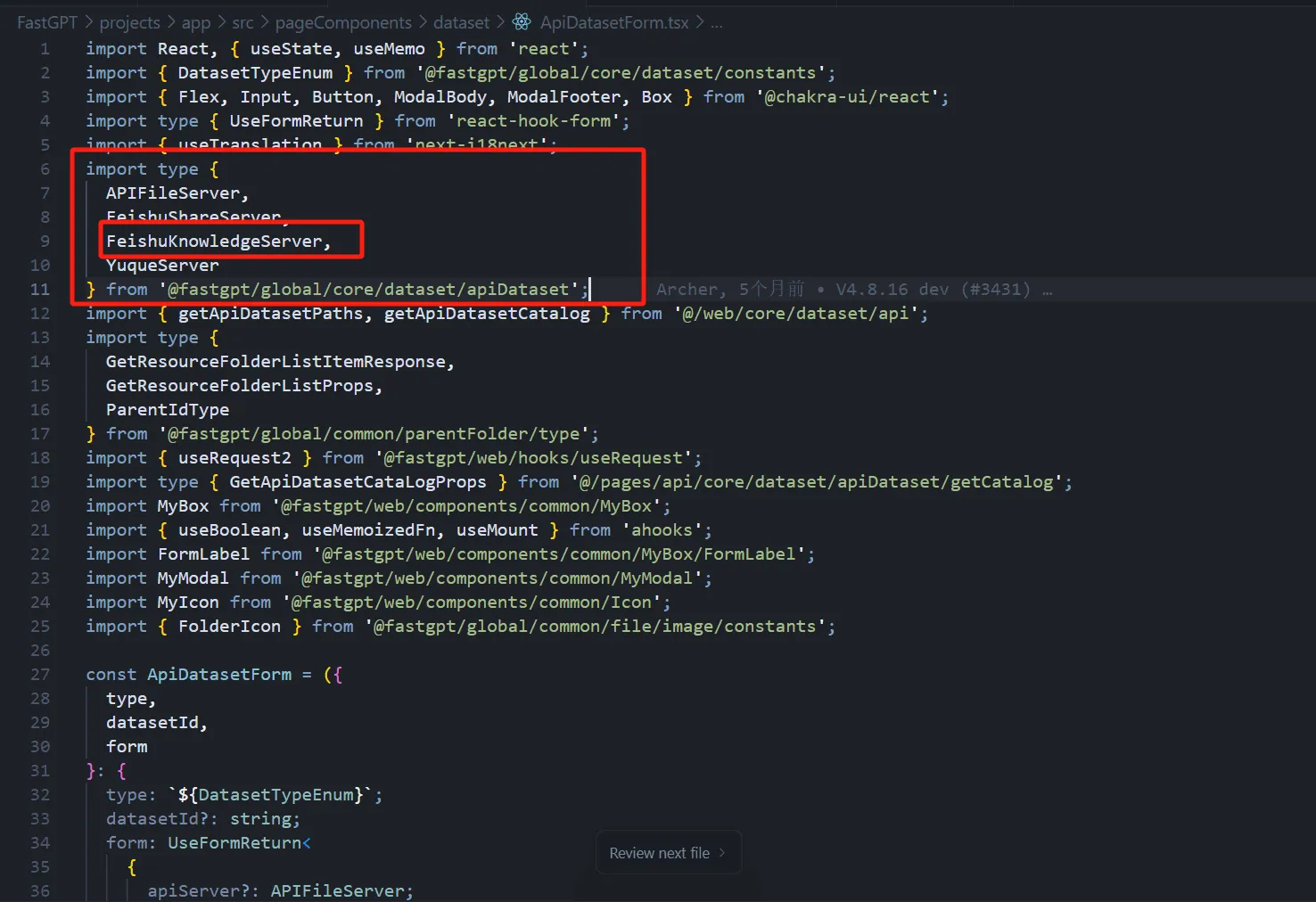 | 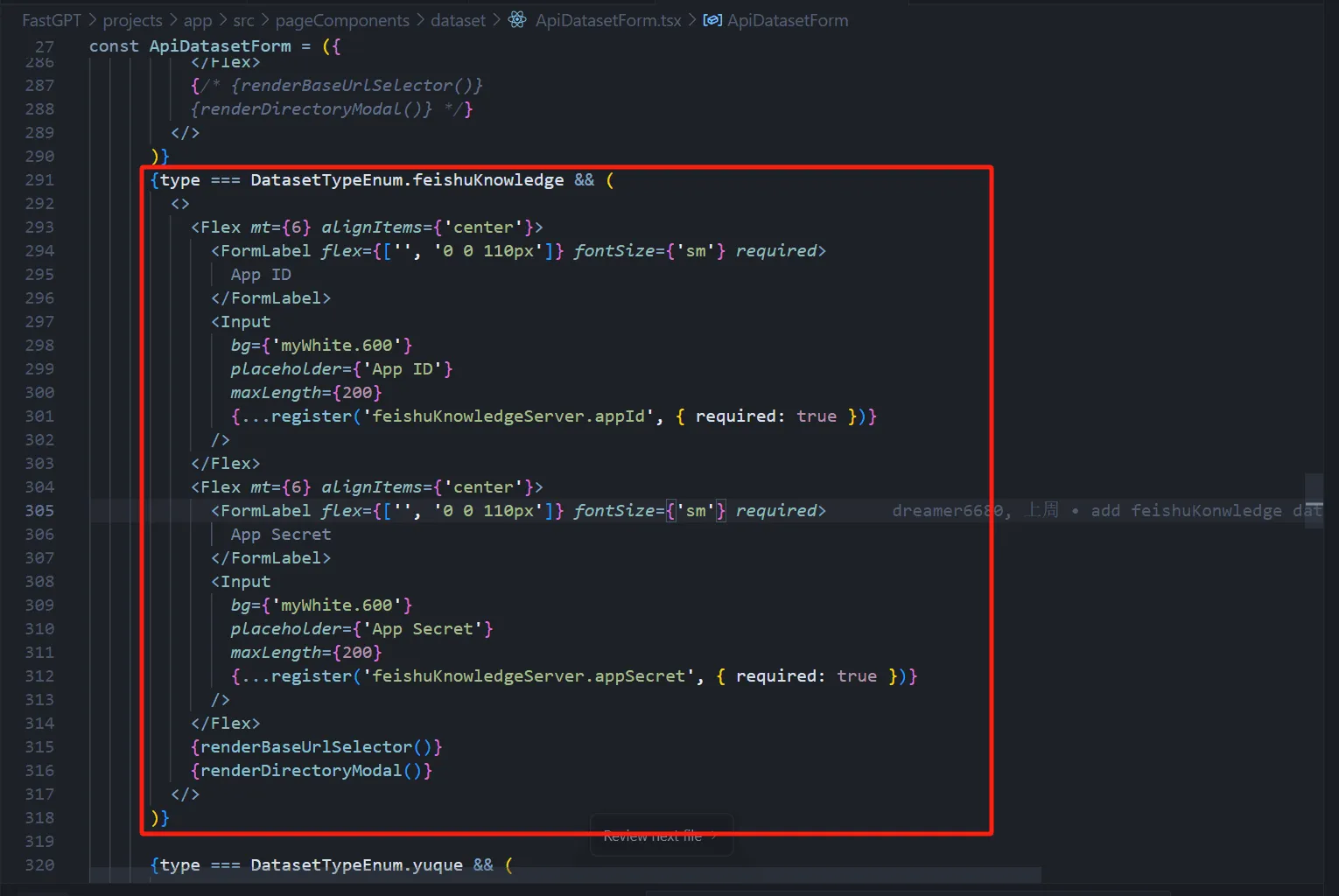 | 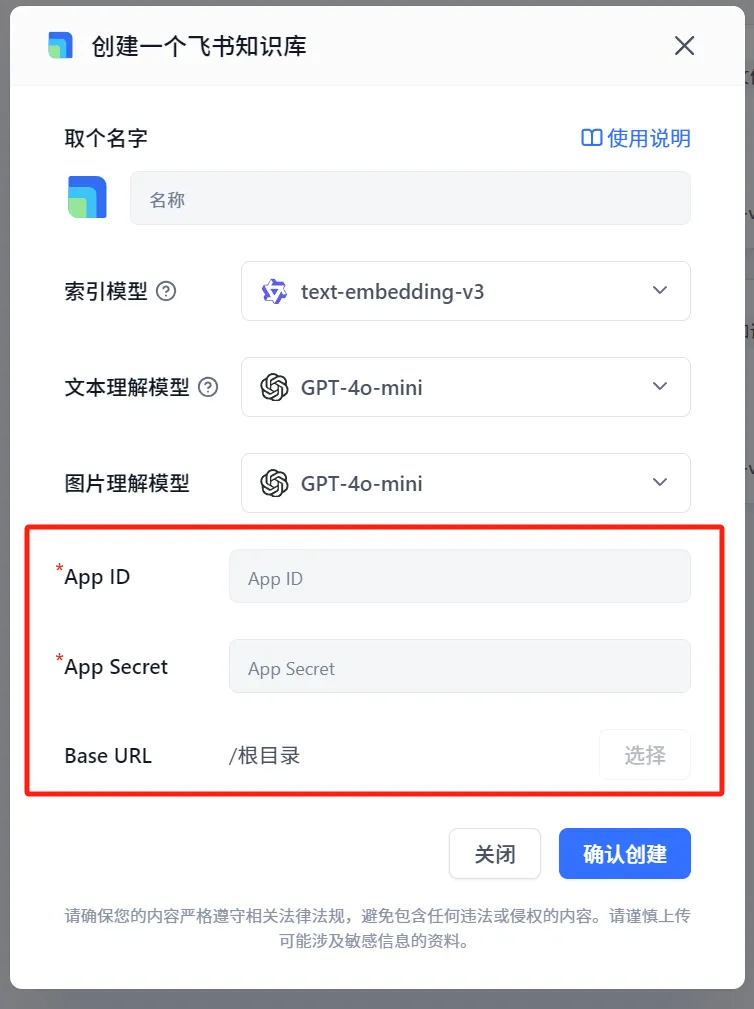 |
For adapters with root directory support, include renderBaseUrlSelector() and renderDirectoryModal() to display the current path and folder picker. Directory details come from the adapter's getFileDetail implementation. The user clicks Select, chooses a folder, and clicks Confirm; the selected path then appears in the form.
{renderBaseUrlSelector()} // Renders the root directory (`basePath`) selector (labeled `Base URL` in the UI)
{renderDirectoryModal()} // The `Select Root Directory` modal that appears when clicking `Select` (see image)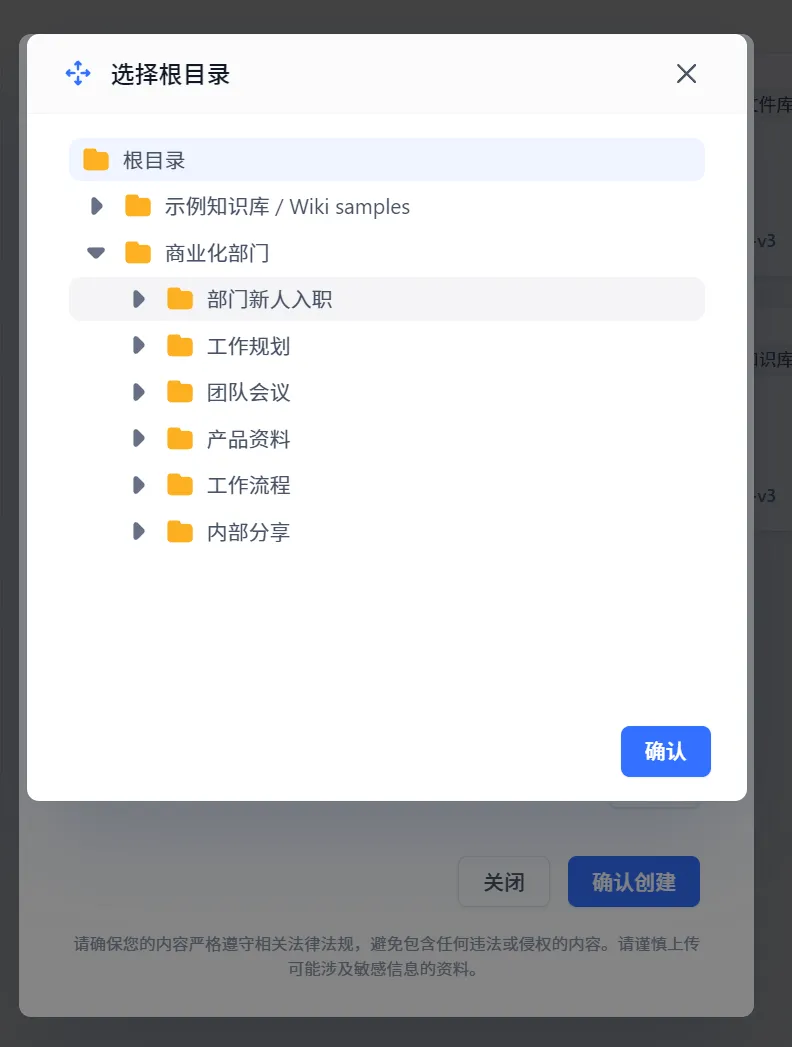 |
If the Dataset needs root directory support, also add the following in the ApiDatasetForm file.
1. Parse the Dataset Type
Watch the form's apiDatasetServer value, then read your adapter configuration from it. For this example, use apiDatasetServer?.feishuKnowledgeServer.
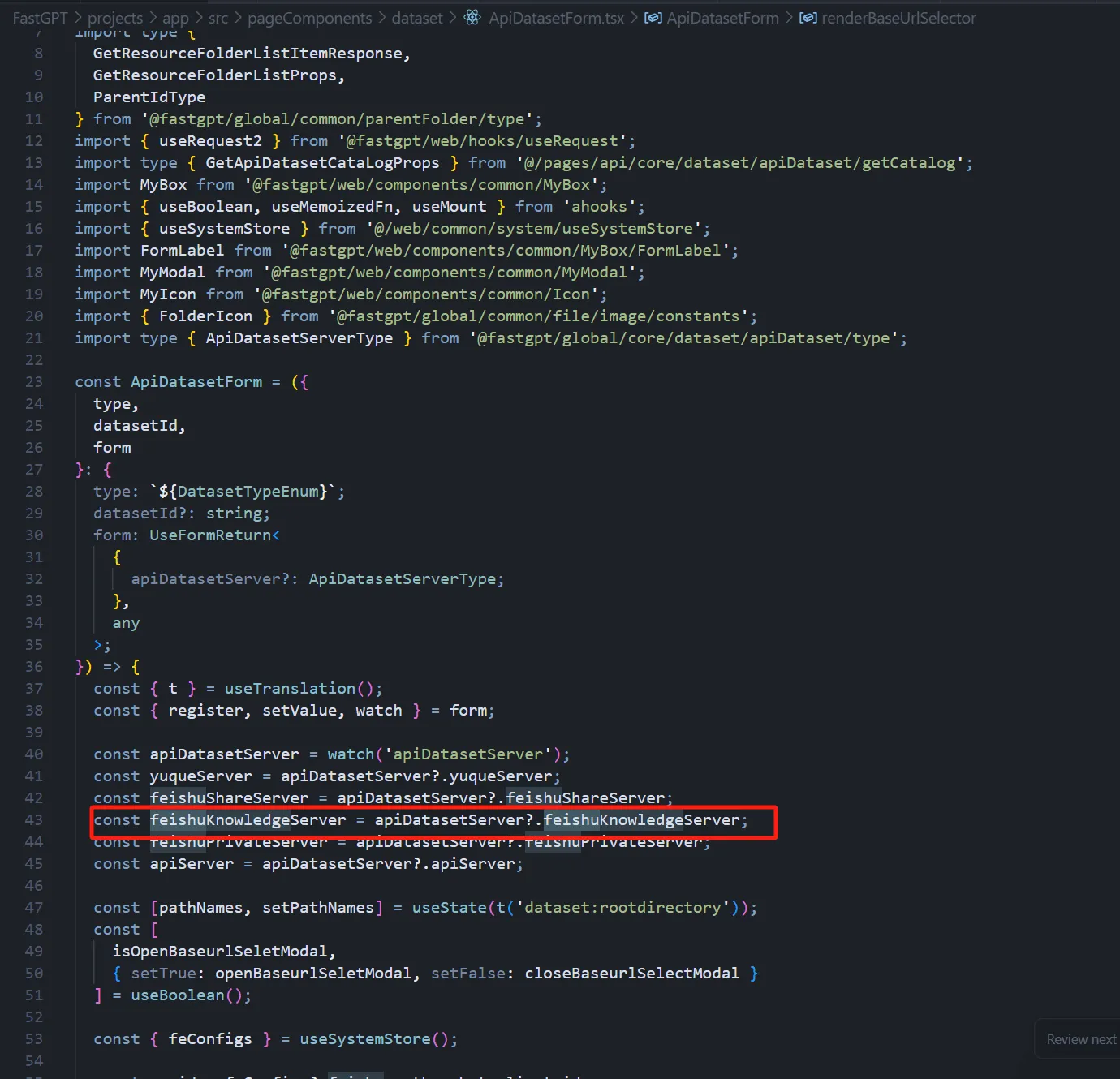
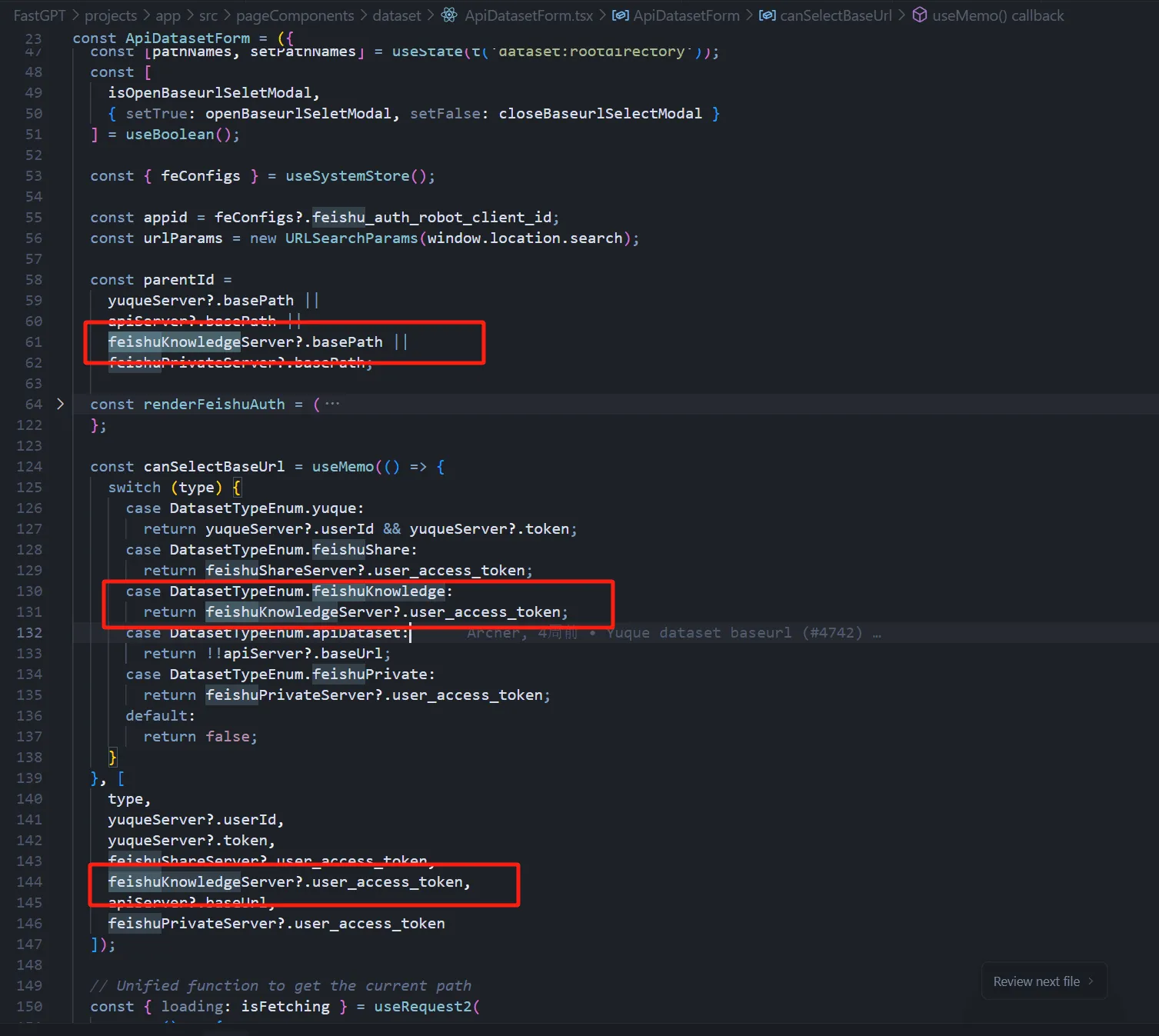
2. Add Root Directory Selection Logic and parentId Assignment
Include your adapter's basePath in the parentId calculation. Add a case to canSelectBaseUrl that enables folder selection once the required credentials are present, and include those fields in the memoization dependencies. The token-based Lark example checks feishuKnowledgeServer?.user_access_token.
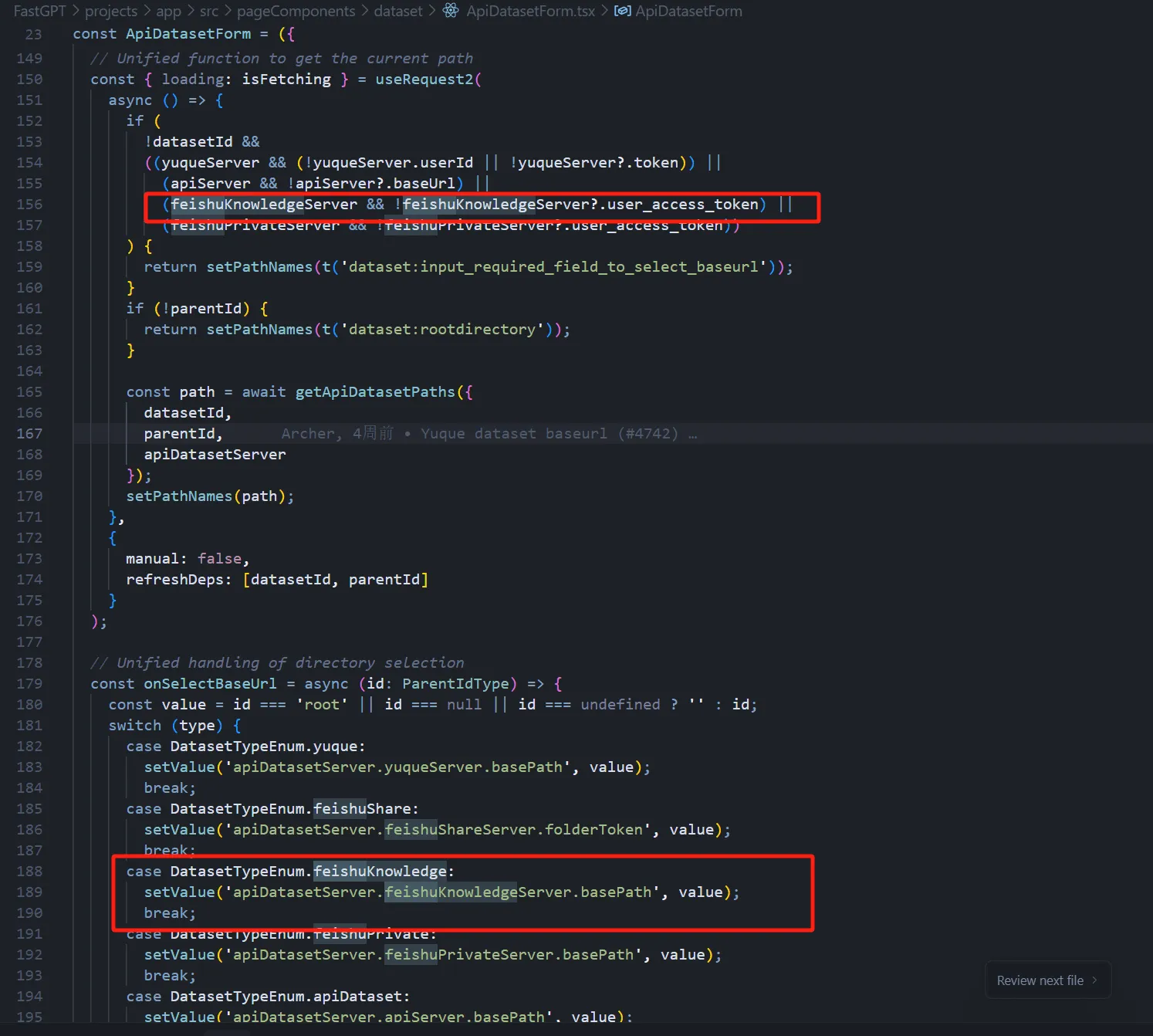
3. Add Field Validation and Assignment Logic
Before loading a path for a new Dataset, validate the required credentials again. Pass datasetId, parentId, and apiDatasetServer to getApiDatasetPaths. In onSelectBaseUrl, normalize the root selection to an empty string and save the selected value to the adapter's basePath field. The example uses setValue('apiDatasetServer.feishuKnowledgeServer.basePath', value).
Tips
After creating the Dataset, verify listing, folder navigation, import, preview, updates, and missing-file handling. Include invalid credentials, 429 responses, and network failures in scoped adapter tests. If you encounter problems that aren't covered in this documentation, it's likely that some configuration was missed. Do a global search for YuqueServer and yuqueServer to verify that your type has been added everywhere it's needed.
Last updated