
Collection Permission Control
Master enabling independent collection permissions, directory inheritance trees, collaborator roles, and cross-team data isolation.
Collection-level permissions are a commercial capability. They control individual files and folders within a knowledge base. Access requires both knowledge base read permission and the applicable collection permission.
Terminology Mapping
| Concept | UI and Documentation Term | Description |
|---|---|---|
dataset | Knowledge base | Resource type dataset in the permission model; knowledge base Read permission is the prerequisite gate for accessing any internal collection |
collection | File / Folder / Collection ("dataset" in modal descriptions) | A single file or folder inside a knowledge base, represented as resource type collection |
| Collection permission | Dataset permission configuration / File-level permission | Fine-grained collaborator access control for individual files and folders inside a knowledge base |
Permission Inheritance
With collection permissions disabled, files and folders use knowledge base permissions. Enabling the feature copies the current knowledge base collaborator configuration to existing collections. Inheriting collections follow their parent; independently configured collections retain their own permissions.

Step 1: Enable Collection Permissions
- As a knowledge base administrator, open the target collection's action menu and select "Permission".
- Confirm enabling collection permissions for the knowledge base. Snapshot creation can take time for large libraries.
- After initialization succeeds, open the collection's collaborator settings.
The knowledge base information panel provides a disable action. Disabling deletes every collection collaborator configuration in that knowledge base and restores knowledge base inheritance. Record required grants before confirming; enabling again creates fresh inherited snapshots.
Step 2: Configure Collaborators
Open collaborator settings for a single file or folder from any of three equivalent entry points:
- Knowledge base file list → target row's
···menu → Permission; - Right information panel after opening a file → Collaborator;
- Right information panel after entering a folder → Collaborator.
Choose Member, Organization, or Group and assign roles:
| Role | Scope |
|---|---|
| Read permission | View the current file or folder (collection) content |
| Write permission | Modify the current collection's content (sync / adjust training params) |
| Administrator | Manage the current collection's metadata and collaborator permissions |
| Owner (Creator) | Hold collection ownership; deletion and ownership transfer require this role |
Renaming, disabling, or otherwise changing the knowledge base or collection itself requires Administrator permission; Write permission allows changing collection content, including synchronization and training parameters. Saving in the collaborator modal applies the list shown in the modal, so keep the existing owner entry. Modifying inherited grants may require confirming a switch to independent permissions. Restoring inheritance retains grants unique to that collection and synchronizes its subtree.
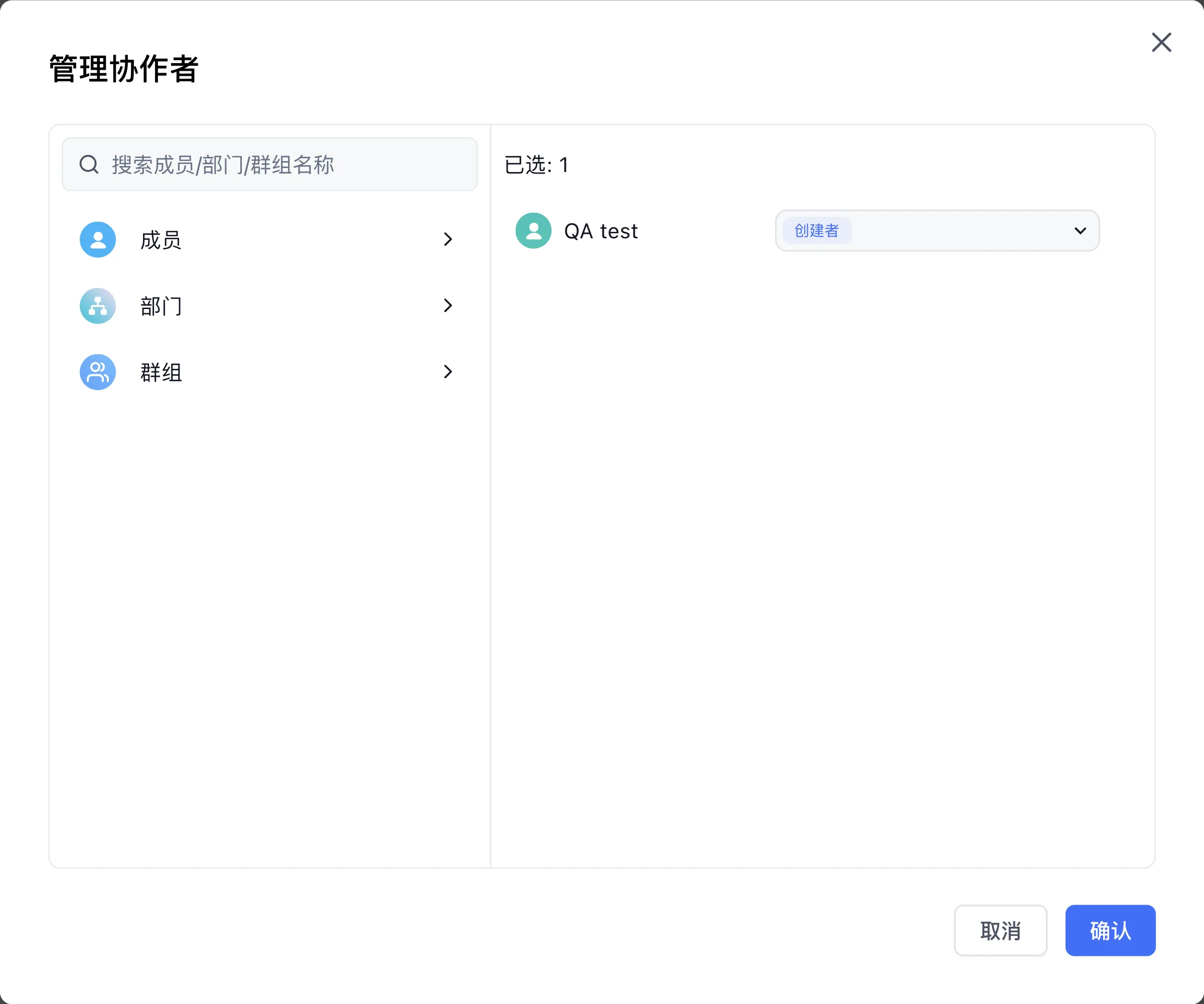
Inherited and Independent States
- Inherited State (Default): A file or folder derives its permissions from its parent (the parent folder, or the knowledge base when at the root) and automatically tracks parent collaborator changes.
- Independent State: When you modify or remove collaborators inherited from the parent, the system prompts for conflict confirmation; once confirmed, the node switches to independent state and preserves its own permissions and subtree boundary.
- Restore Inheritance: An independent node can restore inheritance from the permissions dialog, retaining grants unique to that node while synchronizing its descendant subtree (any nested independent branches within the subtree preserve their own permissions).
Permission Requirements by Operation
| Operation | Required Permissions and Rules |
|---|---|
| View file list / details | Knowledge base Read permission + file Read permission; lists filter and paginate by readable files, and parent folders appear as navigation entries when a member only has access to child files |
| Modify collection content (sync / training params / chunks) | File Write permission |
| Modify collection metadata (rename / tags / disabled state) | File Administrator permission |
| Move file / folder | Administrator on both source and destination, plus team dataset creation permission when moving between root and a folder; Administrator on the file is also required if metadata is updated in the same request |
| Configure collaborators / restore inheritance | File Administrator permission, with collection permissions enabled on the knowledge base |
| Delete file / folder | Collection Owner only; batch deletion skips items owned by other members with a notice |
| Collection ownership transfer | Collection Owner only; transfers ownership to another member in the same team and cascades to child folders |
| Knowledge base ownership transfer | Cascades ownership of all files and folders in the knowledge base held by the previous owner |
Step 3: Verify Retrieval Identity and File Access
- Member-authenticated retrieval: Search tests and application search with Auth member enabled compute readable collections for the current member and intersect them with metadata filters.
- Application-selected knowledge: When Auth member is disabled, retrieval follows application access settings and skips member-specific collection filtering. To enforce per-member document access, enable Auth member (commercial edition) in the application's Dataset section, to the right of Select Dataset on the Dataset Search node, or on the Agent node.
- Special identities: Team owners (the account that created the team, shown as Owner under Account → Team → Members) and the system
rootaccount in self-hosted deployments have elevated access. Team administrators (members granted Admin permission under Account → Team → Permission) still follow resource collaborator permissions. - Source file links: Download and preview links use the storage service's authorization and signing rules. Signed links can grant access to their holders until expiry; handle them as sensitive credentials.
Next Steps
Last updated