
Collection Tag System and Scope Filtering
Master creating knowledge base tags, assigning multidimensional attributes, and filtering retrieval scopes in applications.
In complex knowledge bases containing documentation from different departments, product lines, or sensitivity levels, collection tags enable pre-retrieval filtering, isolating distinct business domains cleanly.
Tag Architecture Planning
Organize orthogonal tag dimensions around organizational governance:
- Organizational Structure:
Finance,HR,Legal,Engineering. - Product Lines:
Product-A,Product-B,Enterprise-Cloud. - Confidentiality Tiers:
Public,Internal,Confidential.
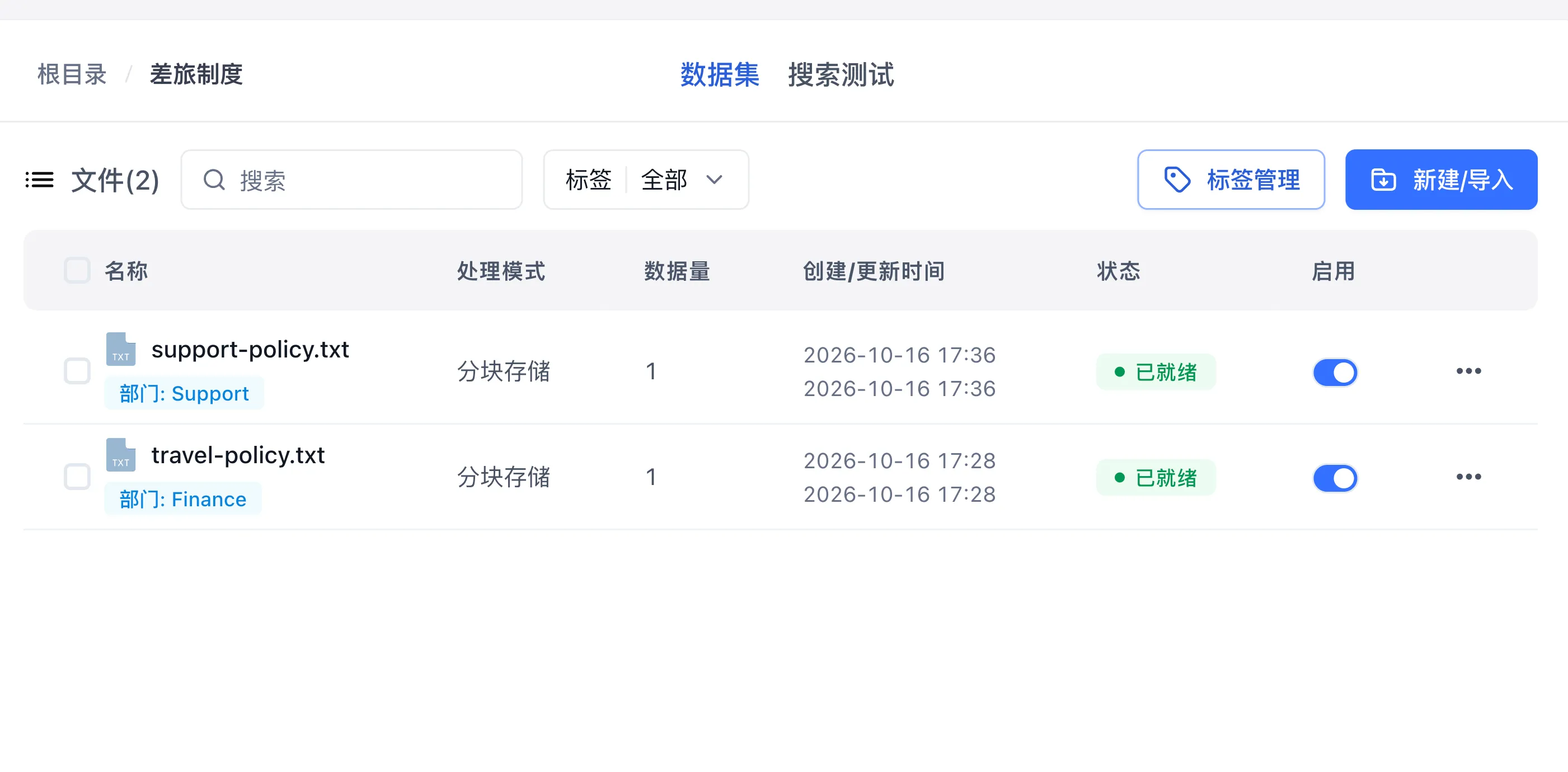
Step 1: Create and Manage Tag Definitions
- Open your target knowledge base and click Tagging in the button group to the right of the collection list header (requires Write permission on the knowledge base).
- Click "+ Add Tag", enter a tag name (up to 20 characters), and select a tag attribute (the attribute type is fixed once created, while the tag name can be renamed at any time; deleting a tag removes its bound values from all collections in the knowledge base):
| Tag Attribute | Use Case | Assignment and Limits | Example |
|---|---|---|---|
| Option | Fixed categories or one-to-many classifications | Multiple options per file (up to 64 options per file, up to 256 characters per option) | Department (Finance, Support, HR) |
| Number | Quantitative indicators compared by value or range | One integer value per file | Confidentiality (1, 2, 3) |
| Date | Time-sensitive document milestones | One date-time value per file (accurate to YYYY-MM-DD HH:mm) | EffectiveDate (2026-01-01 09:00) |
- Option management: Click the settings icon (
⚙) on an Option tag row to preset standard option values, rename options (automatically updating all collections assigned that option), or delete options (removing that option value from bound collections). When tagging a file, you can also type a new option name directly and press Enter to create and bind it immediately. - Shared tag behavior across multiple knowledge bases: When an application or workflow attaches multiple knowledge bases, the custom tag dropdown displays only tags whose names and attribute types match exactly across all selected knowledge bases (the available option values represent the union of options from each knowledge base).
- Legacy tag upgrade: When upgrading from older versions, legacy string tags are automatically migrated into an Option tag named
default_tag, preserving all existing tagging associations. You can renamedefault_tagto your preferred business name in Tagging. - Rename impact: Filter conditions match on tag names and option text. When renaming a tag or option, update saved filter configurations in related applications and workflows.
Step 2: Assign Tags to Collections
- In the knowledge base collection list, select the target file or folder collection.
- Click Tag Settings from the collection row's
···action menu. - Check the tags applicable to this collection, such as tagging
travel-policy.txtwithDepartment: Finance. - Click Confirm. Retrieval uses collection metadata to select eligible chunks.
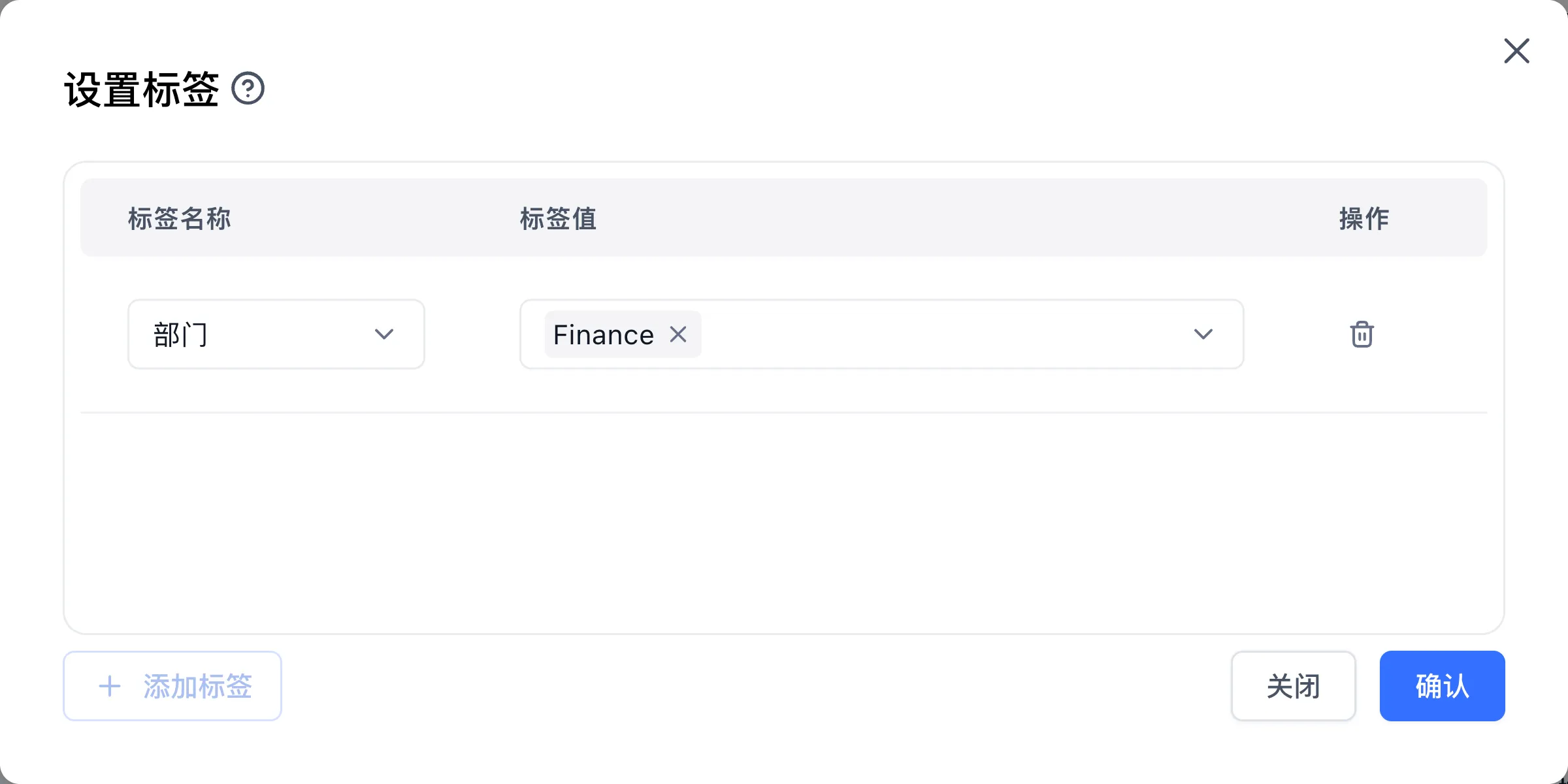
- Batch modify tags: Select multiple files in the collection list and click "Batch Edit Tags" in the bottom floating action bar:
- Batch Add Tags: Option tags support Append (default, keeping existing options on each file and merging the newly selected ones) or Overwrite (replacing existing options with the new selection). Number and Date tags store a single value per file and overwrite the existing value directly.
- Batch Remove Tags: The dialog aggregates all tags currently bound to the selected files. For Option tags, click the delete icon to remove the entire tag, or expand the tag to select and remove specific option values while preserving the rest.
- Filter collections by tag in the list: Click the "Tags | All" filter button above the collection list header, choose a tag name in the left column (the badge shows the count of selected values), and search or check values in the right column:
- Multiple values within the same tag: Combined with OR logic; files matching any selected value appear.
- Between different tags: Combined with AND logic; only files satisfying all tag conditions appear.
- Import and update via API: When creating or updating collections through OpenAPI, the request body accepts a structured
tagsarray (e.g.,[{"tag": "Department", "value": ["Finance"]}, {"tag": "Confidentiality", "value": 1}, {"tag": "EffectiveDate", "value": 1767229200000}]), while retaining backward compatibility with string arrays. If an imported tag name does not yet exist in the knowledge base, the system automatically creates the tag definition based on thevaluedata shape (string arrays become Option tags, numbers become Number tags).
Step 3: Configure Tag Filtering in Applications
By scoping searches with tags, applications isolate domain-specific queries accurately:
1. Tag Filtering in Chat Agents
In the application editor's Knowledge Base section, click Parameters to open the Knowledge Base Search Configuration dialog, then switch to the Tag Filter tab. Add a condition row and select the tag, operator, value source, and comparison value (e.g., Department → contains → Finance). Combine conditions with AND or OR logic, and provide variable values matching the tag type.
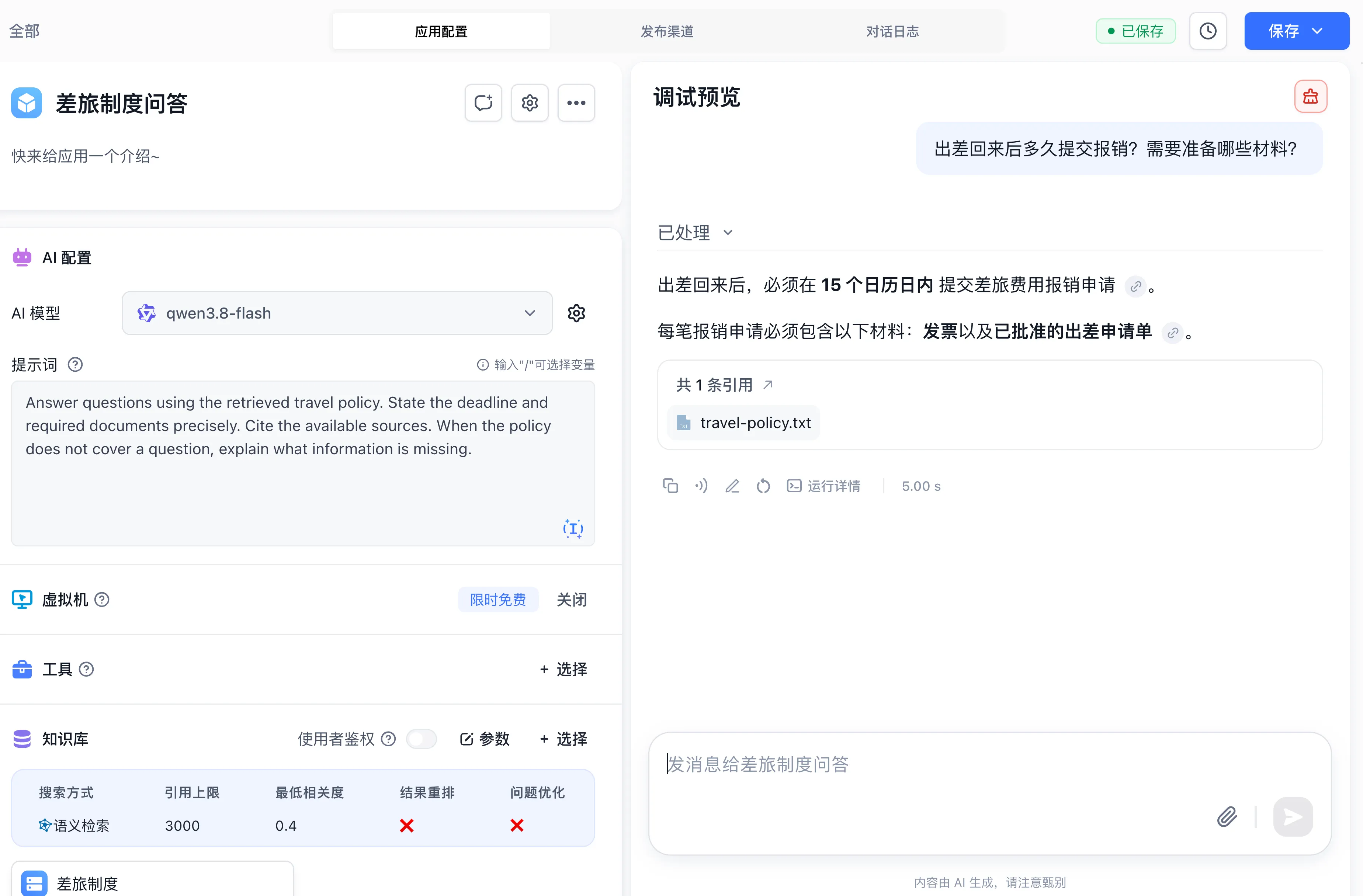
2. Dynamic Tag Routing in Workflows
In the workflow canvas, locate the Dataset Search node and enable Tag Filter to expand the condition builder. Pass a business category from a question classifier into the search node's filter to route topic-specific queries. Enforce per-member access to sensitive documents by combining Auth member with collection permissions; tags describe the retrieval scope.

3. Filter Combination Logic (Custom Tags + System Tags)
The tag filter panel is divided into Custom Tags and System Tags, joined by a fixed AND (all must match) relationship between the two sections:
- Custom Tags: Click "+ Add Filter Condition" to choose a custom tag, comparison operator, and target value (via manual input or variable reference). When multiple custom tag conditions exist, toggle the
AND / ORbutton in the upper-left corner (ANDrequires all conditions to match;ORmatches when any condition is met). - System Tags: Filter by built-in collection attributes, with multiple system tag conditions joined by fixed
ANDlogic:- Creation Time: Filter by when the file was created in the knowledge base using
greater than or equal(>=) andless than or equal(<=). - Collection ID: Fixed to the
inoperator, accepting a variable reference with collection IDs or folder IDs (passing a folder ID recursively includes all child files under that folder).
- Creation Time: Filter by when the file was created in the knowledge base using
4. Supported Operators and Matching Rules
| Tag Attribute | Supported Operators | Matching Rules |
|---|---|---|
| Option | equals, not equalscontains, does not containin, not inis empty, is not empty | - equals / not equals: The collection's option set matches / does not match the target option set exactly (order ignored) - contains / does not contain: The collection's options contain all target options / do not contain all target options - in / not in: The collection's options intersect with target options (any match satisfies) / have no intersection |
| Number | equals, not equalsgreater than, less thangreater than or equal, less than or equalis empty, is not empty | Compared by numeric value. Variable citations accept numbers or numeric strings |
| Date | equals, not equalsafter, beforeis empty, is not empty | Compared by chronological order. Variable citations accept millisecond timestamps or standard date strings |
5. Untagged Collection (Empty Value) Matching
When collections in a knowledge base have not been assigned a particular tag:
- Positive matching (
equals,contains,in,greater than,less than,greater than or equal,less than or equal,after,before,is not empty): Untagged collections are evaluated as not matching and are not retrieved. - Negative and empty matching (
is empty,not equals,does not contain,not in): Untagged collections are evaluated as matching and participate in retrieval.
6. Passing JSON Filter Expressions via Variable Reference
In the workflow Dataset Search node, switch the input mode from manual input to Variable Reference to pass a complete JSON filter expression or string:
{
  "tags": {
    "$and": [
      { "Department": { "$in": ["Finance", "Support"] } },
      { "Confidentiality": { "$lte": 2 } },
      { "EffectiveDate": { "$gt": "2026-01-01 00:00" } }
    ]
  },
  "createTime": {
    "$gte": "2026-01-01 00:00",
    "$lte": "2026-12-31 23:59"
  },
  "collectionIds": ["6593e137231a2be9c5603ba9"]
}
Top-level fields are joined by AND logic:
tags: Custom tag filter conditions containing an array of$and(all must match) or$or(any can match) rules.createTime: Collection creation time bounds supporting$gte(greater than or equal) and$lte(less than or equal).collectionIds: Array of collection IDs (or folder IDs, which recursively include sub-files) to restrict the search.
| Tag Attribute | JSON Operator | Meaning | Example |
|---|---|---|---|
| Option | $is / $isNot | Equals / Not equals | {"Department": {"$is": ["Finance", "Support"]}} |
| Option | $contains / $notContains | Contains / Does not contain | {"Department": {"$contains": ["Finance"]}} |
| Option | $in / $notIn | In / Not in | {"Department": {"$in": ["Finance", "Support"]}} |
| Option | $empty / $notEmpty | Is empty / Is not empty | {"Department": {"$empty": true}} |
| Number / Date | $eq / $ne | Equals / Not equals | {"Confidentiality": {"$eq": 1}} |
| Number / Date | $gt / $lt | Greater than (after) / Less than (before) | {"EffectiveDate": {"$gt": "2026-01-01 00:00"}} |
| Number | $gte / $lte | Greater than or equal / Less than or equal | {"Confidentiality": {"$lte": 2}} |
| Number / Date | $empty / $notEmpty | Is empty / Is not empty | {"Confidentiality": {"$notEmpty": true}} |
Next Steps
- Access permissions: Study Collection Permission Control.
- Connect to chat models: Follow Connecting Knowledge Bases to Applications.
- Maintain assets: Review Data Maintenance and Incremental Updates.
- Tag troubleshooting: Consult Knowledge Base Troubleshooting.
Last updated