
Form Input
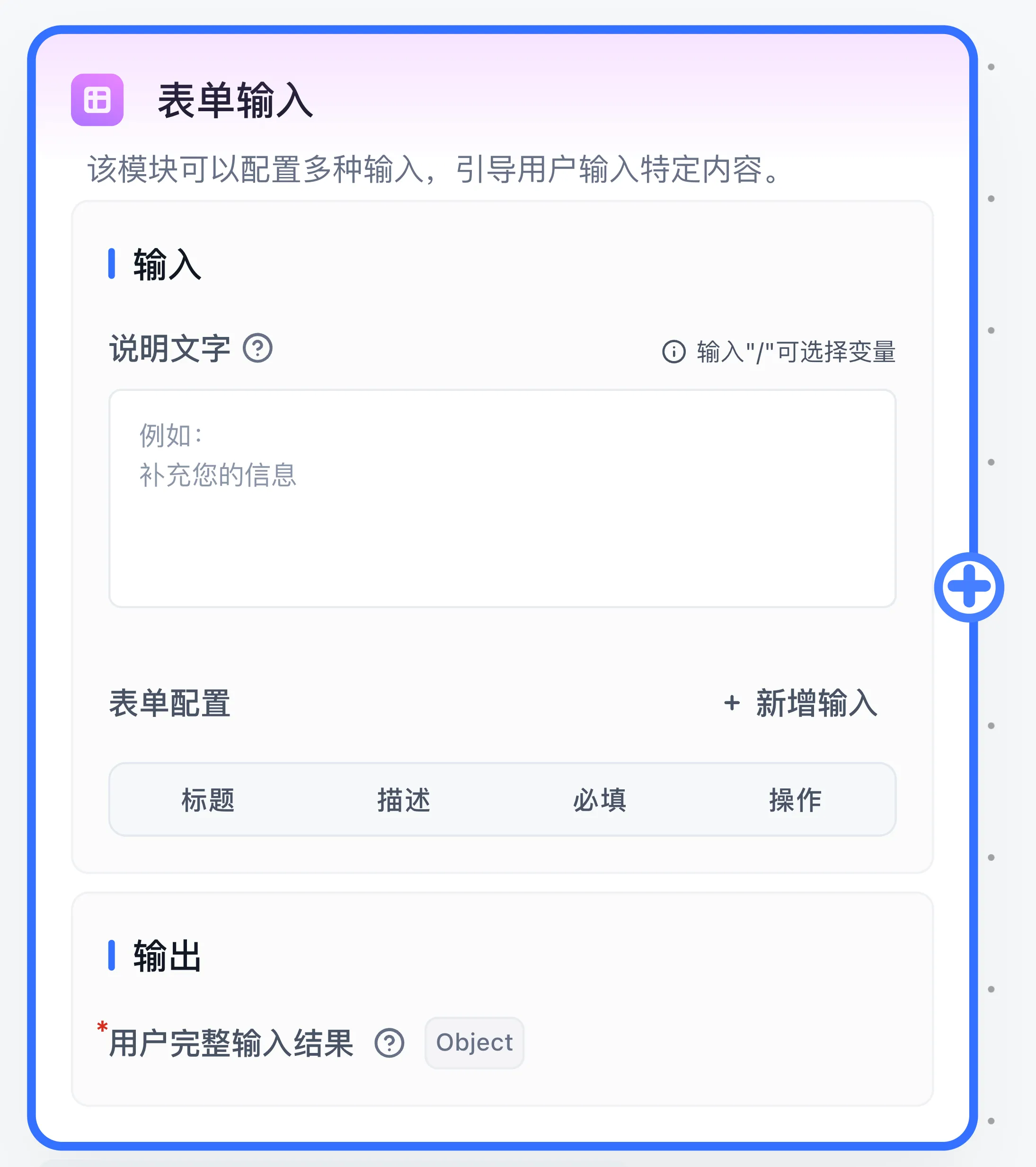
Configure the FastGPT Workflow Form Input interactive node to pause execution, collect structured user fields, and resume the workflow.
Characteristics
- User interaction
- Can be added multiple times
- Trigger-based execution
What It Does
The Form Input node is a user interaction node. When triggered, the conversation enters an "interactive" state -- the workflow state is saved and execution pauses until the user completes the interaction.
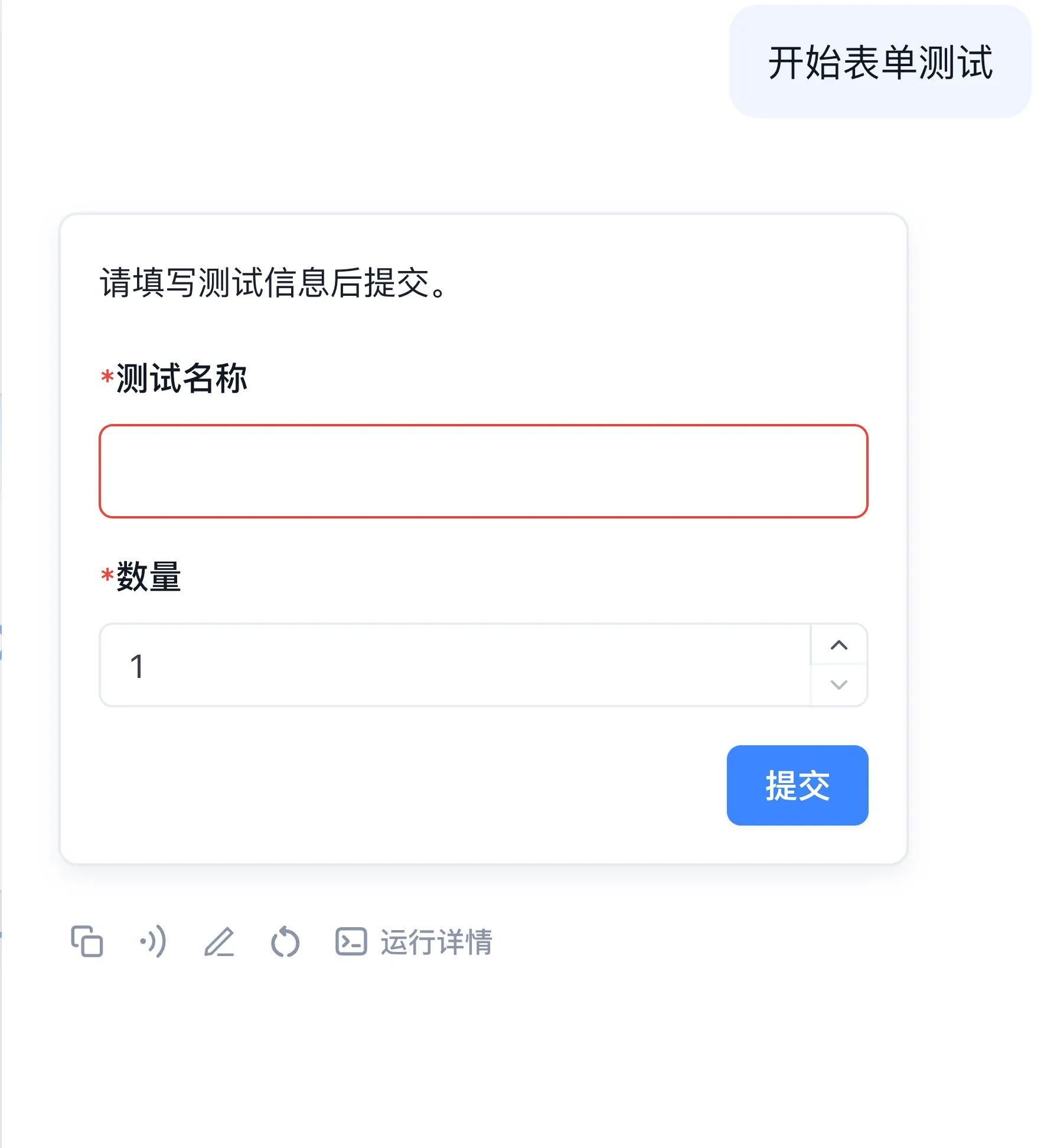
The required test-name field is empty in the screenshot, so the form highlights it for validation.
In the example above, when the Form input node is triggered, the chat box is hidden and the conversation enters interactive mode.
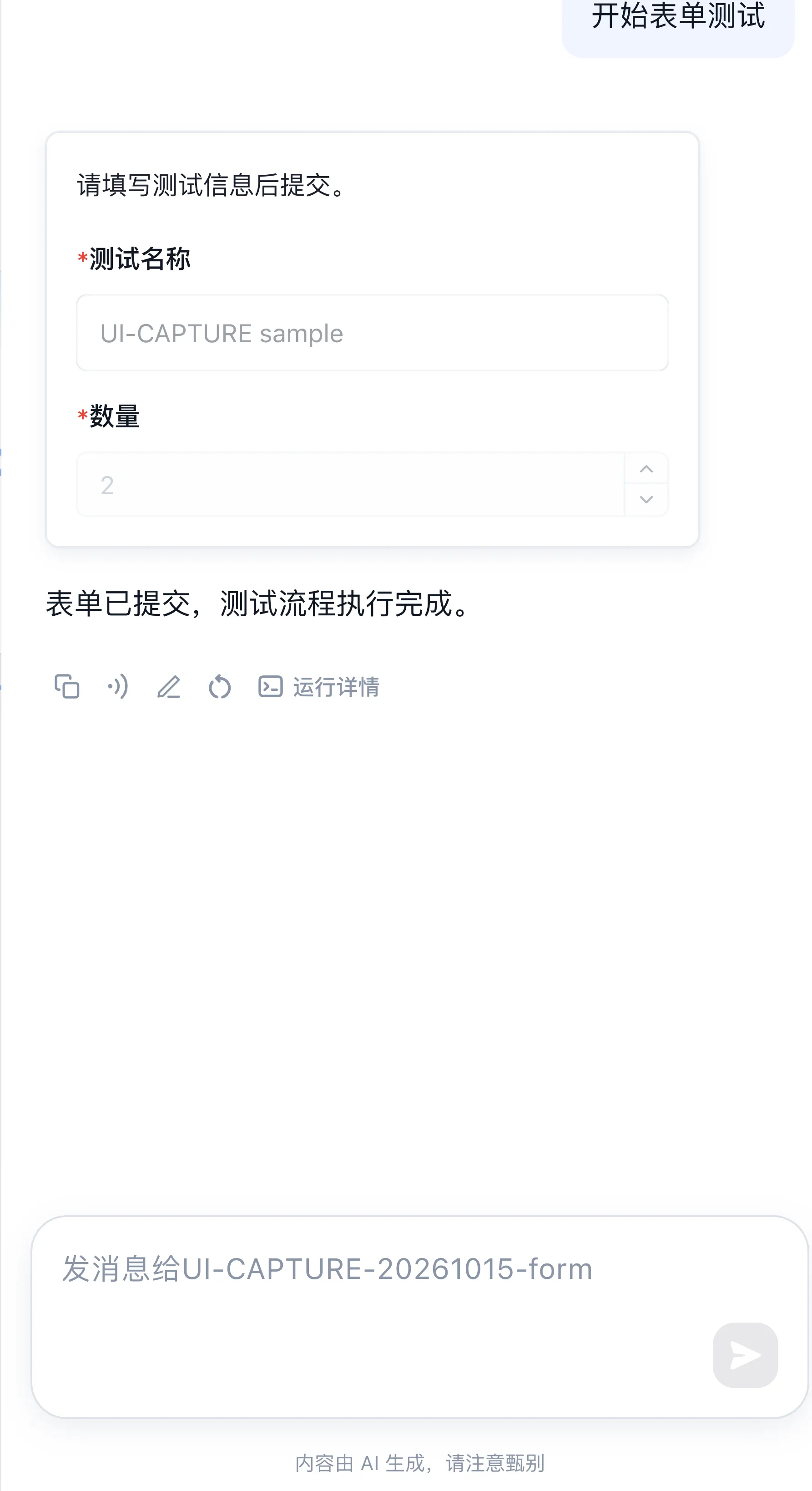
After the user fills in the required fields and clicks submit, the node collects the form data and passes it to subsequent nodes.
Use Cases
Precisely collect specific user information, then perform follow-up operations based on that data.
Configuration and outputs
Enter the Description Text, then click Add new input to the right of Form configuration to add input fields. For each field, set its display name, unique variable key, type, and required status. Configure defaults, length, numeric range, or options where supported by the type. The name appears in the form and as the field output name in the variable selector; the key is the field name in the output data. Single-choice (select) and multiple-choice (multipleSelect) fields support supplying options dynamically through variable references in addition to manual configuration. As with the User Select node, if the resolved dynamic option list is empty, the node returns a clear error to avoid displaying an unfillable form field.
After submission, User complete input result is an object mapping field keys to values. Each field also has its own output, shown by its name in the variable selector. Downstream nodes use the variable selector to reference individual fields or the complete object. File fields provide file-link lists for subsequent nodes, subject to the deployment's file-type and count limits.
Example: collect a contact name
- Connect the start node to Form input, then to Assigned Reply.
- Set Description Text to
Enter the contact name.Add a text field namedContact name, with keycontactName, and mark it required. - In Assigned Reply, use the variable selector to reference the form node's
Contact nameoutput (keycontactName). - Start debugging. Confirm that the form appears and downstream execution waits. Enter
Alexand submit. - Expect the reply
Alexand a User complete input result containing{"contactName":"Alex"}in Run Details.
The access channel must support interaction. Parallel Run containers restrict interactive nodes; interaction within a Loop pauses execution until resumption. If the form fails to appear, inspect execution connections. For an empty downstream value, check the key, required settings, and output reference. API integrations must follow the deployed generated contract for interactive submissions and retain the same conversation.
Next: User Select or publish and verify access.
Last updated