
AI Chat
Configure the FastGPT Workflow AI Chat node with system prompts, Knowledge base citations, conversation history, and streaming replies.
Characteristics
- Can be added multiple times
- Trigger-based execution
- Core node
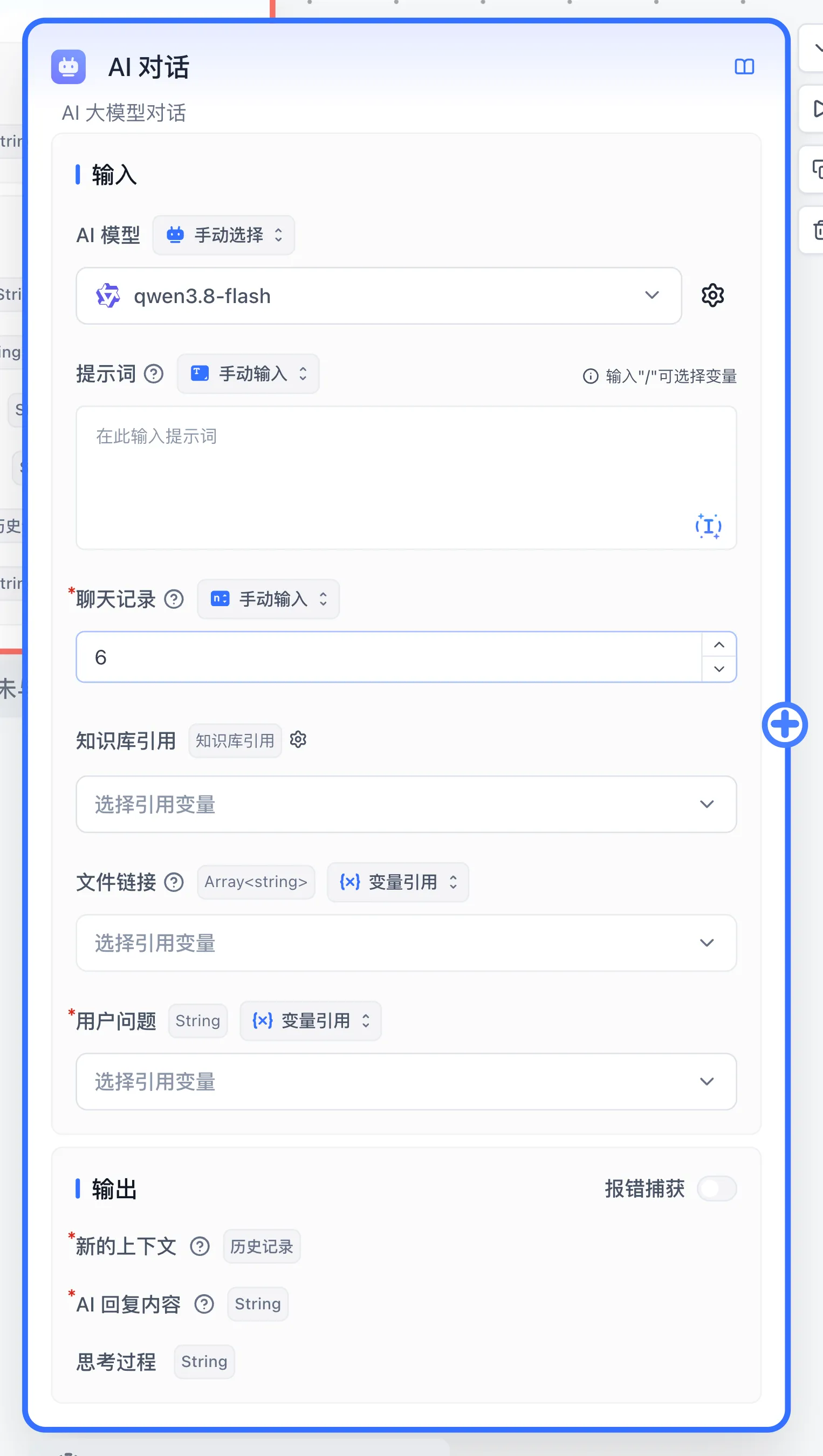
Parameters
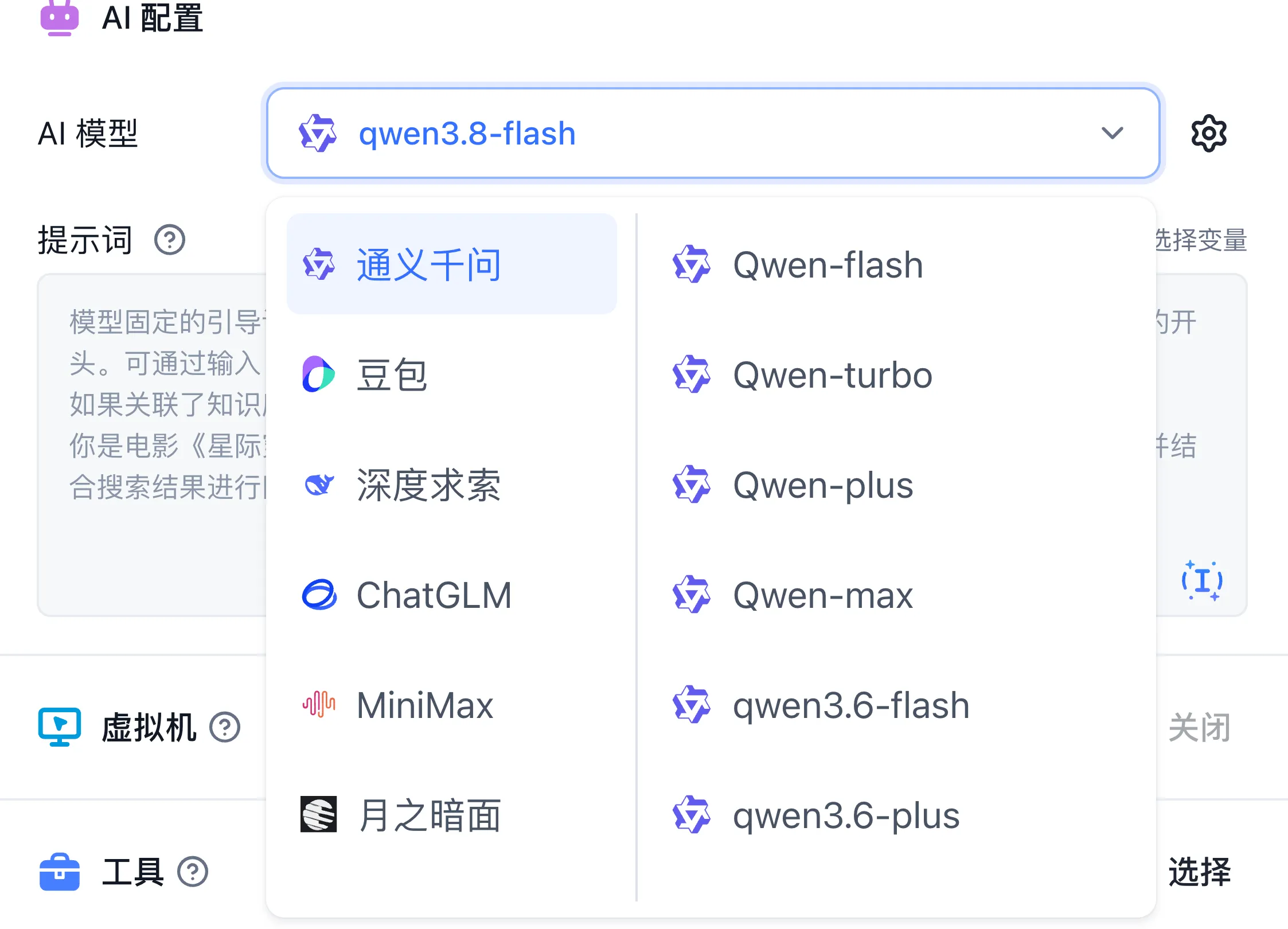
AI Model
Configure available chat models through self-hosted model configuration.
Click the AI model to configure its parameters.
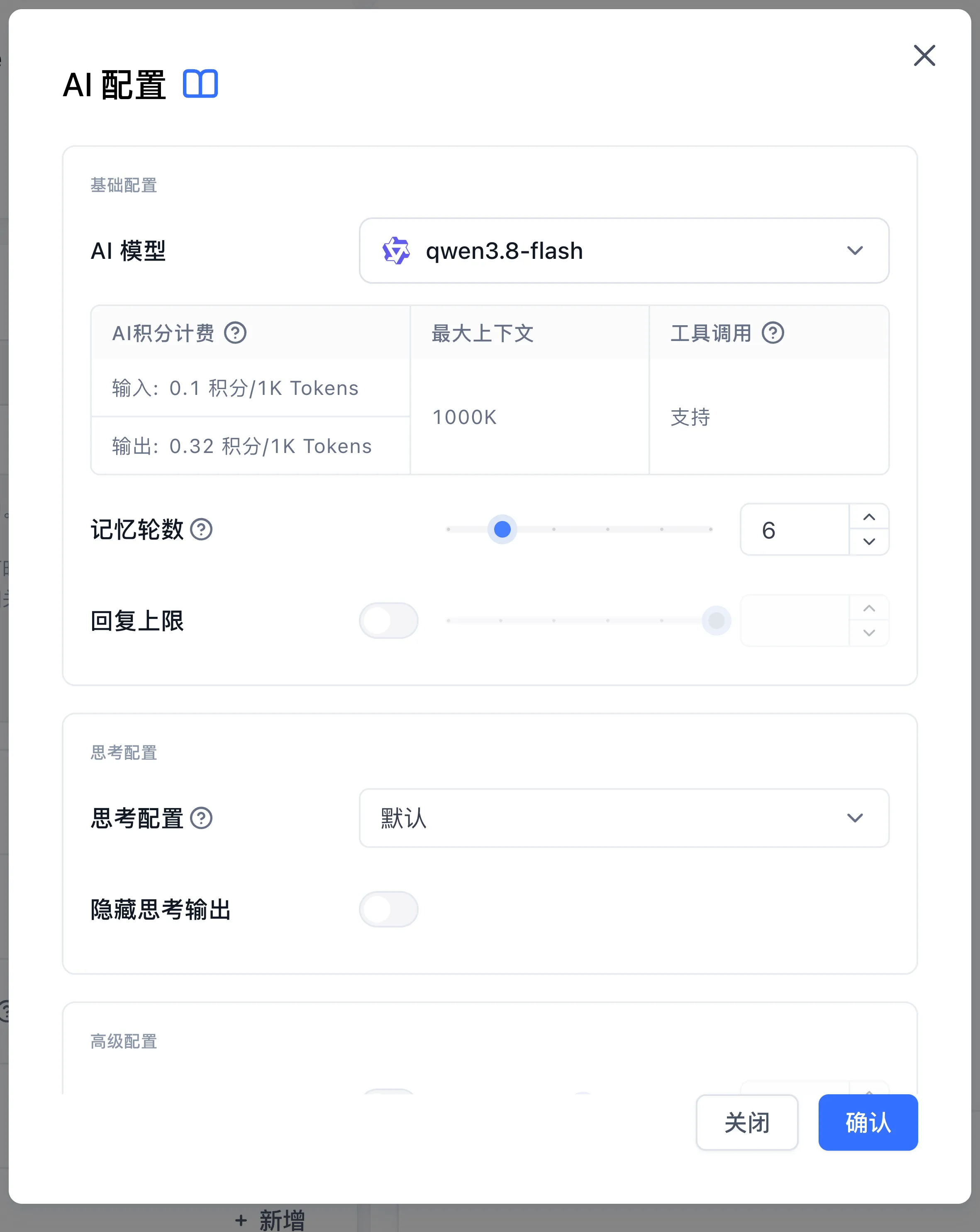
For detailed parameter descriptions, see: AI Parameter Configuration
Inputs and outputs
AI Chat calls a model with the current question, instructions, and selected context. You need an available model, permission to call it, and quota.
| Input | Configuration |
|---|---|
| User Question | Enter text or reference output from the start node or an upstream node |
| Prompt | Define the task, response format, and permitted sources |
| Chat History | Configure retained context or reference an upstream chat-history output |
| Dataset citations | Reference the "Dataset citations" output of a Dataset Search node |
| File Link | Reference accessible file URLs; see file input for document parsing and multimodal handling |
The main outputs are AI Response Content as a string and New Context as chat history. Models supporting reasoning can also provide Thinking text, depending on model capabilities and reasoning settings. Error text supports node error handling. Use the variable selector in a downstream node to reference the required output.
Hide AI output controls direct display to the user. The AI response output remains available to downstream nodes when hidden. Images, audio, and video require a model supporting the corresponding capability and the matching AI setting.
Example: generate a summary
- Connect the start node to AI Chat. Select an available model and reference the start node's user input as the user question.
- Set the prompt to
Summarize the text in one sentence. Preserve the time and location. - Debug with
The meeting starts at 10:00 in Room 2.Verify that the response preserves10:00andRoom 2. - Inspect input and AI Response Content in Run Details. For further processing, reference that output in Text Editor or Assigned Reply.
For empty input, check the variable reference. For model failures, inspect permissions, quota, and request errors. For missing facts, inspect supplied citations, file content, and context length. Follow your first workflow for creation and publishing steps.
Last updated