
WeCom Bot Integration
Integrate FastGPT applications with WeCom custom apps and group bots to power internal knowledge retrieval and employee self-service Q&A.
- Starting from version 4.12.4, FastGPT commercial edition supports direct WeCom bot integration without additional APIs.
- Starting from version 4.14.4, FastGPT cloud service edition supports WeCom intelligent bot integration through custom domain configuration.
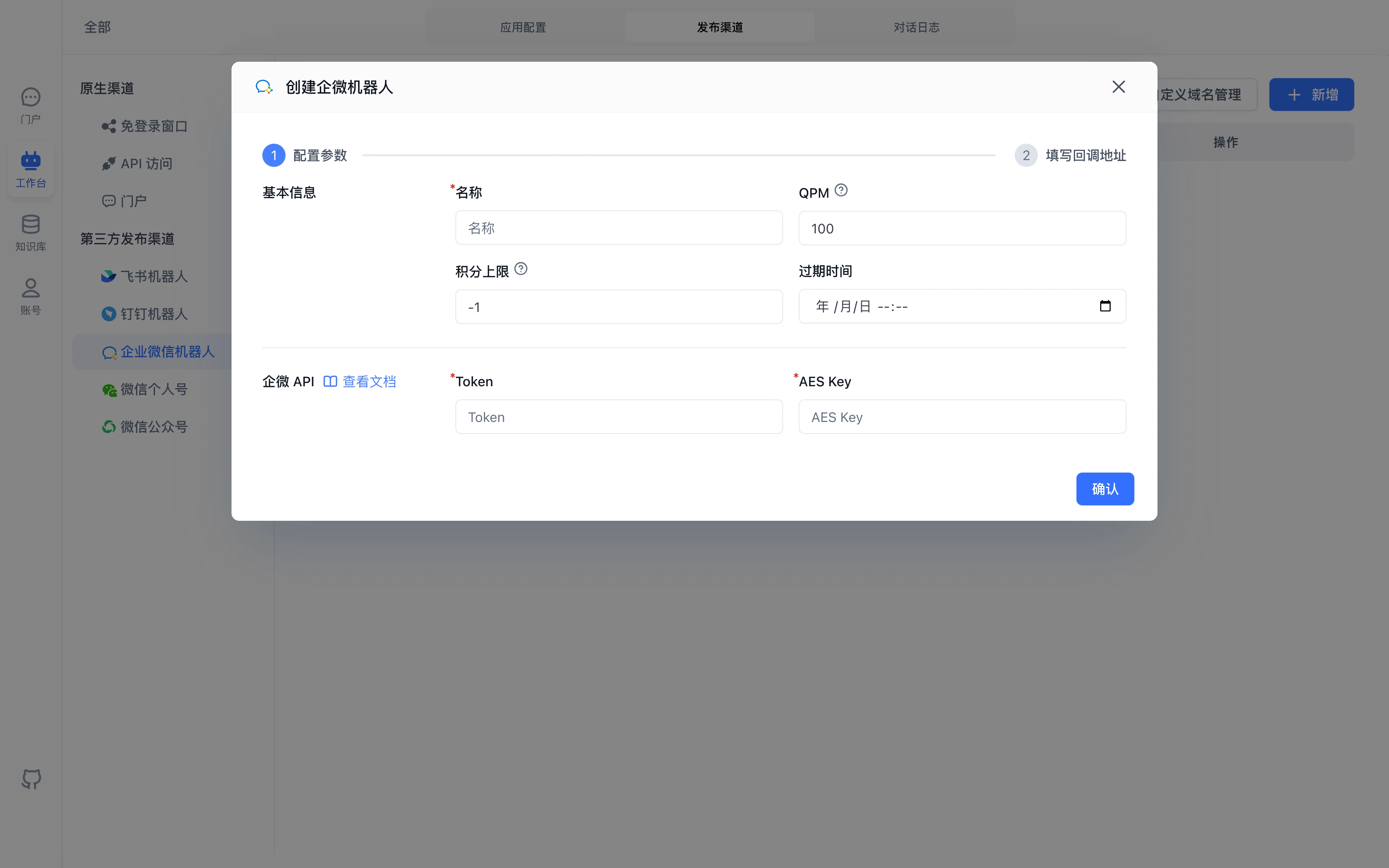
The screenshot shows the FastGPT configuration form. Enter credentials from your own platform application. Follow the official platform console linked below for its current console layout.
1. (Required for Cloud Service Edition) Configure Custom Domain
WeCom requires intelligent bot message push addresses to use the enterprise's primary domain, so cloud service edition users must configure a custom domain before using WeCom bots.
If you are a commercial edition user, continue using your enterprise domain.
2. Create an Intelligent Bot
2.1 Super Admin Login
Click to open WeCom Admin Console
2.2 Find the Intelligent Bot Entry
On the "Security & Management" - "Management Tools" page, click "Intelligent Bot" (Note: Only the enterprise creator or super admin has permission to see this entry)
2.3 Select "API Mode Creation" for the Intelligent Bot
On the create bot page, scroll down and click "API Mode Creation"
2.4 Get Key Credentials
Randomly generate or manually enter Token and Encoding-AESKey, and record them
2.5 Create WeCom Bot Publishing Channel
The WeCom Bot channel is hidden by default. The root user must first turn on the WeCom publishing channel switch in Admin → System configuration.
In FastGPT, select the Agent you want to use. On the Publishing Channels → WeCom Bot page, click New in the upper-right corner.
2.6 Configure Publishing Channel Information
Configure the publishing channel information. You need to enter the Token and AESKey recorded in step 2.4 (Token and Encoding-AESKey)
2.7 Copy Callback URL
After clicking "Confirm", select your configured custom domain, copy the callback URL, and paste it back into the WeCom intelligent bot configuration page.
3. Use the Intelligent Bot
In the WeCom platform's "Contacts", find the created bot and start sending messages. If the bot does not respond, verify the trusted domain, Token, Encoding-AESKey, and FastGPT conversation logs via App, Chat, and Plugin FAQ.
Last updated