
Agent Debugging and Trace Inspection
Master Chat Agent V2 debugging panels, ReAct plan cards, tool arguments and return values tracking, and execution latency auditing.
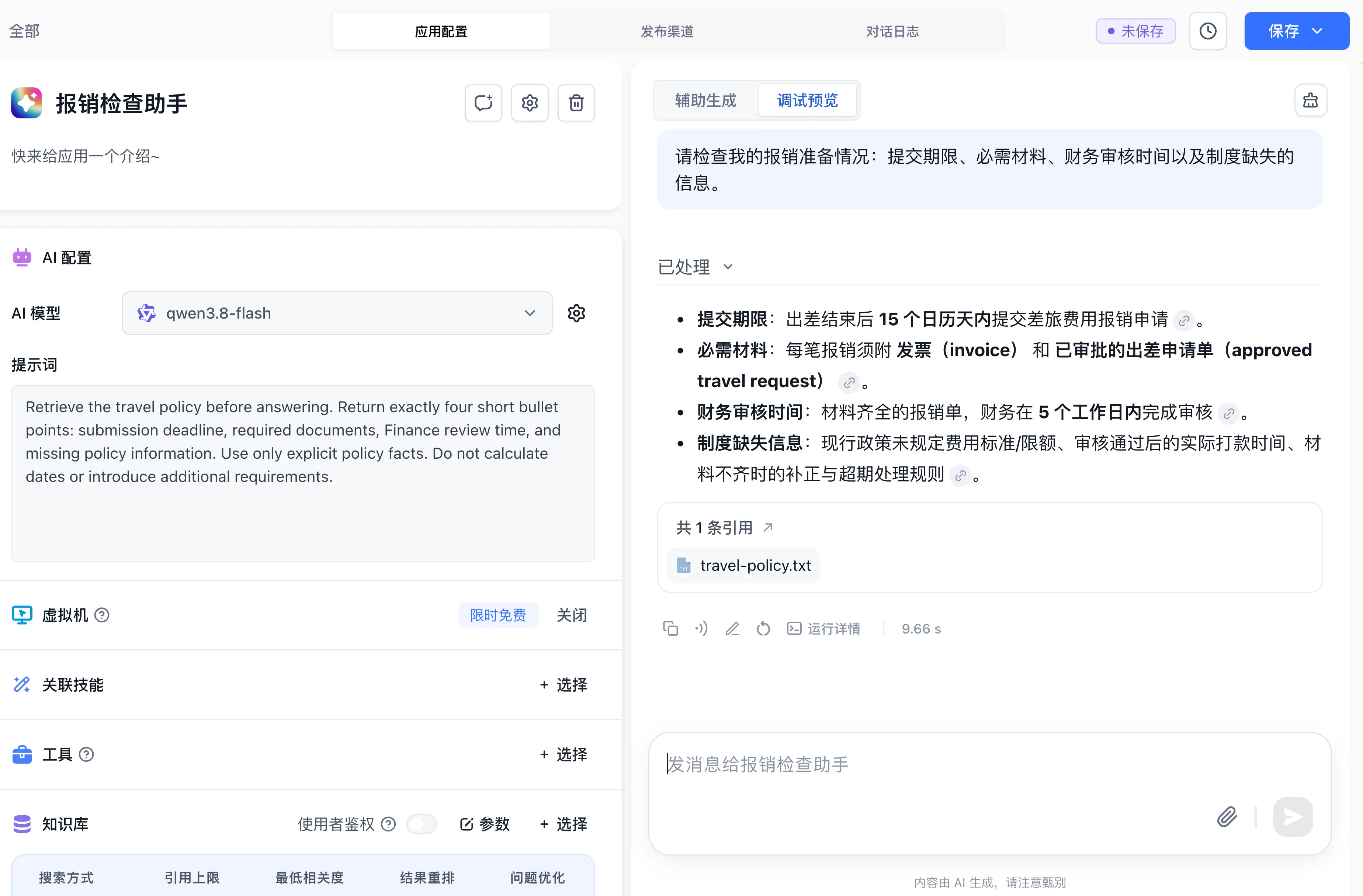
Before publishing a Chat Agent V2 to production channels, use the "Debug Preview" drawer on the right side of the workspace to simulate user interactions and inspect the model's reasoning trace, tool invocation arguments, and execution latency step by step.
Assisted Generation (AI Collaboration Assistant)
In the Assisted Generation tab at the top of the right panel, the Commercial and Cloud editions provide an AI collaboration assistant tailored for Chat Agent V2:
- Smart Analysis and Interactive Clarification: The assistant reads your currently selected model, Datasets, and candidate tools. Describe your target scenario in natural language (for example:
Build an assistant that analyzes uploaded Excel sales reports and generates charts). When details need clarification, the assistant presents structured interactive question cards (Agent Ask) and saves both questions and answers in the conversation history. - Automatic Configuration Apply: Once the plan is confirmed, the system automatically populates the generated System Prompt, recommended tools, associated Datasets, and virtual machine toggle into the left configuration panel so you can test immediately in the Debug Preview tab.
Step 1: Initiate Interactive Testing and Session Management
- Open your target Chat Agent V2 workspace; the right-hand panel provides a real-time conversational test environment.
- Click New Chat (the clear icon) in the upper-right corner of the debug pane to clear context history and initiate testing from a fresh turn.
- Submit a realistic operational prompt, such as:
Analyze the attached sales report and calculate ROI by marketing channel..
Step 2: Track Execution Progress with Plan Step Indicators
For complex multi-step tasks, planning-enabled models stream structured plan steps in real time and indicate each step's status with a colored dot:
- Gray dot (Pending): Lists subsequent tasks queued for execution.
- Blue dot (In progress): Highlights the active sub-action (such as calling a specific tool or running a Python script).
- Green dot (Completed): Marks steps that finished and returned valid outputs.
- Red dot (Blocked): Indicates that a tool threw an error, a network connection timed out, or parameters were missing. Inspect Run Details to locate bottlenecks and refine prompt instructions.
- Orange dot (Skipped): Marks steps bypassed when earlier steps already satisfied the goal or branch conditions changed.
Step 3: Expand Execution Details to Inspect Underlying Traces
Beneath each generated AI message bubble, click the Run Details icon button to review the decision trace:
- Reasoning Content: Inspect reasoning content returned by a supported model when reasoning display is enabled.
- Tool Arguments: Verify that generated JSON payloads adhere strictly to target tool schemas, checking dates, IDs, and query terms.
- Tool Output: Examine raw responses returned by tools or sandbox commands, confirming that outputs provide complete, valid factual evidence.
- Performance and Quota Auditing: Inspect available model, latency, and usage fields. Record the request identifier when present and reconcile cost with usage records.
- Pre-Rerank Retrieval Candidate Snapshot (
retrievalResults): When an Agent's Dataset search enables reranking (usingReRank) and theRETRIEVAL_RESULTS_LIMITenvironment variable (default0) is greater than0, the node response data includes the pre-rerank recall snapshot (retrievalResults) in addition to the post-rerank citation list (quoteList). The run details UI does not display this field; read it from API responses with response details enabled to compare initial recall and reranking.
Step 4: Diagnostic Utilities and Annotation
The toolbar beneath each AI message offers quick utilities:
- Copy: Copy raw generated Markdown text.
- Read Aloud: Play text back using text-to-speech synthesis.
- Mark: Click the Mark button to save the current query and a corrected expected answer directly into an associated Dataset, reinforcing factual accuracy in subsequent turns through RAG.
- Retry: Re-run planning and generation independently against the preceding query.
Next Steps
- Virtual machine testing: Review Virtual Machine Sandbox Guide.
- Refine instructions: Follow Chat Agent V2 Dedicated Configuration.
- Mount into pipelines: Study Workflow Agent Node.
Last updated