
Yuque Dataset
Connect Yuque document repositories to FastGPT for scheduled synchronization and RAG retrieval.
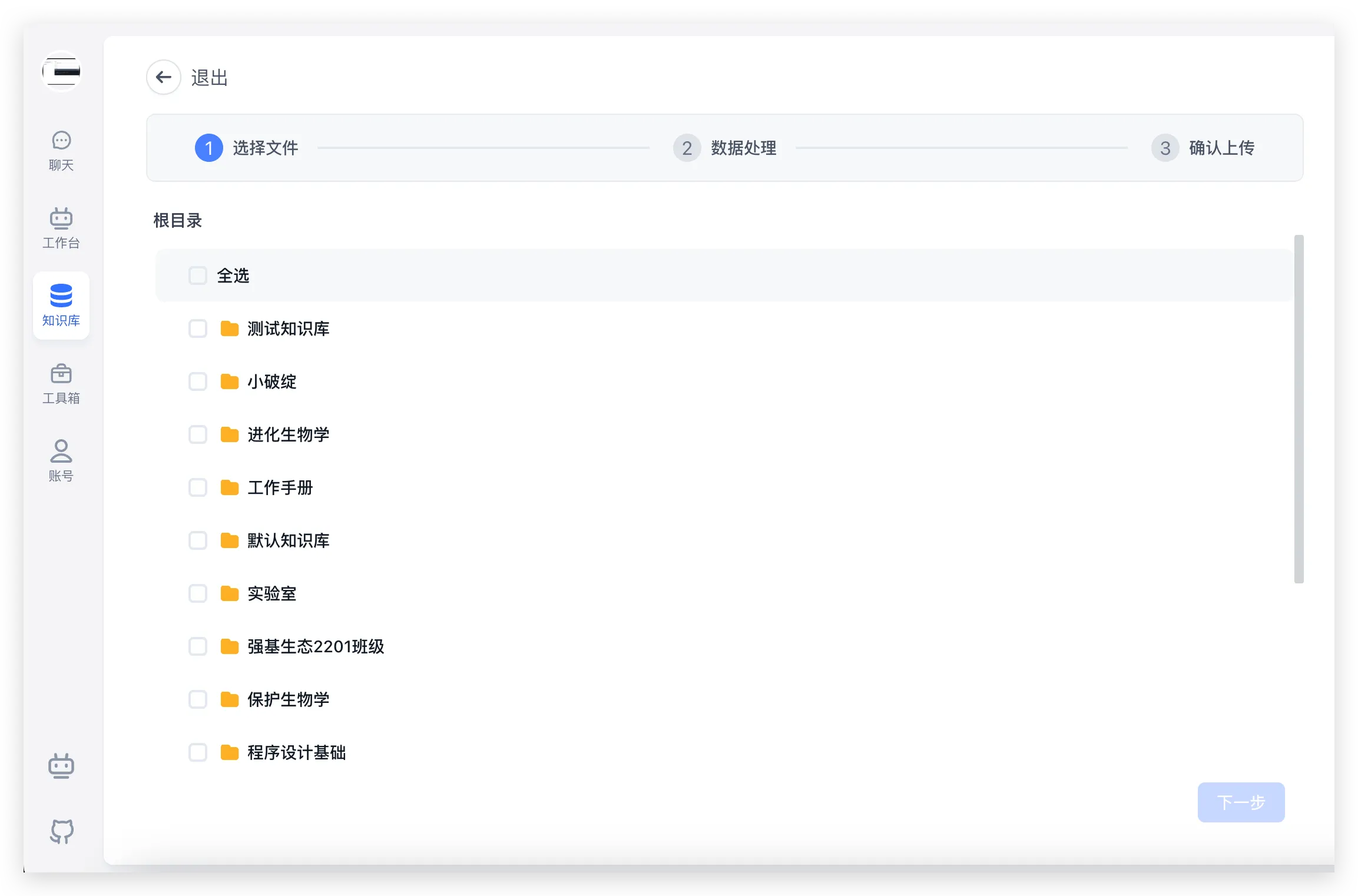
Starting from FastGPT v4.8.16, commercial edition users can import from Yuque datasets by configuring a Yuque User ID and Token.
1. Get the Yuque Token and UID
Go to the Yuque homepage > click your avatar > Settings to find the relevant parameters.
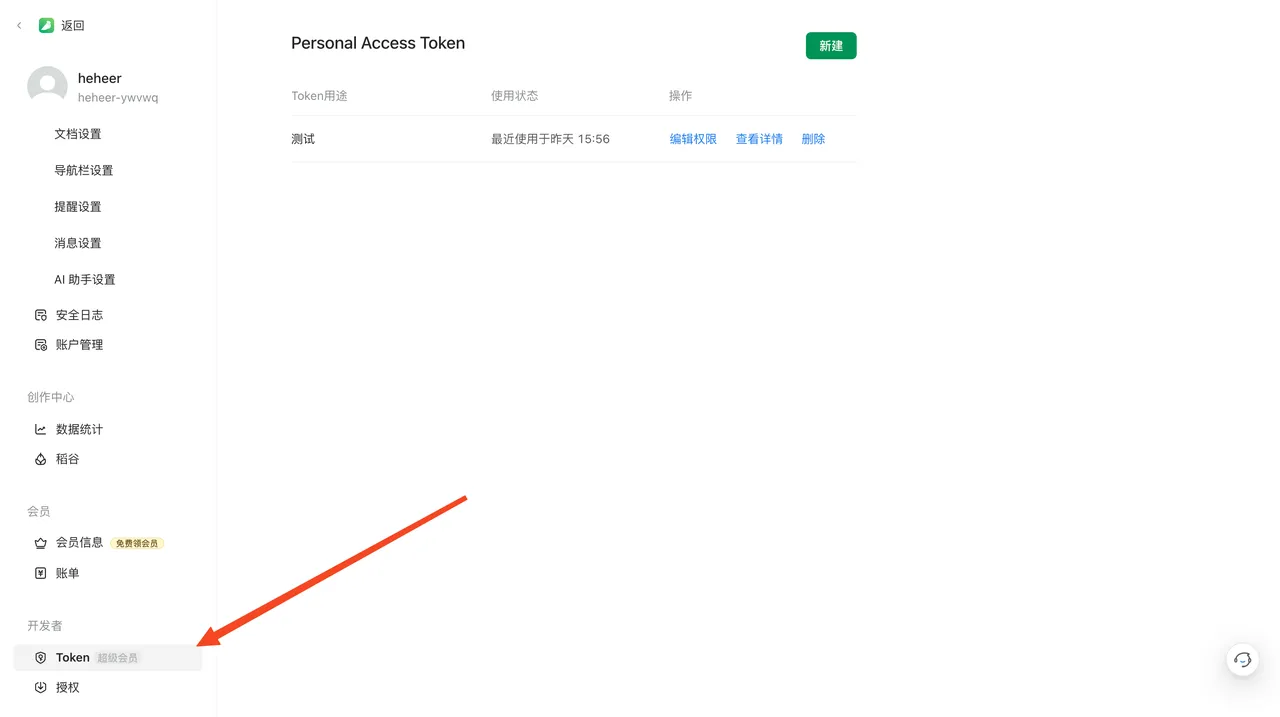
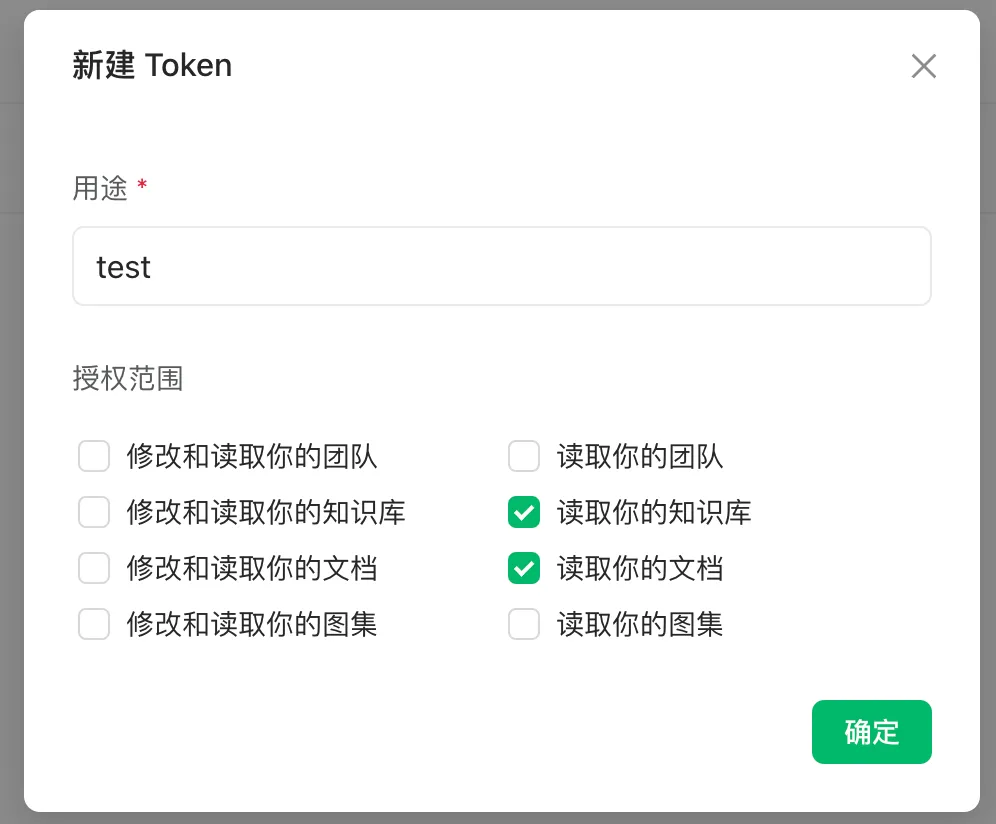
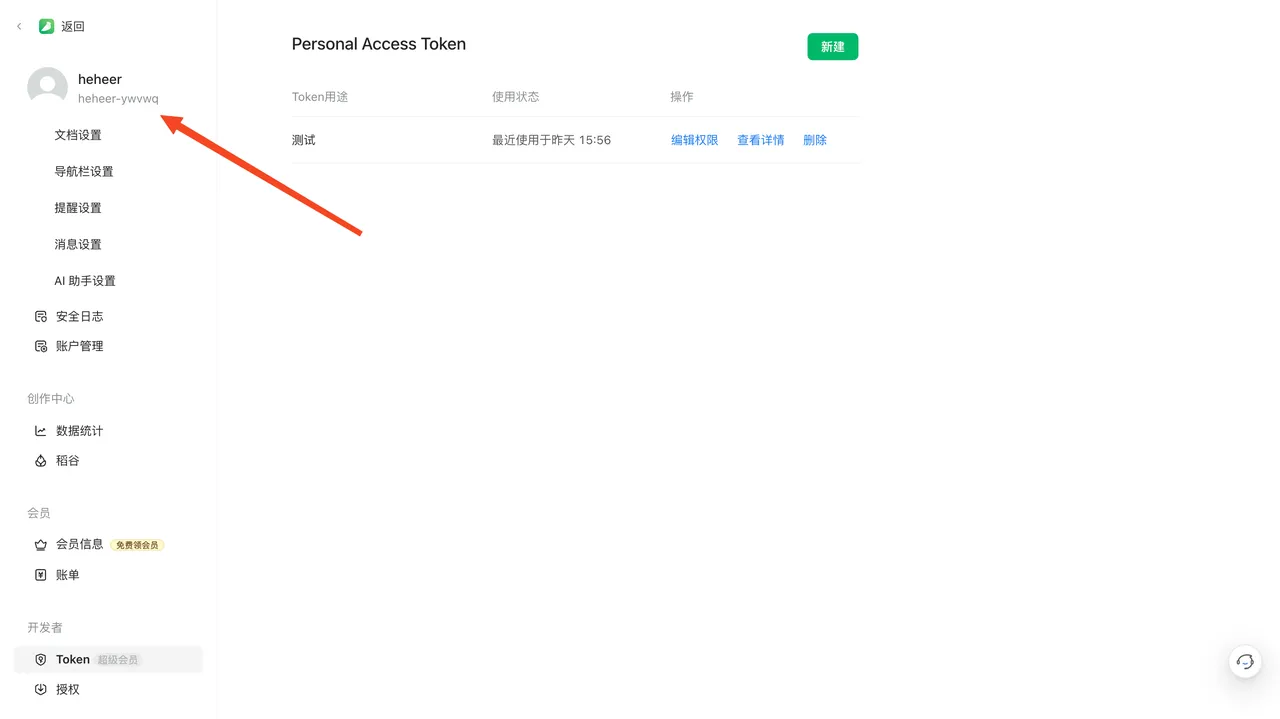
Follow the images below to get the Token and User ID. Make sure to assign the appropriate permissions to the Token:
Personal Edition:
- In Settings, open Token under Developer, then create a new token.
- Enter a purpose for the token and select Read your knowledge bases and Read your documents. Confirm creation and copy the token.
- For the UID, use the account identifier shown below your display name and avatar in Settings.
| Get Token | Add Permissions | Get User ID |
|---|---|---|
 |  |  |
Enterprise Edition:
Open Team Management → Developer → Token to manage tokens. Token availability depends on your Yuque plan. For the team UID, open the team homepage and copy the first path segment after the domain: in https://tenant.yuque.com/<team-id>, use <team-id>.
| Get Token | Get User ID |
|---|---|
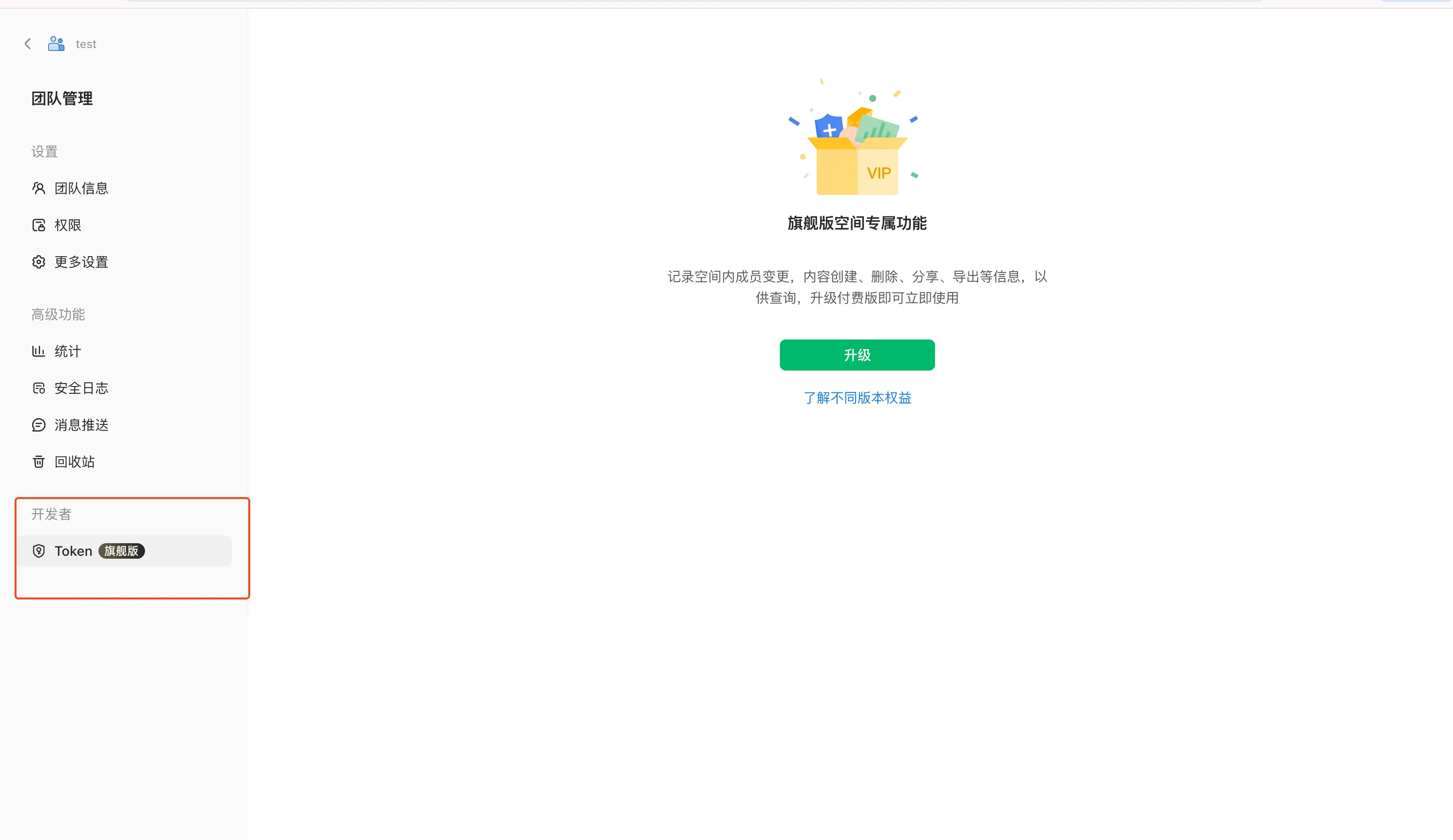 | 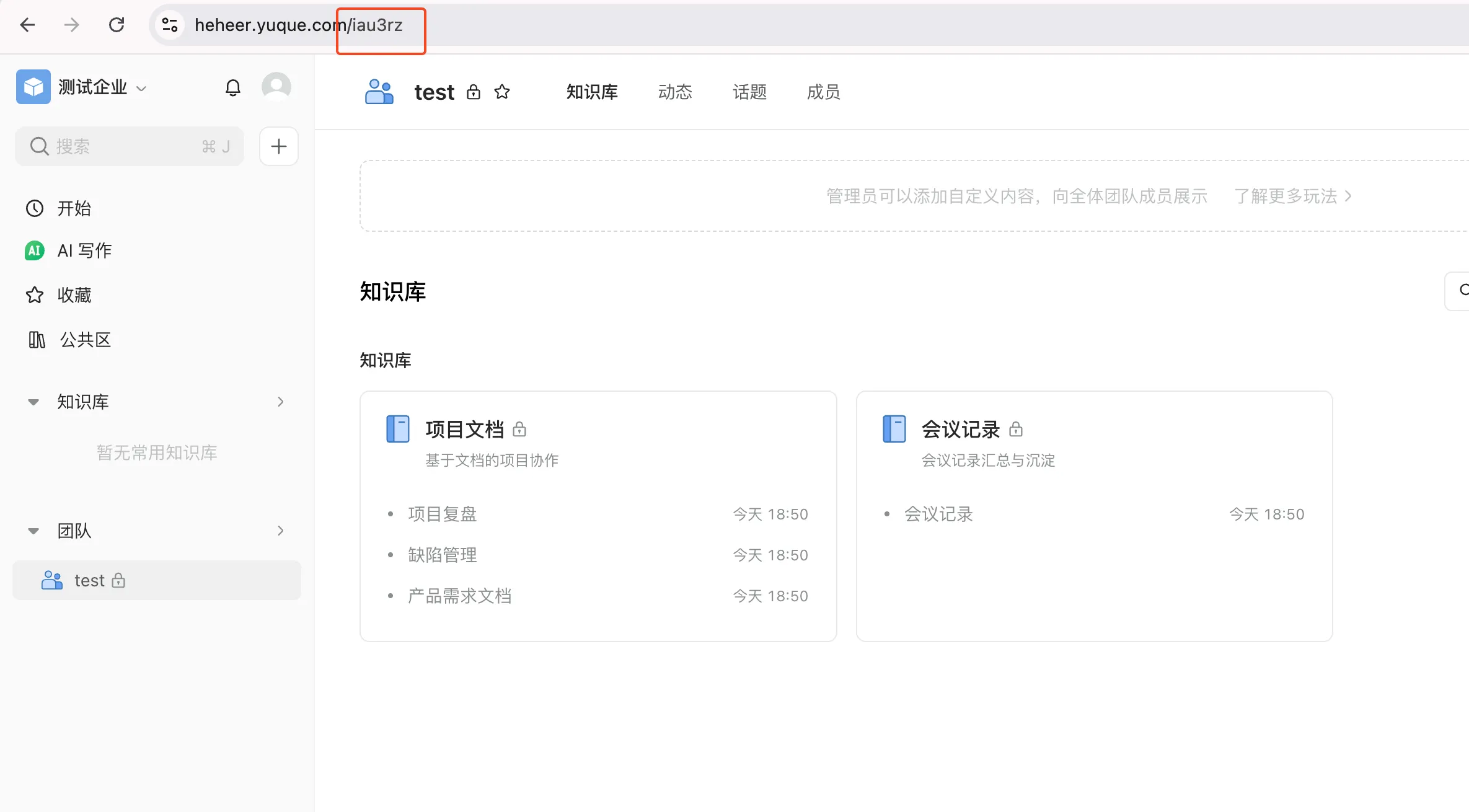 |
2. Create the Dataset
Using the User ID and Token from the previous step, go to Knowledge Bases → New → Third-Party Dataset → Yuque Dataset, fill in the parameters, and click Create.
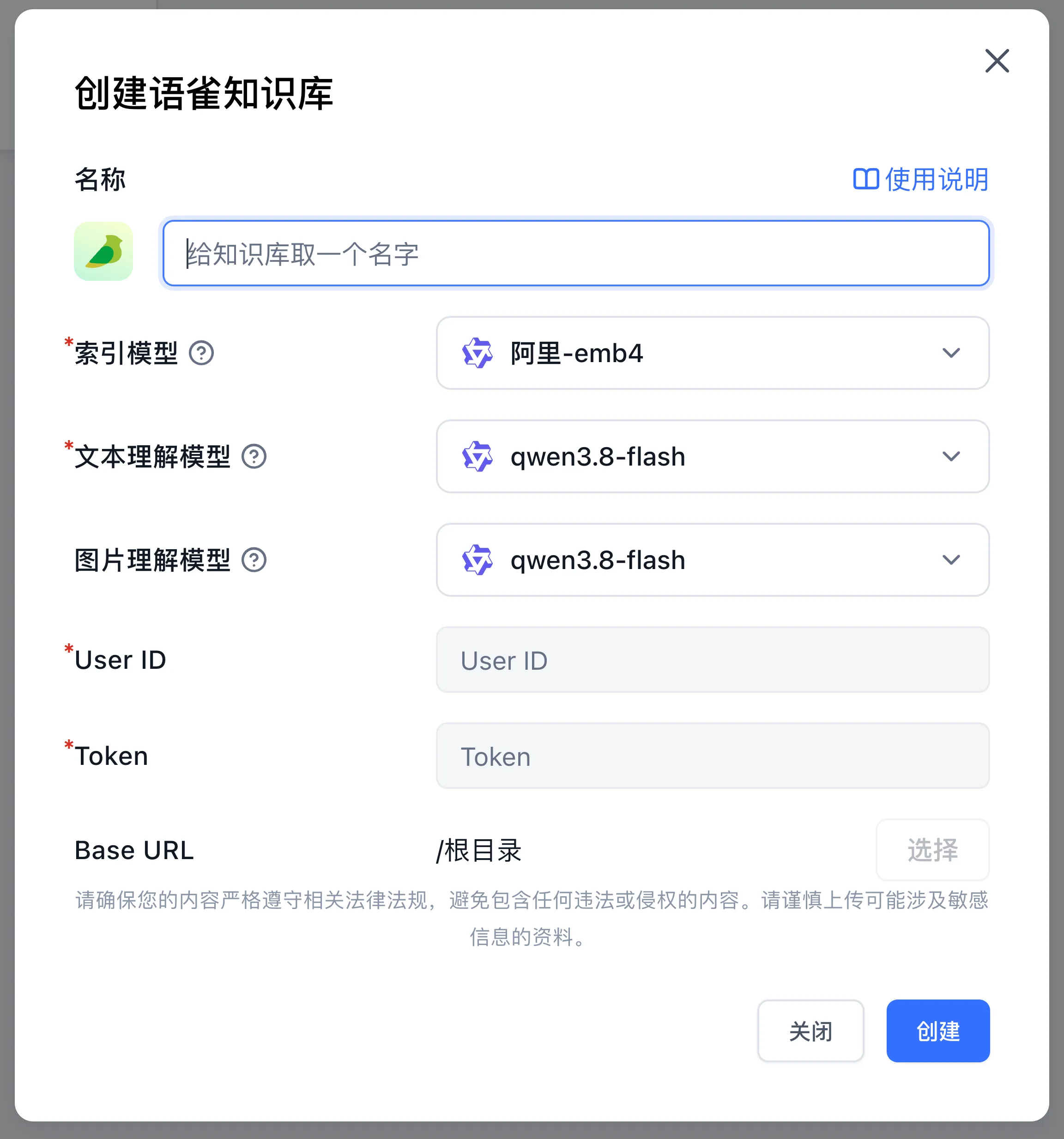
3. Import Documents
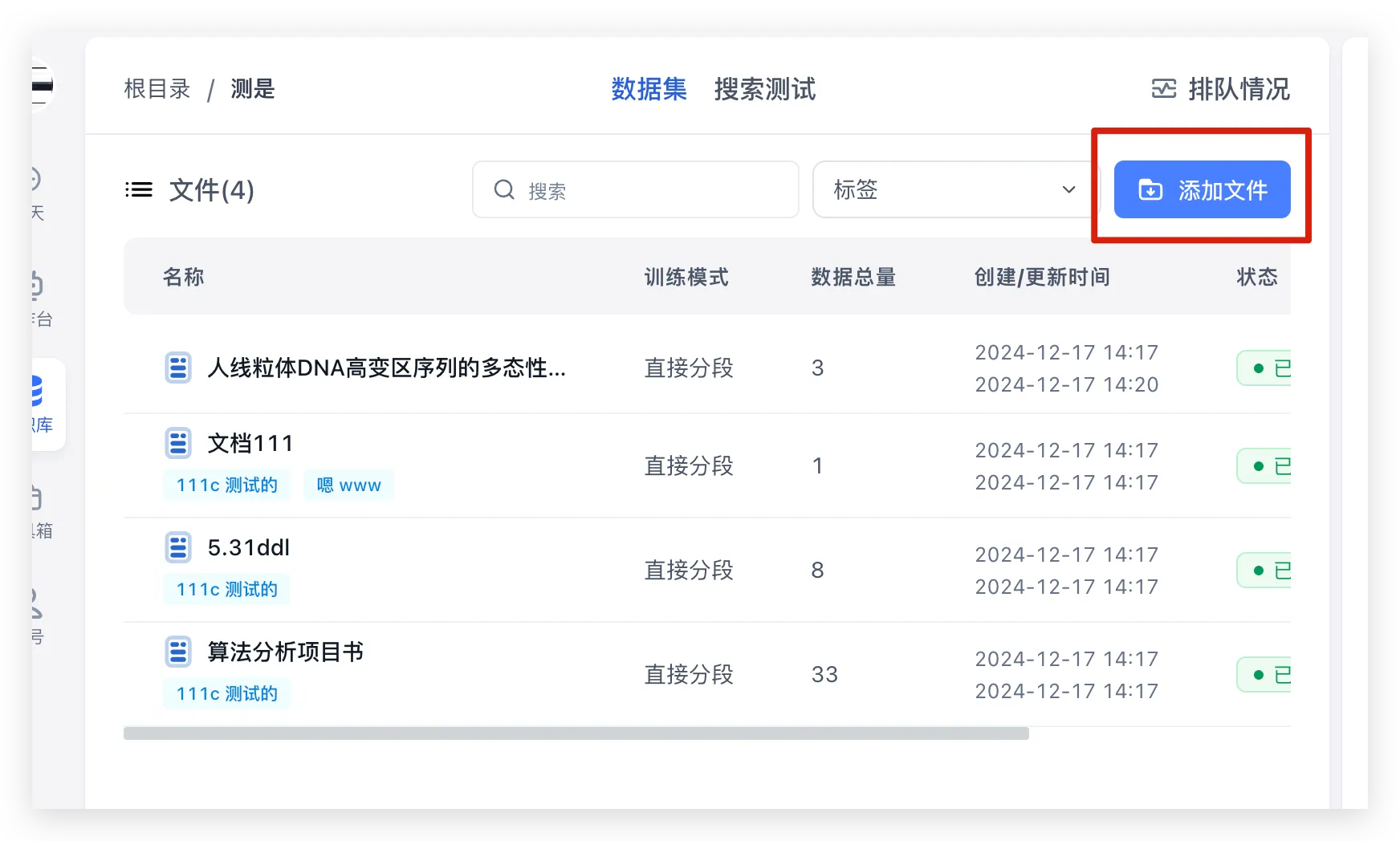
After creating the Dataset, click Import to import from your Yuque document library and follow the on-screen guidance.
The Yuque Dataset supports scheduled and manual sync: enable the scheduled sync toggle in the right-side dataset info panel (commercial edition, disabled by default) so the system scans and syncs existing collections daily, or click Sync data in a collection's action menu to trigger a manual sync.
Last updated