
Lark Dataset
Connect Feishu or Lark cloud documents to FastGPT as a synchronized third-party knowledge base.
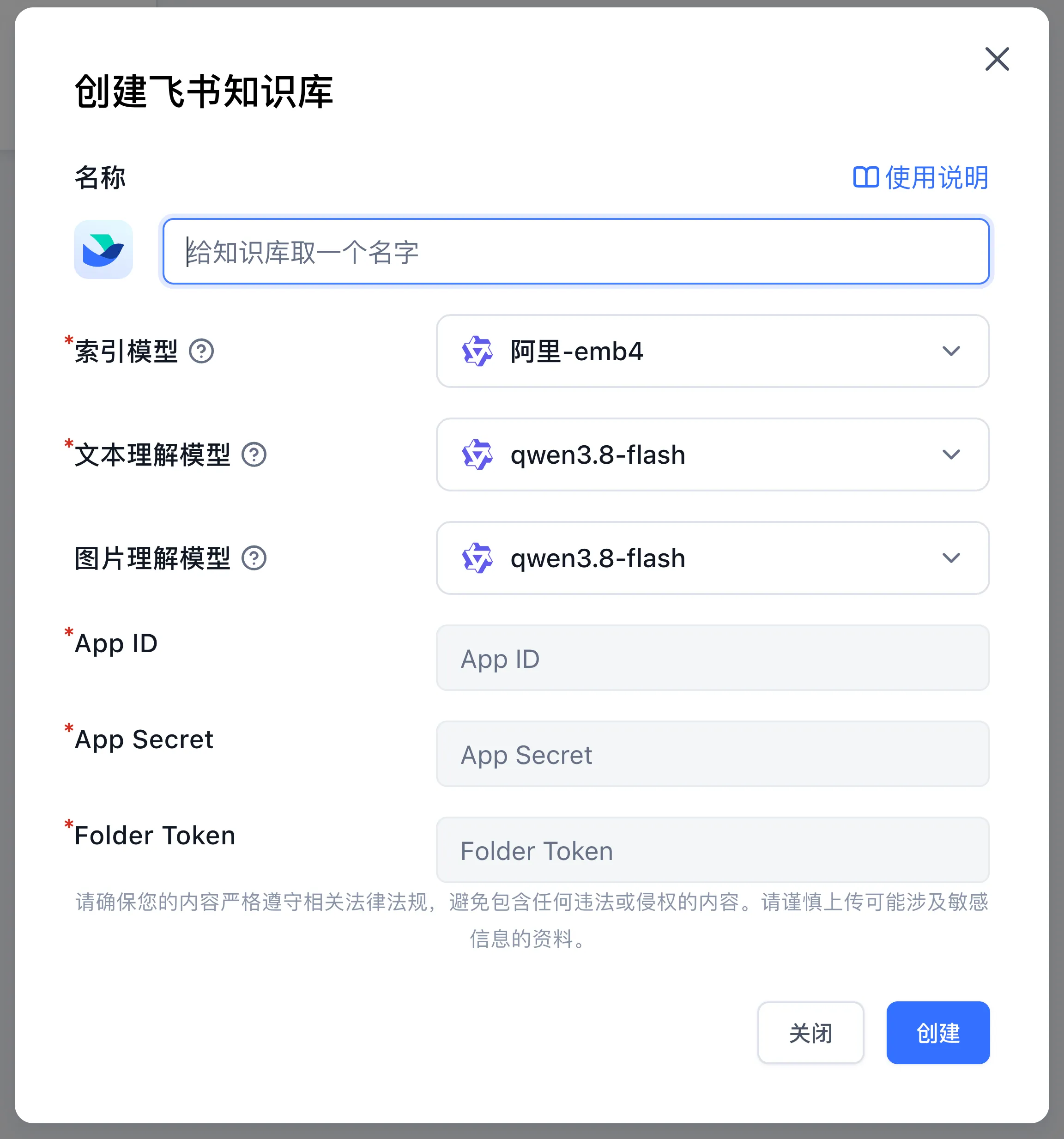 | 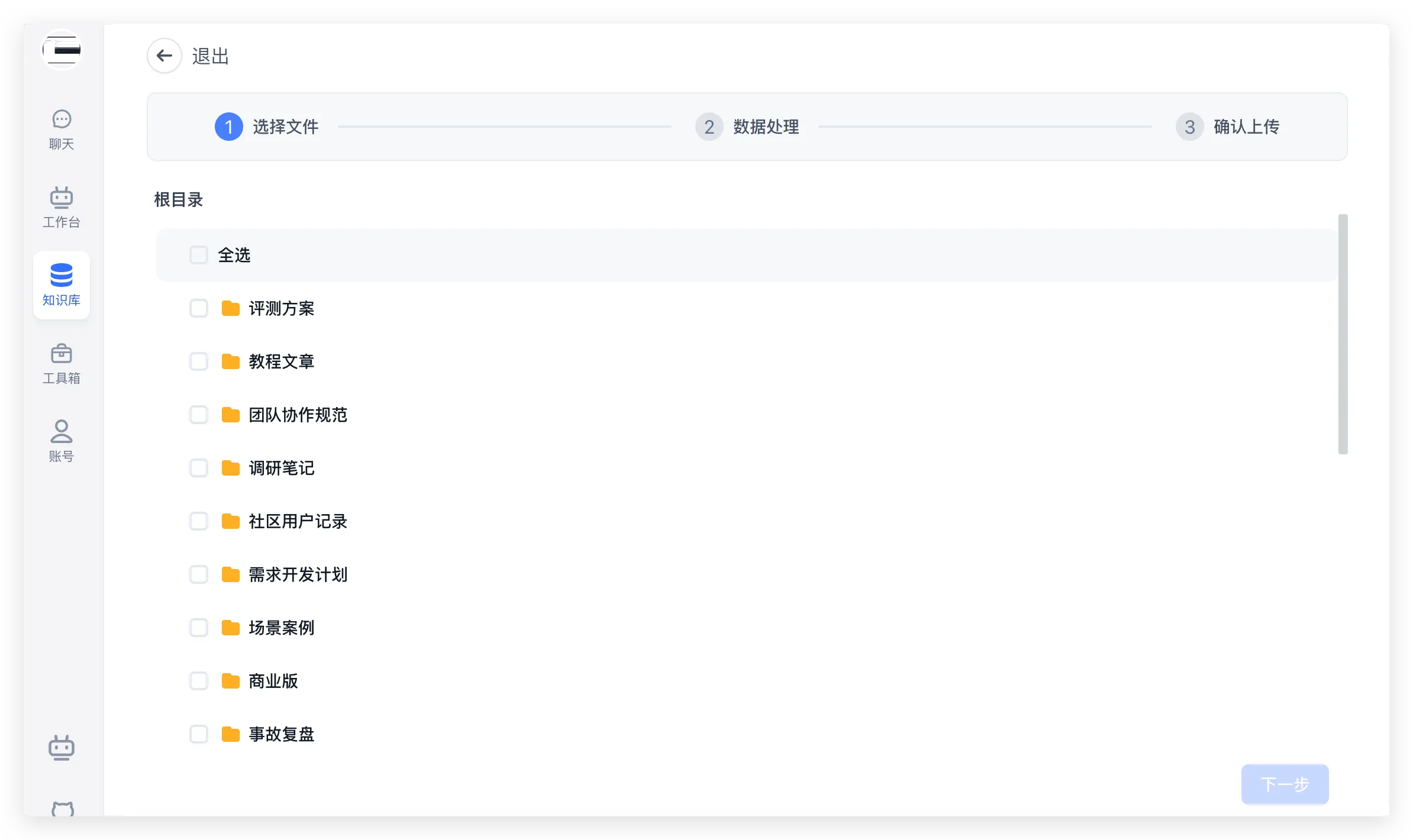 |
Starting from FastGPT v4.8.16, commercial edition users can import from Lark datasets. Configure a Lark app's App ID and App Secret, then provide the Folder Token of a cloud space folder to import cloud documents.
Due to Lark API limitations, you cannot directly access all document content. Currently, only files in shared space directories are accessible — personal spaces and wiki content are not supported.
Only cloud document types are supported for import.
1. Create a Lark App
Go to the Lark Open Platform, click Create App, select Custom App, and fill in the app name.
2. Configure App Permissions
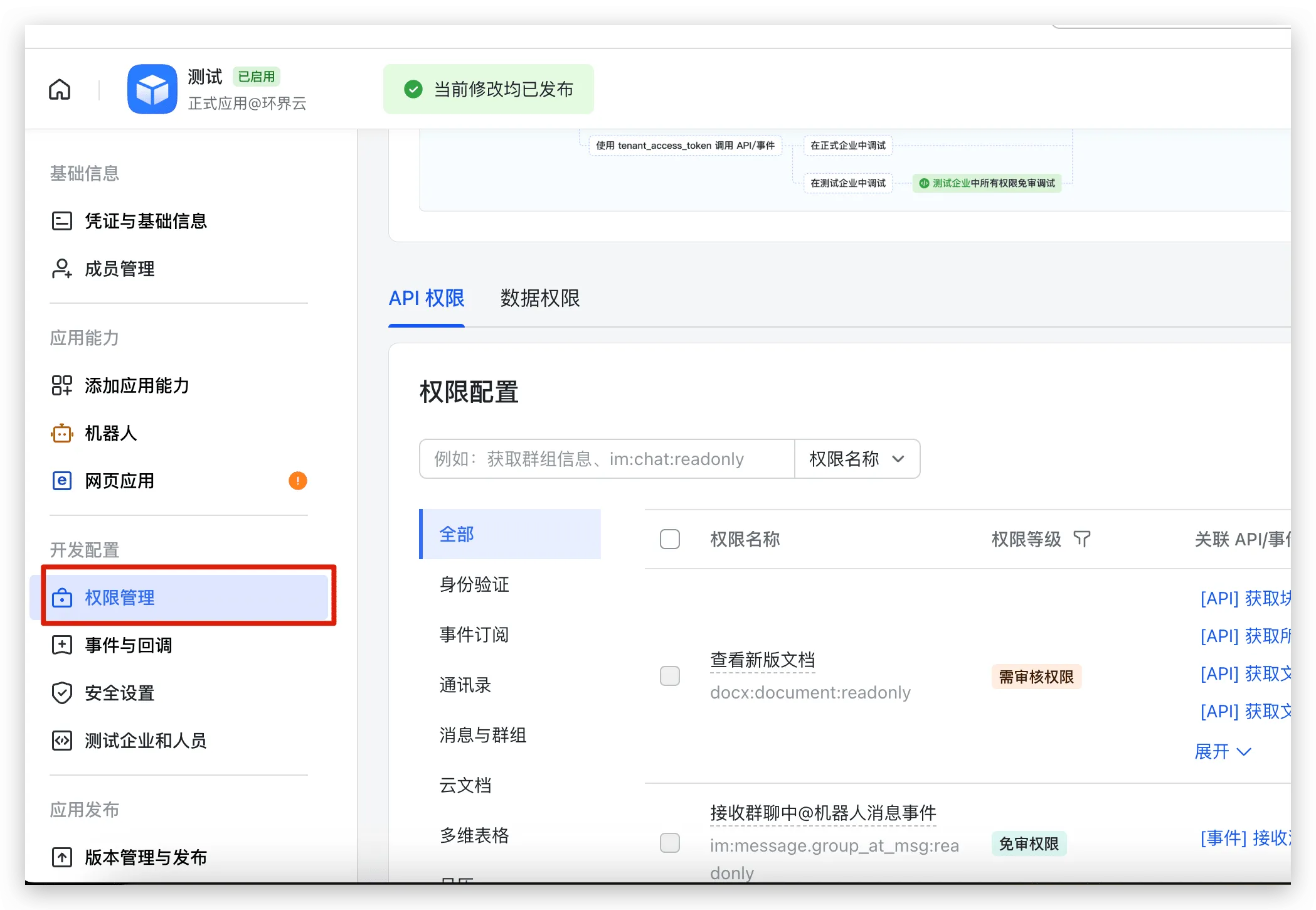
After creating the app, configure the following 3 permissions:
- View the list of cloud documents in a folder
- View new-format documents
- View, comment, edit, and manage all files in the cloud space
3. Get the appId and appSecret
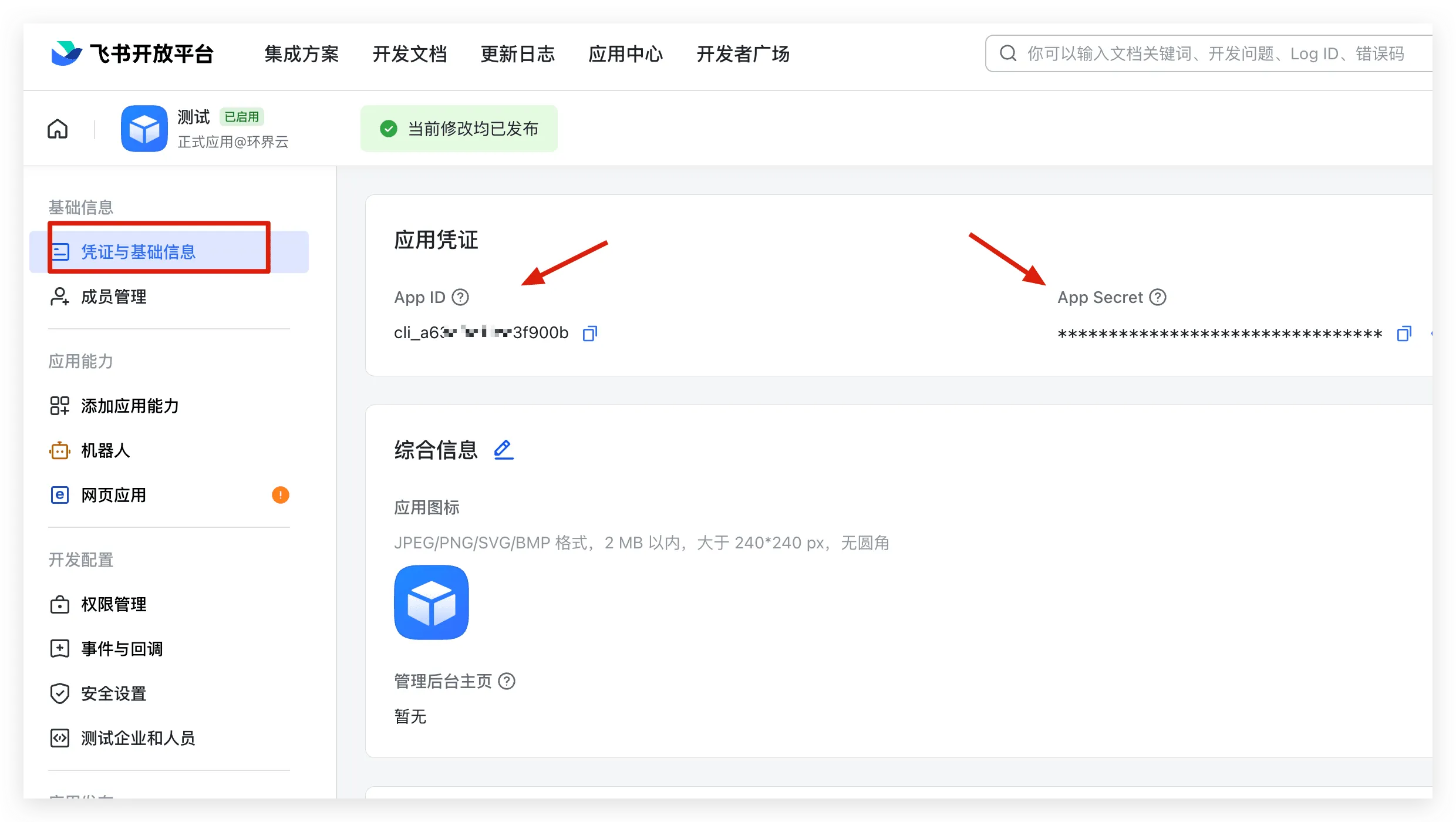
Open Credentials and Basic Information in the Lark app console. Copy the App ID and App Secret into the corresponding FastGPT connection fields.
4. Grant Folder Permissions
See the Lark folder access tutorial.
Grant access as follows:
- Add the app you just created to a group chat
- Grant directory permissions to that group
If your directory already has permissions granted to the "All Members" group, you can skip the steps above and go directly to getting the Folder Token.
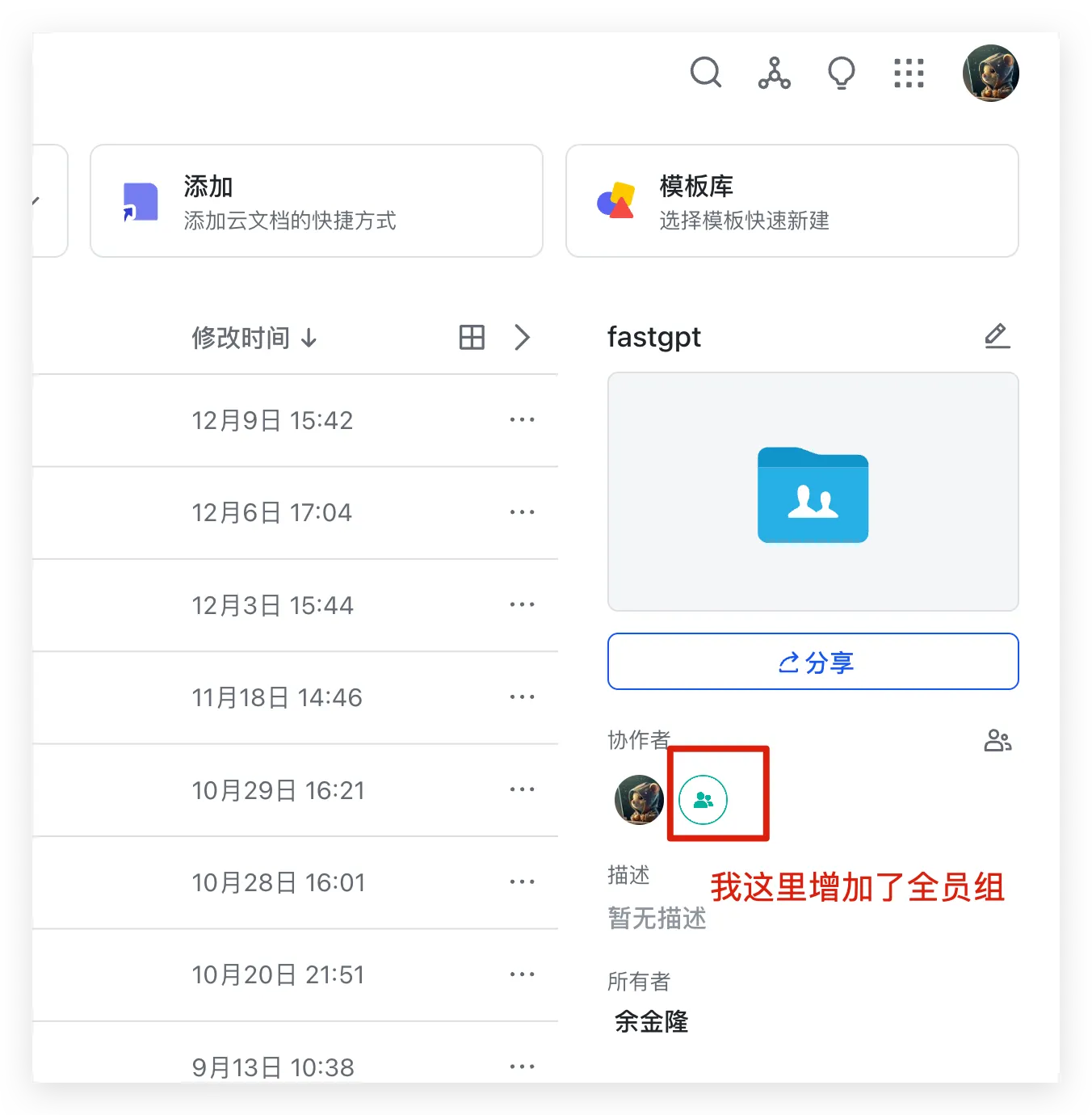
5. Get the Folder Token
Open the target folder in Lark Drive in your browser and copy the Folder Token from the end of the URL path (for example, fldcnxxxxxx in https://example.feishu.cn/drive/folder/fldcnxxxxxx), excluding ? and any query parameters.
6. Create the Dataset
Using the 3 parameters obtained from steps 3 and 5, go to Knowledge Bases → New → Third-Party Dataset → Lark Dataset, enter the App ID, App Secret, and Folder Token, and click Create.
Last updated