
Tool calling & Stop Tool calling
Configure the FastGPT Workflow Tool calling and Stop Tool calling nodes so LLMs can invoke workflow tools, system plugins, and MCP tools.
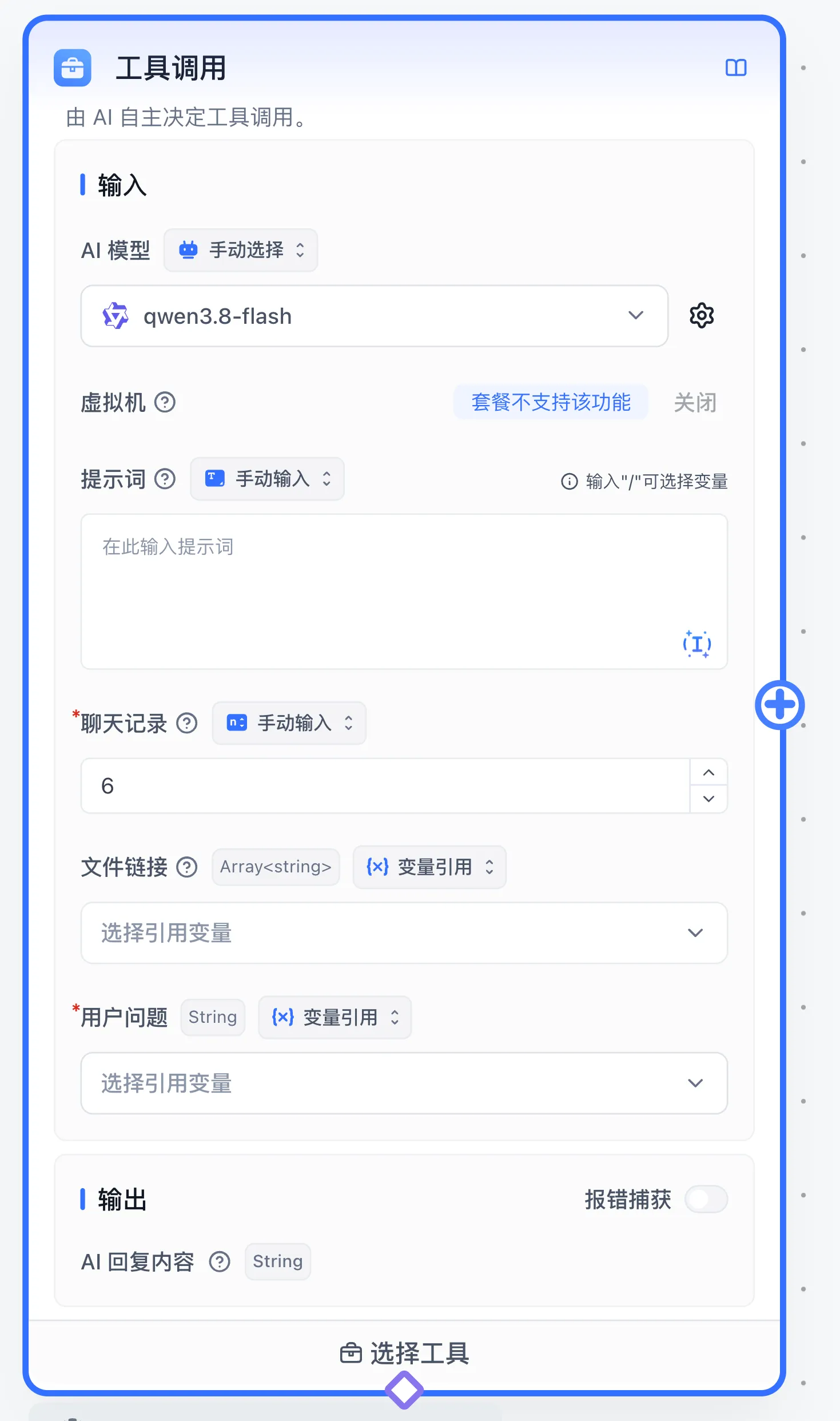
What is a Tool
A tool can be a built-in node (e.g., AI Chat, Dataset search, HTTP) or a plugin.
Tool calling lets the LLM dynamically choose the workflow path. This flexibility increases token consumption.
Tool Components
- Tool description. Typically the node or plugin description that tells the LLM what the tool does.
- Tool parameters. For built-in nodes, parameters are fixed and require no extra configuration. For plugins, parameters are configurable.
How Tools Work
To understand how tools run, you need to know the execution prerequisites:
- A tool description is required. It tells the LLM what the tool does, and the LLM uses contextual semantics to decide whether to invoke it.
- Tool parameters. Some tools require special parameters when called. Each parameter has two key properties:
parameter descriptionandrequired.
Based on the tool description, parameter descriptions, and whether parameters are required, the LLM decides whether to call the tool. The scenarios are:
- Tools without parameters: The LLM decides based solely on the tool description. Example: get current time.
- Tools with parameters:
- No required parameters: The tool can still be called even without suitable context parameters, though the LLM may sometimes fabricate a value.
- Has required parameters: If no suitable parameters are available, the LLM may skip the tool. Use prompts to guide users into providing the needed parameters.
Tool Calling Logic
Models supporting function calling can return several tool calls in one turn; the ToolCall node executes them sequentially. Model text and tool calls can appear in the same turn:
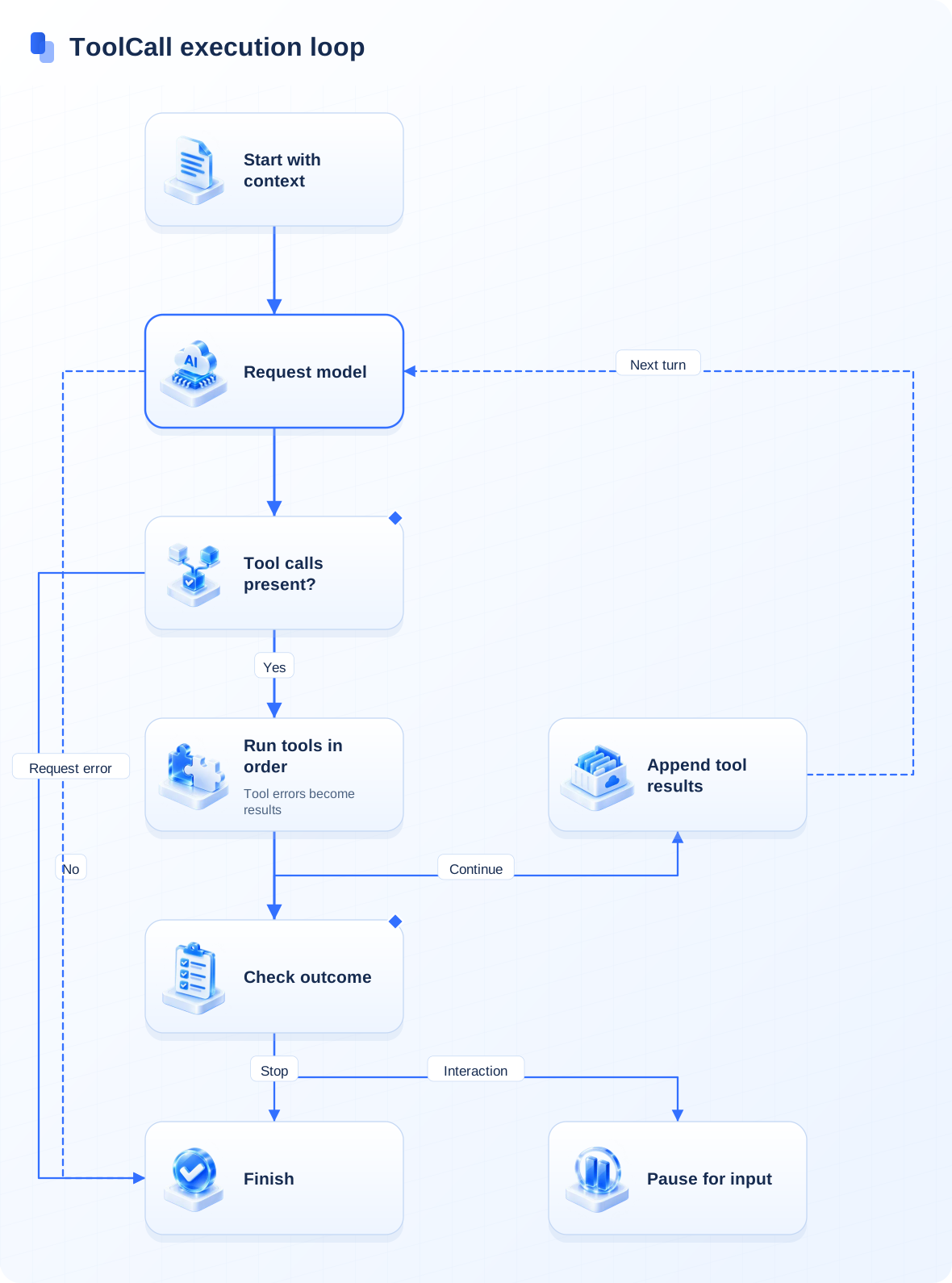
The loop runs for at most 50 rounds and returns ordinary tool errors to the model as tool results. Interaction requests pause execution; a tool termination signal, user cancellation, or model request error ends the loop. The client receives tool status updates during execution.
How to Use
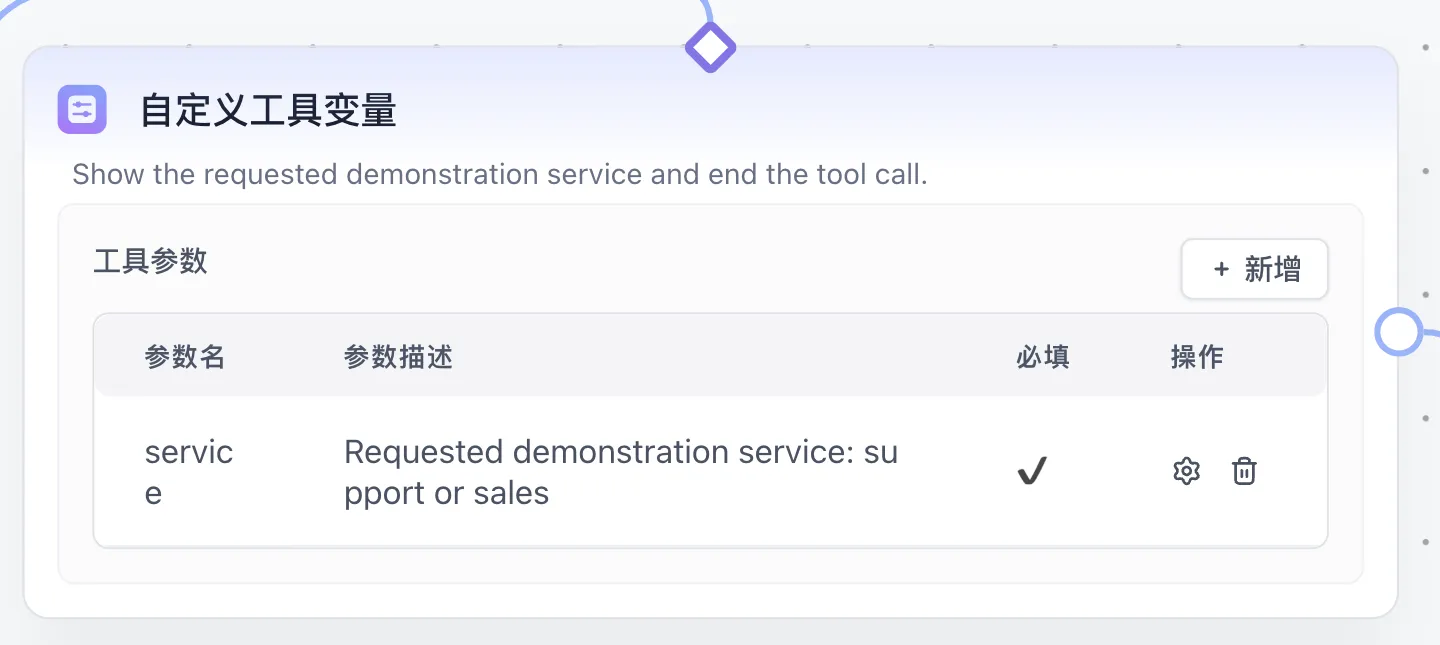
Connect the tool-call node's bottom diamond to the top diamond of a tool. For detailed connection types, tool entry ownership, and workflow boundary rules, see Workflow validation rules. The example below connects Custom Tool Variable as a tool, then passes the generated service value to Assigned Reply and Stop Tool calling.
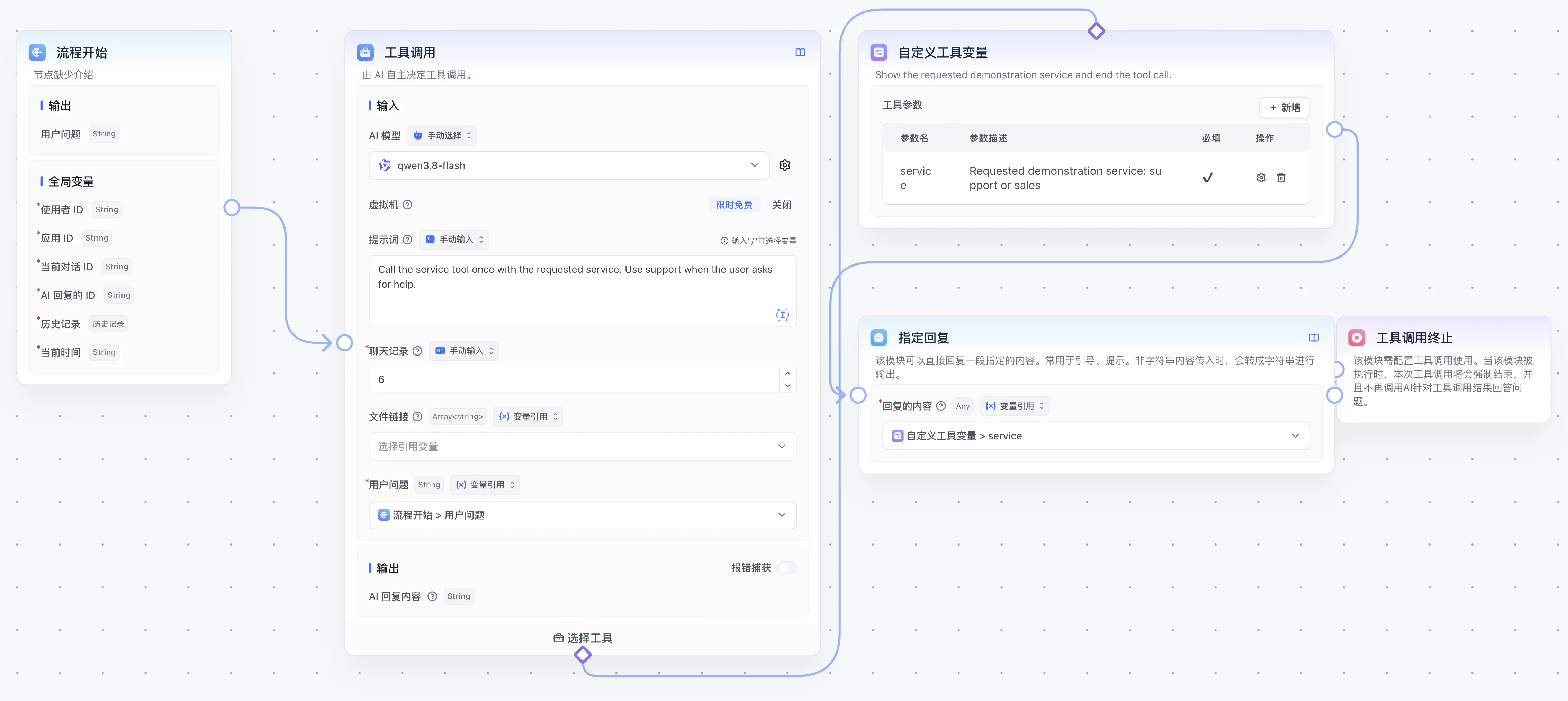
Give the tool a clear description and define required arguments. This example asks the model to choose support or sales. Inspect the generated argument during debugging before adding more tools.
Use Cases
By default, after the Tool calling node invokes a tool, it returns the tool's output to the AI for summarization. To finish immediately after the tool branch, place a Stop Tool calling node at its end.
In this verified example, the request Please call support. produces support through Assigned Reply and then reaches Stop Tool calling to end the tool-call loop directly.
Additional Nodes
When you use the Tool calling node, a Stop Tool calling node and a Custom Tool Variable node also become available, further enhancing the tool calling experience.
Stop Tool calling
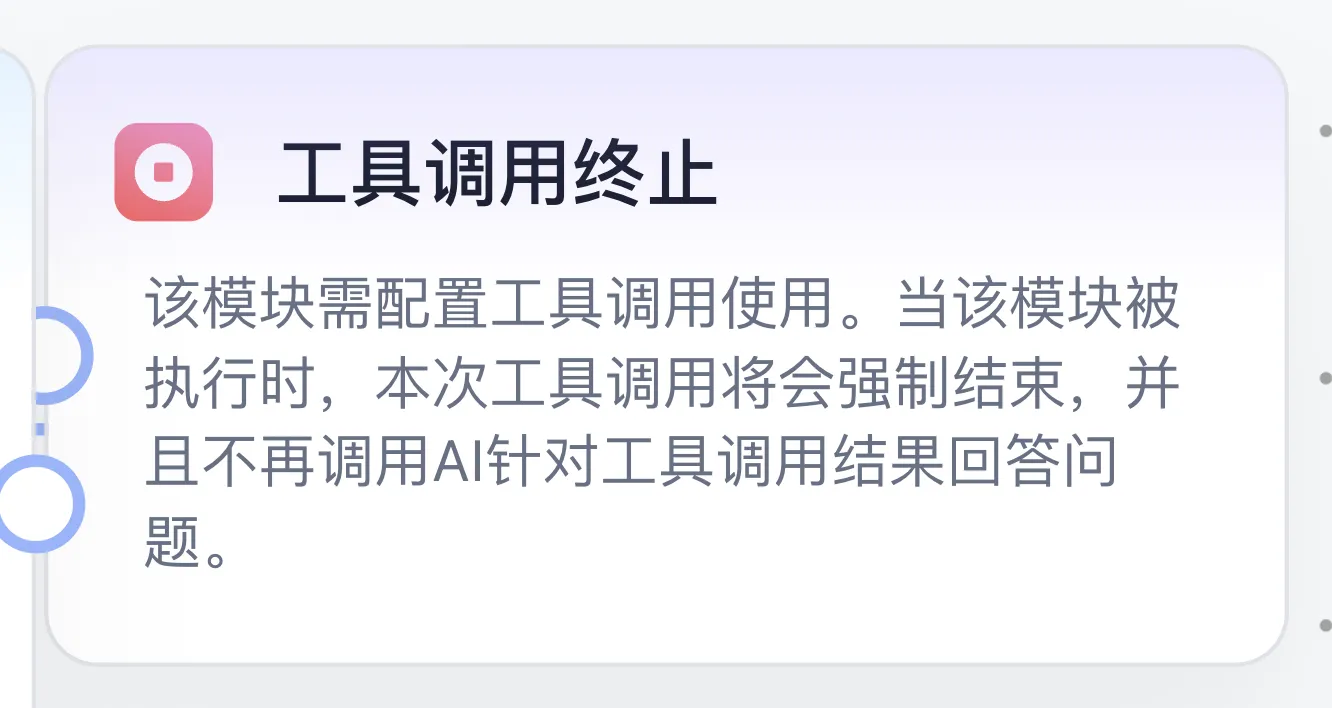
Stop Tool calling ends the current call cycle. Place it after a tool node. When the workflow reaches this node, it forcibly ends the current tool call -- no further tools are invoked, and the AI won't generate a summary based on tool results.
Custom Tool Variable
Custom Tool Variable extends tool input capabilities. For nodes that aren't recognized as tool parameters or can't be directly tool-called, you can define custom tool variables with appropriate parameter descriptions. The Tool calling node will then invoke this node and its downstream workflow accordingly.
Inputs, outputs, and boundaries
Configure the model, prompt, history, file links, and user question. The model needs tool-call support (confirm Tool call: Supported in the AI settings modal after selecting a model; choosing a model without tool-call support causes tool invocation to be skipped or fail), and the execution identity needs access to tools and their resources. Attach tools through their tool connection handles and check descriptions, required arguments, and fixed inputs. See Agent node for autonomous planning and Skill configuration.
The main output is AI Response Content as a string, with Error text for node error handling. Stop Tool calling signals the current tool-call loop to stop. To show a fixed result, connect Assigned Reply before termination.
Example: retrieve a policy on demand
- Connect Start to Tool calling. Reference the starting user question and select a model showing Tool call: Supported in the AI settings modal.
- Attach Dataset search through the tool handle and select the processed Travel Policy knowledge base. Describe the tool as retrieving travel reimbursement deadlines and required documents.
- Instruct the model to retrieve before answering policy questions. Ask “How soon after returning must I submit travel expenses?”
- Inspect tool arguments and citations in execution details. Confirm that retrieval returns
15 calendar daysand that the final answer preserves that deadline.
Use the sample from your first knowledge-base Q&A. The model chooses tools and arguments, so inspect actual calls during debugging. Design business confirmation before enabling external write operations. Separate model, argument, resource-permission, and external-service errors when troubleshooting.
Last updated