
Connect an MCP tool set
Import external MCP tools into FastGPT and verify transport, authentication, and execution.
MCP tool sets bring external capabilities into FastGPT. To expose FastGPT applications to another client, use MCP service publishing. Tool sets were introduced in v4.9.6; the connection behavior below describes the current implementation. Check the applicable release for older deployments.
Create an MCP tool set
You need tool creation permission, an external service URL and credentials, and network access from the FastGPT server.
- Go to Studio → My Tools and click New → MCP Tools in the upper-right corner.
- Enter the provider's MCP Address and Auth Configuration (Auth Type supports None,
Bearer,Basic, or Custom). - Parse the service, inspect the returned tool names, purposes, and parameters, then create the set.
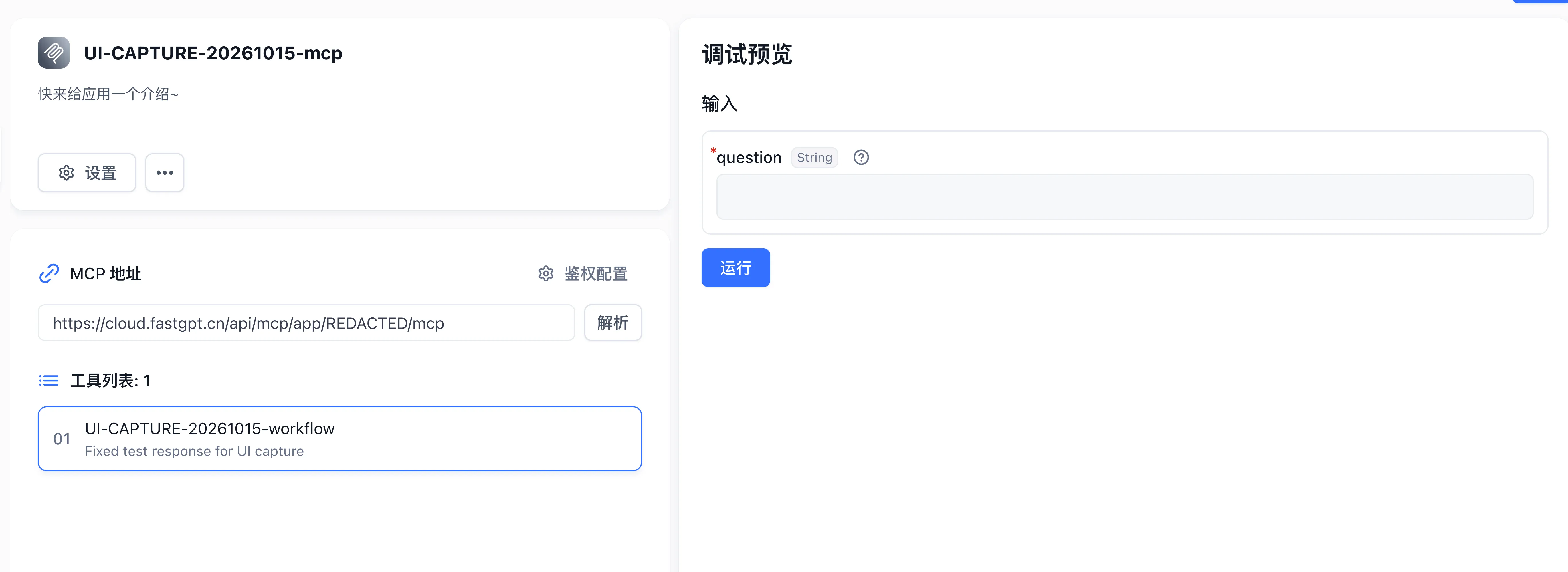
The current client tries Streamable HTTP first. Any 4xx status code other than 429 from that transport triggers a fallback attempt over SSE. Diagnose authentication, network, and service failures from their errors; changing a URL suffix alone does not establish transport compatibility.
Connect an authenticated Streamable HTTP service
For example, Baizhi Cloud Browser (also known as CapyBrowser) lets FastGPT inspect the current credential identity, prices, and cloud browser run status without an additional FastGPT plugin.
Prepare an API key you are authorized to use in the Baizhi Cloud console and review the integration guide. Create an MCP Tools item, fill in the following settings, then click Parse and complete creation.
| Setting | Value |
|---|---|
| MCP Address | https://capybrowser.app.baizhi.cloud/mcp |
| Auth Type | Bearer (under Auth Configuration) |
| Bearer Token / Secret | The raw API key, without a Bearer prefix |
Bearer mode generates Authorization: Bearer <API_KEY>. For a custom header, use the name Authorization and the complete value Bearer <API_KEY> instead. Choose one method to avoid a duplicate prefix. Keep the key in the authentication settings, out of URLs, chat messages, and public workflows.
Start with a read-only check
In the Toolkit debugging page, run only browser_auth_check with {}. Inspect isError and the text in content to confirm the expected service and account; treat missing ownership fields as unknown. Call browser_pricing if you need current prices. Neither step creates a browser run.
For a model call, first add only browser_auth_check as an individual tool to a controlled application with a model that supports tool calling, and ask it to check the current credential identity. A successful read-only check does not establish that a complete webpage task works.
Discovery also lists lifecycle tools that can change resources. People allowed to call these tools through an application may exercise the configured key's resource permissions. Do not share the entire Toolkit with untrusted applications or users. Confirm the task, prices, and permissions before creating a run; this example does not add an automatic per-call approval mechanism.
Webpage operations and ending a run
This MCP manages cloud browser runs. Navigation, clicks, and page reads still require a compatible CDP client; adding the MCP alone does not give FastGPT page control. Prepare the CDP execution client before creating a run, then follow the integration guide and retain the original Session ID.
A run may incur charges after creation. Whether the task succeeds or fails, stop a run you created and query the same Session until it reports released; verify billing settlement separately. Closing chat, removing a tool node, or deleting the MCP Toolkit does not stop the cloud browser. Do not stop a run owned by somebody else merely because you connected to it.
Public integration materials are available in the Chaitin integration repository. The contributor, ctcbyzx, contributes to that repository and maintains client integration guidance in the personal repository. For questions about this connection, use its issue tracker.
Test an MCP tool
Open the tool set, choose a read-only tool, supply a known input according to its contract, and run it. Expect the structure documented by the provider. Compare the result with the service documentation before using it in an application. Debugging invokes the real service; effects and charges follow the provider's behavior.
Model tool calls
Call one tool
Select the tool in an application using a model supporting tool calls. Ask a question matching the tool's purpose, then inspect execution details for its name, arguments, and returned value.
Call a tool set
Select the set to make multiple related operations available. Ensure descriptions distinguish their purposes. Workflows can invoke tools through tool-related nodes; Agents select available operations according to the task.
Troubleshoot connections
| Symptom | Cause and Troubleshooting Steps |
|---|---|
| Parse failure or invalid response format error | Verify the MCP endpoint URL, authentication headers, and network reachability from the FastGPT server; non-compliant JSON-RPC 2.0 responses from the external server return an explicit format error hint |
| SSE session returns HTTP 404 | The external MCP server's SSE session expired or restarted; initiate a fresh request to establish a new session |
| Tools appear in the list but execution fails | Expand execution details to read the error text returned by the MCP tool (such as rate limits, parameter validation errors, or permission denials); model-generated arguments are passed through with configured fixed arguments taking precedence |
| Request timeout | Check external MCP service latency and network connectivity, and test with a minimal input in the tool set debug panel first |
Store credentials in controlled configuration. Check external business permissions and FastGPT resource permissions separately.
Last updated