
TokenDance Integration Example
TokenDance integration example for FastGPT
TokenDance is a multi-provider AI API gateway that aggregates various mainstream large language models with support for OpenAI, Anthropic, Google GenAI, and other protocols. TokenDance's API is compatible with the OpenAI format, making it easy to integrate with FastGPT.
Before reading this guide, make sure you've read the Model Configuration Guide.
1. Get an API Key
- Visit TokenDance Console, register, and log in.
- Go to the API Keys page and click "Create Key".
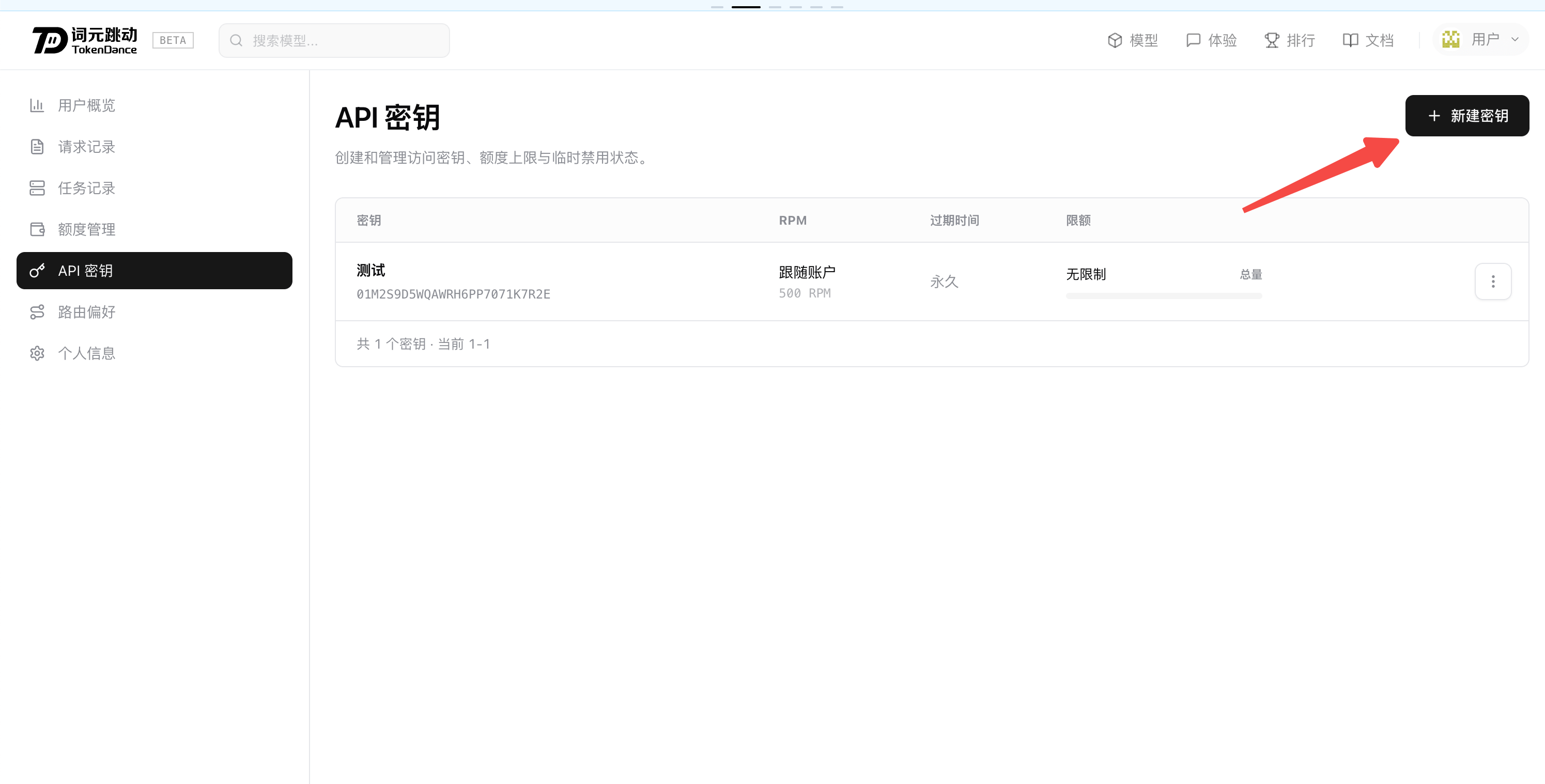
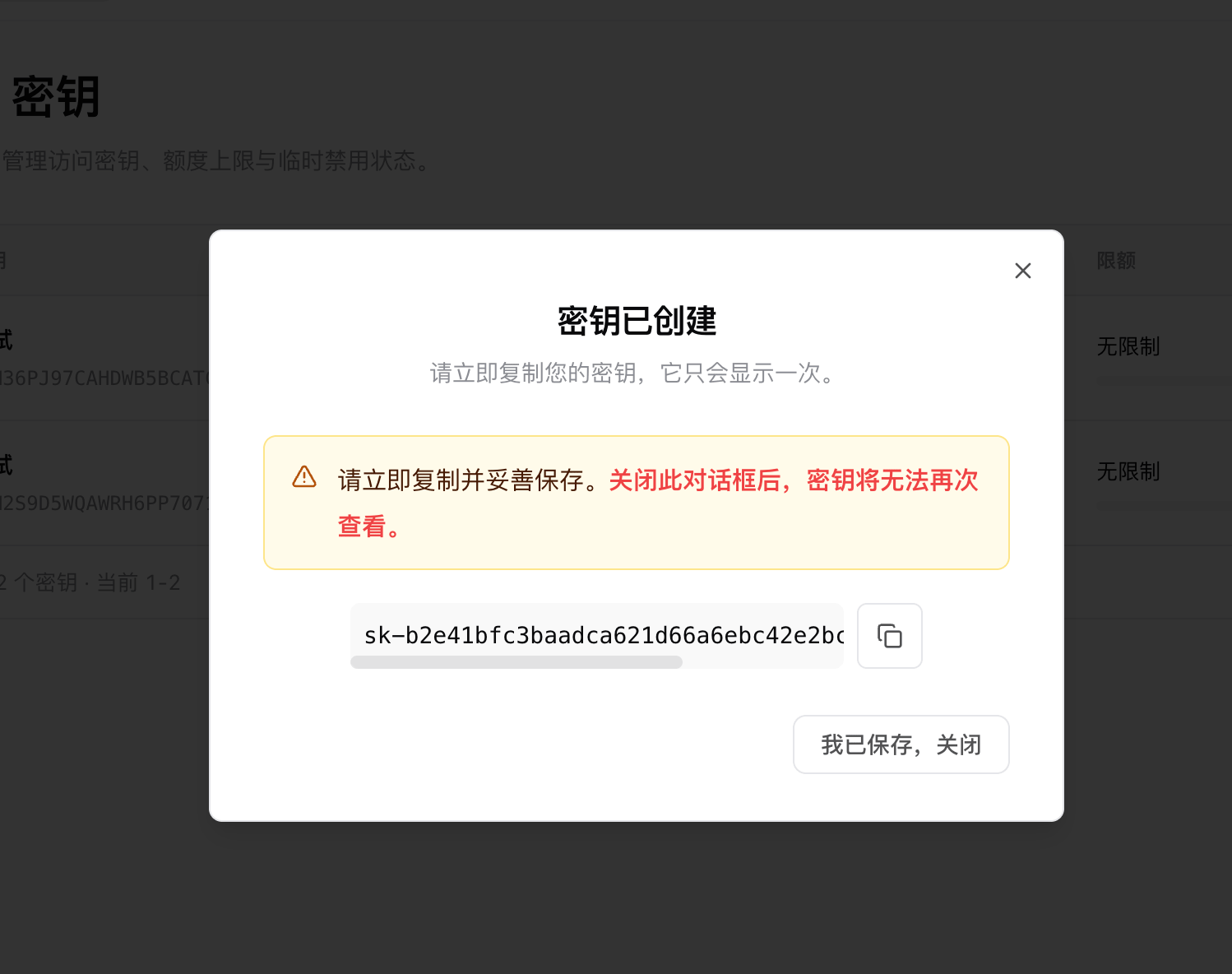
- Once created, copy and securely store your API Key (it will only be displayed once).
2. Add Models
The system includes some built-in mainstream models. If the model you need is not listed in the dropdown, you can enable it directly on the Model Configuration page or add it manually.
Common Models List
| Model ID | Context | Max Output | Description |
|---|---|---|---|
deepseek-v4.1-flash | 1000K | 8K | DeepSeek next-gen native multimodal high-speed model |
glm-5.3-flash | 1000K | 8K | Zhipu GLM-5 native multimodal cost-effective reasoning model |
qwen3-max | 256K | 8K | Qwen flagship model optimized for RAG and tool calling |
kimi-k2.5 | 256K | 8K | Moonshot native multimodal model with vision and complex reasoning |
minimax-m2.7 | 200K | 8K | MiniMax next-generation productivity and agent execution model |
Note: TokenDance supports many more language, embedding, and multimodal models. For the complete list, see the TokenDance Models List.
3. Add a Model provider
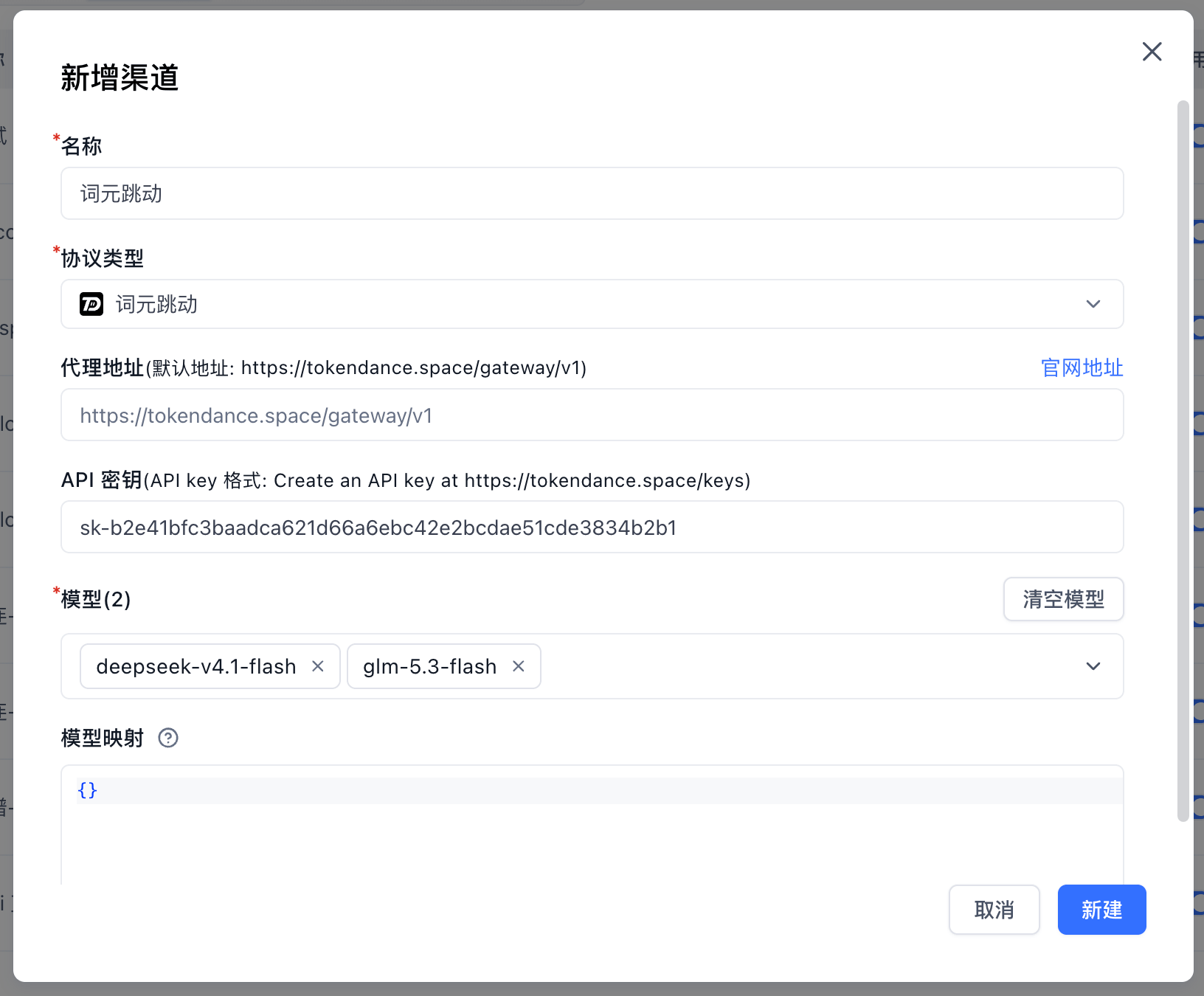
On the Model providers page, click "Add Channel" and configure the TokenDance channel:
- Name: Custom channel name, e.g.,
TokenDance - Protocol type: Select TokenDance (or OpenAI)
- Proxy URL: Default URL is
https://tokendance.space/gateway/v1 - API Key: Enter the TokenDance API Key obtained in the previous step
- Models: Select the enabled or added models (such as
deepseek-v4.1-flash,glm-5.3-flash, etc.)
4. Test Models
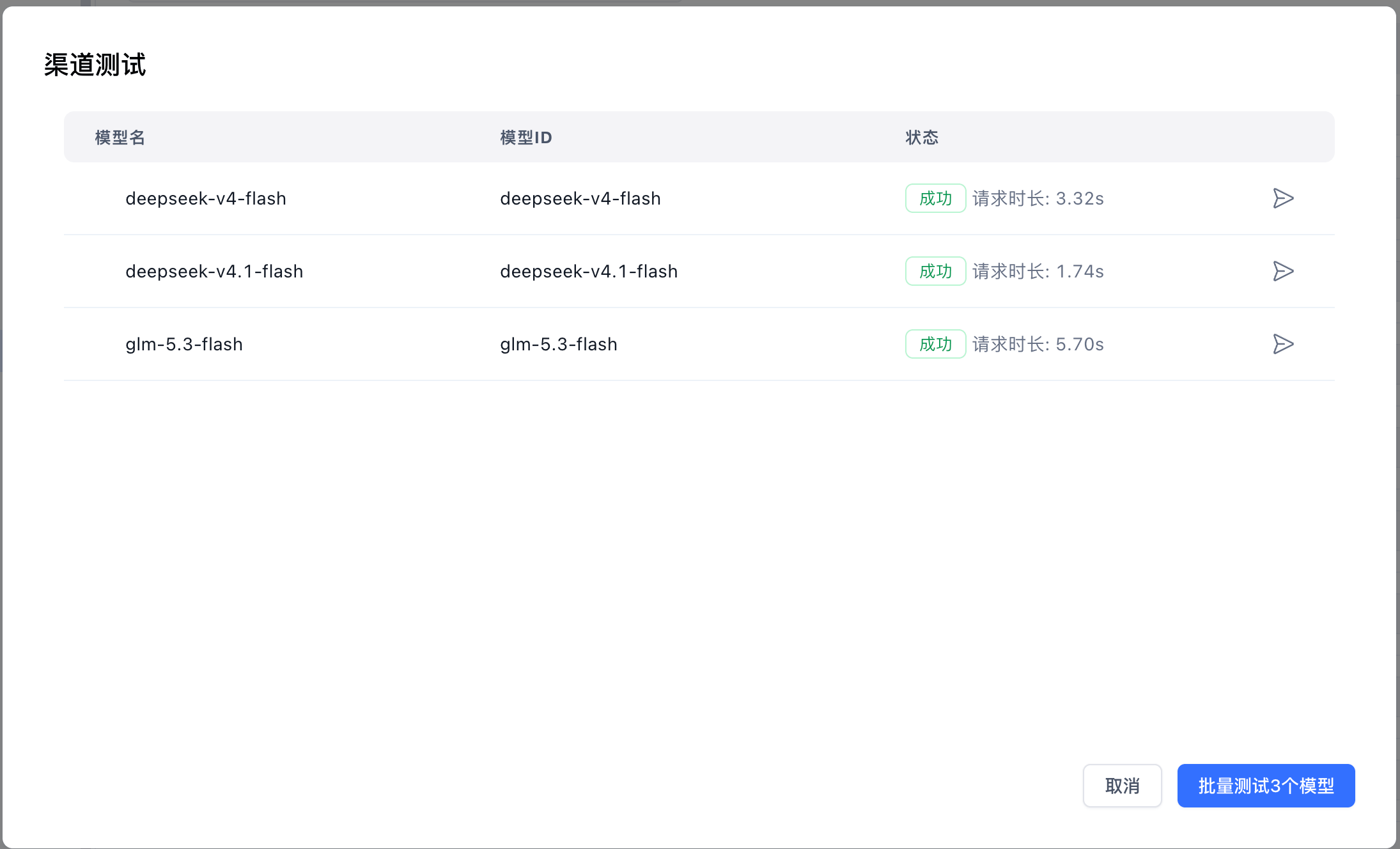
After configuration, click the test button in the channel list to verify channel connectivity and model availability.
5. Associate Existing Channel
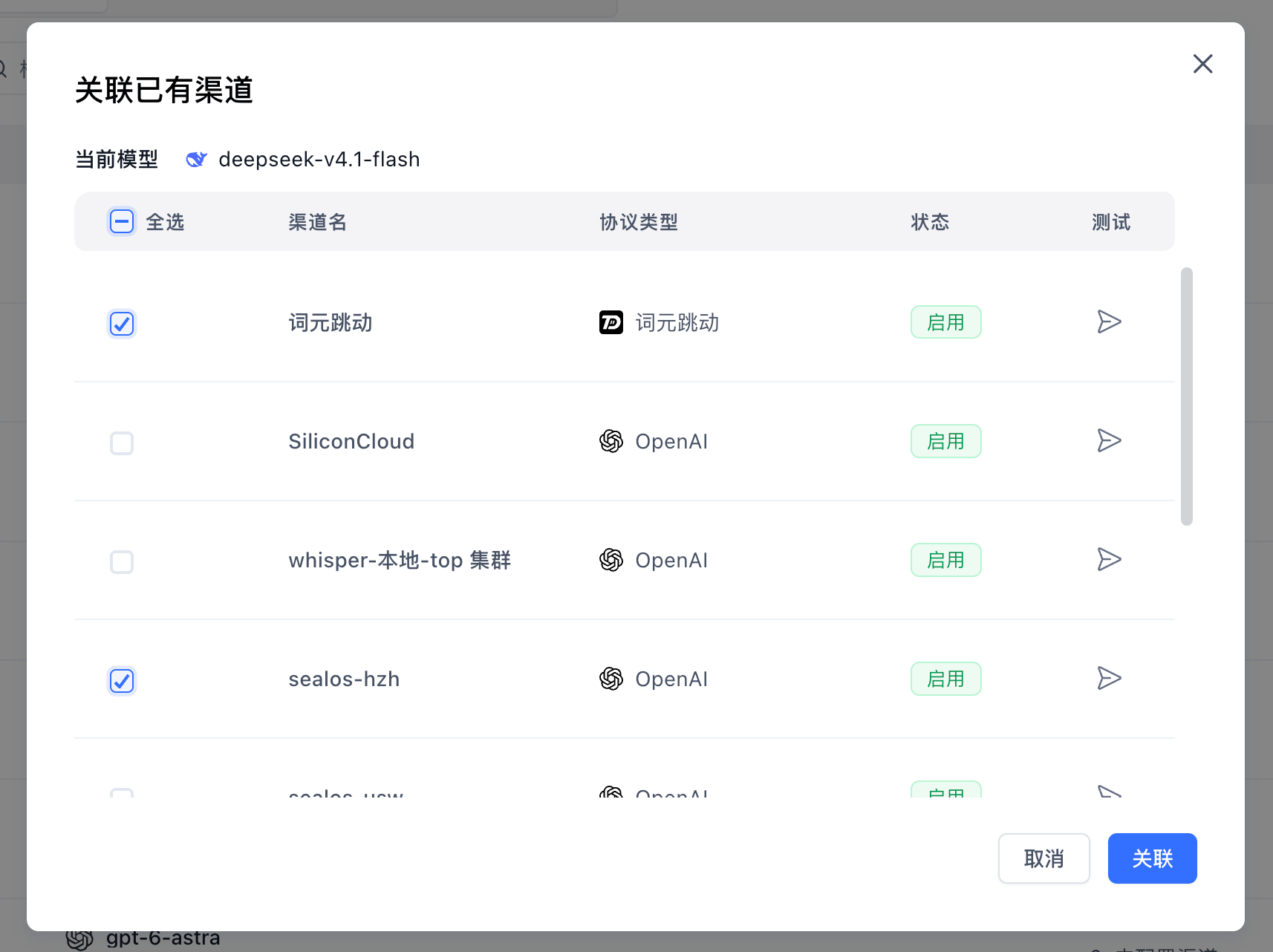
You can also find the corresponding model on the "Model Configuration" page, open "Associate Existing Channel", select and test whether the channel is working properly, and click "Associate".
Last updated