
Teams, Groups & Permissions
How to manage FastGPT teams, member groups, and permission settings
Teams, Groups & Permissions
Permission System Overview
FastGPT's permission system combines attribute-based and role-based access control, providing fine-grained permission management for team collaboration. Through members, departments, and groups, you can flexibly configure access to teams, apps, and knowledge bases.
Teams
Each user can belong to multiple teams. The system automatically creates an initial team for every user. Manual creation of additional teams is not currently supported.
Permission Management
FastGPT offers three permission management levels:
Member Permissions: Highest priority, directly assigned to individuals
Department & Group Permissions: Use union logic, lower priority than member permissions
Permission evaluation follows this logic:
First, check the user's individual member permissions
Then, check permissions from the user's departments and groups (union)
Final permissions are the combination of the above
Authorization logic:
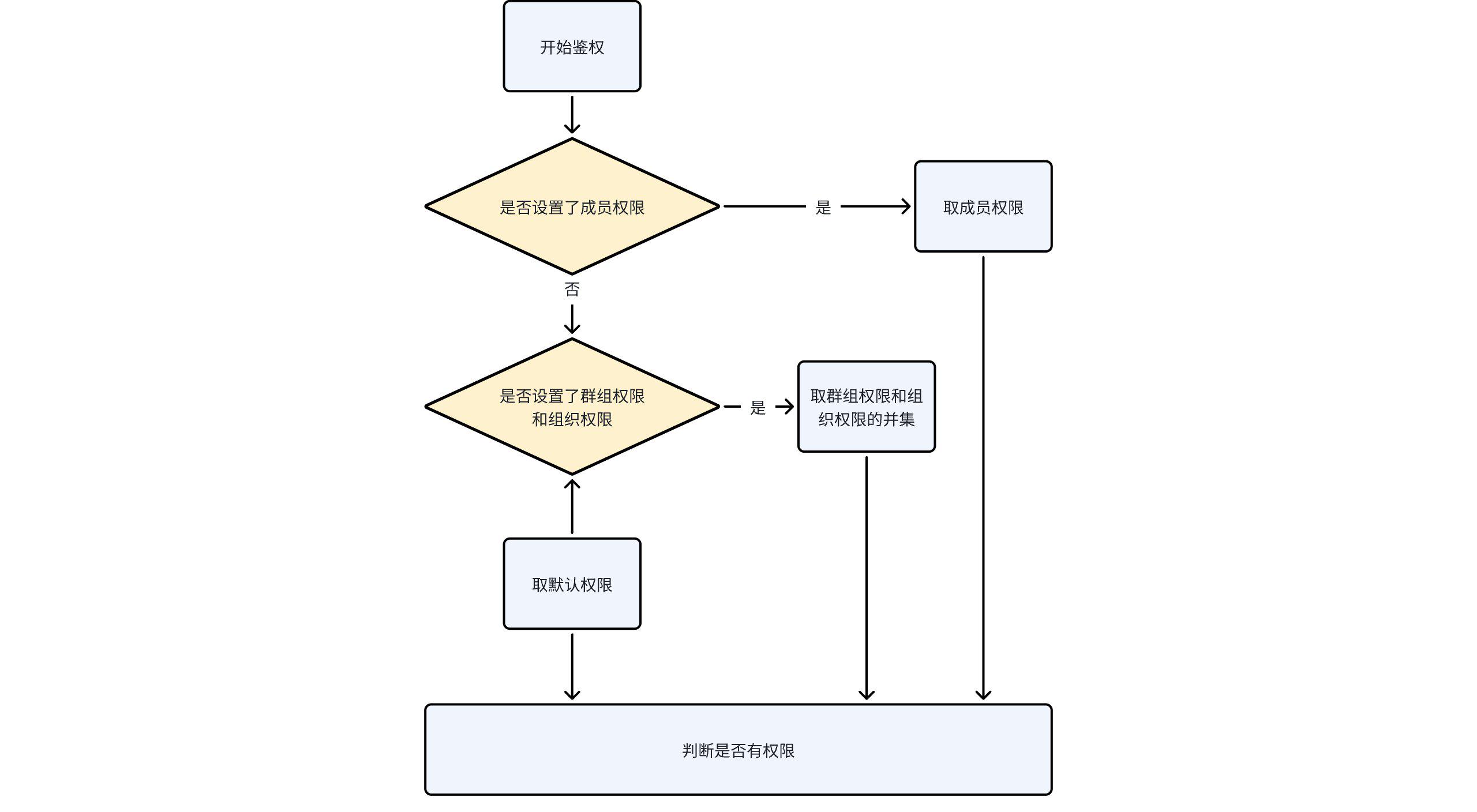
Resource Permissions
Different resources have different permissions.
Resources refer to concepts like apps, knowledge bases, teams, etc.
The table below shows the manageable permissions for different resources.
| Resource | Manageable Permissions | Description |
|---|---|---|
| Team | Create Apps | Create, delete, and other basic operations |
| Create Knowledge Bases | Create, delete, and other basic operations | |
| Create Team APIKey | Create, delete, and other basic operations | |
| Manage Members | Invite/remove users, create groups, etc. | |
| App | Can Use | Allows conversation interaction |
| Can Edit | Modify basic info, workflow orchestration, etc. | |
| Can Manage | Add or remove collaborators | |
| Knowledge Base | Can Use | Can call this knowledge base in apps |
| Can Edit | Modify knowledge base content | |
| Can Manage | Add or remove collaborators |
Collaborators
You must add collaborators before managing their permissions:
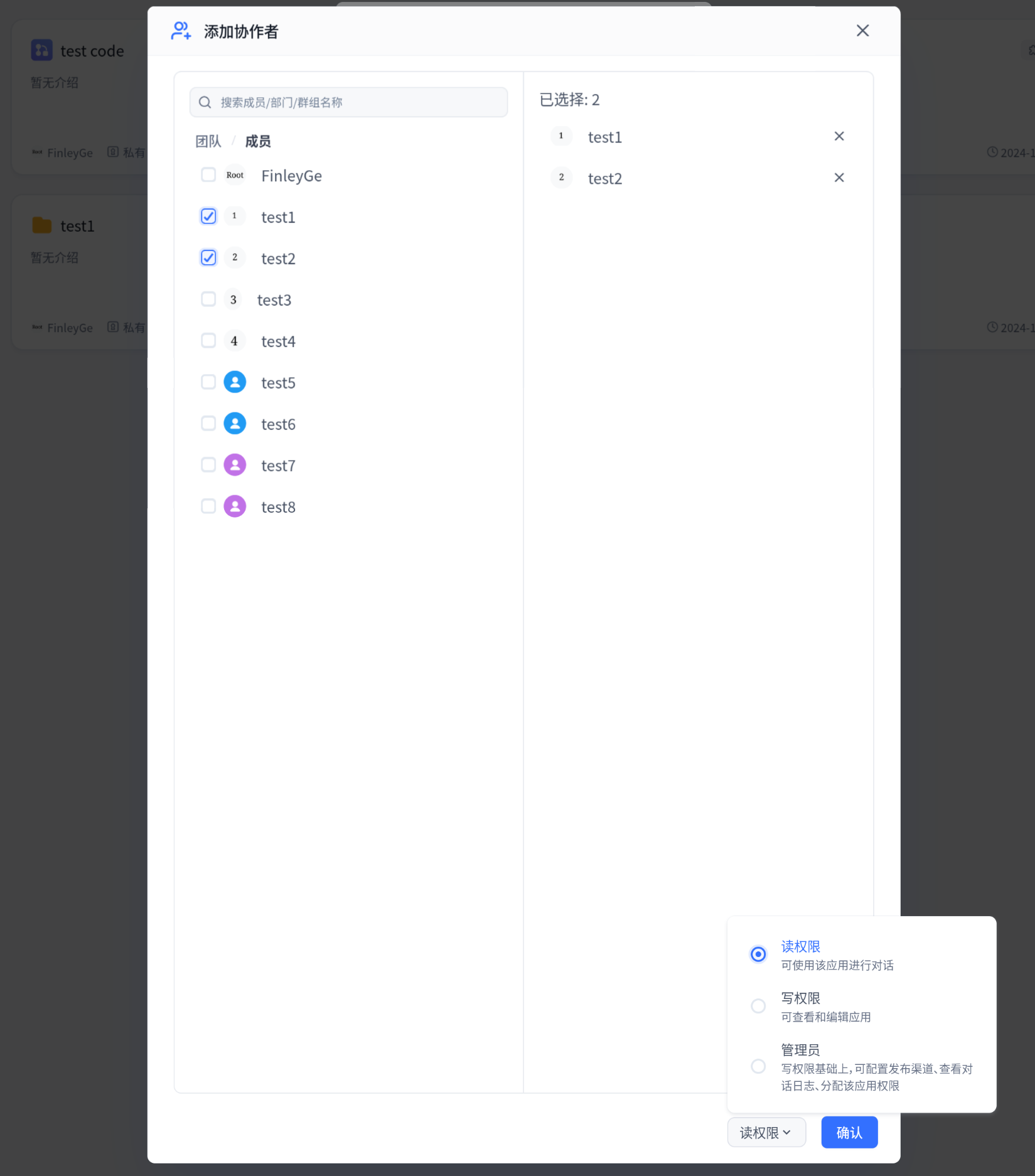
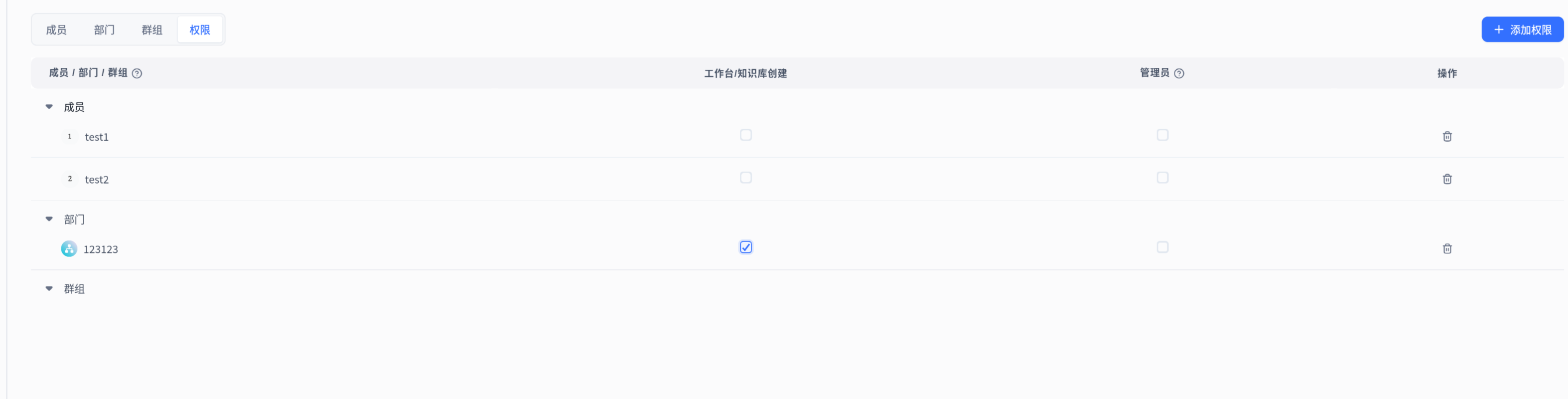
When managing team permissions, first select members/organizations/groups, then configure permissions.
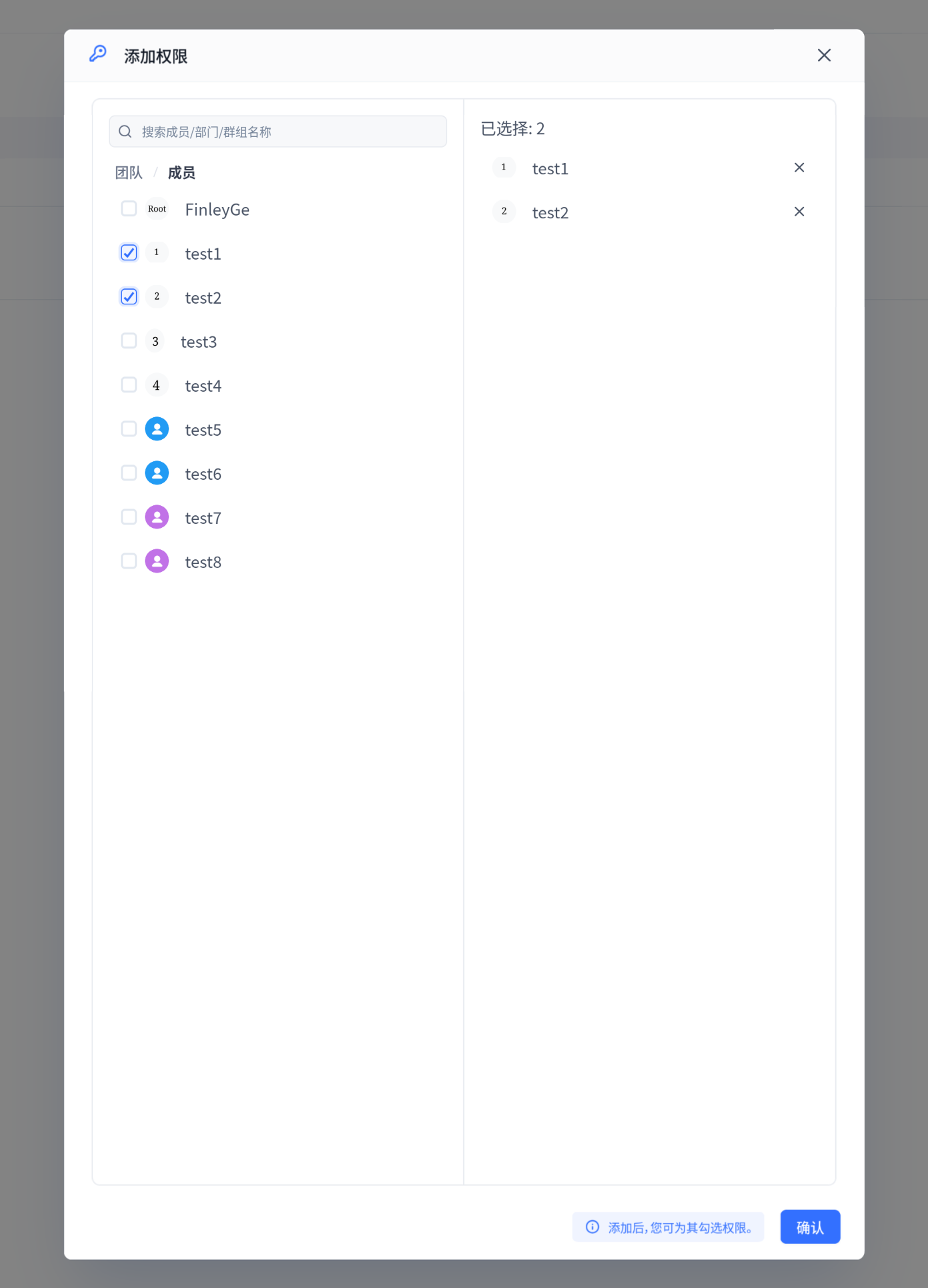
For resources like apps and knowledge bases, you can directly modify member permissions.
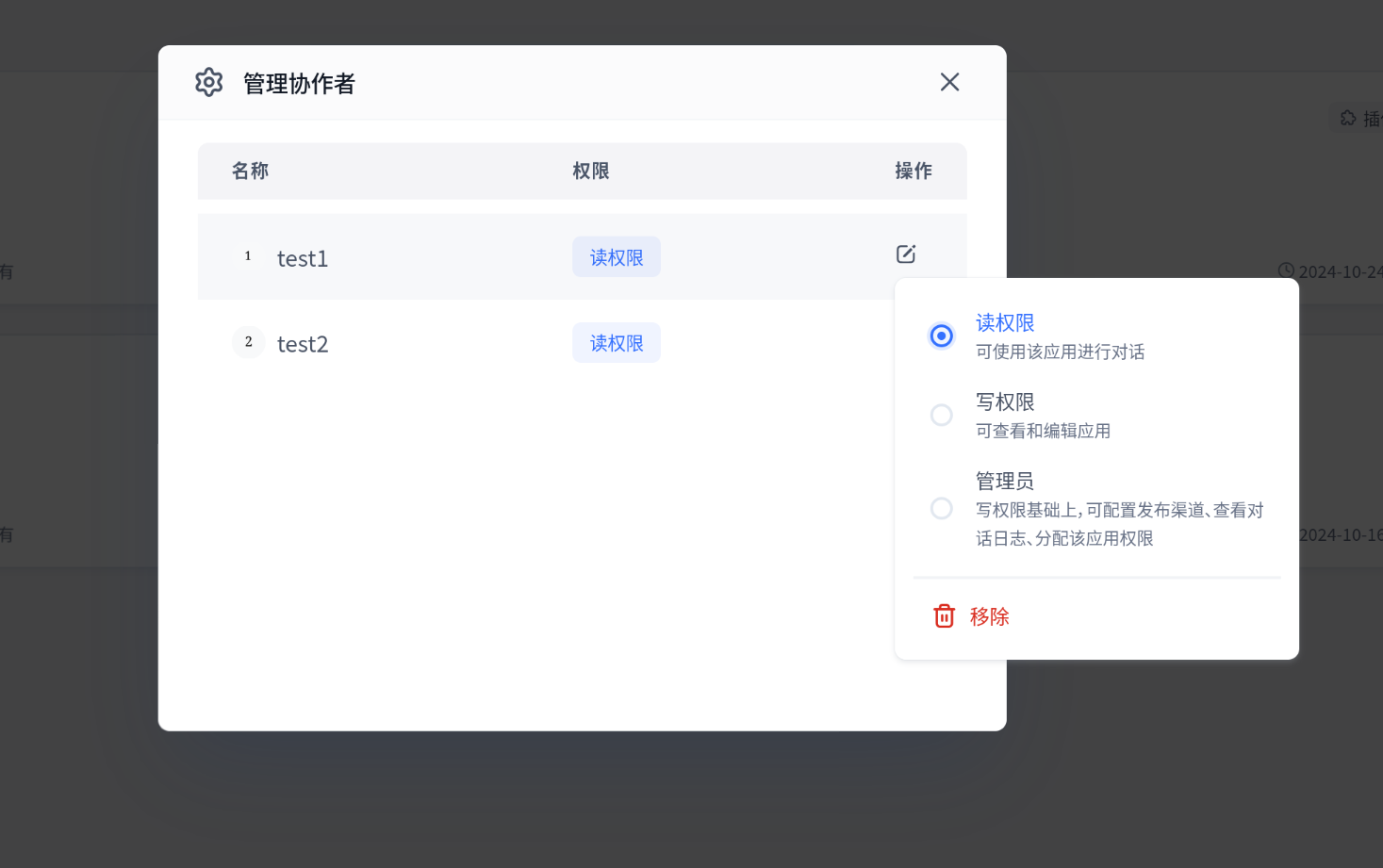
Team permissions are set on a dedicated permissions page.
Special Permissions
Admin Permissions
Admins primarily manage resource collaboration relationships, with these limitations:
- Cannot modify or remove their own permissions
- Cannot modify or remove other admins' permissions
- Cannot grant admin permissions to other collaborators
Owner Permissions
Each resource has a unique Owner with the highest permissions for that resource. Owners can transfer ownership, but will lose all permissions to the resource after transfer.
Root Permissions
Root is the system's only super admin account, with complete access and management rights to all resources across all teams.
Tips
1. Set Default Team Permissions
Use the "All Members Group" to quickly set baseline permissions for the entire team. For example, grant everyone access to an app.
Note: Individual member permissions override all-member group permissions. For example, if App A has all-member edit permissions, but User M is individually set to use-only, User M can only use the app, not edit it.
2. Batch Permission Management
Create groups or organizations to efficiently manage permissions for multiple users. Add users to a group, then grant permissions to the entire group.
Developer Reference
The following content is for developers. Skip if you're not doing custom development.
Permission Design Principles
FastGPT's permission system is inspired by Linux permissions, using binary storage for permission bits. A permission bit of 1 means the permission is granted, 0 means no permission. Owner permissions are specially marked as all 1s.
Permission Table
Permission information is stored in MongoDB's resource_permissions collection, with these main fields:
- teamId: Team identifier
- tmbId/groupId/orgId: Permission subject (one of three)
- resourceType: Resource type (team/app/dataset)
- permission: Permission value (number)
- resourceId: Resource ID (null for team resources)
The system implements flexible and precise permission control through this data structure.
The schema for this table is defined in packages/service/support/permission/schema.ts:
export const ResourcePermissionSchema = new Schema({
  teamId: {
    type: Schema.Types.ObjectId,
    ref: TeamCollectionName
  },
  tmbId: {
    type: Schema.Types.ObjectId,
    ref: TeamMemberCollectionName
  },
  groupId: {
    type: Schema.Types.ObjectId,
    ref: MemberGroupCollectionName
  },
  orgId: {
    type: Schema.Types.ObjectId,
    ref: OrgCollectionName
  },
  resourceType: {
    type: String,
    enum: Object.values(PerResourceTypeEnum),
    required: true
  },
  permission: {
    type: Number,
    required: true
  },
  // Resrouce ID: App or DataSet or any other resource type.
  // It is null if the resourceType is team.
  resourceId: {
    type: Schema.Types.ObjectId
  }
});File Updated