# General Troubleshooting
> Troubleshoot common self-hosted FastGPT issues including port conflicts, vector database setup, HTTPS uploads, and model timeouts.
Source: https://doc.fastgpt.io/self-host/troubleshooting/faq
Last Updated: 2026-11-13
### How do I troubleshoot a frontend page crash or URI malformed error?
1. Record reproduction steps, FastGPT version, console errors, and failed requests.
2. Check Admin model configuration, service initialization logs, and network requests.
3. Reproduce in a current stable browser with translation and relevant extensions disabled. Remove secrets and personal data before filing an issue.
4. For `URI malformed`, record the affected URL and action, then inspect URL encoding. If configuration fails to load, resolve the related server error before refreshing.
***
### What limits the maximum chunk size in a Dataset?
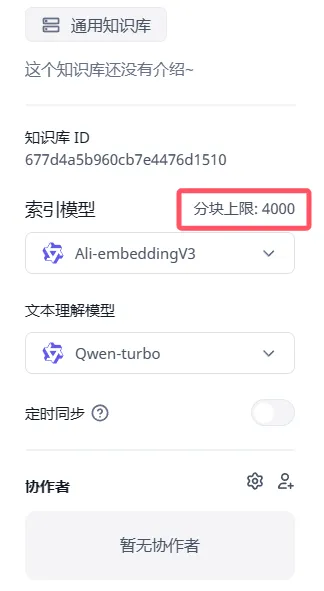
This limit is determined by the single-chunk token limit of the Dataset's selected Embedding model and applies across all deployment methods. Different Embedding models have different limits; you can edit the model's chunk parameters under **Admin → System Resources → System Models → Model configuration**.
***
### How do I mount a WeChat Mini Program verification file into the container?
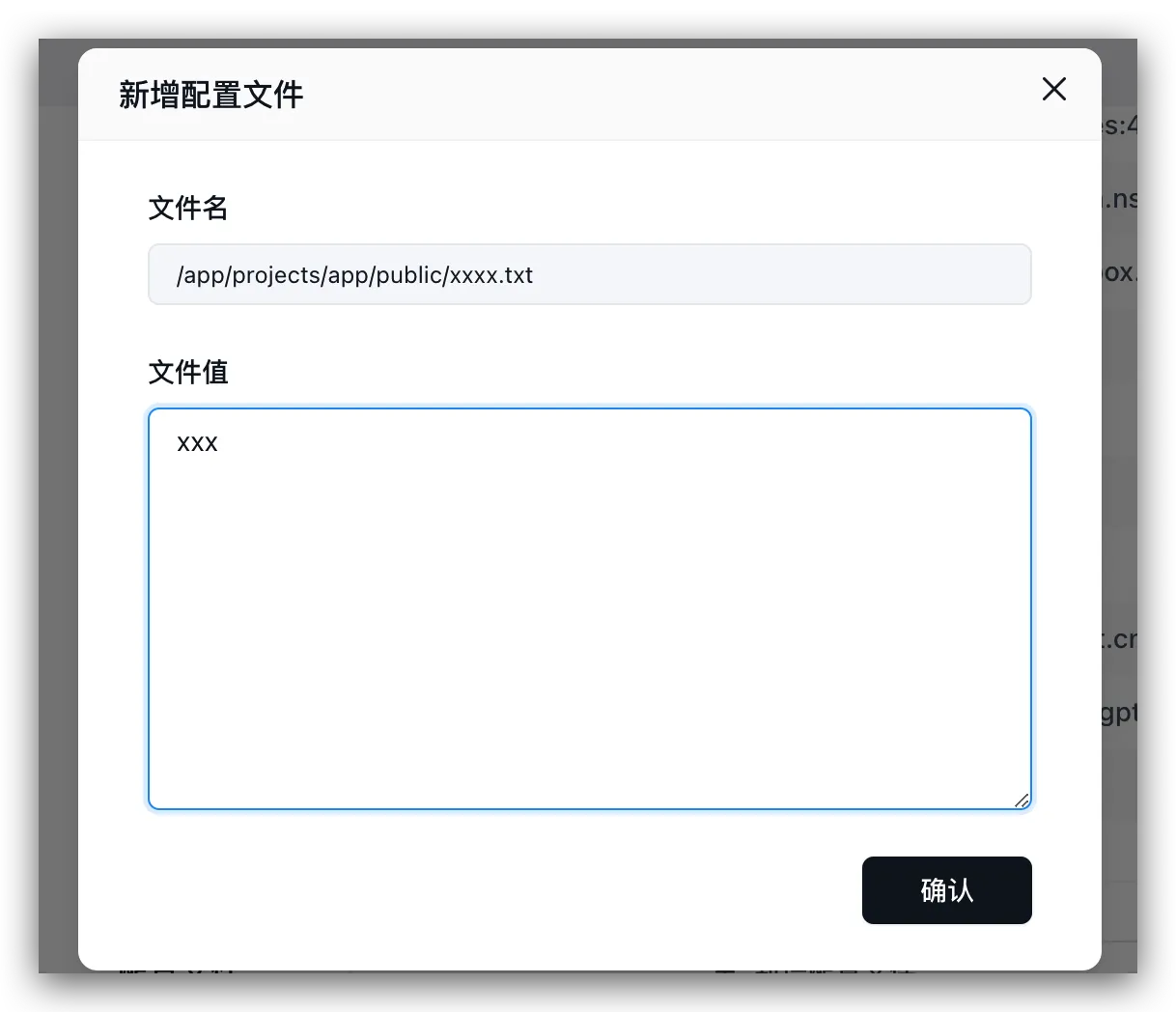
Mount the verification file to `/app/projects/app/public/xxxx.txt` inside the container and restart the service:
* **Docker Compose**: Add `- ./xxxx.txt:/app/projects/app/public/xxxx.txt` under `volumes` for the `fastgpt-app` service in `docker-compose.yml`, then run `docker compose up -d`.
* **Sealos**: Open the app update page in Sealos **App Management**, click **Add Configuration File** under **Configuration Files**, set the file path to `/app/projects/app/public/xxxx.txt`, paste the file content, and apply the changes:
***
### How do I fix service startup failures caused by an occupied host port?
Check the `ports` mapping of the failing service in `docker-compose.yml` and change the host port on the left side of the colon to an available port (for example, change `3000:3000` to `3001:3000`) while keeping the container port on the right unchanged, then run `docker compose up -d`.
***
### Can FastGPT run purely locally or offline?
Yes. Prepare local language and Embedding models together with the databases, object storage, AI Proxy, and plugin services required by the deployment template. Offline installations also need image archives, model files, and plugin packages prepared in advance. Verify each request path.
***
### Why do some models fail at Question Classification or Content Extraction?
Inspect Run Details and the model response. Confirm that the model and channel support the tool calling or structured output required by the node. JSON parsing errors can also result from response formatting, truncation, or prompts. Test the model in Admin, reproduce the node with a small input, and adjust model capabilities and prompts accordingly. See [Model Troubleshooting](https://doc.fastgpt.io/self-host/troubleshooting/model-errors).
***
### Why does response latency increase after enabling Query Optimization?
Enabling **Query Optimization** adds an LLM call and may generate multiple retrieval queries. Inspect the timing of query optimization, recall, and reranking in Run Details, then adjust the optimization model, retrieval settings, and concurrency. Actual query counts depend on configuration and runtime results.
***
### Why does chat work in the web UI while API requests fail?
Compare the app, identity, request body, and `stream` value in both calls. Test streaming and non-streaming separately and record HTTP status, error body, and server requestId. Trace the request through FastGPT, AI Proxy, and the upstream model.
***
### How do I troubleshoot stalled or slow Dataset indexing?
1. Inspect Collection processing status and parsing/indexing errors.
2. Test the Dataset’s Embedding model and channel in Admin.
3. Check provider rate limits, balance, request latency, and parsing/vector queue concurrency.
4. Resolve the error and use the available retry action. See [Dataset FAQ](https://doc.fastgpt.io/guide/dataset/faq).
***
### Connection error
From the FastGPT service network, check the AI Proxy address, port, DNS, TLS, and proxy configuration. Then check AI Proxy connectivity to the model upstream. For containers on a shared network, use service names and container ports; for host services, use a host address reachable from the container.
***
### Changes to vectorModels do not take effect
1. Enable the new Embedding model in the admin panel's **Model Configuration**, then refresh the page. For older versions that configure models through `vectorModels` in `config.json`, restart the service after editing the file.
2. Existing Datasets do not automatically switch models. As the Dataset owner, open its **Configuration** page, select the new **Embedding model**, and confirm reindexing. You do not need to delete the Dataset.
3. If processing or reindexing is in progress, wait for it to finish before switching. Reindexing calls the selected model and is billed according to its pricing.
***
### How to change the root password
* **Web UI**: Sign in as `root`, open **Account → Personal information** in the left navigation, and click **Change** on the **Password** row under **General information**.
* **CLI Reset (Forgotten Password)**: Run `docker compose exec fastgpt-app node /app/scripts/reset-root-password.cjs 'your_new_password'` inside the application container to reset the password immediately without restarting.
* **Legacy versions (v4.17.2 and earlier)**: Modify the `DEFAULT_ROOT_PSW` environment variable and restart FastGPT.
For detailed steps, see [Modify and Reset Root Password](https://doc.fastgpt.io/self-host/config/root-password).
***
### Does FastGPT support OpenAI's Responses API (/v1/responses)?
No (up to 4.17.3); requests return 404. Use `POST /api/v1/chat/completions` to call an app instead; it is compatible with the OpenAI Chat Completions format.
***
### After upgrading, FastGPT fails to start with "index not found (collection=modeldata_v2)"
Applies to: 4.16.2 and later, with Milvus. The log contains `IndexNotExist ... index not found[collection=modeldata_v2]`.
Cause: Starting with 4.16.2, both vector search and full-text search use the `modeldata_v2` collection. If it already exists at startup but lacks the full-text search index, FastGPT reports this error and exits. Why the index is missing has not been confirmed. Milvus must also be 2.5.16 or later.
What to do: before upgrading, follow [Milvus BM25 Full-Text Search Configuration and Migration](https://doc.fastgpt.io/self-host/milvus-bm25) to back up and upgrade Milvus, then upgrade FastGPT and migrate the data. If you already see this error, the collection has to be deleted and recreated, which deletes data: back up first and contact technical support. Until the migration finishes, knowledge base search cannot find the old data.
***
### Deploying with docker-compose reports AGENT_SANDBOX_OPENSANDBOX_IMAGE is not configured or AGENT_SANDBOX_PREVIEW_PROXY_URL is wrong
Applies to: 4.16.0 and later. Since 4.16.0 the sandbox image is set only by `AGENT_SANDBOX_OPENSANDBOX_IMAGE`, and `AGENT_SANDBOX_PREVIEW_PROXY_URL` must be configured. Using a 4.15 or earlier docker-compose template with a newer image causes both errors.
What to do: follow [Deploy with Docker Compose](https://doc.fastgpt.io/self-host/deploy/docker) and use the one-click script, or manually download the template that matches the image version (use `main` for 4.17.x and `v4.16` for 4.16.x).
Note: running the one-click script again in a directory that is already deployed regenerates the database passwords and `AES256_SECRET_KEY` and overwrites `docker-compose.yml`. Back up the original file first. To keep your data, choose not to auto-generate passwords (or set `FASTGPT_AUTO_GENERATE_CREDENTIALS=false`) and copy the original passwords and secrets over.
***
### Parallel Run reports parallel_task_not_reach_end, or runs only one task
Applies to: verified against 4.17.3. Parallel Run starts one task per element of the input array. A whole block of multi-line text (for example, one URL per line) is treated as an array with a single element, so only one task runs. `parallel_task_not_reach_end` means the sub-workflow of a task did not reach the End node; if the sub-workflow has a more specific error, that error is shown instead.
What to do: add a Code run node before Parallel Run that splits the text into an array by newline, for example returning `text.split('\n').map(s => s.trim()).filter(Boolean)`, and have the Parallel Run array input reference its result. If it still fails, open the failing task's Run Details and check whether the sub-workflow reached the End node.
***
### Uploading files over HTTPS fails with "s3 upload network error"
Applies to: verified against 4.17.3. The address the browser uploads files to comes from `FILE_DOMAIN`, or from `FE_DOMAIN` if it is not set. If the page uses HTTPS but this address is `http://`, the browser blocks the request as mixed content and it never reaches the server.
What to do: change the matching setting to a reachable HTTPS address (`FILE_DOMAIN` if it is set, otherwise `FE_DOMAIN`) and restart. You can confirm in the browser console whether there is a Mixed Content error.
***
### On Windows, FastGPT fails to start in local development because it can't reach the plugin service (localhost:3004)
Applies to: the local development environment (`deploy/dev`). `fastgpt-plugin` runs with host networking on port 3004, and FastGPT exits at startup if it can't reach `http://localhost:3004`. On Windows Docker Desktop, host networking by default only takes effect inside Docker's own virtual machine, so the host cannot reach it.
What to do: in Docker Desktop (version 4.34 or later, signed in), go to Settings → Resources → Network, check Enable host networking, and restart; or develop under WSL2, Linux, or macOS, as the development docs recommend.
***
### The model reports "Download multimodal file timed out", or can't read images
Applies to: 4.15.2 and later. `MULTIPLE_DATA_TO_BASE64` defaults to `true` in 4.15.2 and to `false` from 4.15.3. When it is `false`, FastGPT passes file download short links that start with `http(s)://` to the model provider, which downloads them itself. The short link prefix is the first one set among `FILE_DOWNLOAD_PUBLIC_URL_PREFIX`, `FILE_DOMAIN`, and `FE_DOMAIN`. If it is an internal address, the provider cannot reach it and the download times out (it may return `Download multimodal file timed out`).
Solutions: either set `MULTIPLE_DATA_TO_BASE64=true` so FastGPT transmits base64 data payloads directly; or set `FILE_DOMAIN` to a public FastGPT endpoint reachable by the upstream model provider, keeping `FE_DOMAIN` for user browser access.
***
### Importing a template reports "The template file format is incorrect, it should be the csv file with the first column as q,a,indexes"
Applies to: 4.9.11–4.15.8.
Cause: These versions only accept CSV files, and the file content (after trimming leading and trailing whitespace) must start with `q,a,indexes`. A header with every column wrapped in quotes (such as `"q","a","indexes"`), a header written as `index`, or extra content before the first line all trigger this error.
What to do: fill in the CSV template provided on the import page, open the file in a text editor and confirm the first line starts with `q,a,indexes`, and do not save it as `.xlsx`. You can also upgrade to 4.16.0 or later: it supports `.csv` and `.xlsx`, with the headers `q`, `a`, `index` (repeatable), and `metadata` (optional), and the old `q,a,indexes` header still works, so you do not need to change the file. See [Template Import](https://doc.fastgpt.io/guide/dataset/template) for the new template.
***
### How do I get the model's thinking content when calling the chat API?
Applies to: 4.15.2 and later. The thinking content is returned in a separate `reasoning_content` field, apart from the body text in `content`: in streaming responses, a chunk that carries thinking has `reasoning_content` in its `choices[0].delta`; in non-streaming responses, a plain text answer has `reasoning_content` in `choices[0].message`. The field is present only when the model actually outputs thinking content and FastGPT can recognize it: the upstream returns a `reasoning_content` field, or, with thinking support turned on in the model config, the body wraps it in ``. From 4.17.1, OpenAI-type channels of AI Proxy can also map the upstream `reasoning` field to `reasoning_content`.
***
### How do I switch the vector database from Milvus to pgvector?
After you switch from Milvus to pgvector, the vectors stored in Milvus are not migrated automatically and need to be regenerated. Your knowledge bases, files, and text chunks are not affected. The steps below apply to 4.16.2 and later.
1. Following the official template, add a pgvector service to docker-compose, set `PG_URL` on `fastgpt-app`, remove `MILVUS_ADDRESS`, and restart. The table and indexes are created automatically. If SeekDB or OceanBase is also configured, it takes priority over pgvector and must be removed as well.
2. Open the configuration page of each knowledge base, switch the index model to a different one (you cannot pick the one currently in use), and confirm rebuilding the index. Until the rebuild finishes, search can only find data whose vectors have been regenerated. If the new model does not support images and the knowledge base has no image understanding model configured, the image index of that knowledge base is turned off.
3. After all knowledge bases have been rebuilt and search tests pass, stop the old Milvus. Back up its data before you do.
***
### How do I collect the result of every iteration of the Loop Node into an array?
The Loop Node added in 4.15.0 keeps only the value of the last iteration in its custom output (the old loop node collects the results of all iterations automatically). To collect the result of every iteration, declare an array global variable outside the loop and append to it from a Variable Update node inside the loop body.
1. In the Variable Update node, select the array variable, switch the value to Manual Input, and choose Append. In the input box of a string array, type `/` to insert the result of the current iteration. Variable Citation replaces the whole array with the referenced array and has no append option.
2. The append box of an object array is a JSON input. To append an object output by an upstream node, add a Code run node in the loop body that combines the existing array and the current object into a new array, then update the variable with Variable Citation.
***
### Docker Compose Component Compatibility and Environment Inspection
* **Component image versions**: Use the component image tags defined in the official Compose template for your target FastGPT version, and review [Upgrade Instructions](https://doc.fastgpt.io/self-host/upgrading/upgrade-instruction) before upgrading.
* **AI Proxy configuration (v4.17.0+)**: Configure `AIPROXY_API_ENDPOINT` (root URL such as `http://fastgpt-aiproxy:3000`) and `AIPROXY_API_TOKEN` on `fastgpt-app` (and commercial Admin services sharing app config), then run `docker compose up -d`.
* **Verify loaded environment variables**: Run `docker exec -it fastgpt-app sh` and execute `env` inside the container.
* **Connect to local model containers**: Attach the model container to the FastGPT Docker network and reference `http://service-name:container-port`.
***
### Common Database and Object Storage Errors in Docker Deployments
* **Mongo replica set initialization failure / `Operation auth_codes.findOne() buffering timed out` / `root` shown as unregistered on first login**: Inspect `docker compose ps` and MongoDB logs to verify replica-set name, internal hostname, credentials, key-file permissions, and volume ownership; for a brand-new uninitialized replica set, check `rs.status()` in the Mongo shell before running `rs.initiate()`.
* **`Illegal instruction`**: Verify host CPU instruction set support (such as AVX) against the MongoDB image requirements and choose a compatible host/image combination.
* **`relation "modeldata" does not exist`**: PostgreSQL is unreachable or missing the `vector` extension; inspect PG logs and ensure `pgvector` is installed.
* **S3 / Object Storage connection errors**: Verify the storage endpoint reachable from FastGPT and signing host headers; see [Object Storage Configuration](https://doc.fastgpt.io/self-host/config/object-storage) and [Migrate Docker Compose from MinIO to RustFS](https://doc.fastgpt.io/self-host/docker_minio_to_rustfs).
***
### The sandbox fails to start with "Sandbox work directory is not writable: /workspace", even though volume permissions are correct
When using OpenSandbox in 4.15.2 and later, the sandbox checks whether `/workspace` is writable at startup and exits with this error when the check fails. If the owner and permissions of `/workspace` in the volume are already valid, the host Docker daemon's default seccomp profile may be blocking the sandbox container.
Run the command below with the sandbox image (`` is the volume mounted at `/workspace`, visible via `docker inspect `). Outputting `fail` followed by `ok` confirms seccomp as the cause:
```bash
for o in "" "--security-opt seccomp=unconfined"; do docker run --rm $o -v :/workspace --entrypoint bash -c '[ -w /workspace ] && echo ok || echo fail'; done
```
To resolve it, add `seccomp_profile = "unconfined"` under `[docker]` in `opensandbox-config` in your Compose file, run `docker compose up -d --force-recreate fastgpt-opensandbox-server`, and click **Retry** on the page. Apply this setting after confirming seccomp as the root cause, as it relaxes system call filtering on sandbox containers.
***
### What should I do when a tool reports "Invoke upload file failed" and /api/invoke/fileUpload returns 401?
When deploying 4.15.0 through 4.17.4 with the official `main` Docker Compose template (used by default on the deployment page and in `install.sh`), `fastgpt-plugin` leaves `FASTGPT_BASE_URL` unset (the `v4.15` / `v4.16` template sets it starting from 4.15.2). When a plugin tool such as the basic chart tool generates a file, it calls `/api/invoke/fileUpload` via `FASTGPT_BASE_URL`; the default `http://localhost:3000` points back to the plugin container itself and returns 401 (`HTTP Exception: Unauthorized`), causing "Invoke upload file failed".
Add `FASTGPT_BASE_URL: http://fastgpt-app:3000` to the `fastgpt-plugin` environment variables (matching the main FastGPT service name in your Compose file), recreate the container with `docker compose up -d fastgpt-plugin`, and run the tool again.
***
### Why does `tool_choice: none` appear in the logs after several rounds of tool calls?
With native tool calling in v4.14.19, the Tool calling node sets `tool_choice` to `none` by default on the seventh request after six consecutive rounds with tool calls and no answer text. Multiple calls in one round count once. Answer text resets the counter. For a long task, split it across two Tool calling nodes, pass the first node’s AI Response Content to the second, and check each stage in the debugger.
In v4.16.2 through v4.17.4, the next request triggers this guard after five consecutive rounds with no answer text and the same tool names, in the same order, with matching argument-string lengths for each tool. Different argument values of the same length still count as a repeat.